

Our Most Suggested Products


Odoo Woocommerce Connector
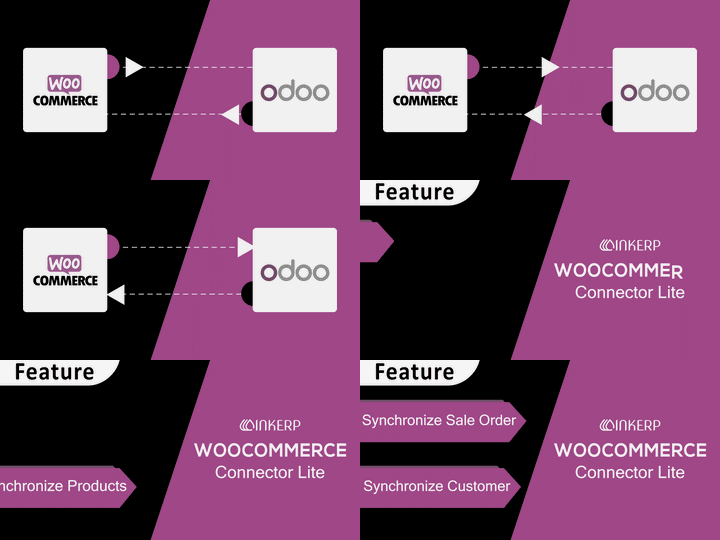
The Odoo WooCommerce Connector is a powerful integration module designed to seamlessly connect Odoo with WooCommerce, enabling efficient synchronization of eCommerce and ERP operations. It automates the flow of critical business data such as products, sales orders, customers, and financial information between the two platforms
 Features
 Screenshots
 Support
 Service
Features
Multi-Instance Support
Manage multiple WooCommerce stores from a single Odoo environment with ease. This feature allows businesses to configure and operate different store instances independently, each with its own settings and credentials. It is especially useful for organizations handling multiple brands, regions, or marketplaces, ensuring centralized control while maintaining flexibility in operations.
Product Synchronization
Keep product data consistent across Odoo and WooCommerce through automated synchronization. This includes product details, variants, attributes, pricing, and stock levels, ensuring that both platforms always reflect accurate and up-to-date information.
Sales Order Synchronization
Automatically sync sales orders from WooCommerce into Odoo, enabling efficient order processing and fulfillment. Orders placed on the online store are instantly reflected in Odoo, allowing teams to manage invoicing, shipping, and tracking without delays.
Customer & Journal Synchronization
Synchronize customer records and accounting journals between WooCommerce and Odoo for complete data alignment. Customer details such as contact information and transaction history are maintained accurately, supporting better customer relationship management.
Screenshot
1.) Dashboard
A centralized overview provides quick access to key integration activities and system status, helping users monitor operations and navigate efficiently between different functions.

2.) Instance Creation
A simple configuration interface allows users to connect WooCommerce by entering API credentials and required details, making setup quick and straightforward.

2.1) Other Configuration Tab in Instance
Product Backorder: Here user can configure whether Product Backorder will be imported from woocommerce or not. Product Status: Here user can configure whether Product Status will be imported from woocommerce or not.Product Catalog Visibility: Here user can configure whether Product Catalog Visibility will be imported from woocommerce or not.Product Tax Status: Here user can configure whether tax will be imported from woocommerce or will be managed by Odoo as per default Odoo functionality.
Navigation : eCom → Configuration → Instances

3.) Exporting Product to Middle Layer
Products can be selected individually or in bulk and pushed to the integration layer with ease, simplifying product data management.

3.1) Export Product to Middle Layer Pop-Up
A selection option lets users choose the appropriate instance for exporting products, ensuring accurate data routing.

4.) Product Template in Middle Layer
Detailed product records are maintained in the middle layer, enabling smooth mapping and synchronization between WooCommerce and Odoo.

4.1) Products Tab
Product variants are organized clearly, with mapping information and external platform identifiers available for easy tracking.

4.2) Other Information Tab
Comprehensive product details such as pricing, weight, barcode, and stock levels are accessible in one place for better management.

4.3) Attribute Lines Tab
Product attributes like size, color, and variations are structured clearly, allowing accurate synchronization of configurable products.

4.4) Tax and Stock Tab
Relevant tax configurations and stock management details are organized to ensure accurate financial and inventory tracking.

4.5) Shipping and Backorder
Shipping-related configurations and backorder settings are maintained to reflect real-time fulfillment capabilities.

5) Product Variant Form View
Individual product variants include detailed mapping information between WooCommerce and Odoo, ensuring precise synchronization.
Navigation : eCom → Mapping → Product Variants

6.) Bulk Import/Export Operations
A unified interface allows users to perform various synchronization actions such as importing, exporting, and updating data across systems.
Navigation : eCom → Synchronization → Import/Export Operations

6.1) Import Operation
Options to import products, customers, and sales orders enable quick onboarding of WooCommerce data into Odoo.

6.1.1) Category Import
Product categories can be imported efficiently, maintaining proper catalog structure.

6.1.2) Attribute & Values Import
Attributes and their values are synchronized to support configurable product setups.

6.1.3) Tax Class Import
Tax classes and rates are imported to ensure financial consistency across platforms.

6.1.4) Customer & Order Import
Customer data, sales orders, payment gateways, and coupons are synchronized for complete order lifecycle management.

6.2) Export Operation
Data can be exported from Odoo to WooCommerce, ensuring that product and configuration updates are reflected online.

6.2.1) Category Export
Categories created in Odoo can be pushed to WooCommerce, maintaining catalog alignment.

6.2.2) Attribute Export
Product attributes and their values are exported to ensure consistency in product variations.

6.2.3) Tax Rate Export
Tax configurations are synchronized to maintain accurate pricing and compliance.

6.3) Update/Import Operation
Existing product data can be updated by importing the latest information into the middle layer, keeping records current.

6.4) Update/Export Operation
Changes made in Odoo can be pushed to WooCommerce, ensuring real-time updates across systems.

7.) Sale Order Mapping
Sales orders are mapped between WooCommerce and Odoo, allowing seamless tracking and order processing.
Navigation : eCom → Mapping → Sale Orders

8.) Customer Mapping
Customer records are synchronized and linked across platforms for unified customer management.
Navigation : eCom → Mapping → Customers

9.) Account Journal Mapping
Financial journal entries are aligned between systems to support accurate accounting processes.
Navigation : eCom → Mapping → Account Journals

10.) Tax Class Mapping
Tax classes are mapped to ensure proper tax application in transactions.
Navigation : eCom → Mapping → Tax Class

11.) Synchronization History
A detailed log tracks all synchronization activities, providing transparency and helping with troubleshooting.
Navigation : eCom → History → Synchronization

12.) WooCommerce General Settings
Centralized settings allow users to manage overall integration behavior and configuration efficiently.

User Guide