

Our Most Suggested Products


Website Quotation Images
Website Quotation Images adds product visuals to online quotations, creating a more engaging and informative experience for customers. The functionality can be fully enabled or disabled from the settings, offering complete flexibility to adapt to different business requirements. With straightforward configuration and seamless integration, it enhances quotation presentation while keeping management simple and efficient.
Video Tutorial

 Features
 Screenshots
 Support
 Service
Features
Product Image Integration :
Quotations can display product visuals alongside details, making proposals more engaging and easier to understand.
Flexible Enable/Disable Option :
The entire feature can be switched on or off directly from the settings, offering complete control based on business needs.
Enhanced Customer Experience :
Visually enriched quotations improve clarity and presentation, helping customers make quicker and more confident decisions.
Screenshot
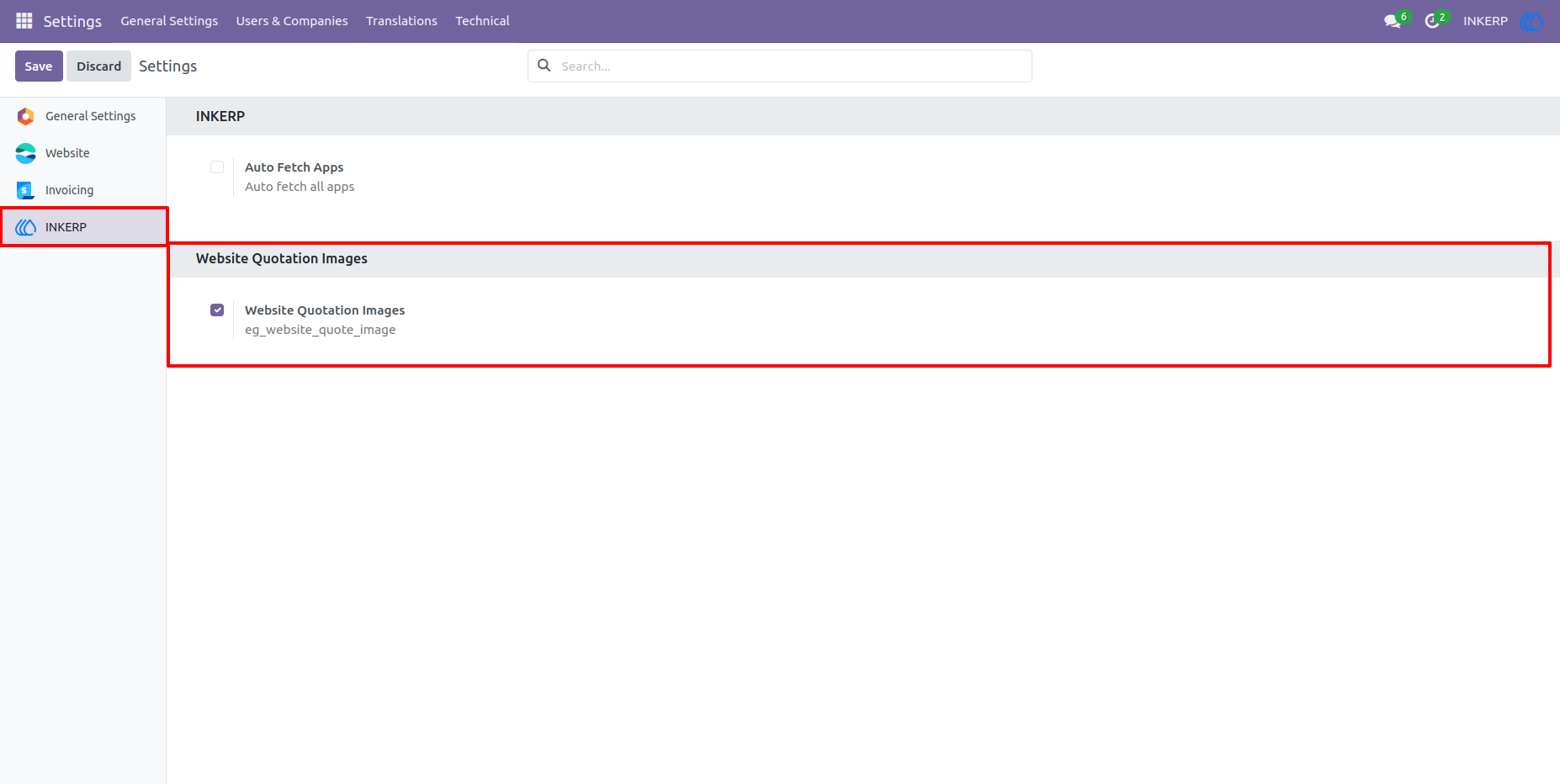
1.) Enable Website Quotation Images :
Enable Website Quotation Images from setting of INKERP.
Entire Functionality can be enable or disable from this setting.
Navigation : Settings › INKERP
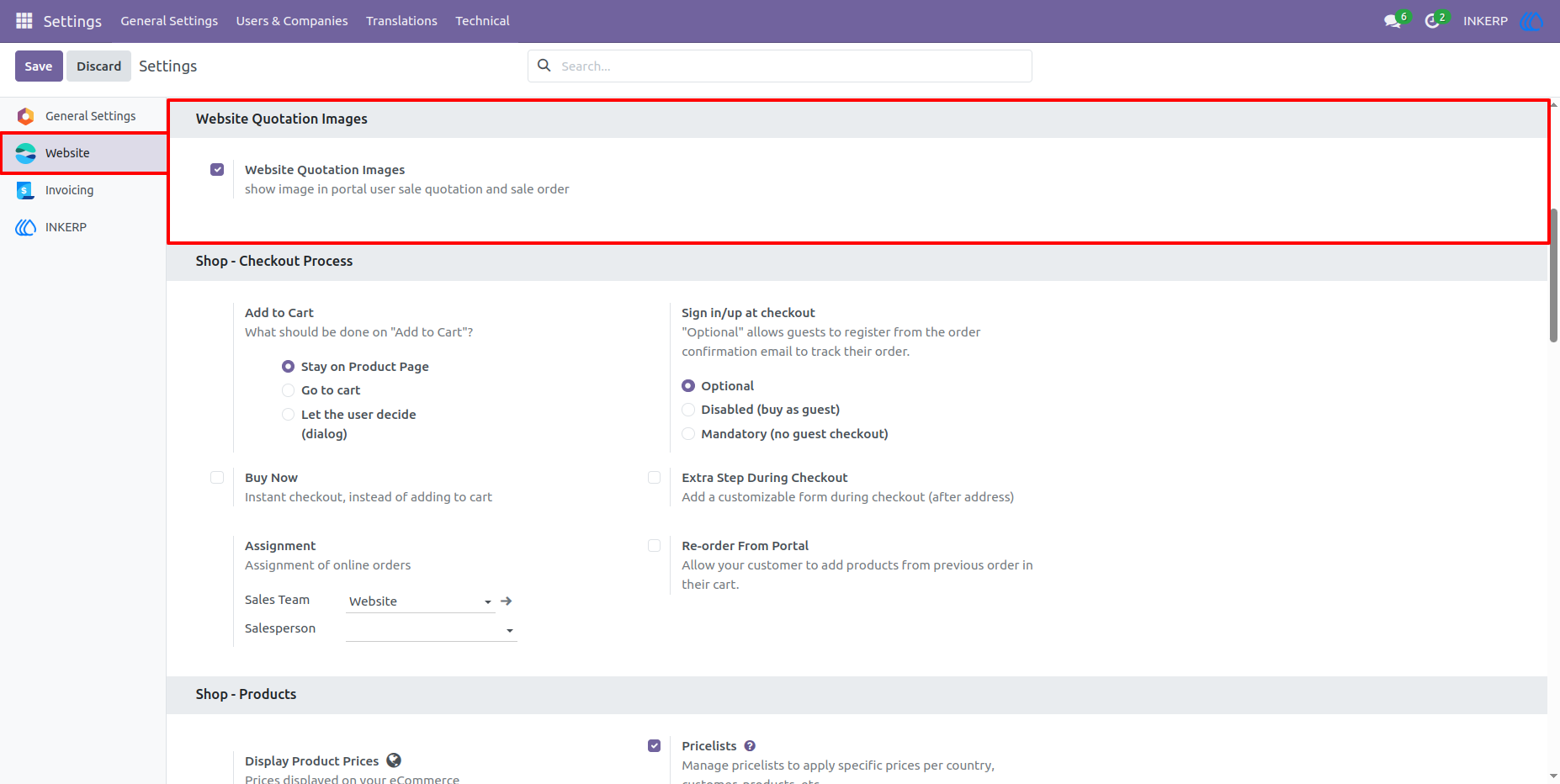
2.) Enable Website Quotation Images :
If want to enable for one wabsite and disable for another one, then that is possible from this setting.
Navigation : Settings › Website
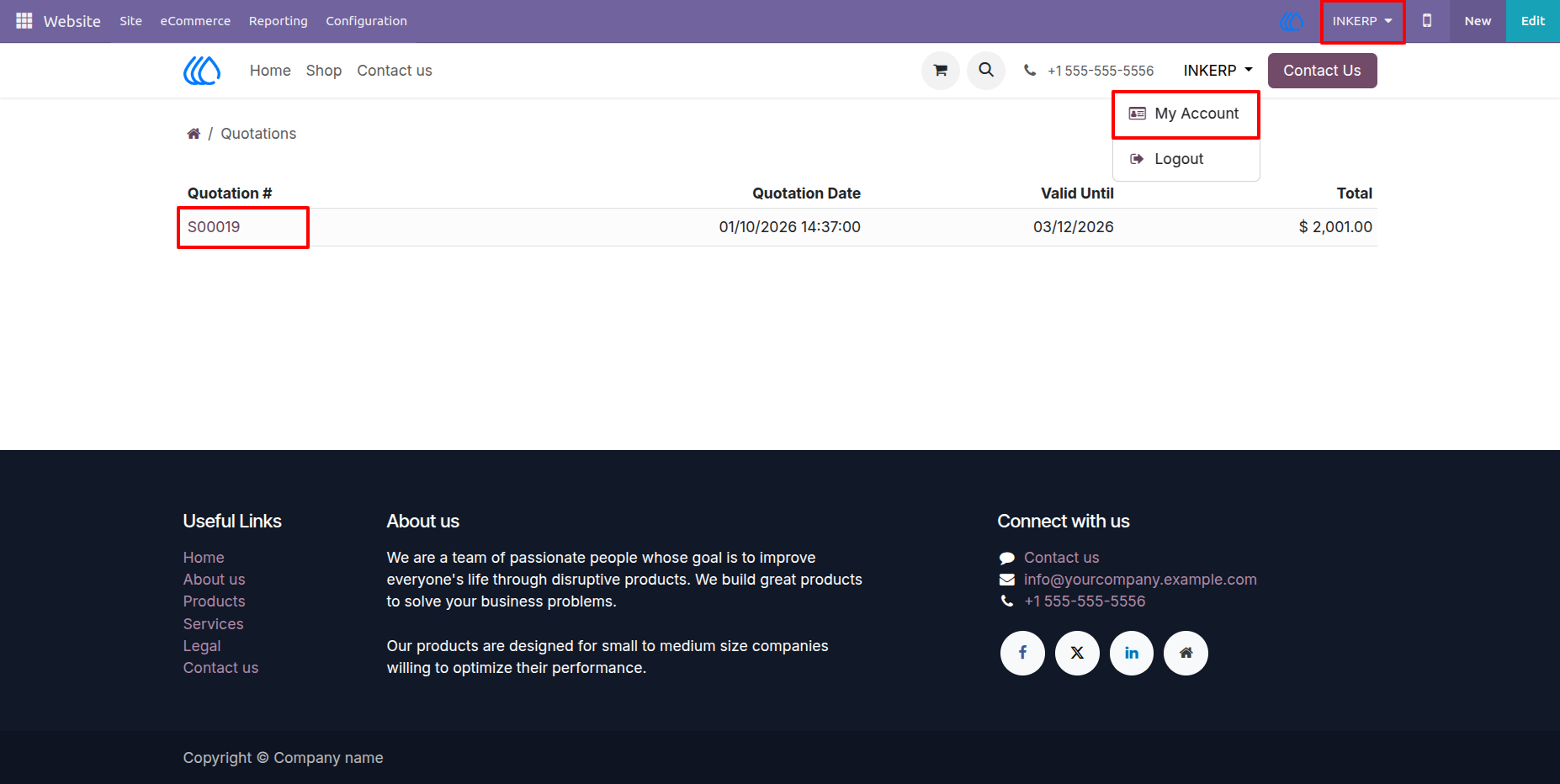
3.) Go to Quotationns in Website :
Go to Quotation from quotation menu of account section.
Navigation : Website › My Account › Quotation
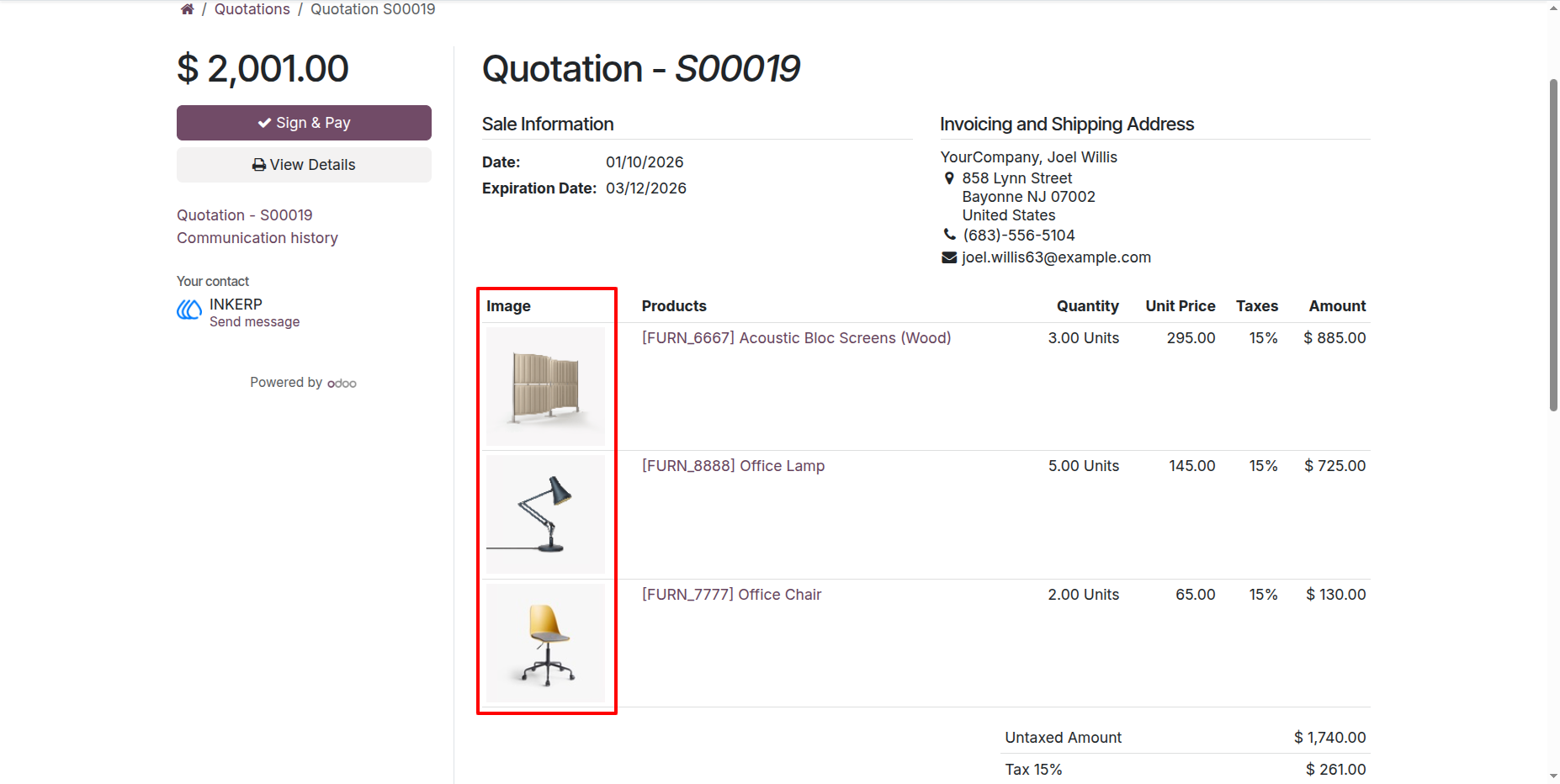
4.) Quotation View In Website for Customer :
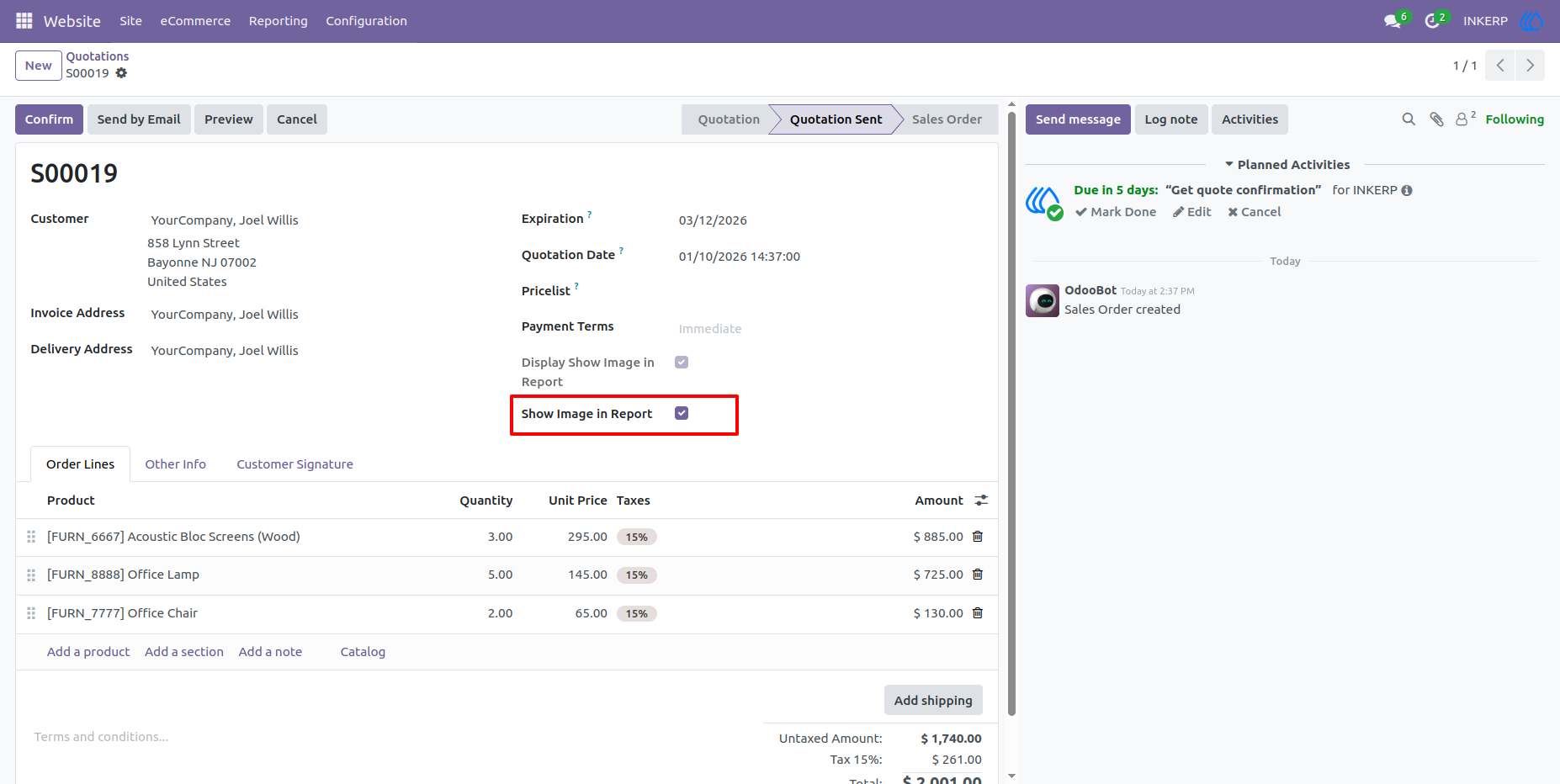
5.) Enable Show Image in Sale Order :
Navigation : Website › eCommerce › Orders
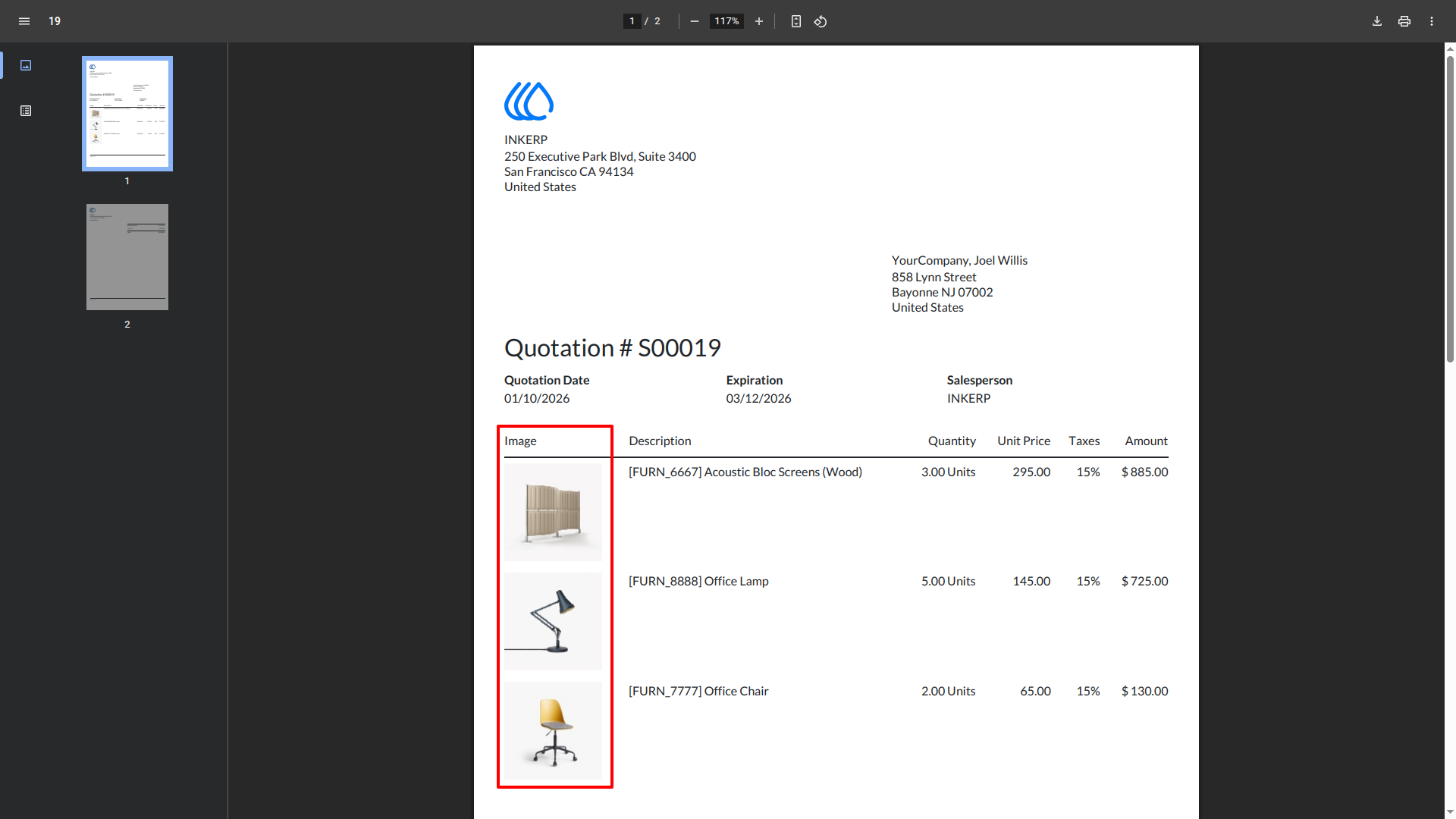
6.) Image in Report of Sale Order :
User Guide