

Our Most Suggested Products


User Menu Restriction
The User Menu Restrictions module allows administrators to secure sensitive information by hiding specific menus and applications from individual users. Applying personalized access limits creates a clean, role-specific workspace that removes unnecessary distractions for your team. Administrators maintain full visibility over the system while ensuring employees only access the tools they need.
 Features
 Screenshots
 Support
 Service
Features
Secure Access Control
Protect sensitive business information by tailoring access for each individual user. You can completely hide critical areas from unauthorized employees, ensuring your data remains secure, while administrators retain full control and visibility over the entire system.
Custom Workspace Setup
Create a clean and focused daily environment for your team. By easily selecting and hiding the specific tools or applications that employees do not need, you remove distractions and help them concentrate on their core tasks without any complex setup.
Screenshot
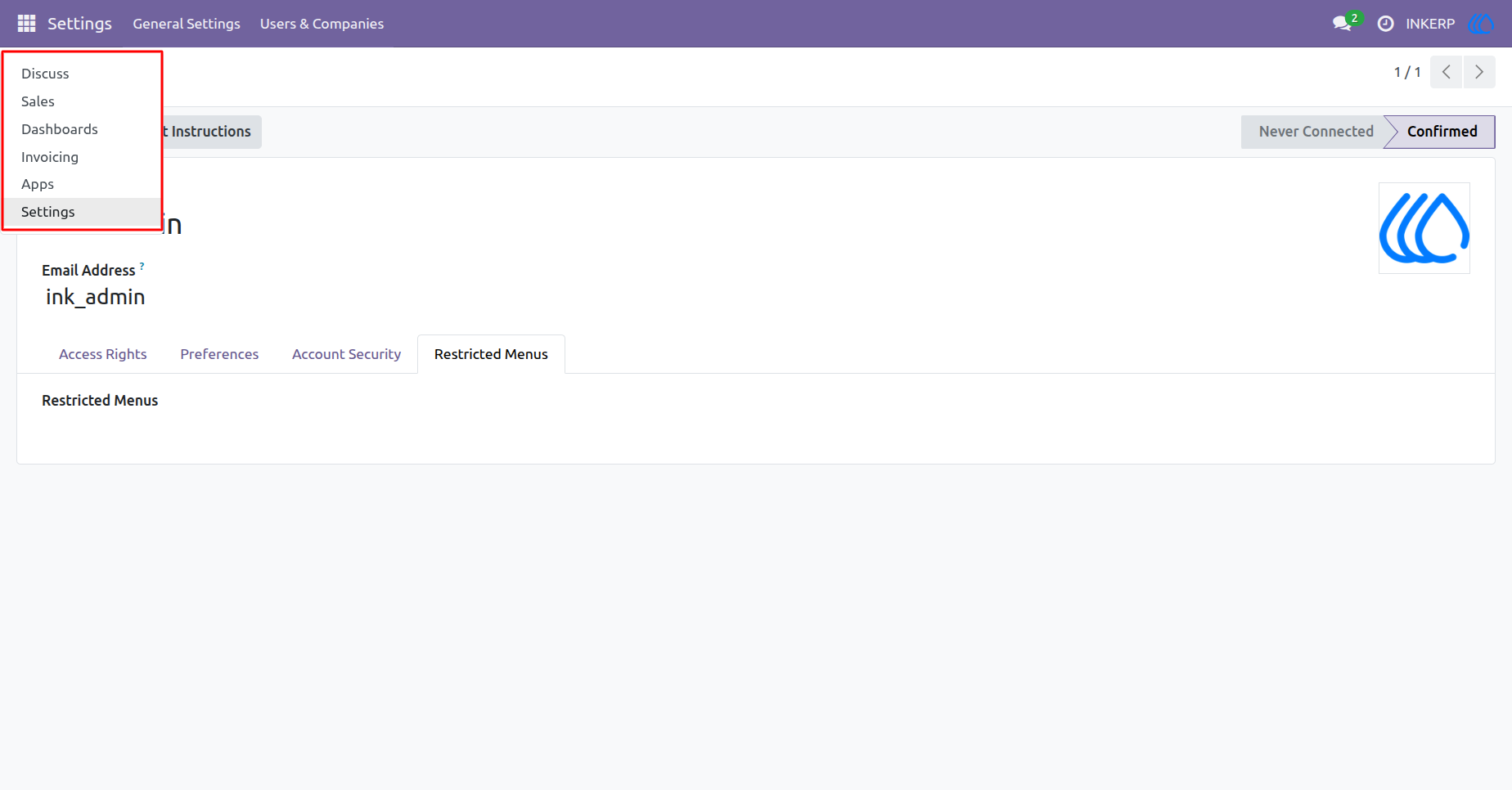
1.) Default Menu Access
By default, a user has access to all standard assigned applications. The main navigation menu displays the complete list of available modules before any limits are put in place.
Navigation : Settings › Users & Companies › Users
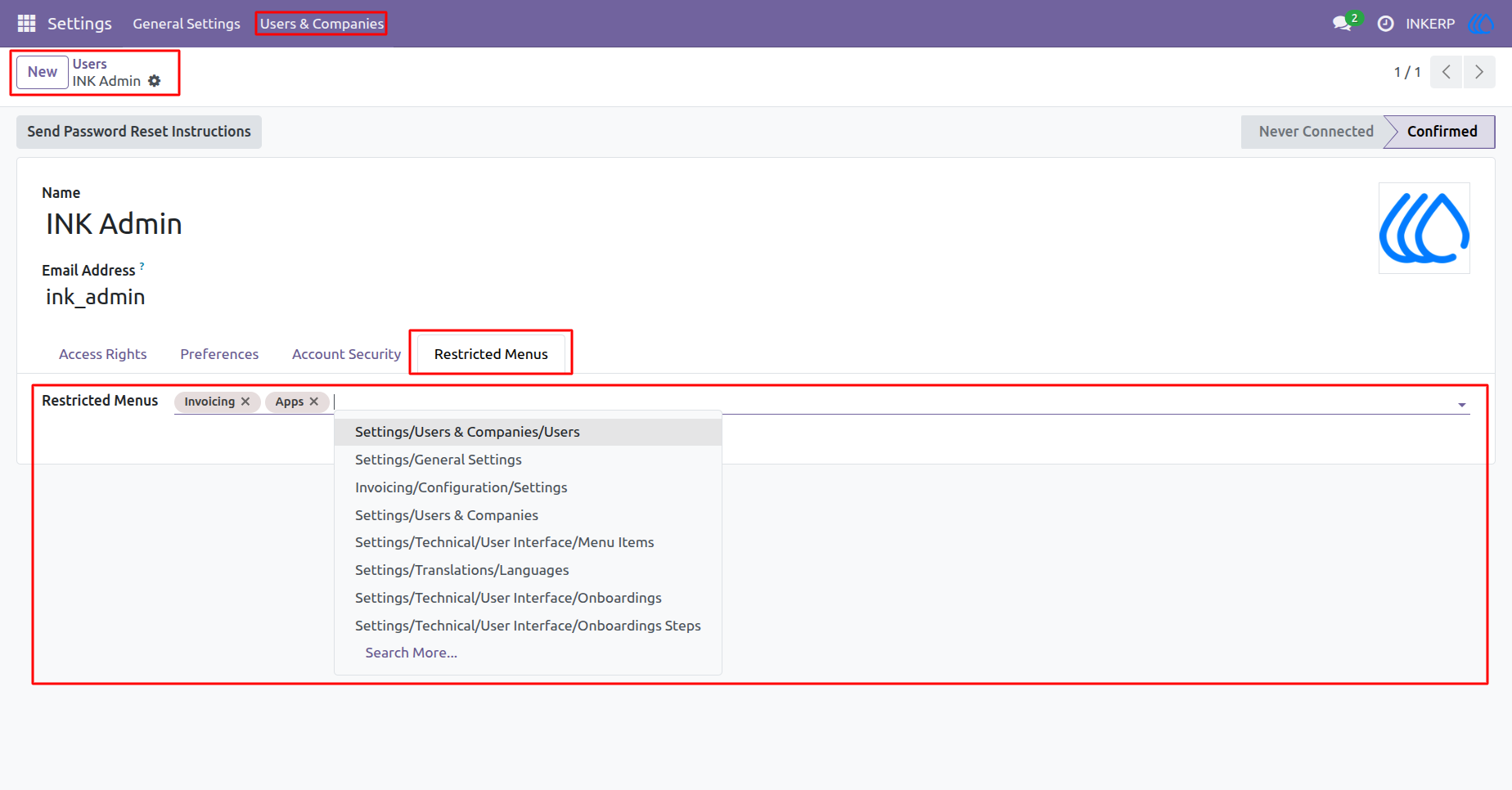
2.) Applying Menu Restrictions
Administrators can easily choose specific applications to hide from a user. Select the desired items from the dropdown list within the user profile to remove access to those sections.
Navigation : Settings › Users & Companies › Users
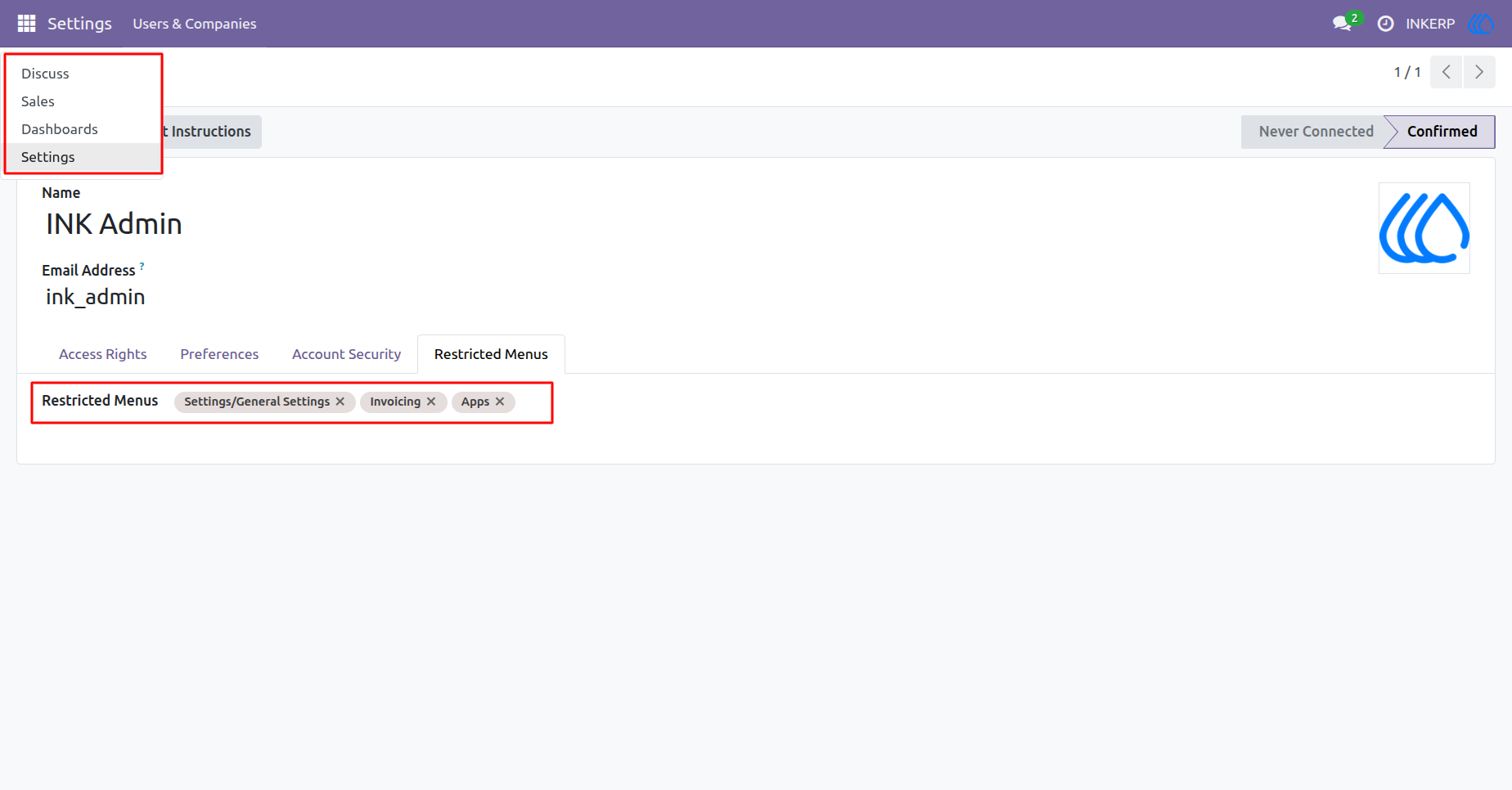
3.) Restricted After View
Once the limits are saved, the main navigation menu automatically updates. The restricted applications are completely hidden from the user, ensuring secure and controlled access.
Navigation : Settings › Users & Companies › Users
User Guide