

Our Most Suggested Products


Inventory Management
Inventory Management with Inter-Company / Inter-Warehouse Transfer enables seamless stock movement between multiple companies and multiple warehouses within Odoo. This module simplifies internal logistics by allowing users to transfer products across companies or warehouses while maintaining accurate stock levels, traceability, and accounting consistency.
 Features
 Screenshots
 Support
 Service
Features
1. Inter-Warehouse Stock Transfer
Inter-Warehouse Stock Transfer allows users to seamlessly transfer products between different warehouses within the same company. This feature ensures accurate stock movement by automatically updating inventory levels in both the source and destination warehouses. Users can initiate transfers with full visibility of available quantities, preventing negative stock issues. The system maintains complete traceability of each transfer, including transfer reference, source warehouse, destination warehouse, and transfer status.
2. Inter-Company Inventory Transfer
Inter-Company Inventory Transfer enables seamless stock movement between different companies within the same Odoo environment. This feature allows users to transfer products from one company to another while maintaining accurate inventory valuation and stock records for both entities. The system automatically updates stock quantities in the source company and reflects the received quantities in the destination company, ensuring full synchronization. Each transfer is fully traceable with proper documentation, including source company, destination company, transfer references, and transfer status.
3. Accurate Stock Quantity Synchronization
Accurate Stock Quantity Synchronization ensures that inventory levels are always updated and consistent across all companies, warehouses, and locations in real time. Whenever a stock movement occurs—such as sales, purchases, inter-warehouse transfers, or inter-company transfers—the system automatically adjusts product quantities without delay.
4. Multi-Company Compatibility
The module is fully compatible with Odoos multi-company environment. Each company sees only its relevant stock data, preventing cross-company data conflicts.
5. Custom Pivot View for Multi-Company & Multi-Warehouse Stock
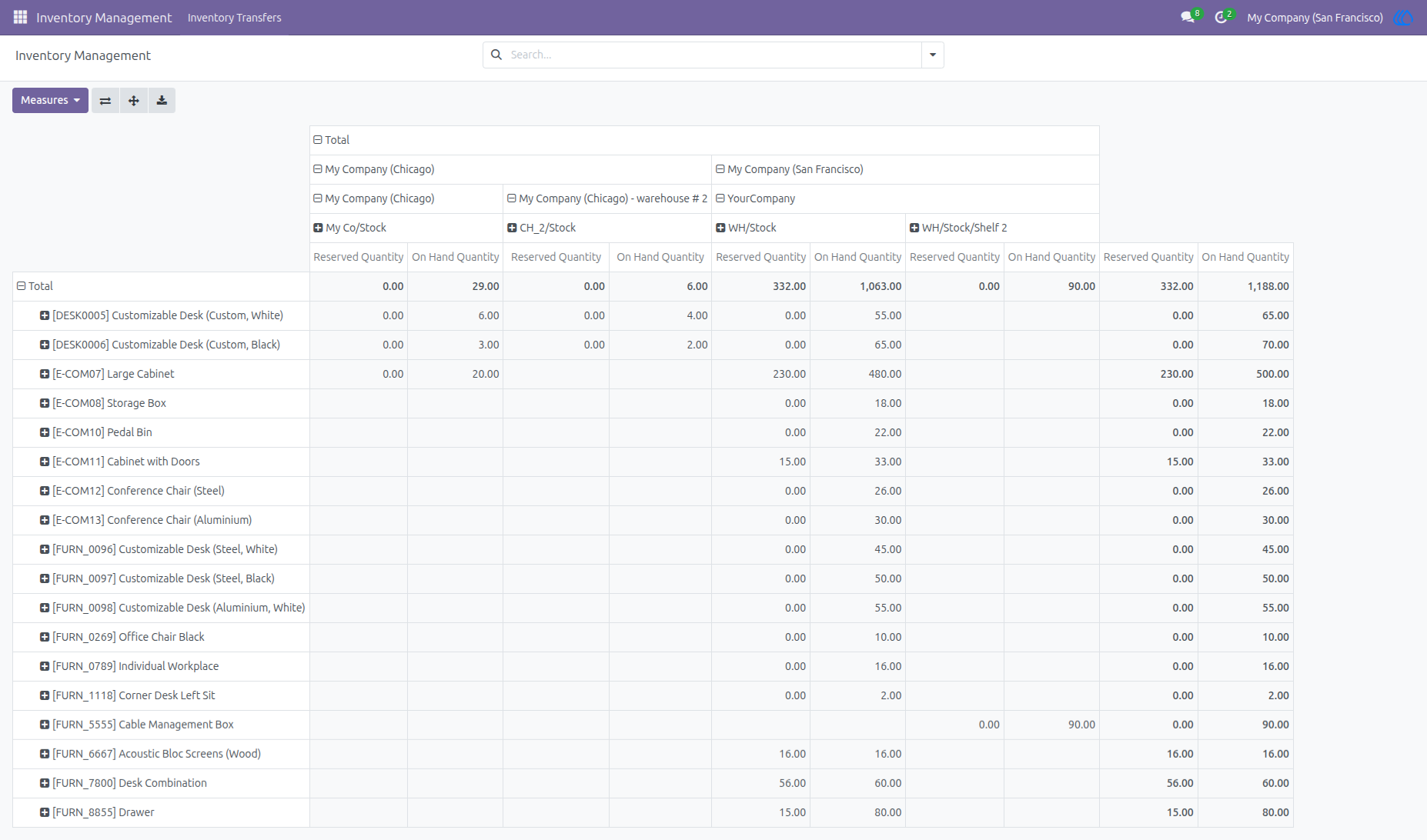
Custom Pivot View for Multi-Company & Multi-Warehouse Stock provides a powerful and centralized analytical view of inventory across multiple companies and warehouses in a single screen. This custom pivot table allows users to instantly analyze stock quantities without switching between companies or warehouse locations. Users can group and filter stock data by company, warehouse, location, product, or category, enabling quick comparisons and deep inventory insights. The pivot view dynamically updates based on real-time stock movements, ensuring accurate and up-to-date reporting at all times.
6) Manage All Stock at One Place
This feature allows users to manage and monitor inventory across multiple companies and multiple warehouses from a single centralized interface. Instead of switching between companies or warehouse locations, users can view all stock information in one place.
Screenshot
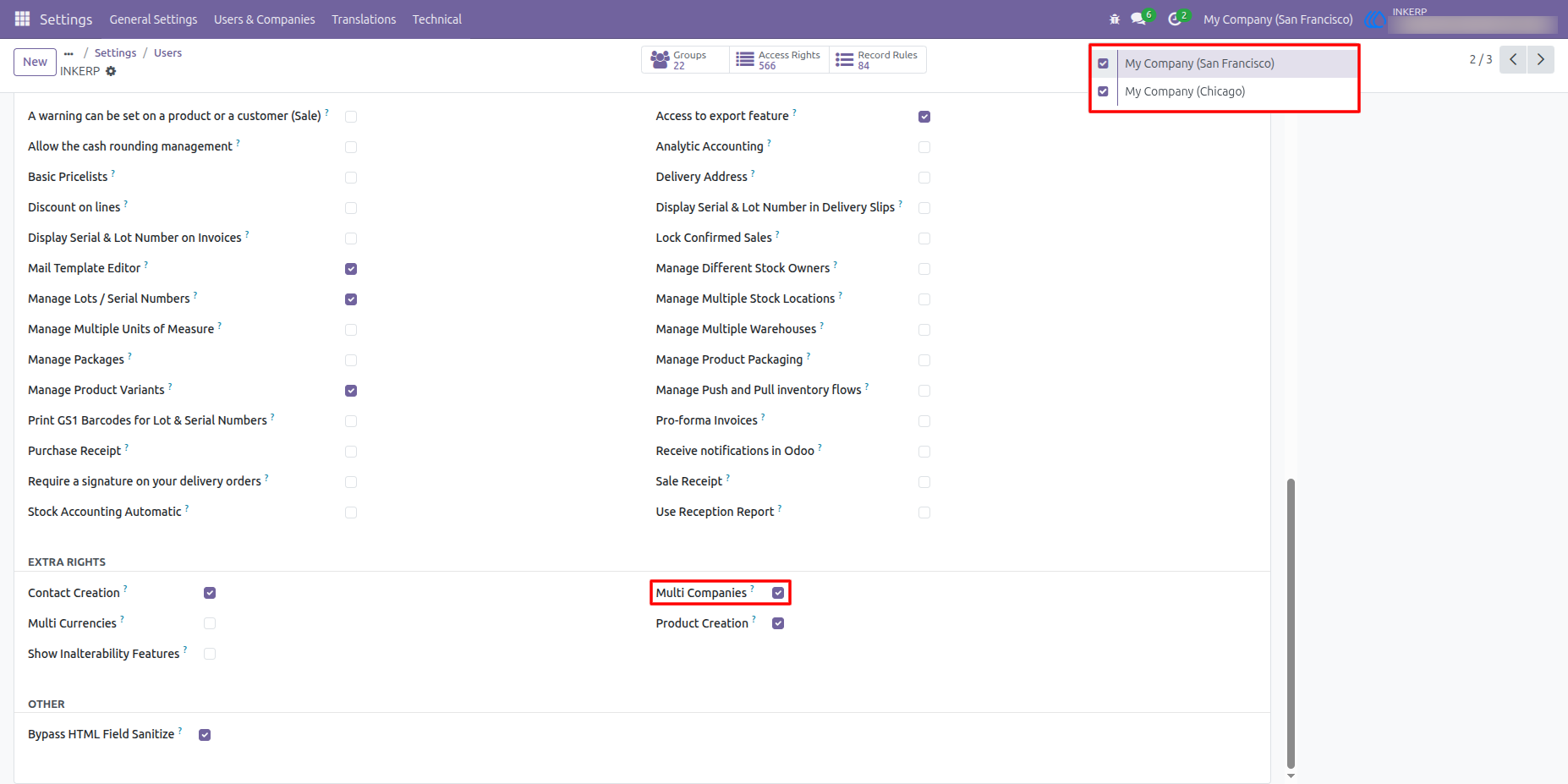
1). Assign Multi Company access to Admin
Here, the admin needs to assign multi-company access to the user and select the companies for performing multi-company transfers.
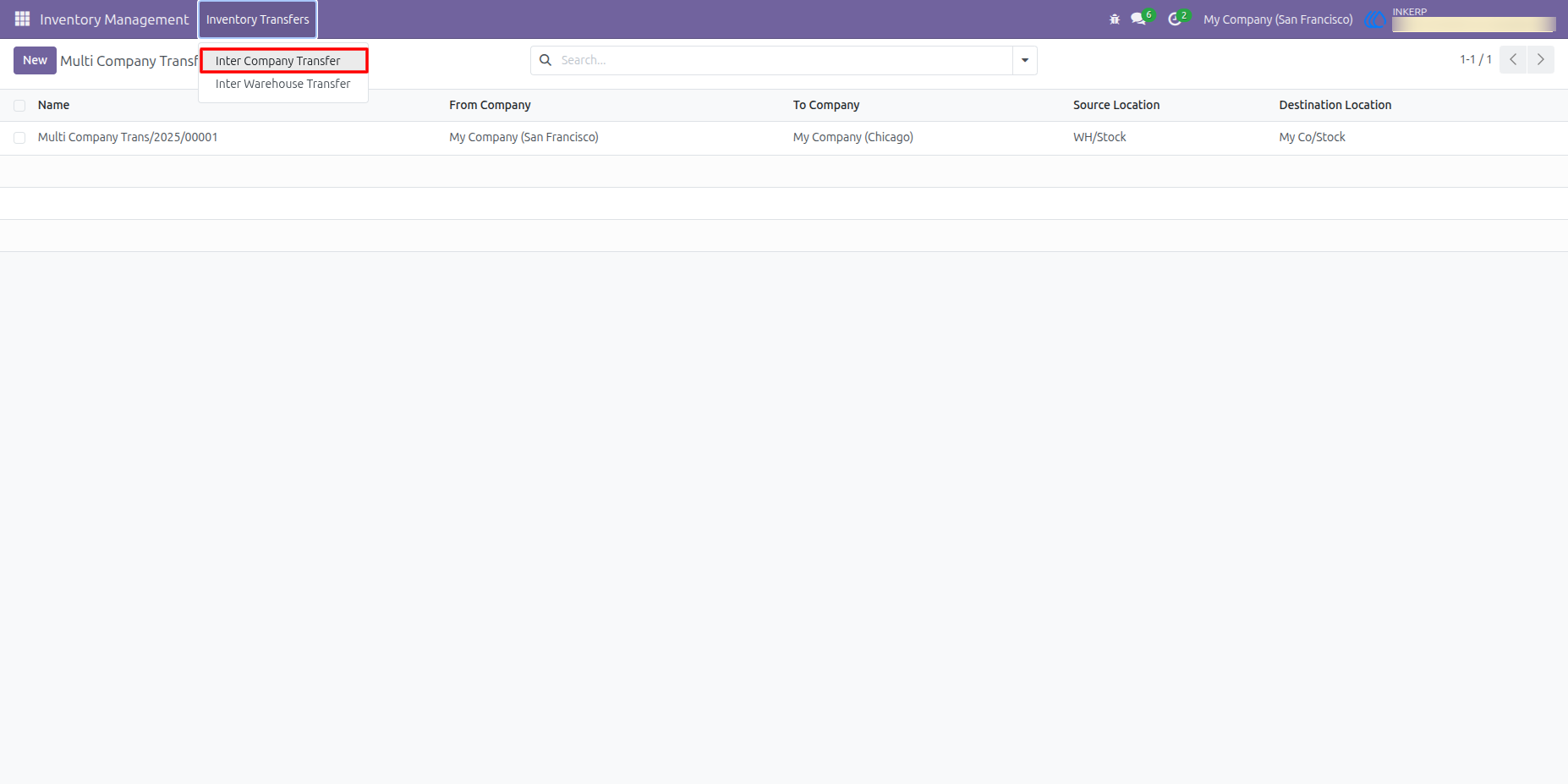
2) Inter Company Transfer
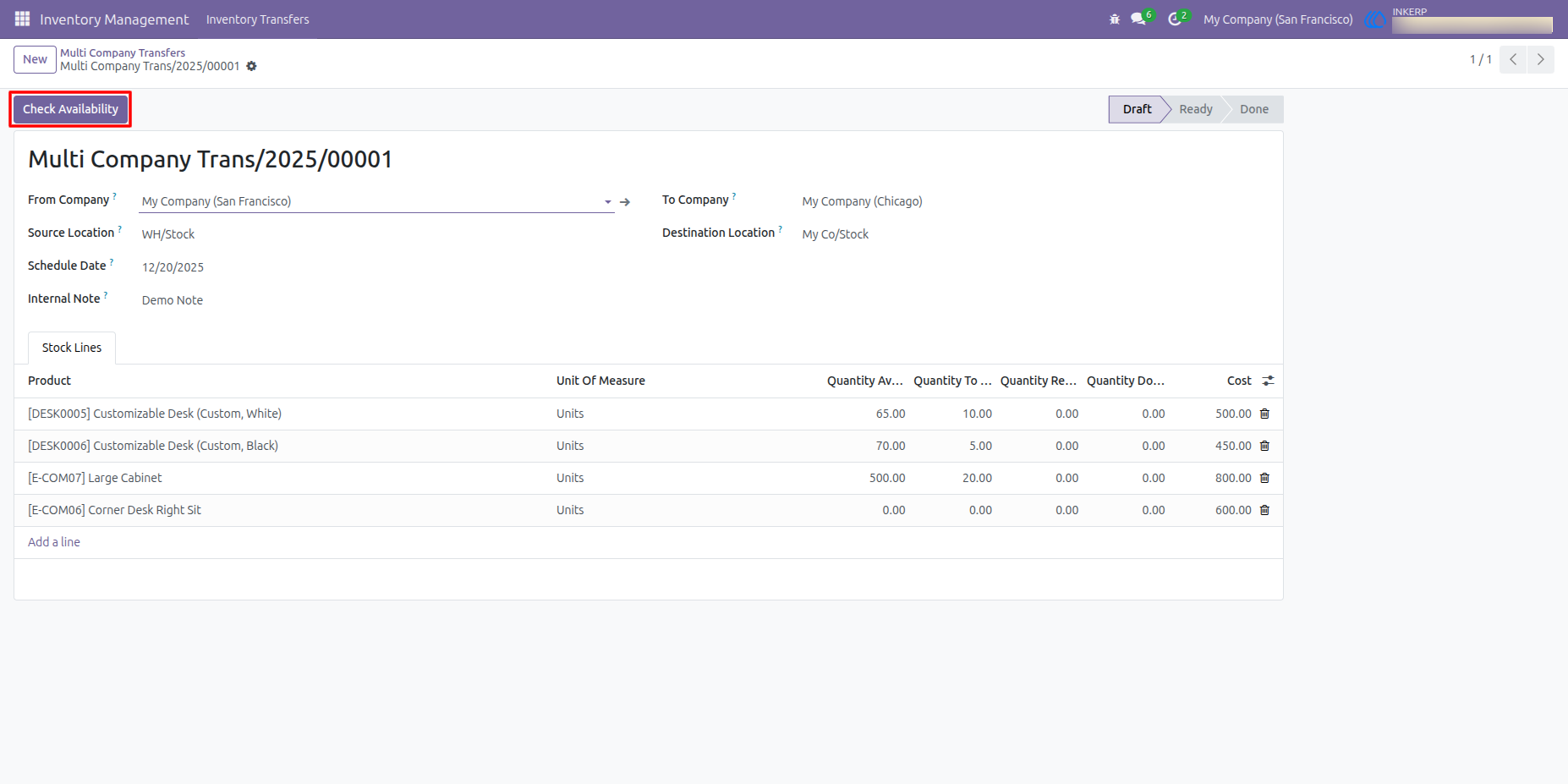
3) Stock Availability Checking
By clicking the "Check Availability" button, the user can check whether the stock is available in the source location.
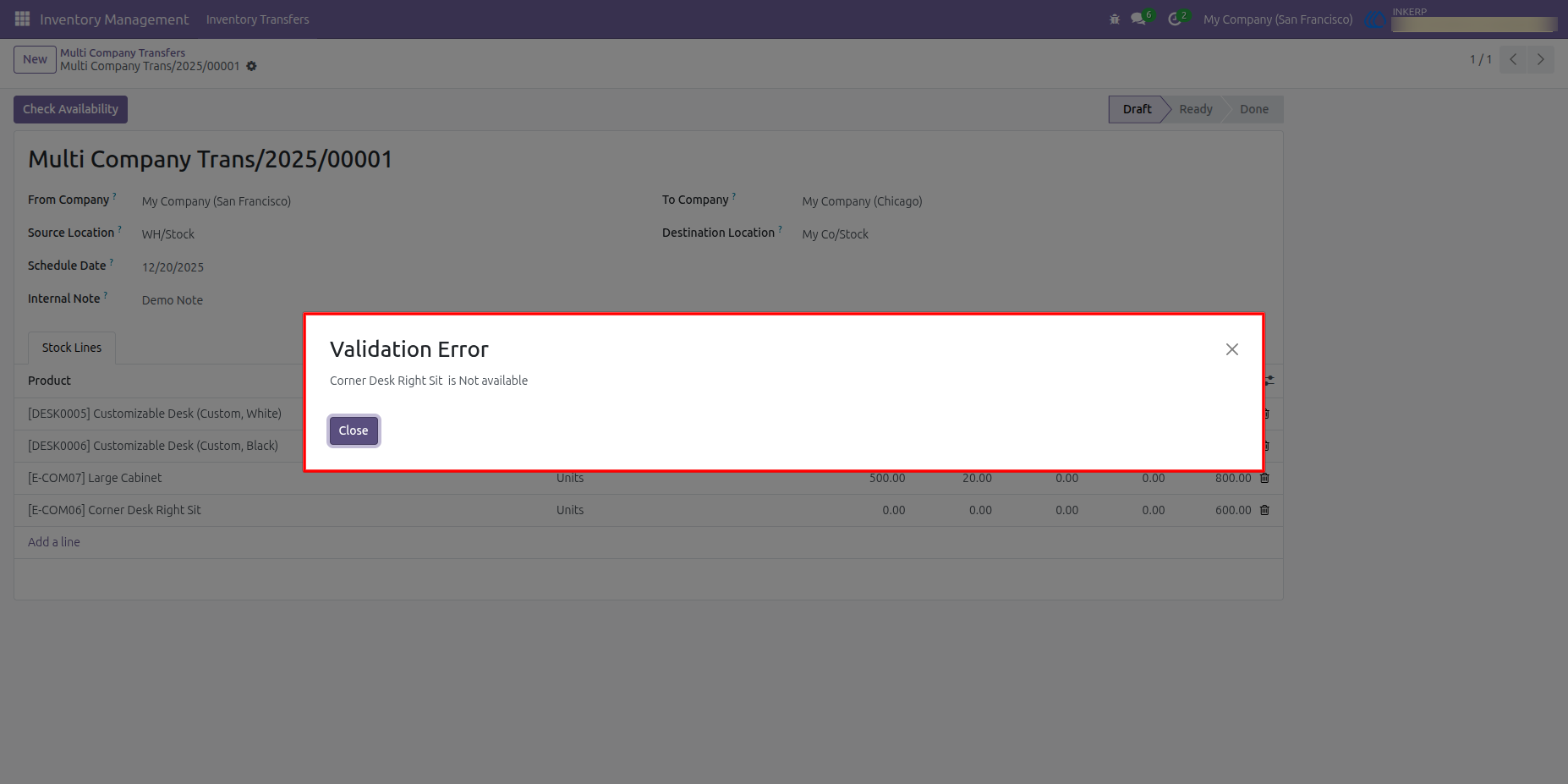
4) Stock Missing Alert
An error will be raised when the required transfer quantity is not available in the source location.
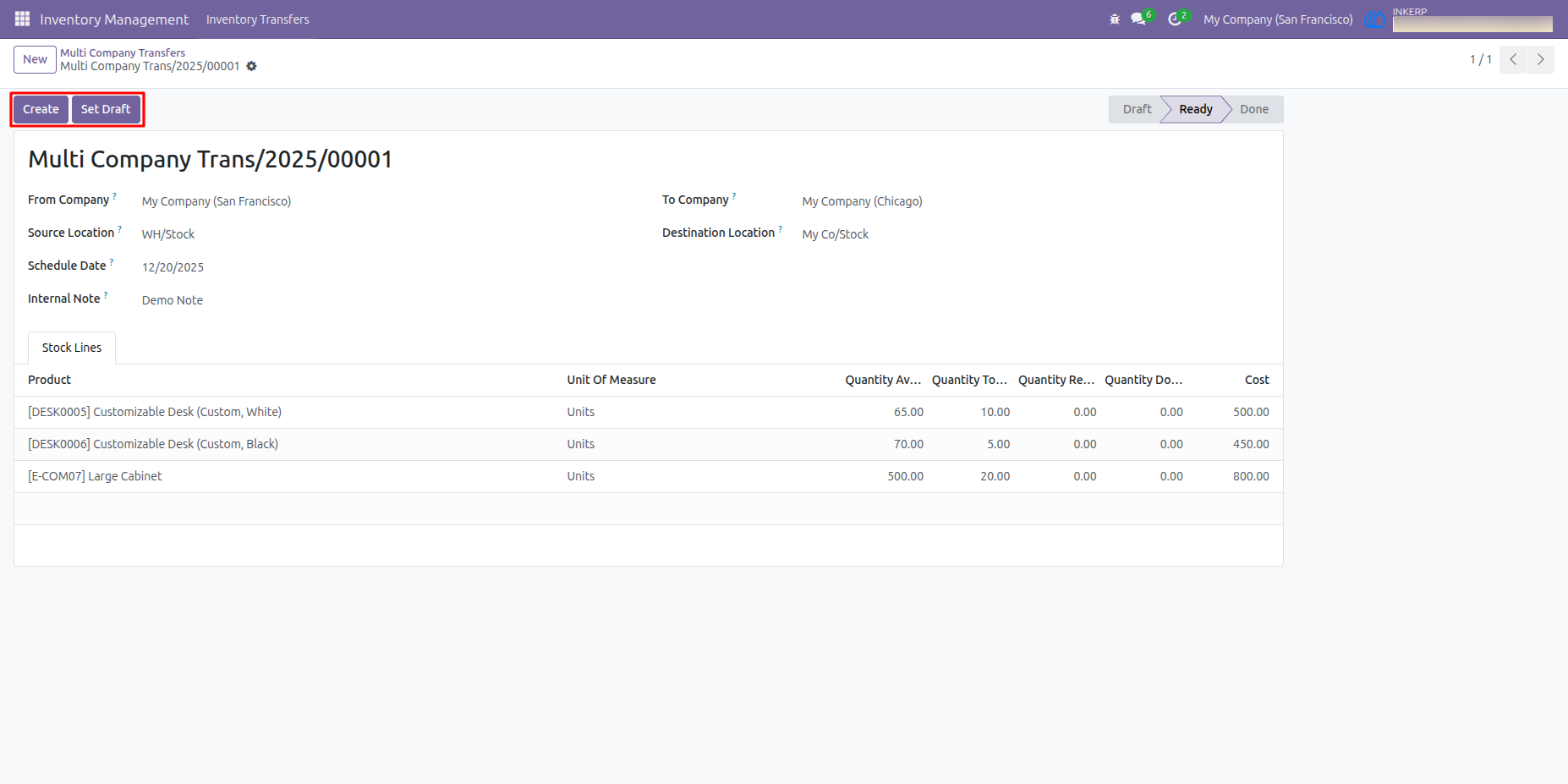
5) Create or Set Draft Button
Here, you can create the transfer or reset the transfer to draft.
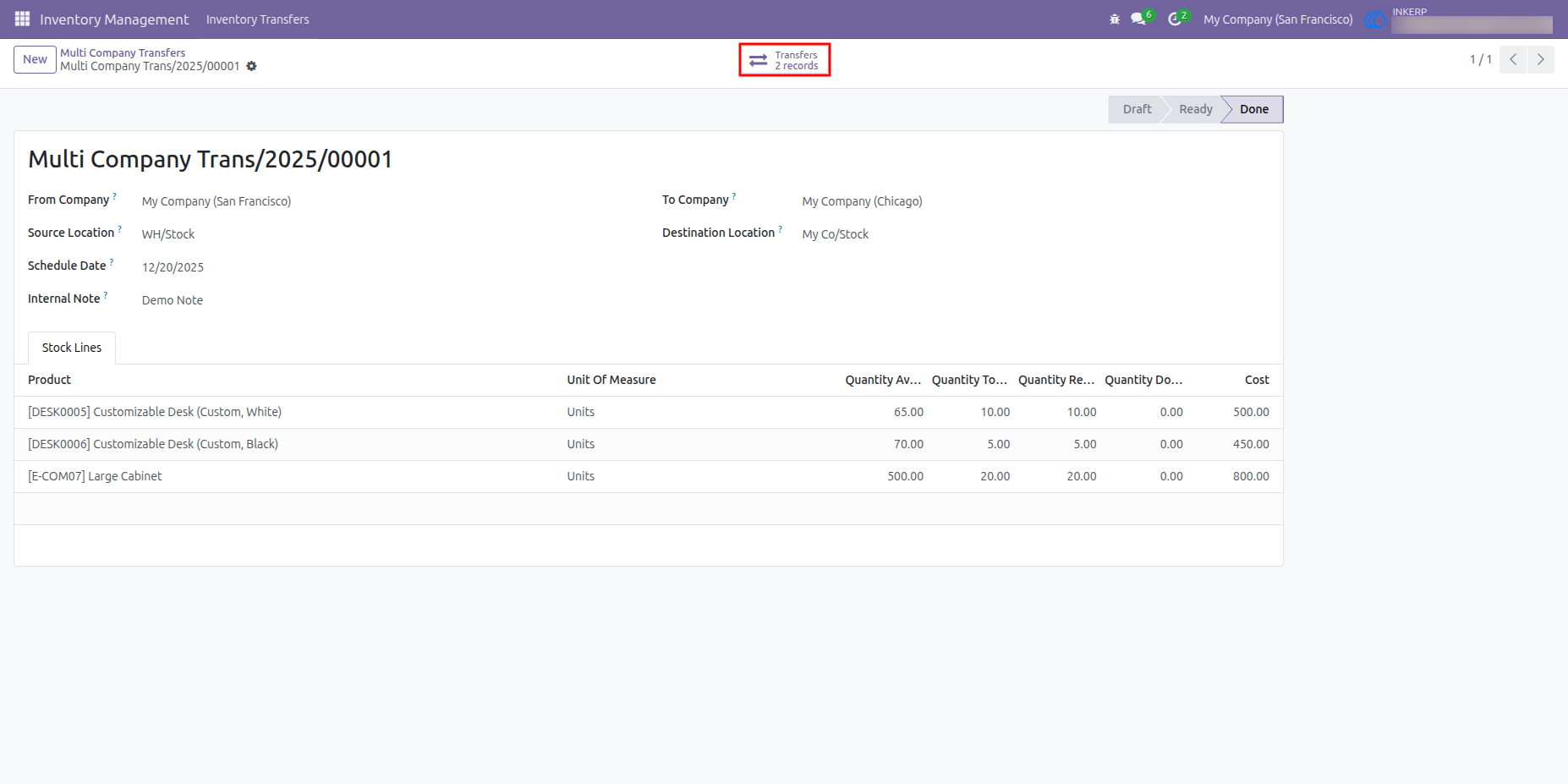
6) View Transfer
The user can view incoming and outgoing transfers by clicking this button.
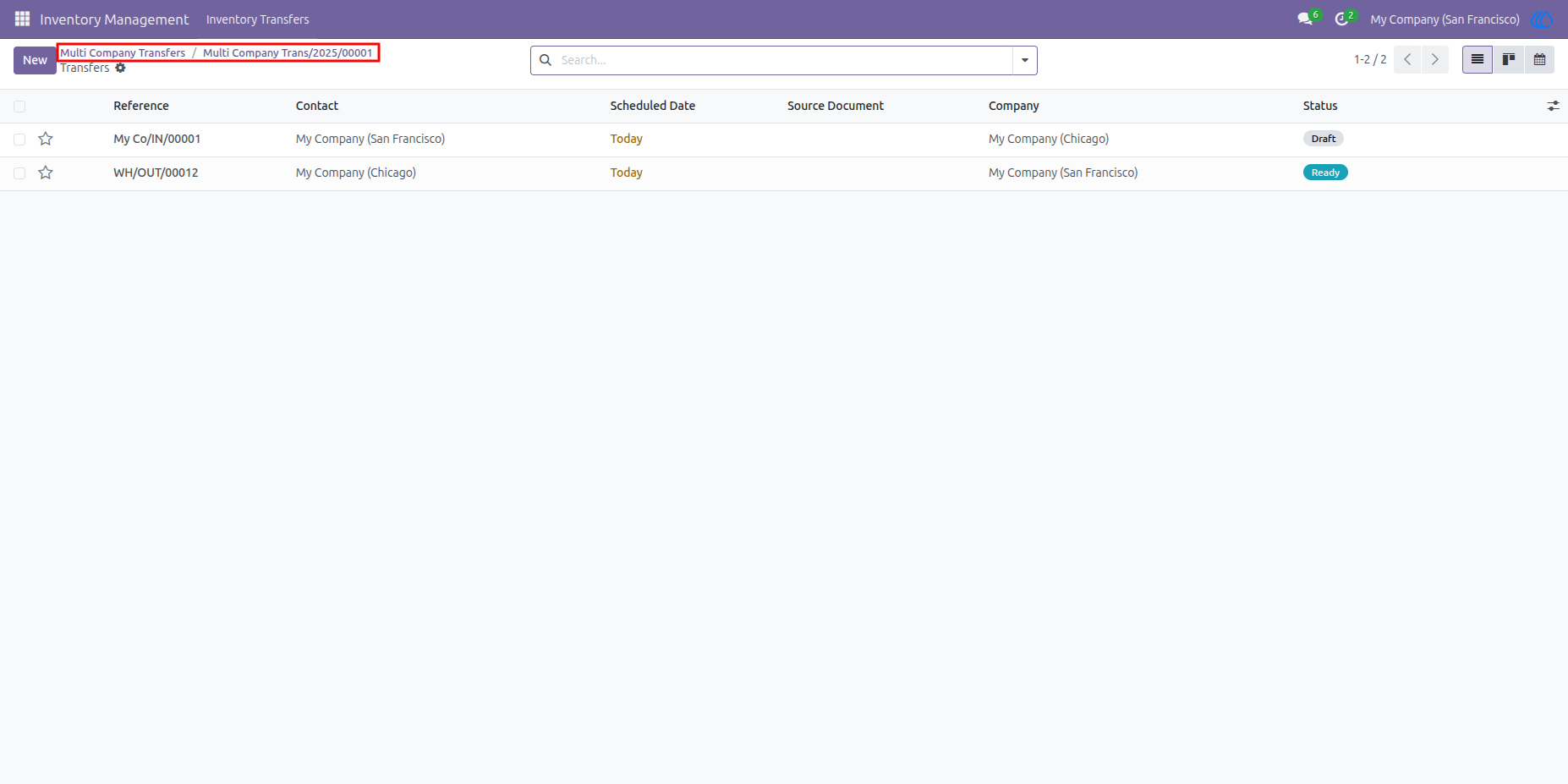
7) Incoming and Outgoing Transfers
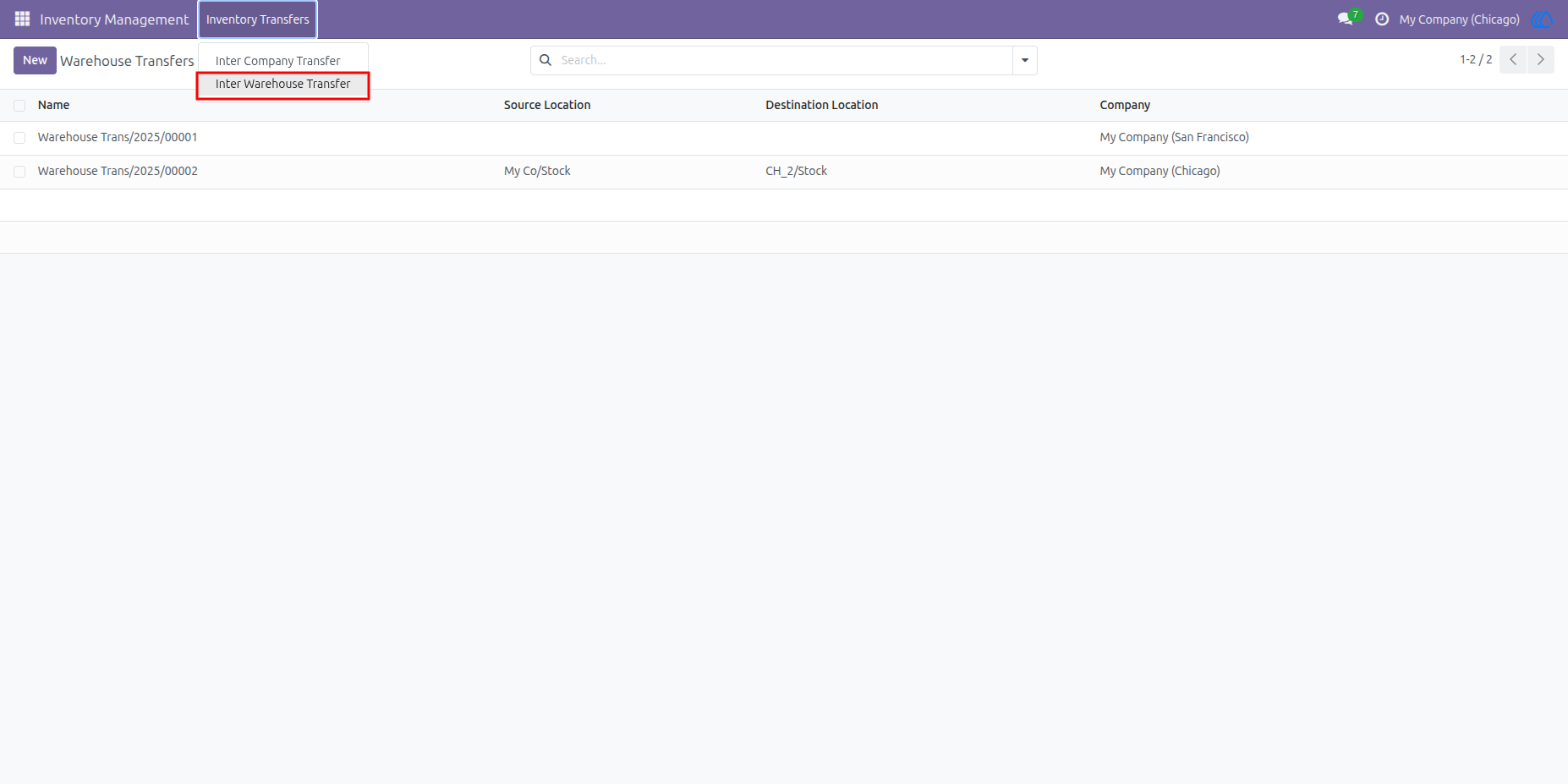
8) Inter Warehouse Tranfers
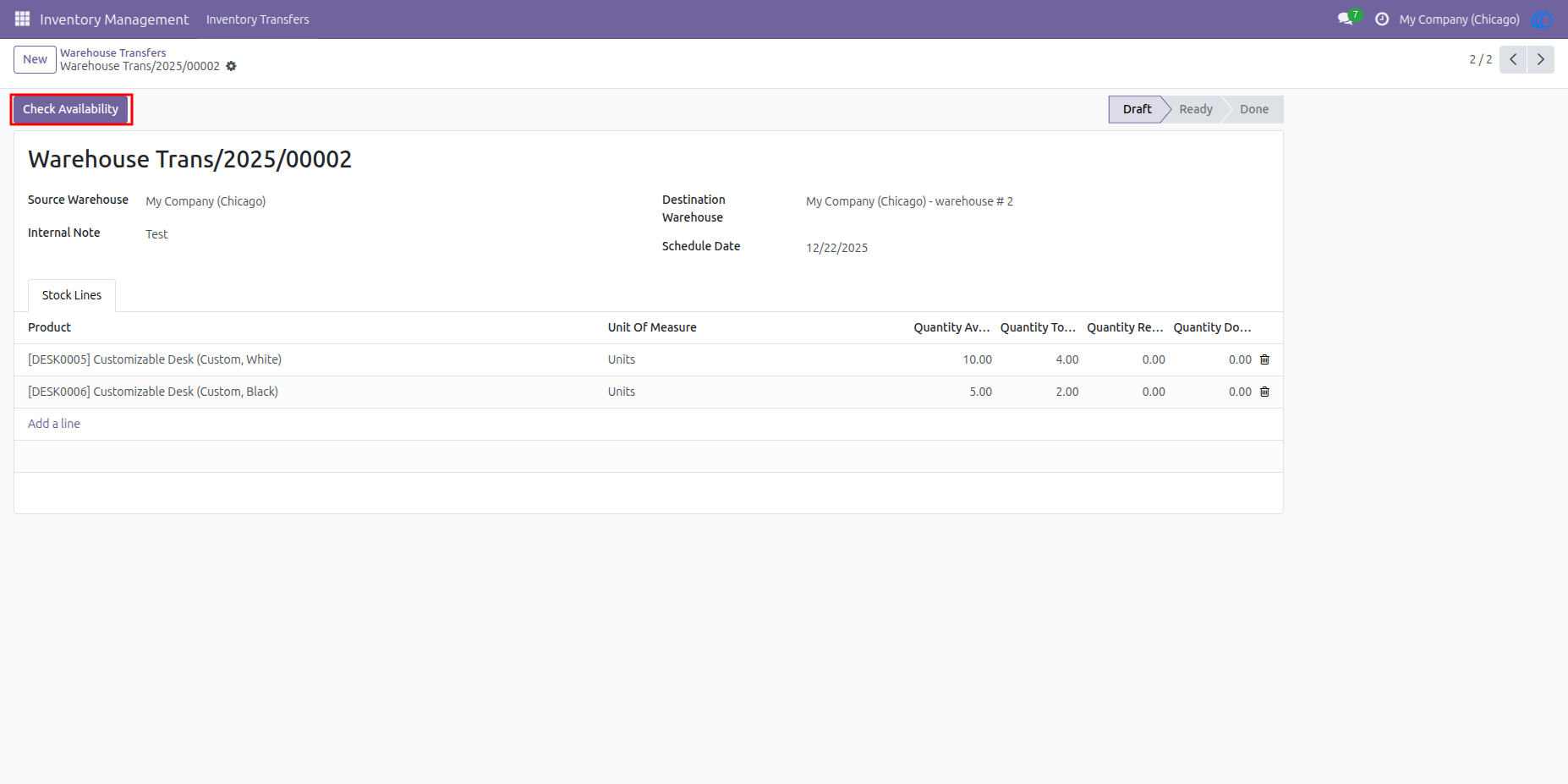
9) Stock Availability Checking
By clicking this button, the user can check stock availability in the source warehouse.
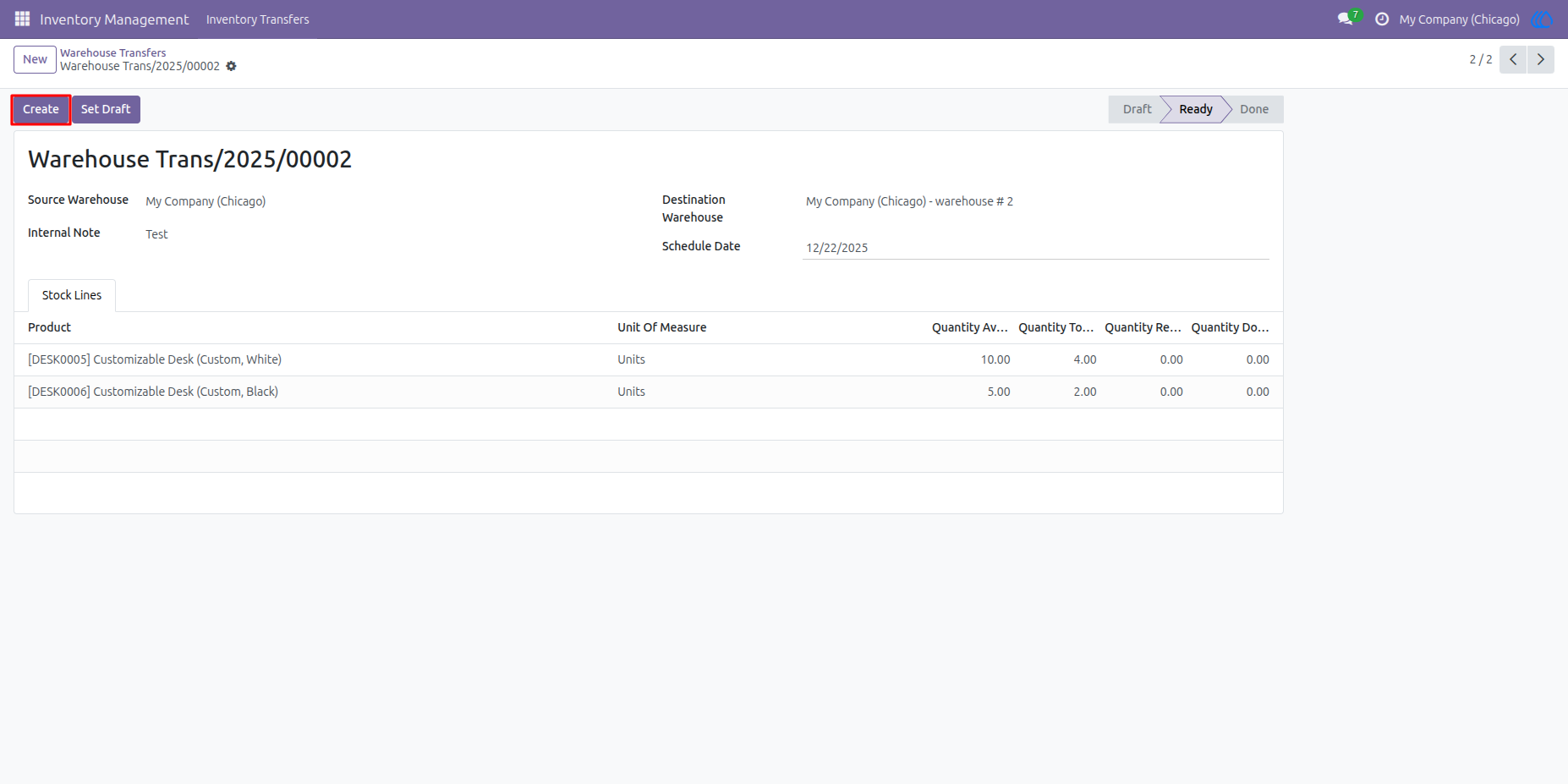
10) Create Transfers
By clicking this button, the user can create incoming and outgoing transfers.
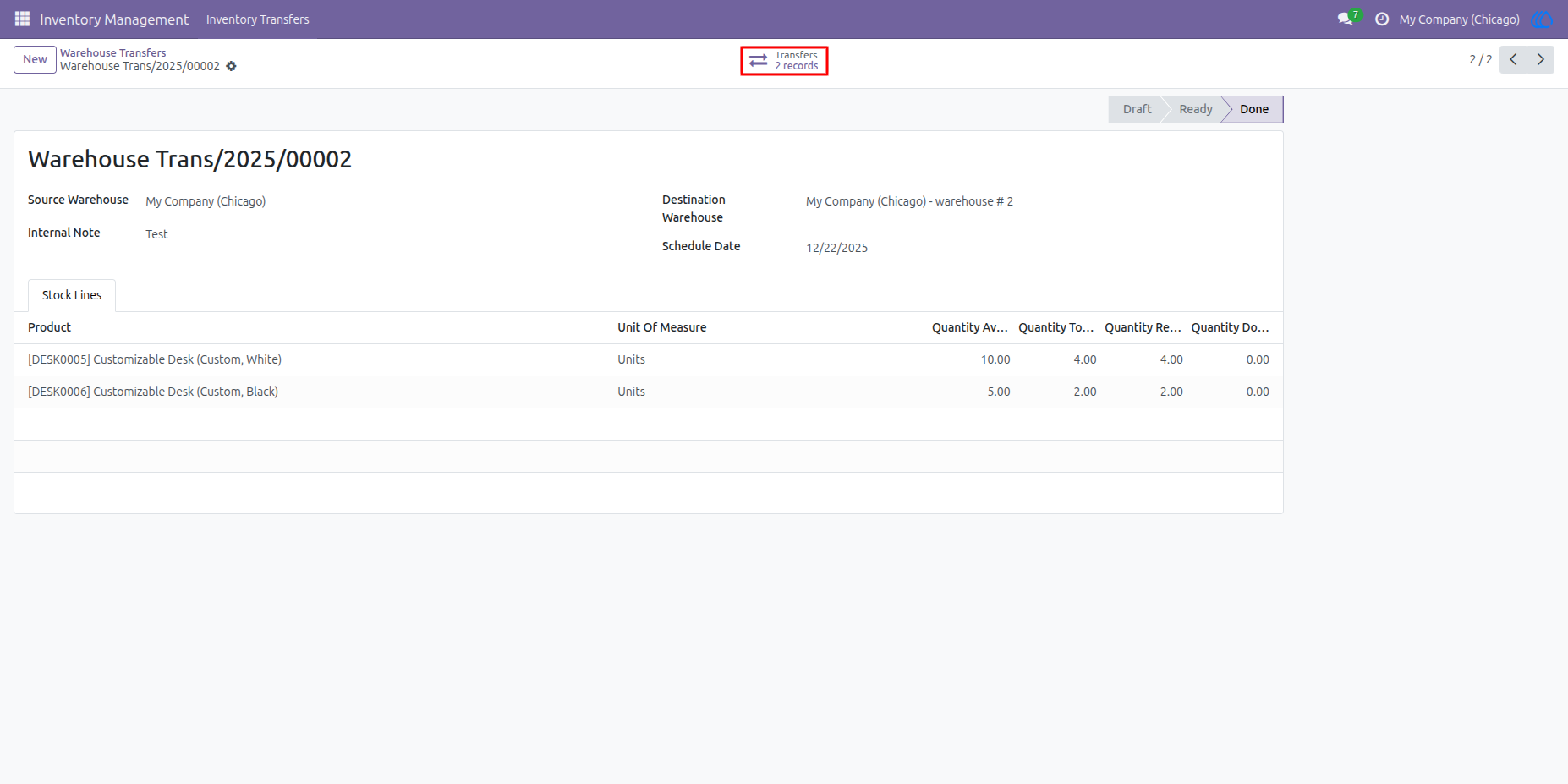
11) View Transfers
The user can view incoming and outgoing transfers by clicking this button.
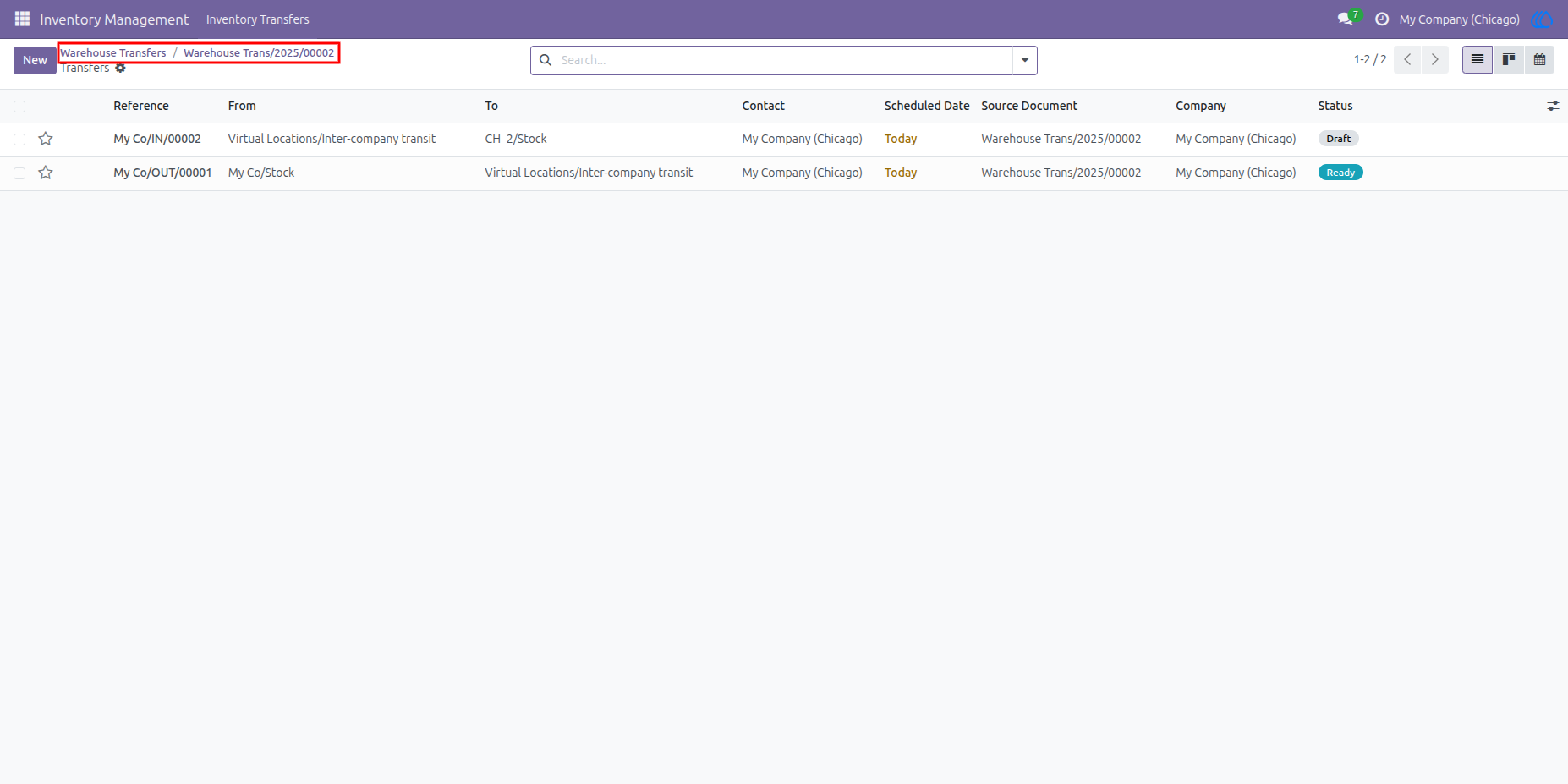
12) Incoming and Outgoing Transfers
13) Custom Pivot View
This custom pivot view allows the user to view all stock with company, location, and warehouse filters.
14) Stock Report
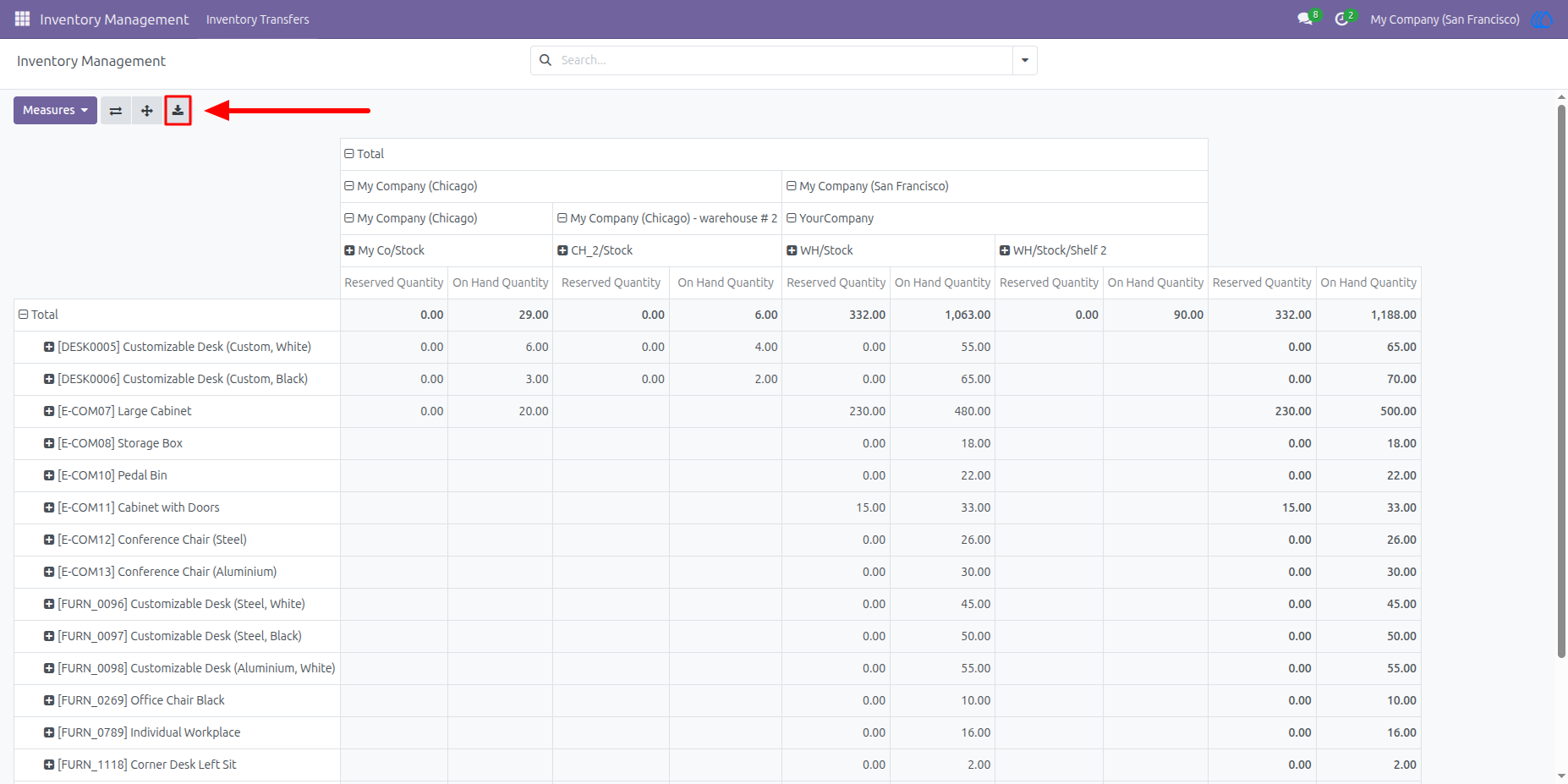
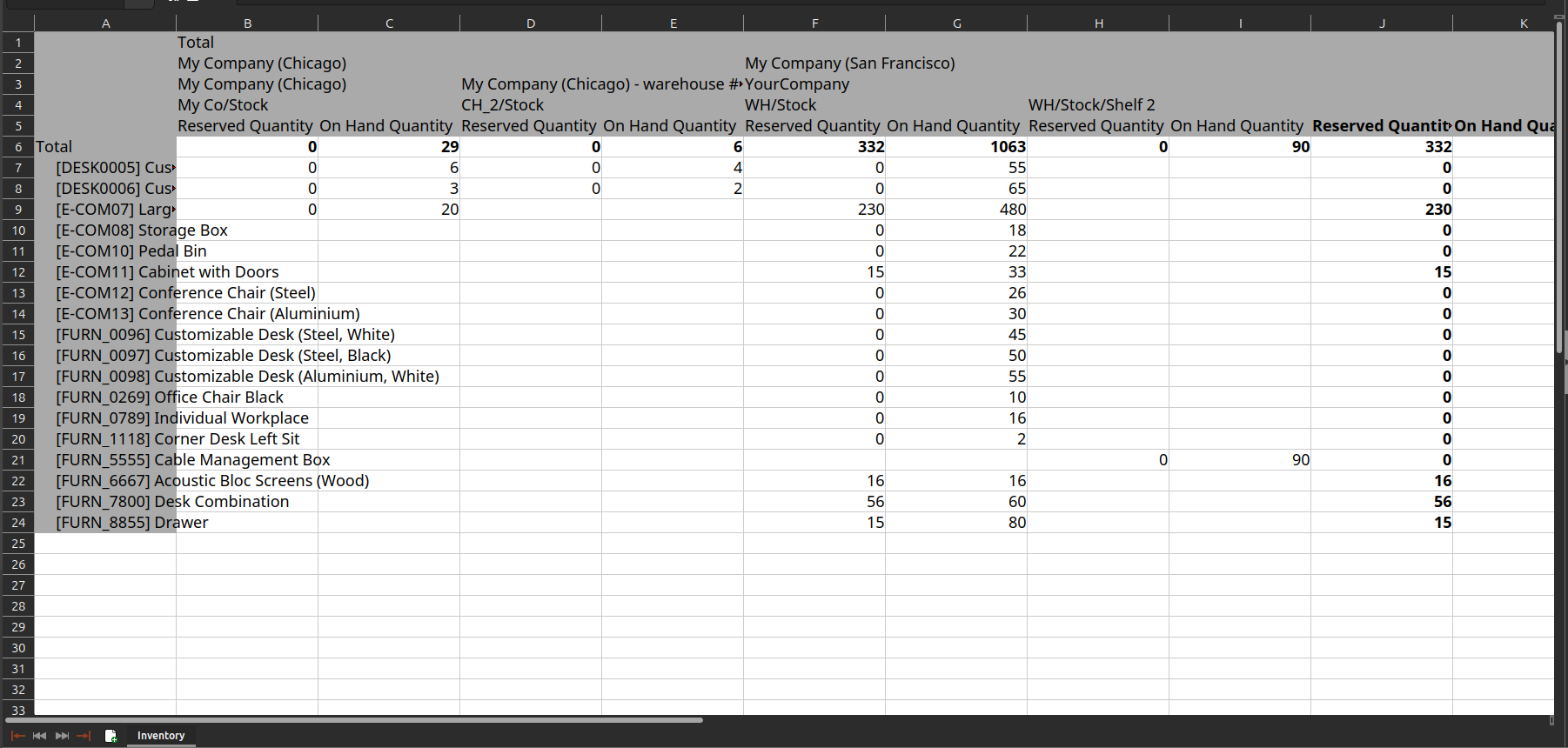
By clicking this button, the user can generate an Excel report of all stock with company, location, and warehouse data.
15) Excel Report of Stock.
User Guide