

Our Most Suggested Products


Sale Order Email Notification For Enterprise
Sale Order Email Notification For Enterprise Odoo automates customer communication by sending instant email alerts for quotations, order confirmations, directly from the Sales module. with dynamic order details, and seamless integration into Odoo’s sales workflow, this module ensures customers are always informed without manual follow-ups. It improves engagement, builds trust, and saves time by keeping communication consistent and professional across single or multi-company environments.
 Features
 Screenshots
 Support
 Service
Features
Auto Email Triggers
Automatically send mail to customer, vendor and Sales representative, while creating or confirming sale order and website.
Quotation Notifications
Notifies customers immediately when a quotation is created or confirmed.
Dynamic Content
Automatically pulls order details, customer info, and company branding.
User-Friendly Setup
Configure notifications without complex coding.
Screenshot
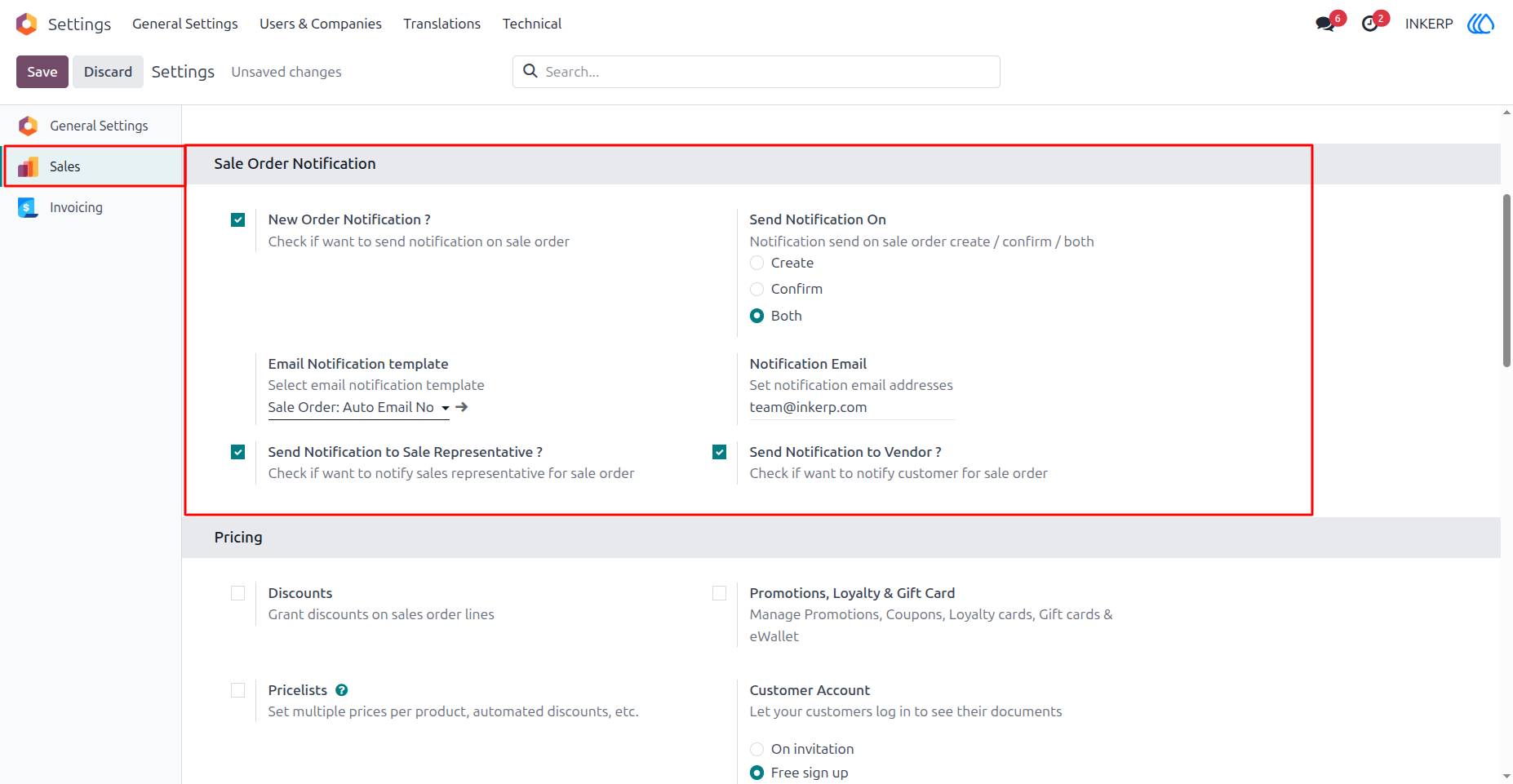
1) General settings form view
'- set enable/disable new order notification.
- set send notification on create or confirm or both.
- set template for send email.
- set notification email for which email send to email.
- set enable/disable for send email sales representative and enable/disable for email send to vendor.
Navigation : General Settings -> Sales
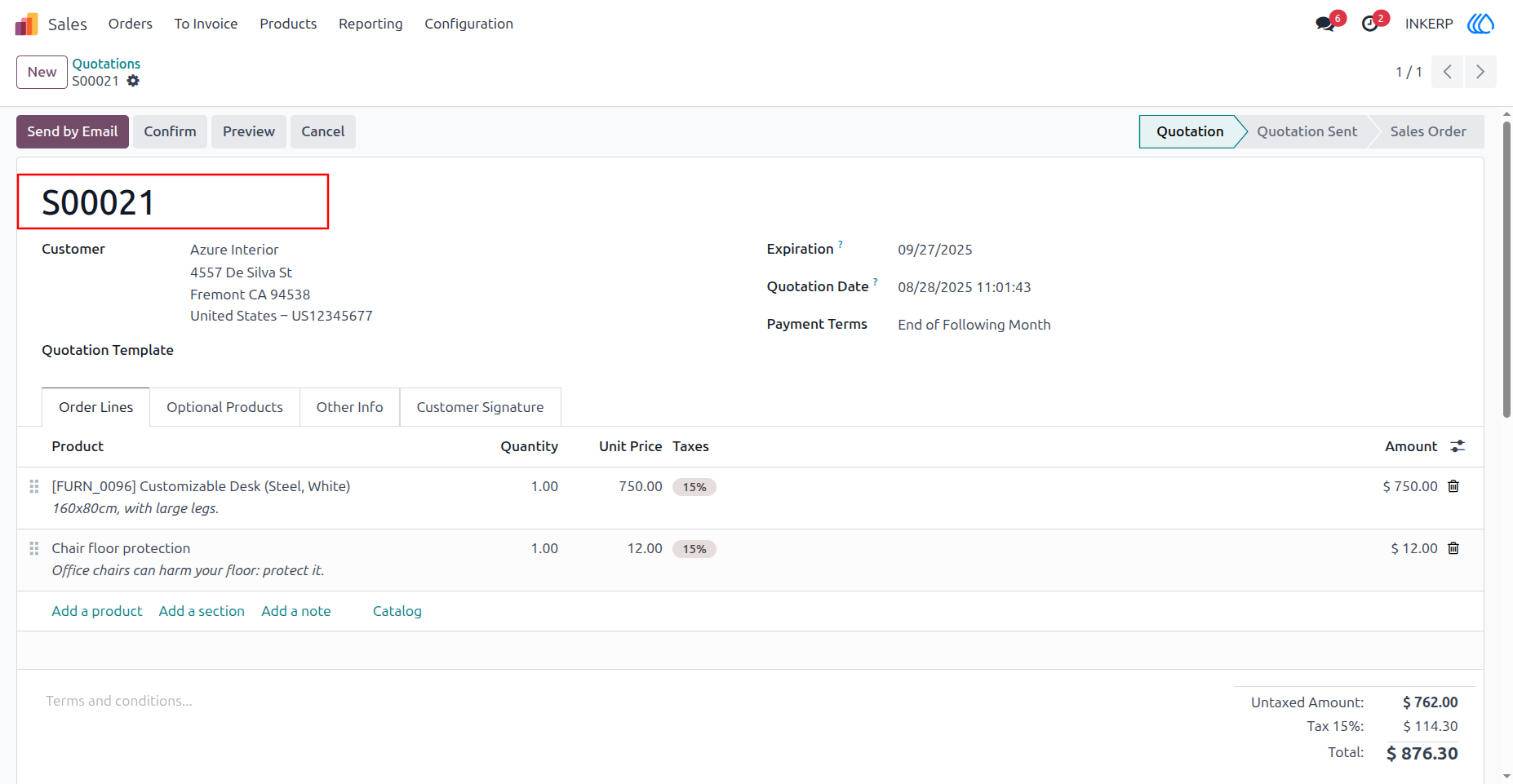
2) Sale order form view
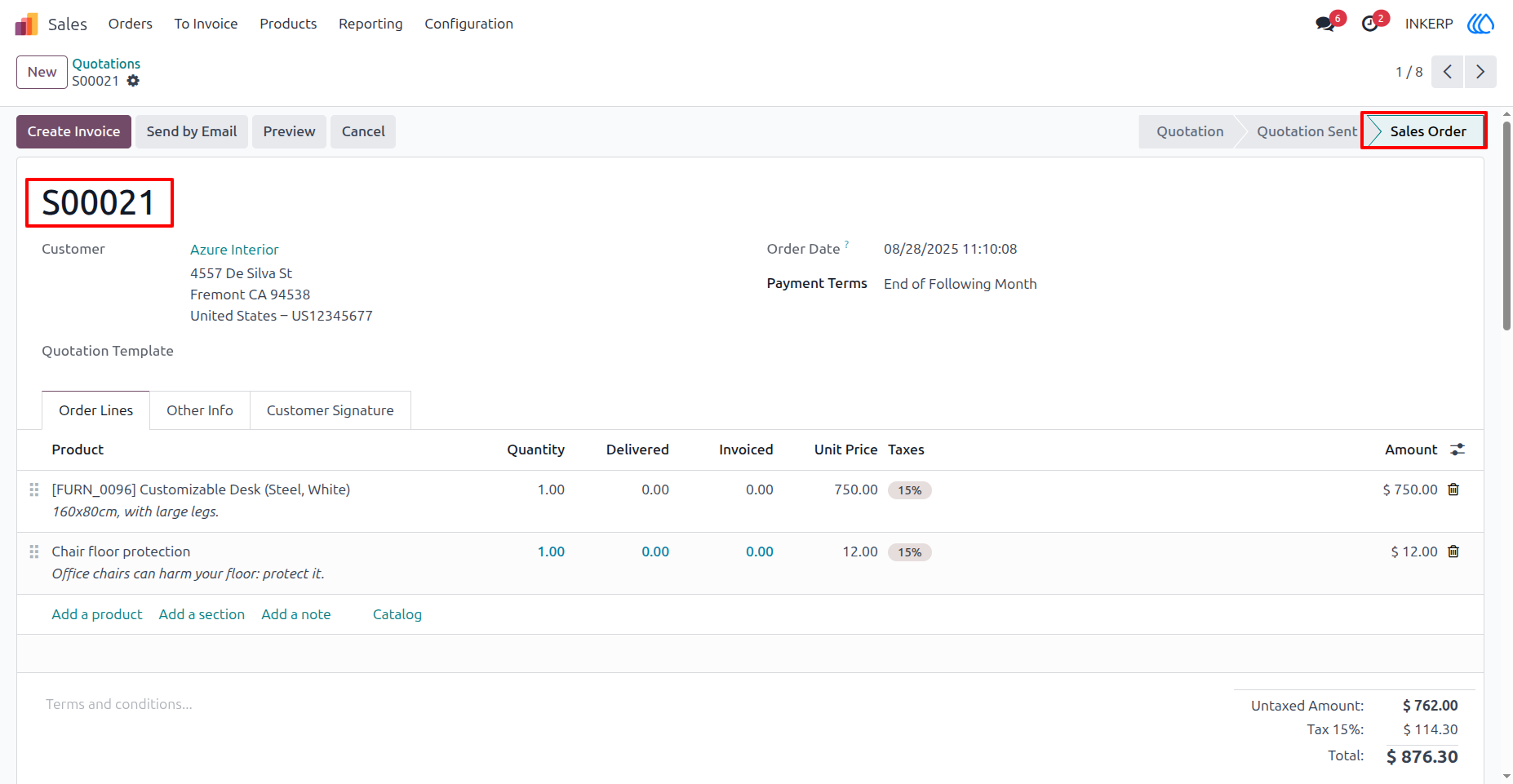
'- When user create sale order, the mail will be sent to user/ customer/ sales representative as per configuration in settings.
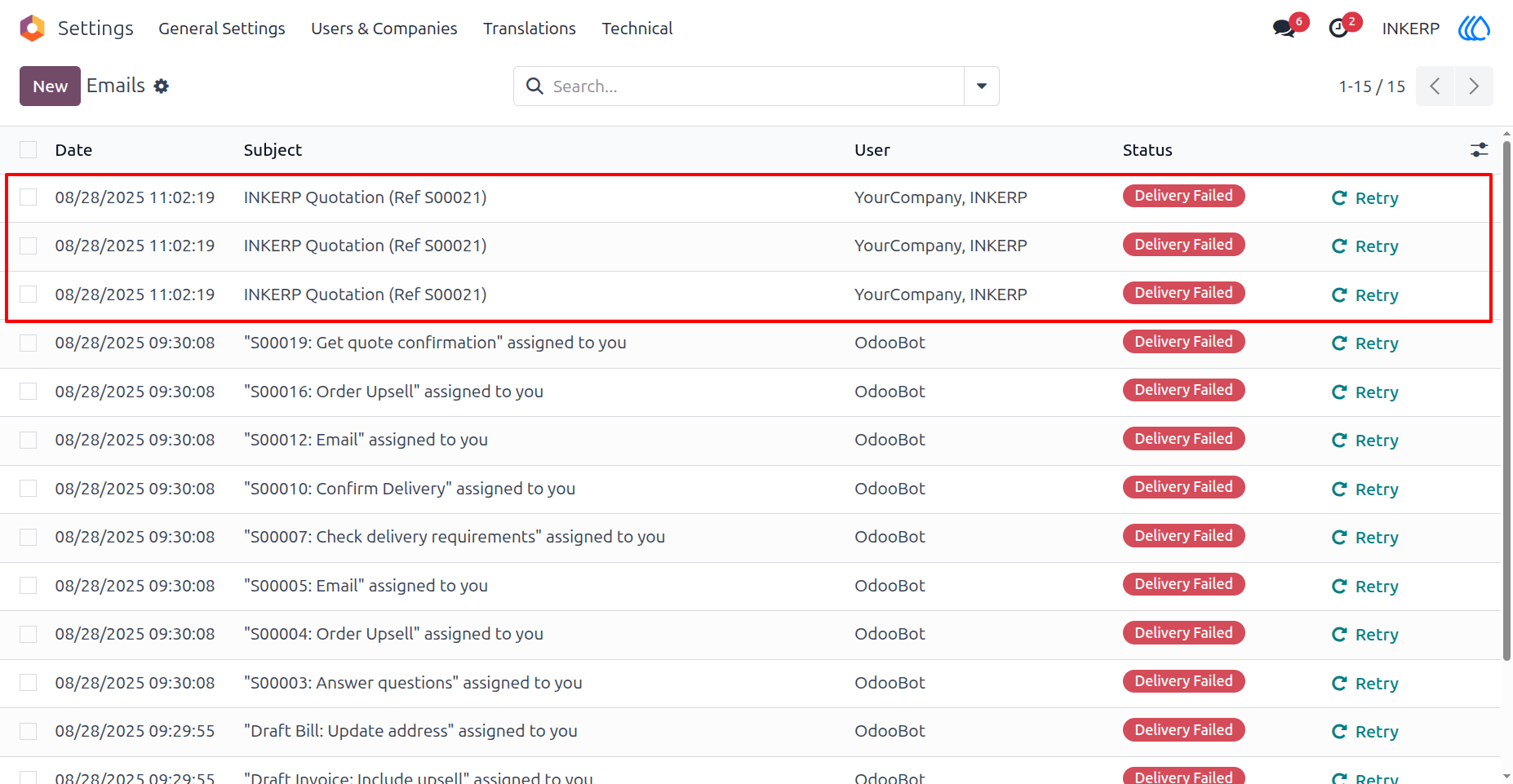
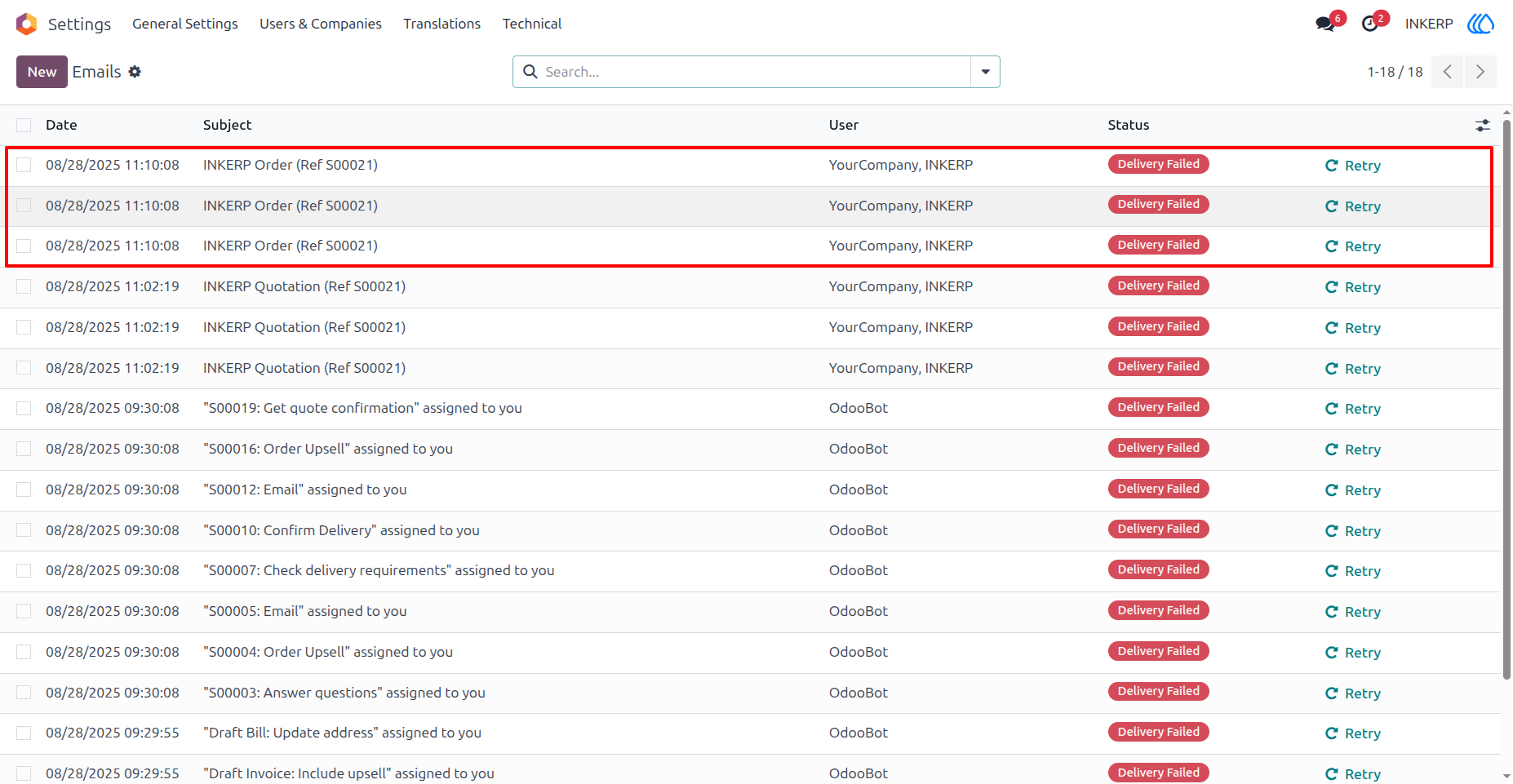
3) E-mail tree view
'- When create new order after that, the email sent to which you define in settings.
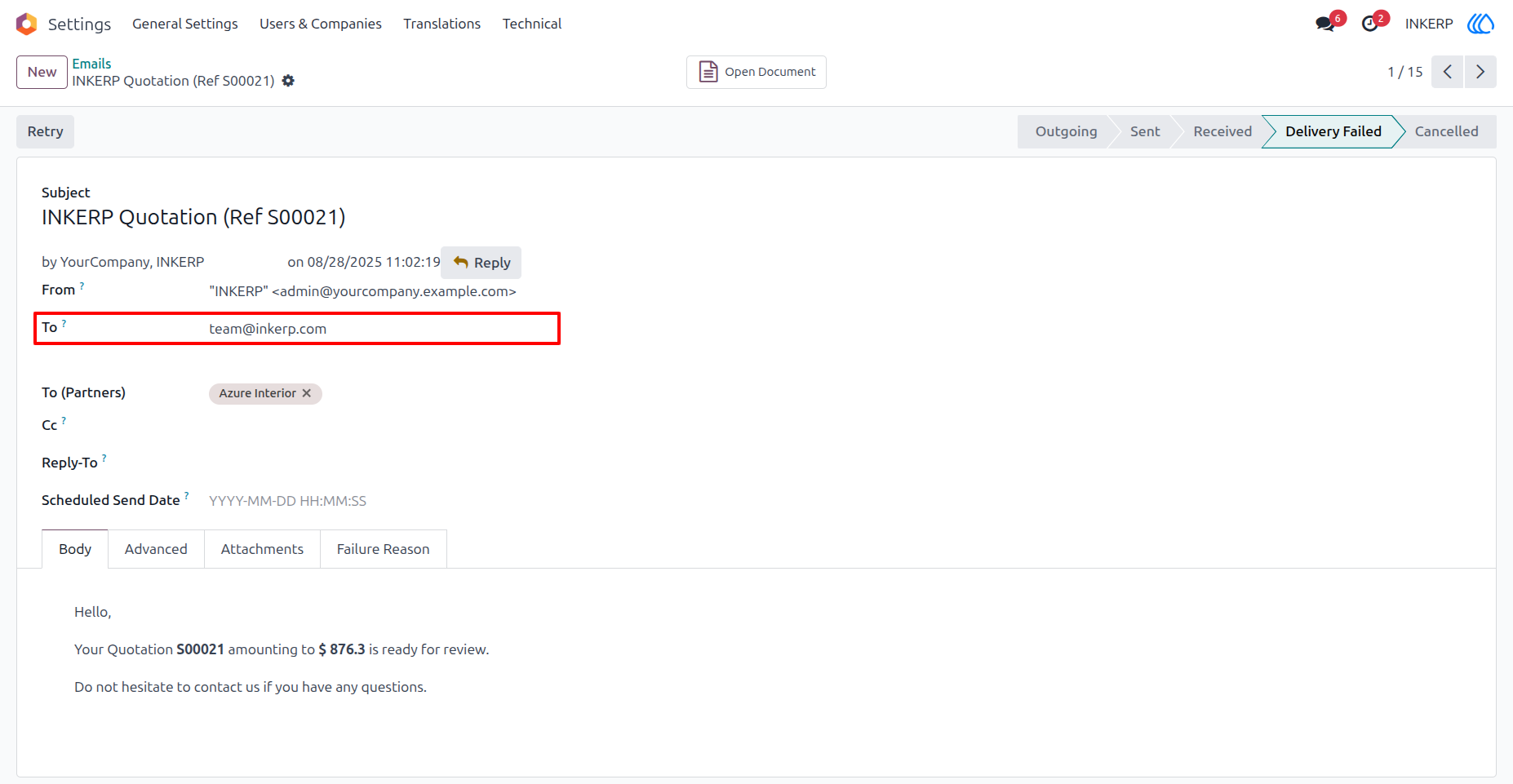
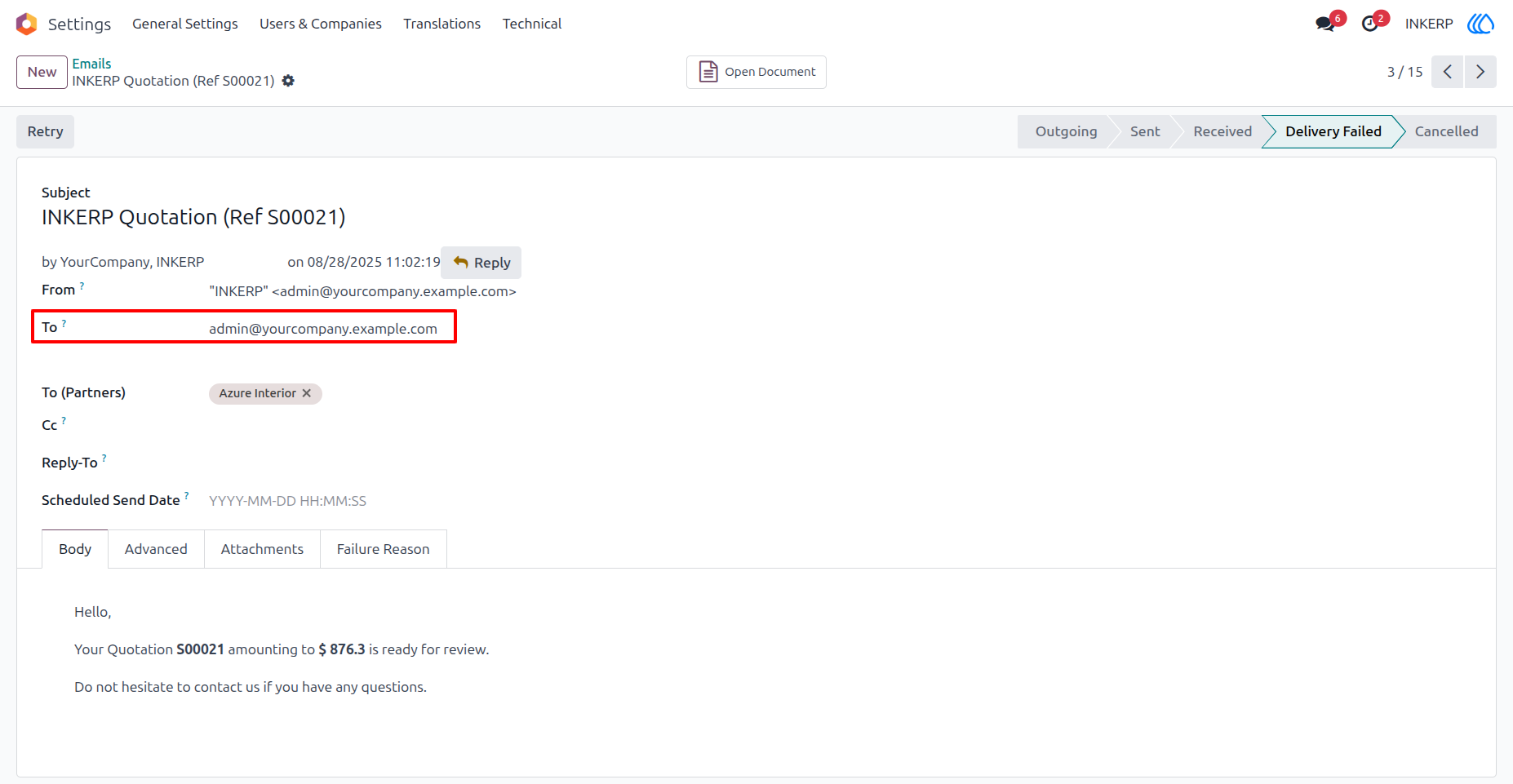
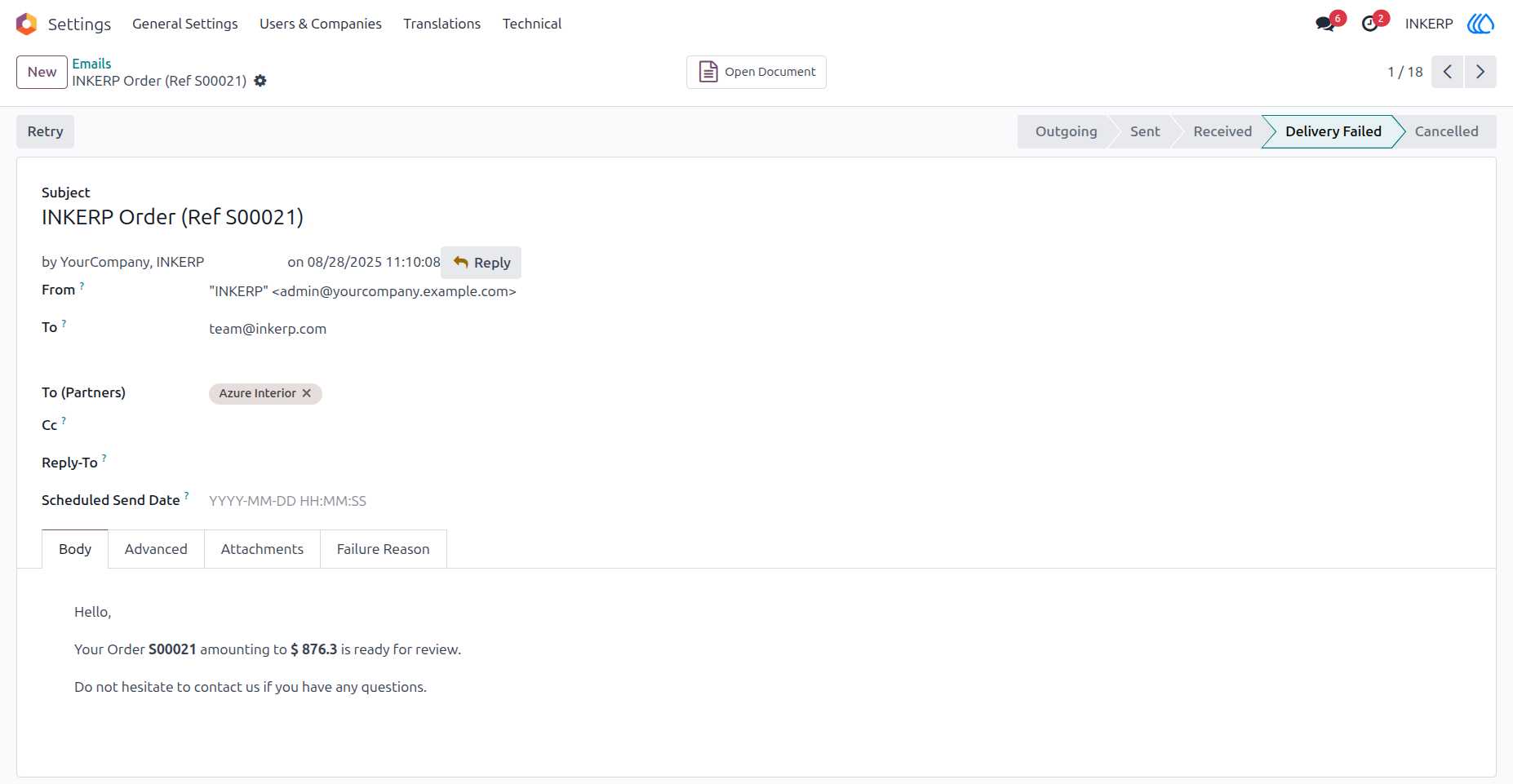
4) E-mail sent to Configured email in settings.
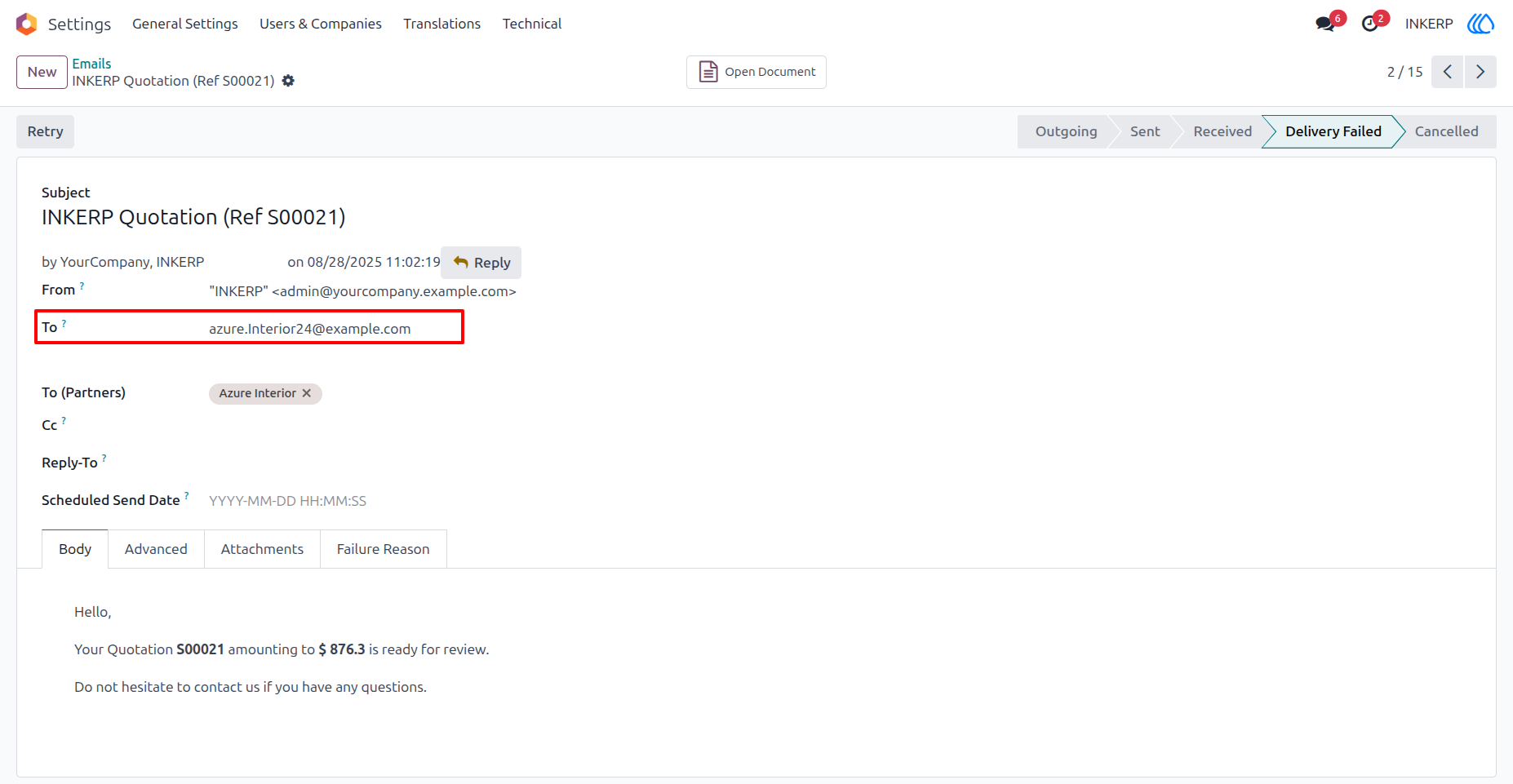
5) E-mail sent to Customer.
6) E-mail sent to sale representative.
7) Sale order Confirmed
8) Confirmation Mail sent.
9) Mail Form view
User Guide