

Our Most Suggested Products


POS Signature Capture for Odoo - Add and Display User Signatures in Point of Sale
The POS Signature module enhances Odoo Point of Sale by allowing cashiers or customers to draw and save digital signatures directly from the POS interface.
Video Tutorial

 Features
 Screenshots
 Support
 Service
Features
Digital Signature Capture in POS
Allow customers or cashiers to draw a digital signature directly on the POS screen. The signature pad opens with a simple click, making the process smooth and intuitive. This feature is especially useful for confirming order acceptance, deliveries, or service completion, reducing paperwork and improving record accuracy.
Signature Display on Receipts and Backend Orders
Once a signature is captured, it is automatically stored and linked to the POS order. The signature and signers name are printed on customer receipts for proof of acknowledgment. Additionally, managers or accountants can view the signature in the backend POS Order form, ensuring easy verification and reliable transaction records.
Screenshot
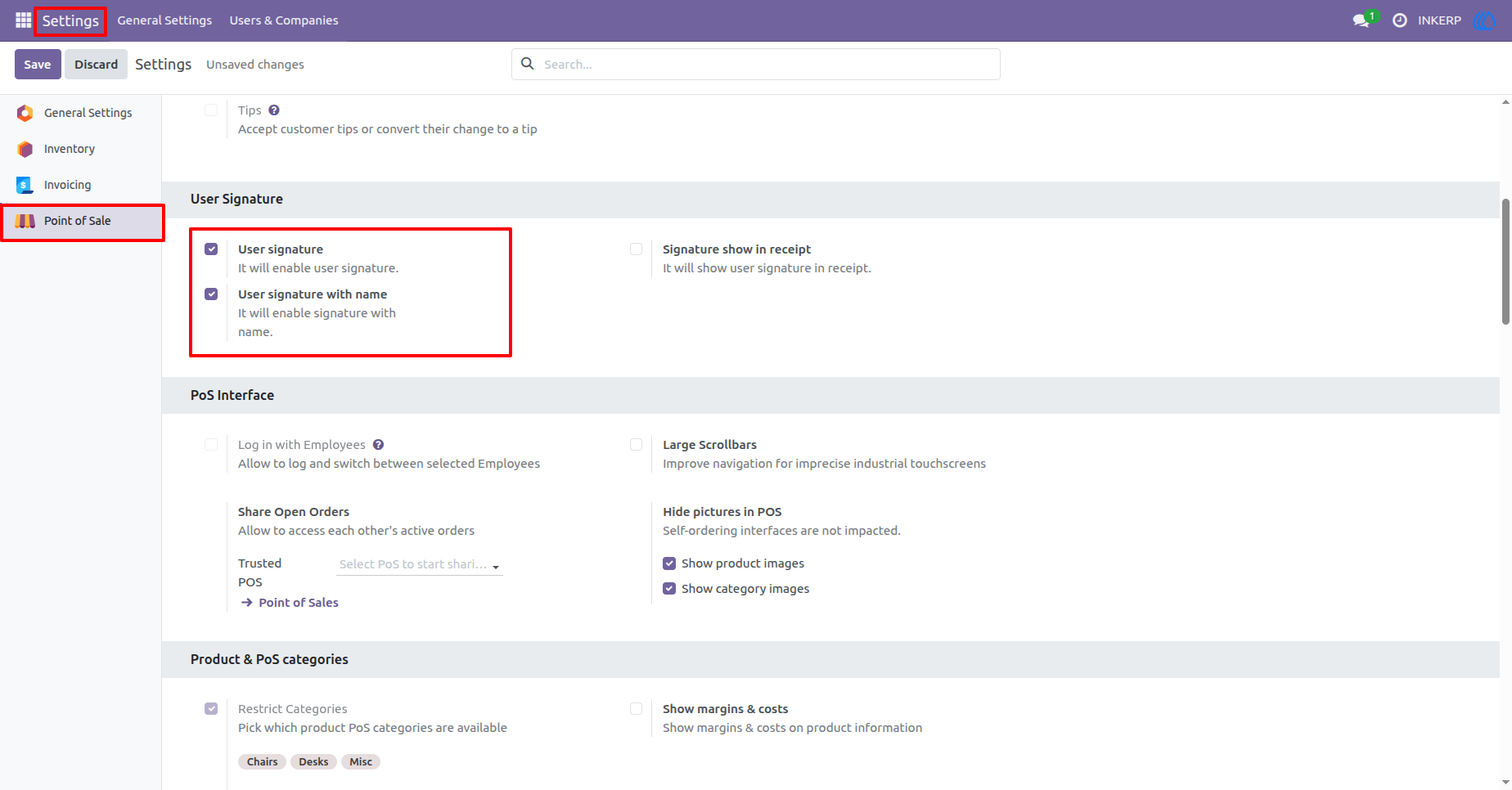
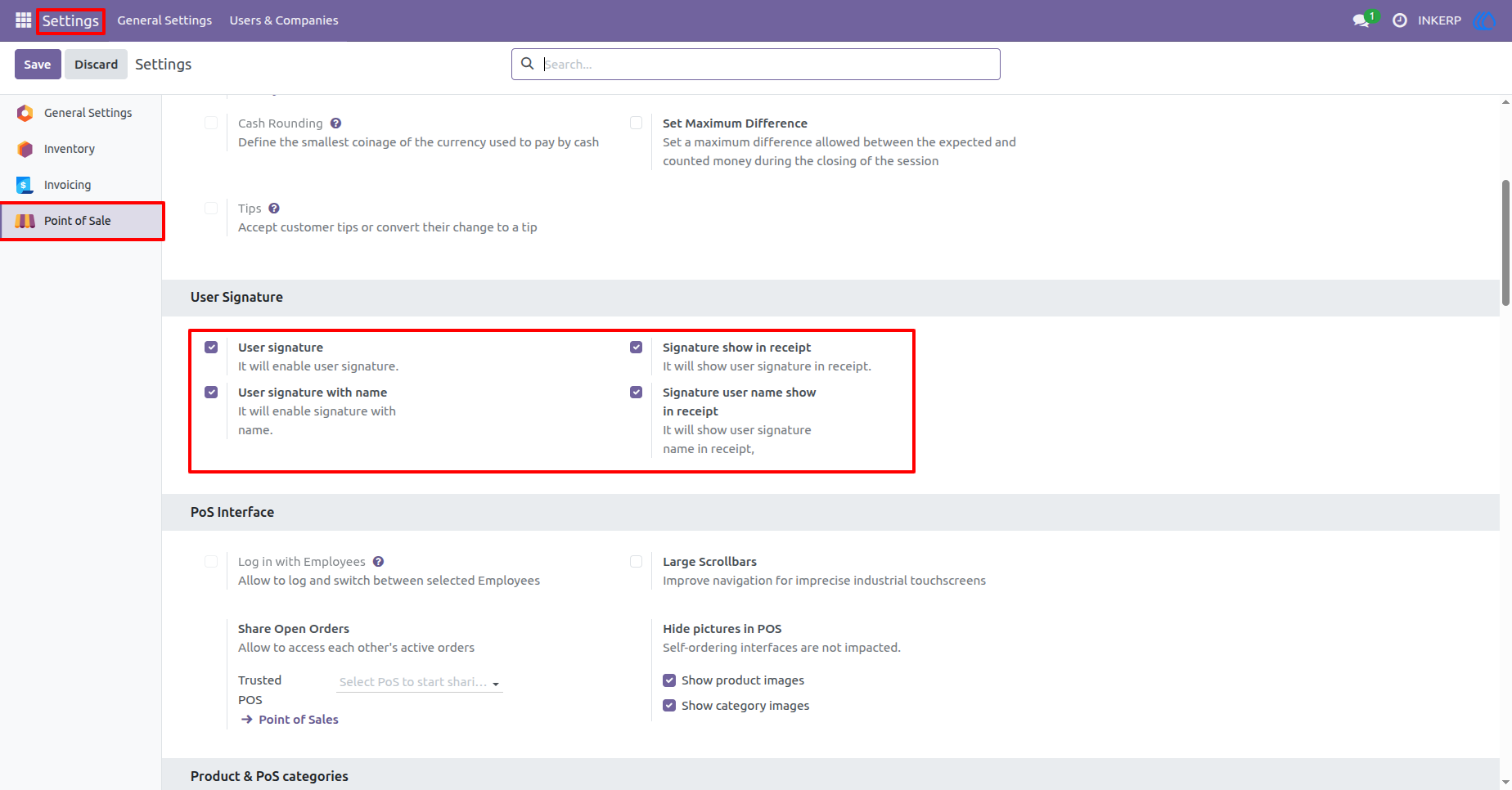
1.) POS Signature Configuration Settings
you can toggle User Signature to activate signature capture, User Signature with Name to include the signer’s name, and Signature Show in Receipt to display captured signatures on customer receipts.
Navigation : Setting › Point of Sale › User Signature
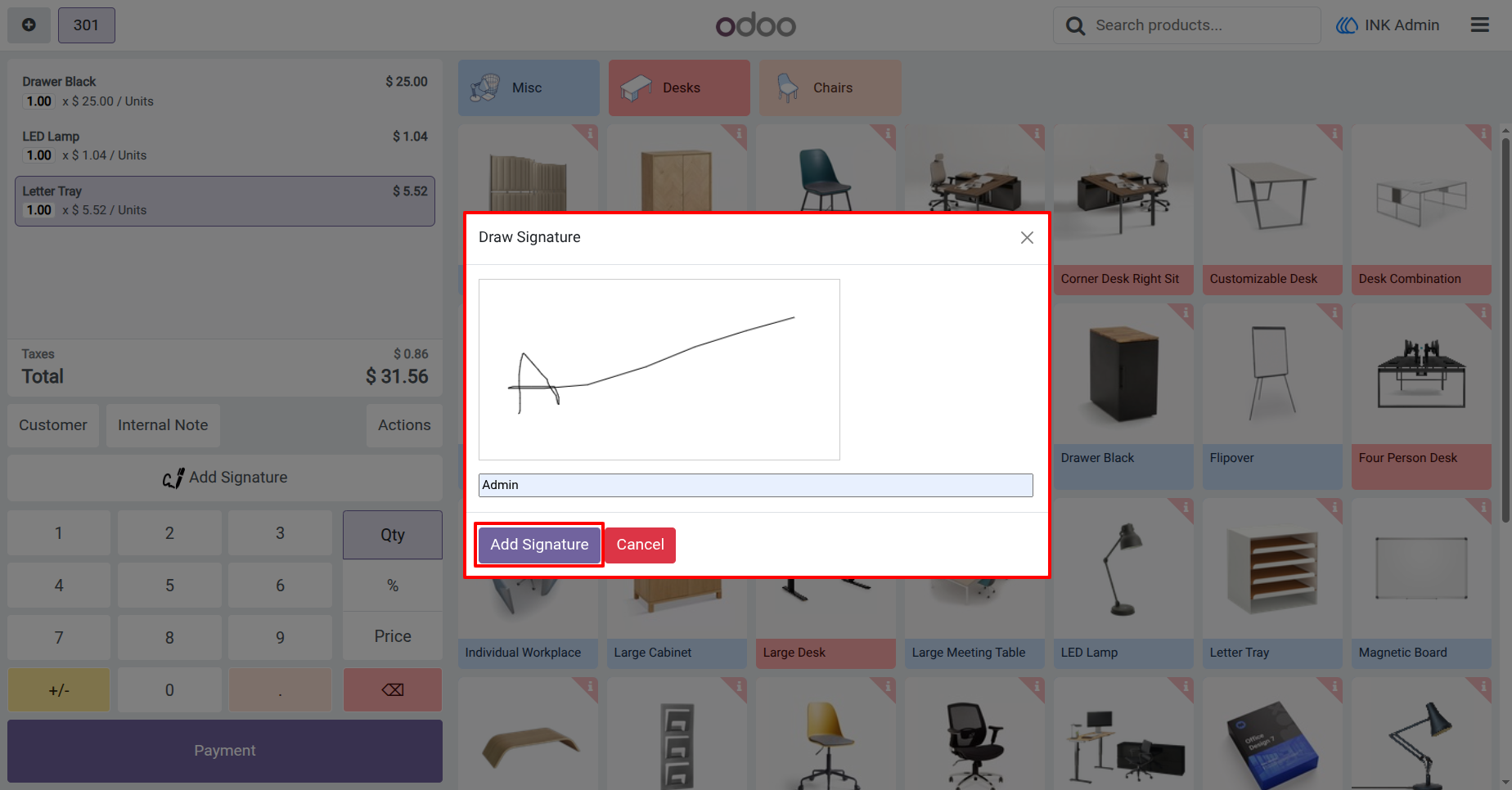
2.) Capturing a Signature During a POS Transaction
On the POS interface, cashiers can tap Add Signature to open a signature pad where the customer or user can draw their signature and enter their name. This step ensures confirmation before finalizing a sale or delivery. The simple and intuitive interface makes the process quick, reducing friction during busy sales periods while maintaining a professional record of customer acknowledgment.
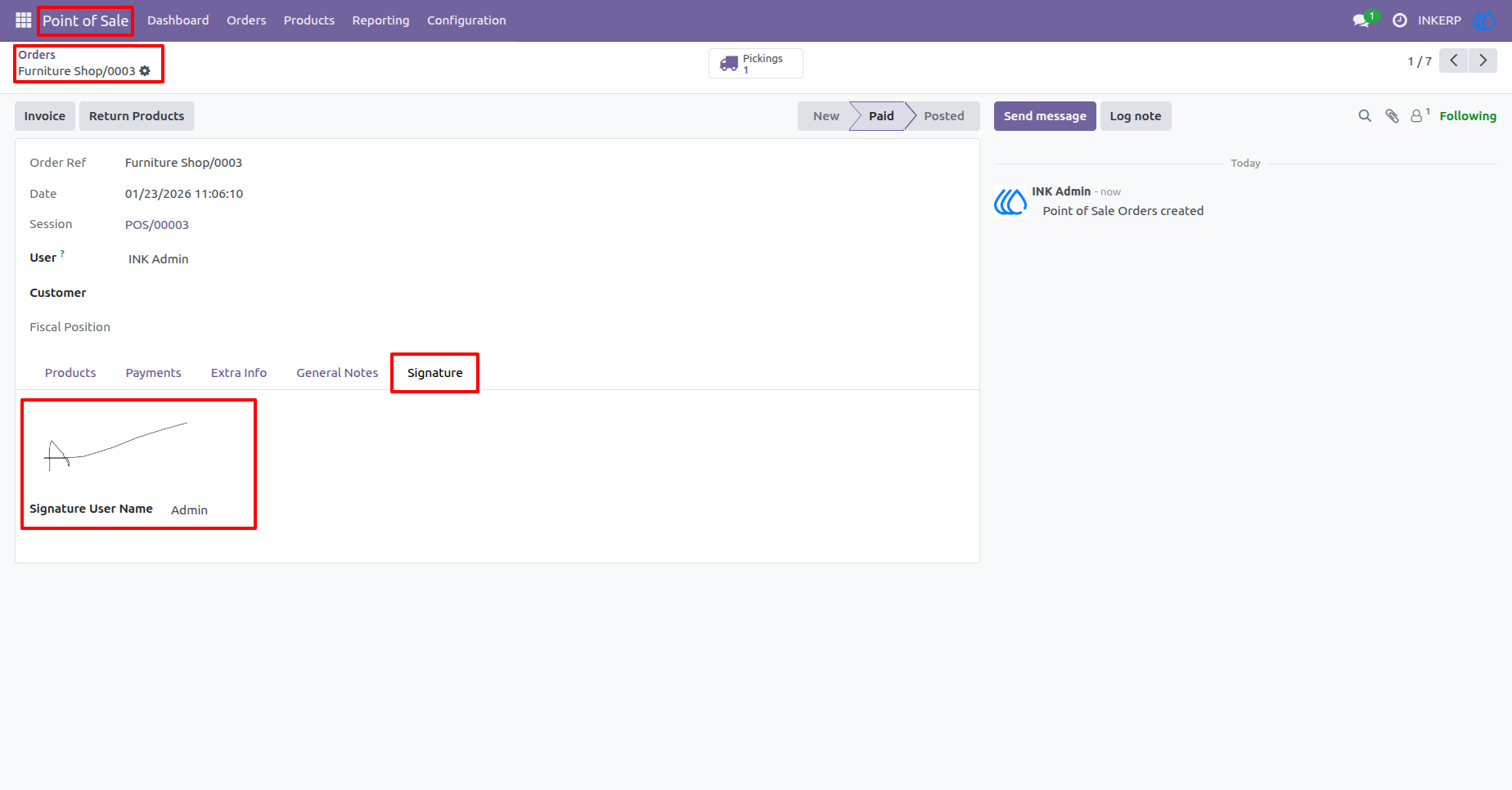
3.) Viewing the Captured Signature in Backend Orders
After a transaction is completed, managers or authorized staff can review the saved signature in the backend under Point of Sale → Orders. A new Signature tab displays the signed image along with the signer name for each POS order.
Navigation : Point of Sale › Orders › Order
4.) Advanced Signature Settings for Receipts
In this updated configuration screen, you can further refine signature handling by enabling Signature User Name Show in Receipt. When activated, both the signature and the signer’s name are printed on the customer’s receipt. This added detail ensures transparency, giving both staff and customers confidence in the recorded transaction.
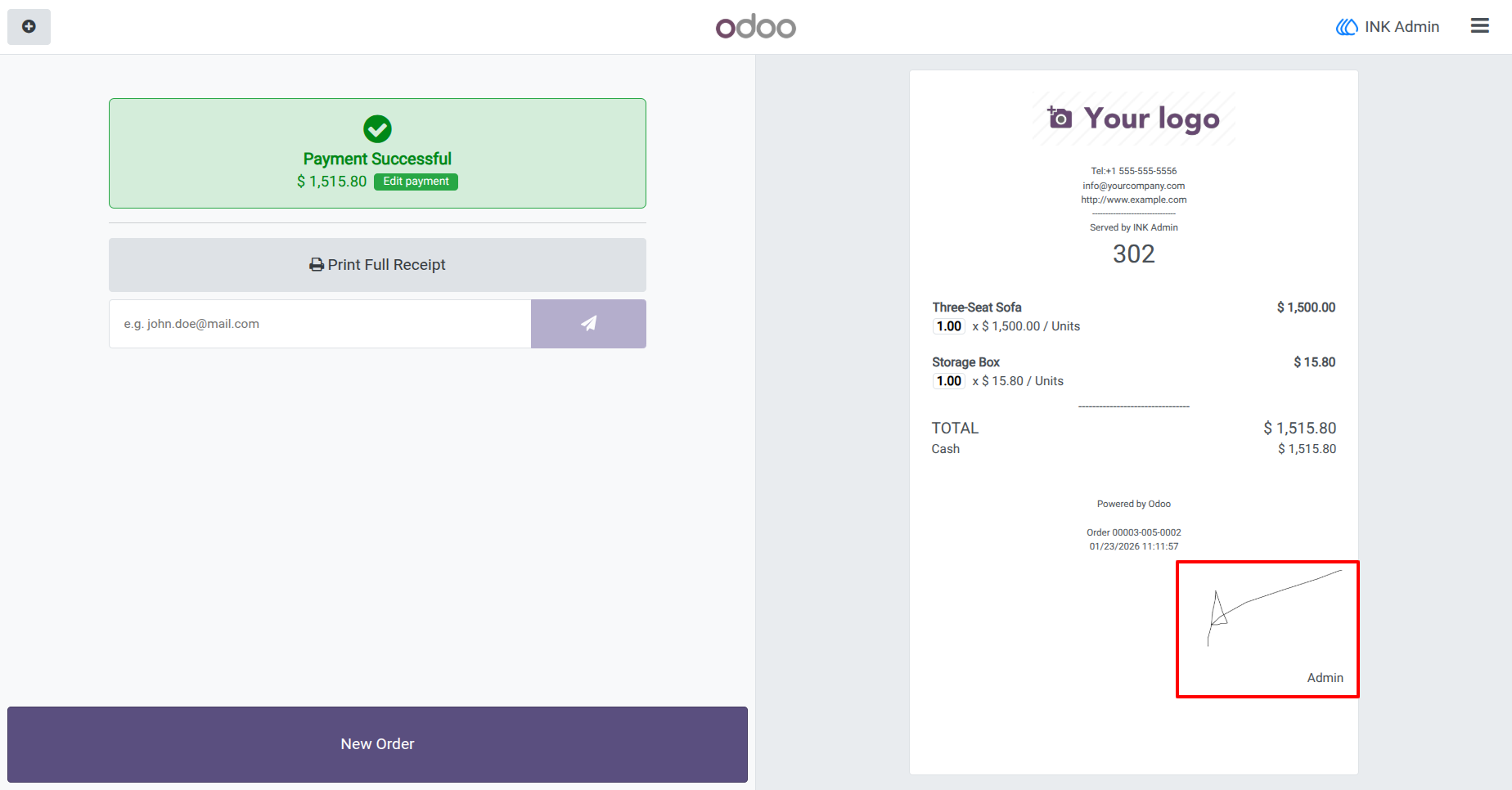
5.) Signature Displayed on the POS Receipt
Once the payment is completed, the captured signature appears on the printed receipt. This visual proof of acknowledgment is useful for businesses that require signed confirmation for deliveries, returns, or warranty claims. It strengthens transaction authenticity and helps resolve disputes by maintaining clear evidence of customer approval.
User Guide