

Our Most Suggested Products


Odoo POS Transaction Charges (Fixed or Percentage, Show on Receipt & Accounting)
POS Transaction Fee allows you to configure and apply transaction charges in Odoo Point of Sale. Charges can be defined as either fixed amounts (e.g., $2 per order) or percentage-based (e.g., 2% of the order total).
 Features
 Screenshots
 Support
 Service
Features
Configure Fixed or Percentage-Based Fees
Easily define transaction charges in POS settings as either a fixed amount (e.g., $2) or a percentage (e.g., 2% of order total). This gives flexibility to cover payment gateway costs, card charges, or service fees directly at checkout.
Apply Fees Per Payment Method
Choose which payment methods should include a transaction fee (e.g., Card, Wallet, PayPal) while leaving others fee-free (e.g., Cash). This ensures fair fee distribution and reflects real-world scenarios where only digital payments incur extra charges.
Show Fees on POS Screen and Receipt
Customers and cashiers can see transaction fees in real time on the POS order screen before payment is confirmed. Once validated, the fees are also shown clearly on the receipt for full transparency.
Screenshot
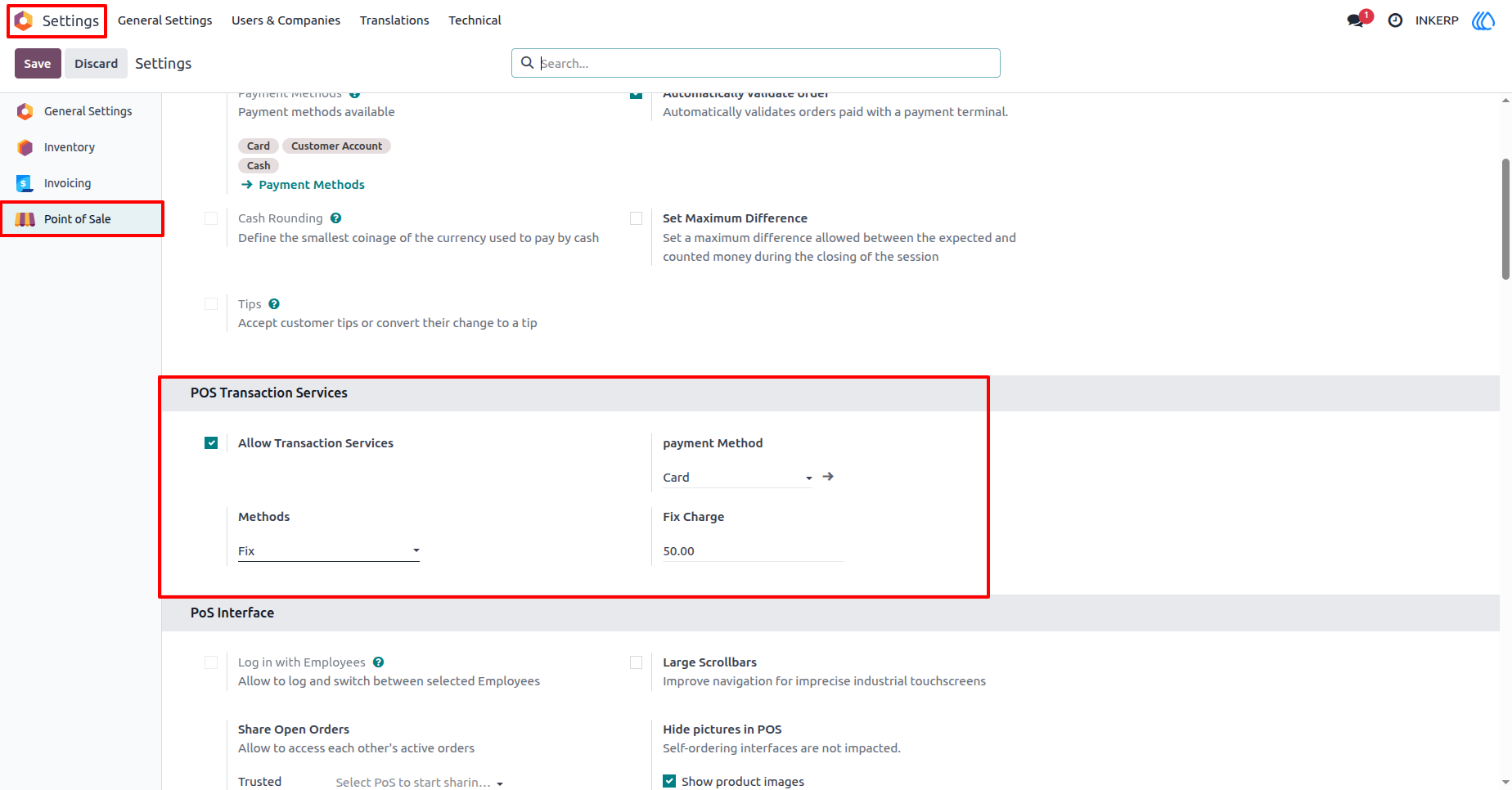
1.) POS Fix Transaction Fee Configuration
In the Point of Sale settings, you can configure transaction services to automatically apply extra charges during payment. By enabling this option, you can select the specific payment method (such as Card), define whether the fee should be a fixed amount or a percentage, and set the charge value.
Navigation : Setting › Point of Sale › POS Transaction Services
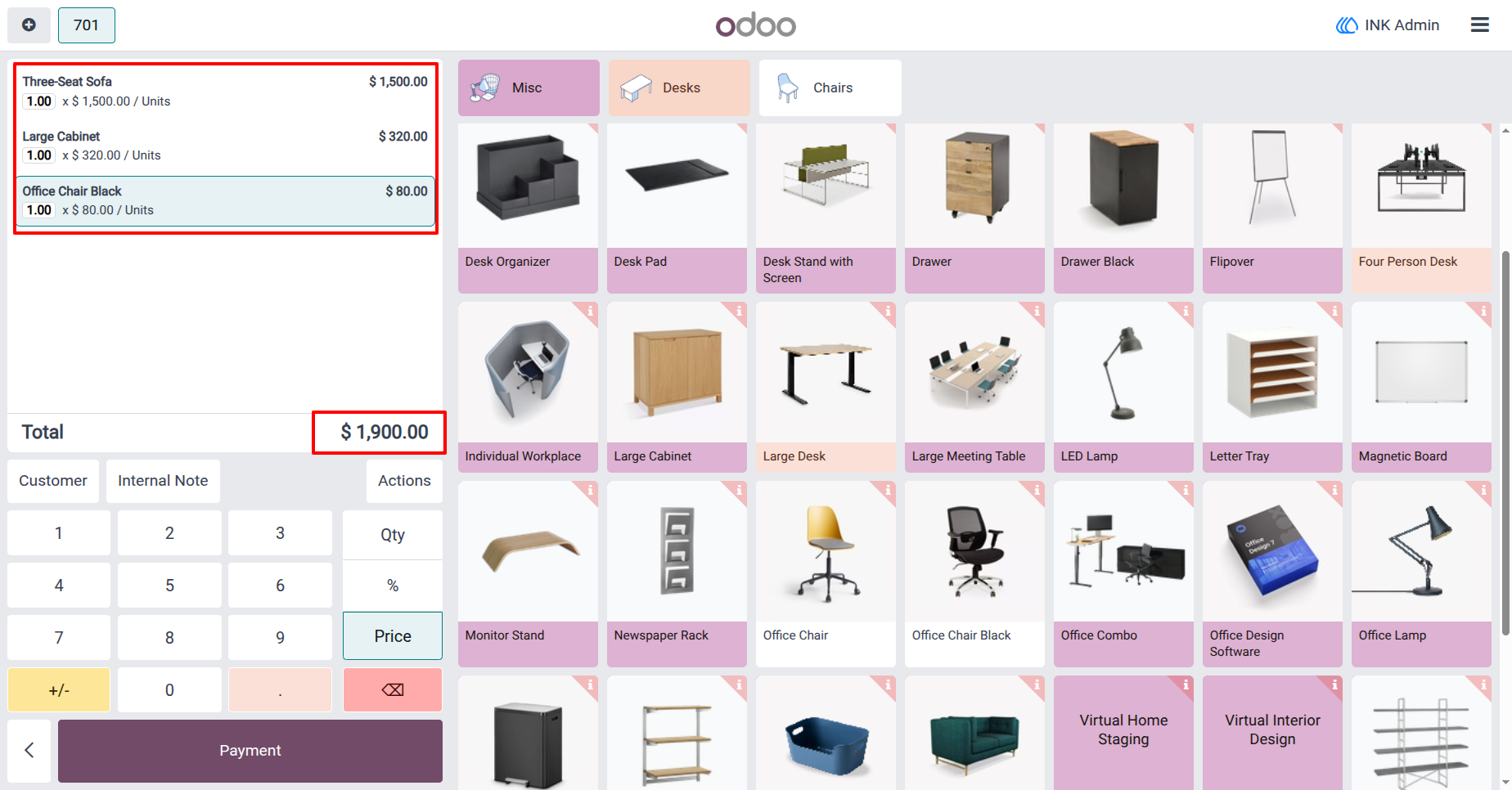
2.) POS Order Screen with Cart Summary
On the POS order screen, products selected by the cashier are displayed in the cart summary with their quantities and prices. The system calculates the total order amount automatically, as shown at the bottom of the cart.
3.) POS Payment Screen with Fix Transaction Fee Applied
When proceeding to the payment screen, the system automatically applies the configured transaction fee based on the selected payment method.
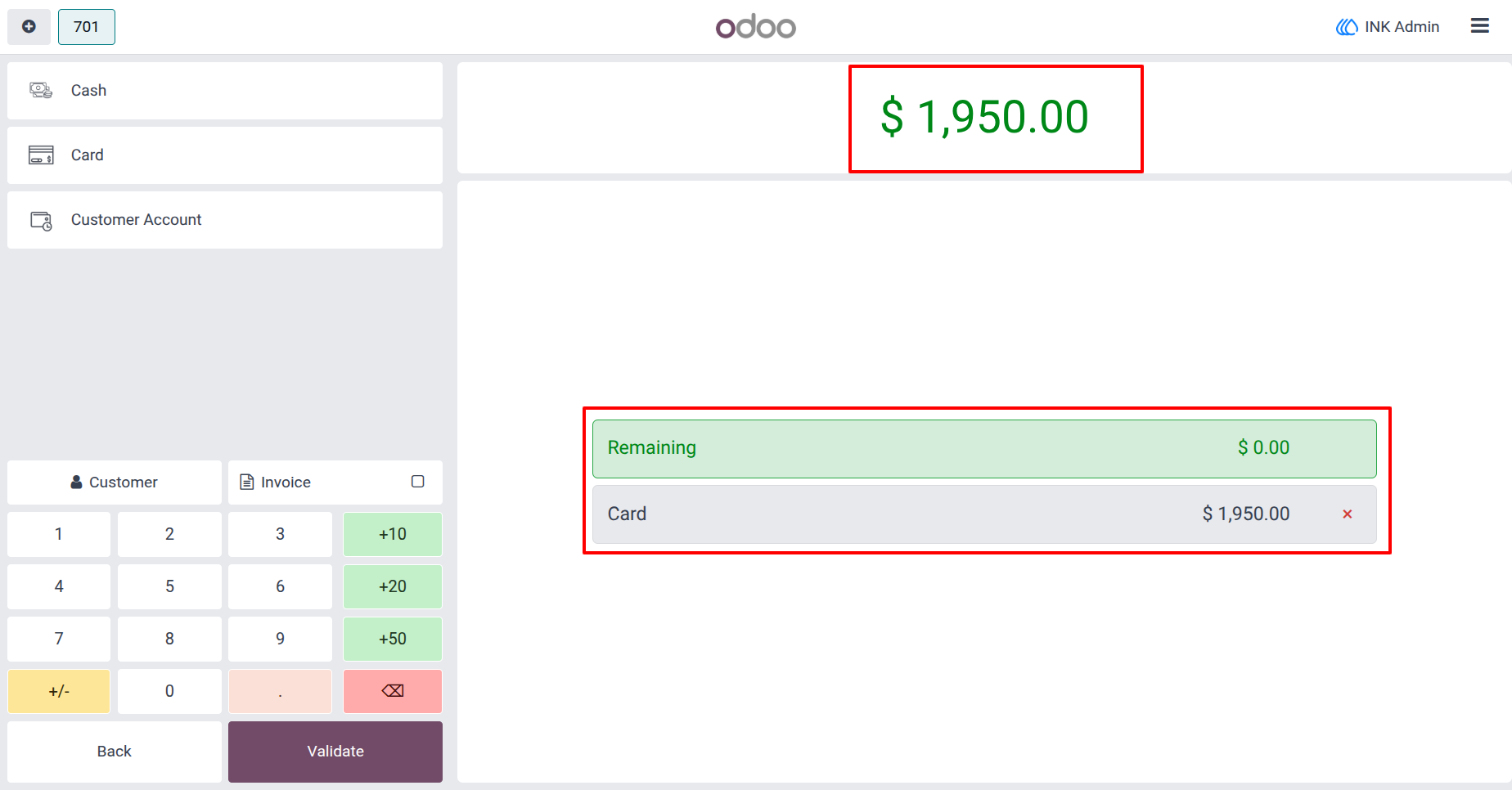
4.) POS Receipt with Transaction Fee Displayed
After confirming payment, the receipt clearly shows the transaction fee as a separate line item below the untaxed order amount.
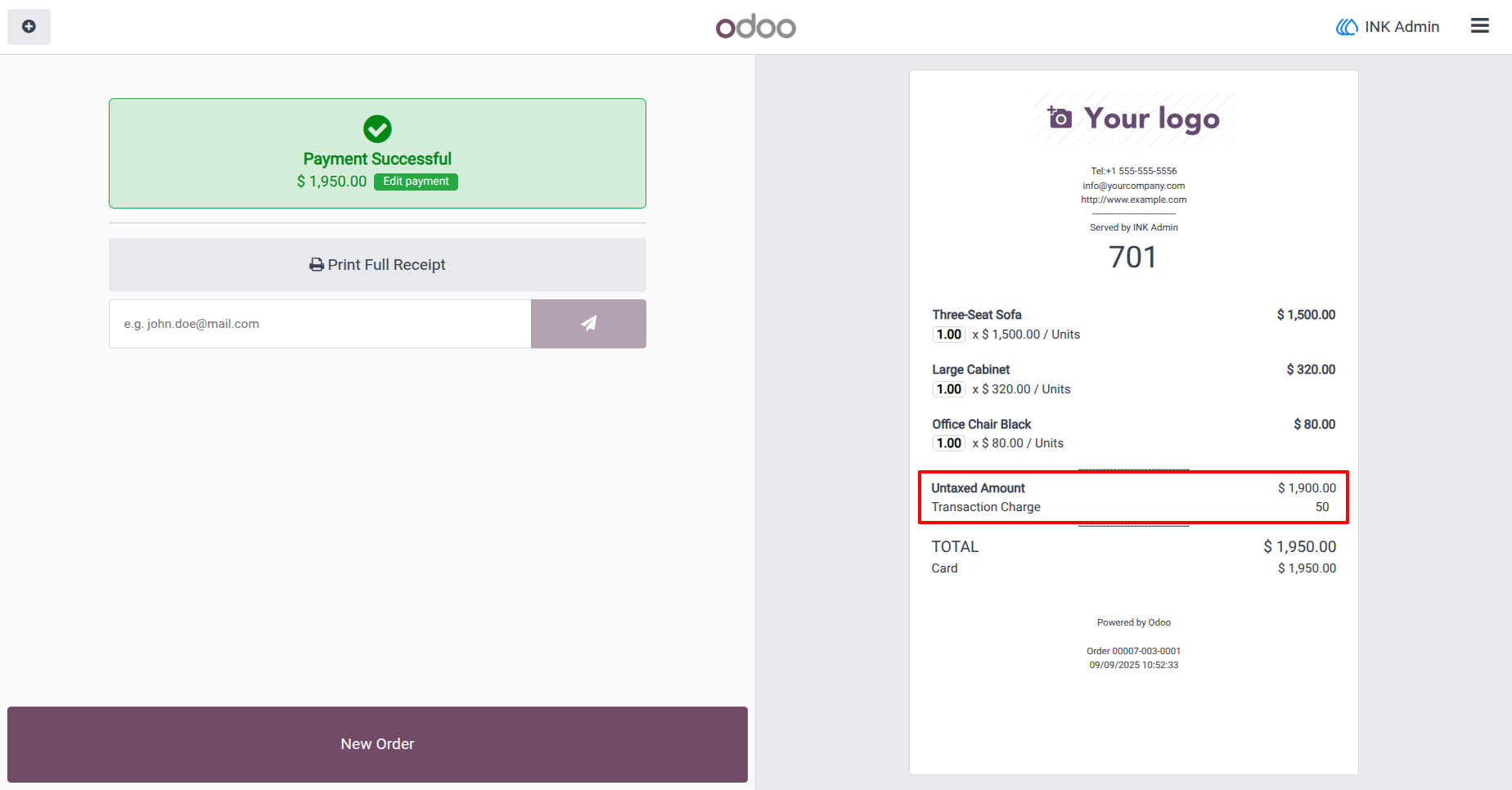
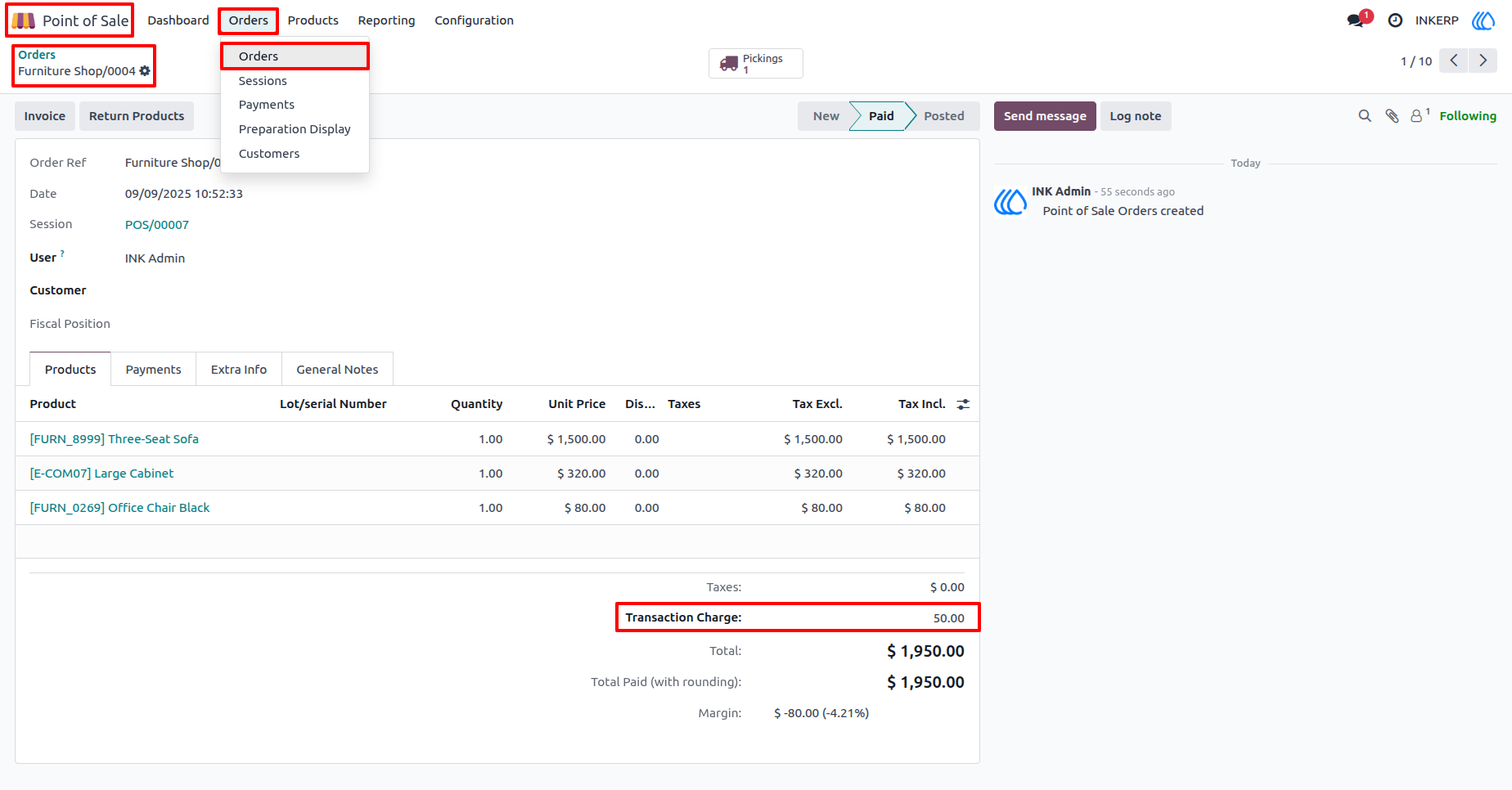
5.) POS Order Details in Backend with Transaction Charge
In the backend under Point of Sale Orders, the transaction fee is recorded along with the order details. The order form displays all purchased products, their quantities, and prices, along with the transaction charge applied during checkout.
Navigation : Point of Sale › Orders › Order
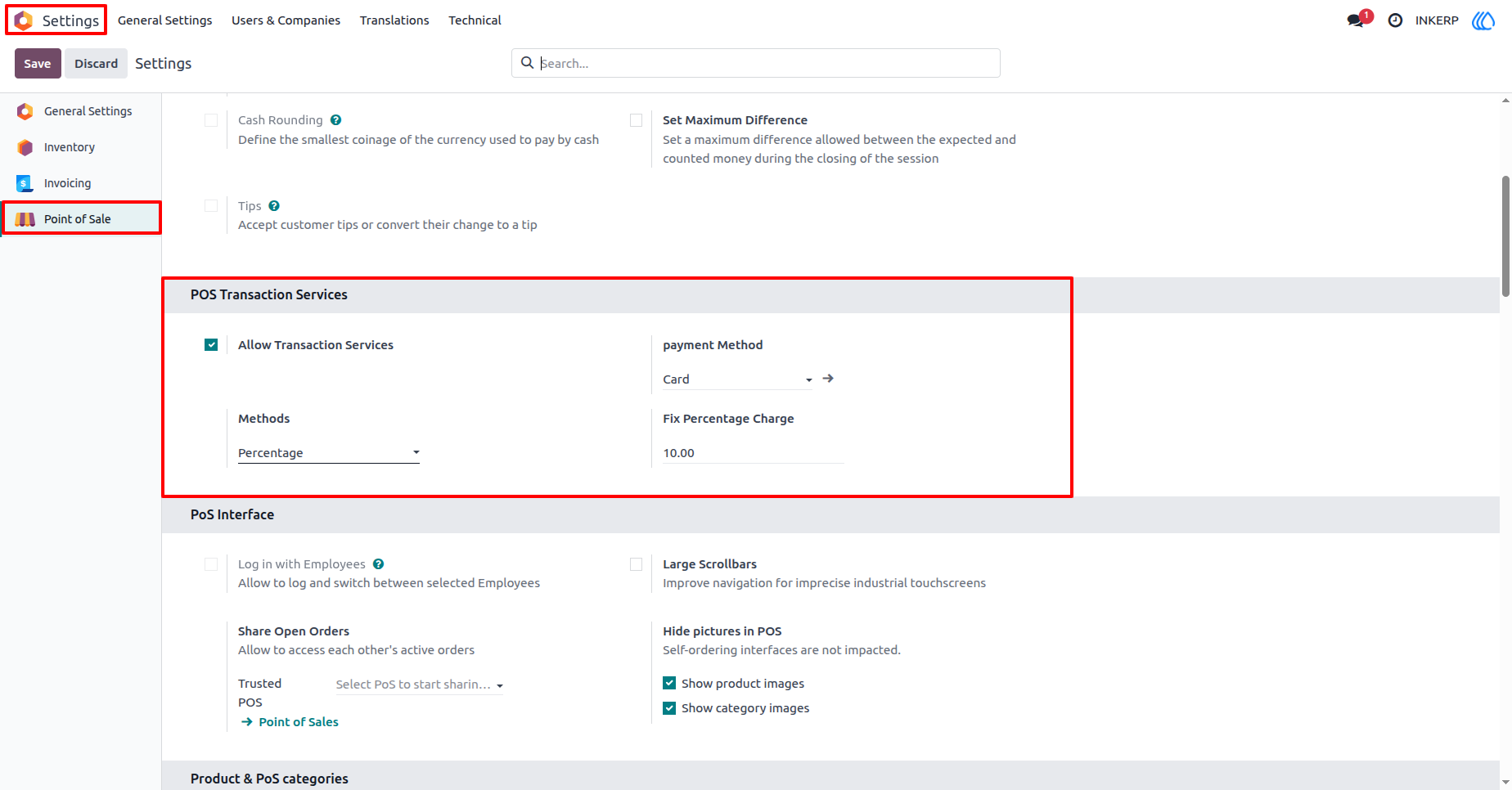
6.) POS Percetage Transaction Fee Configuration
From the Settings and Point of Sale menu, transaction charges can be configured. Here, card payments are set to apply a 10% transaction fee. This ensures automatic calculation during checkout whenever customers pay via card.
Navigation : Setting › Point of Sale › POS Transaction Services
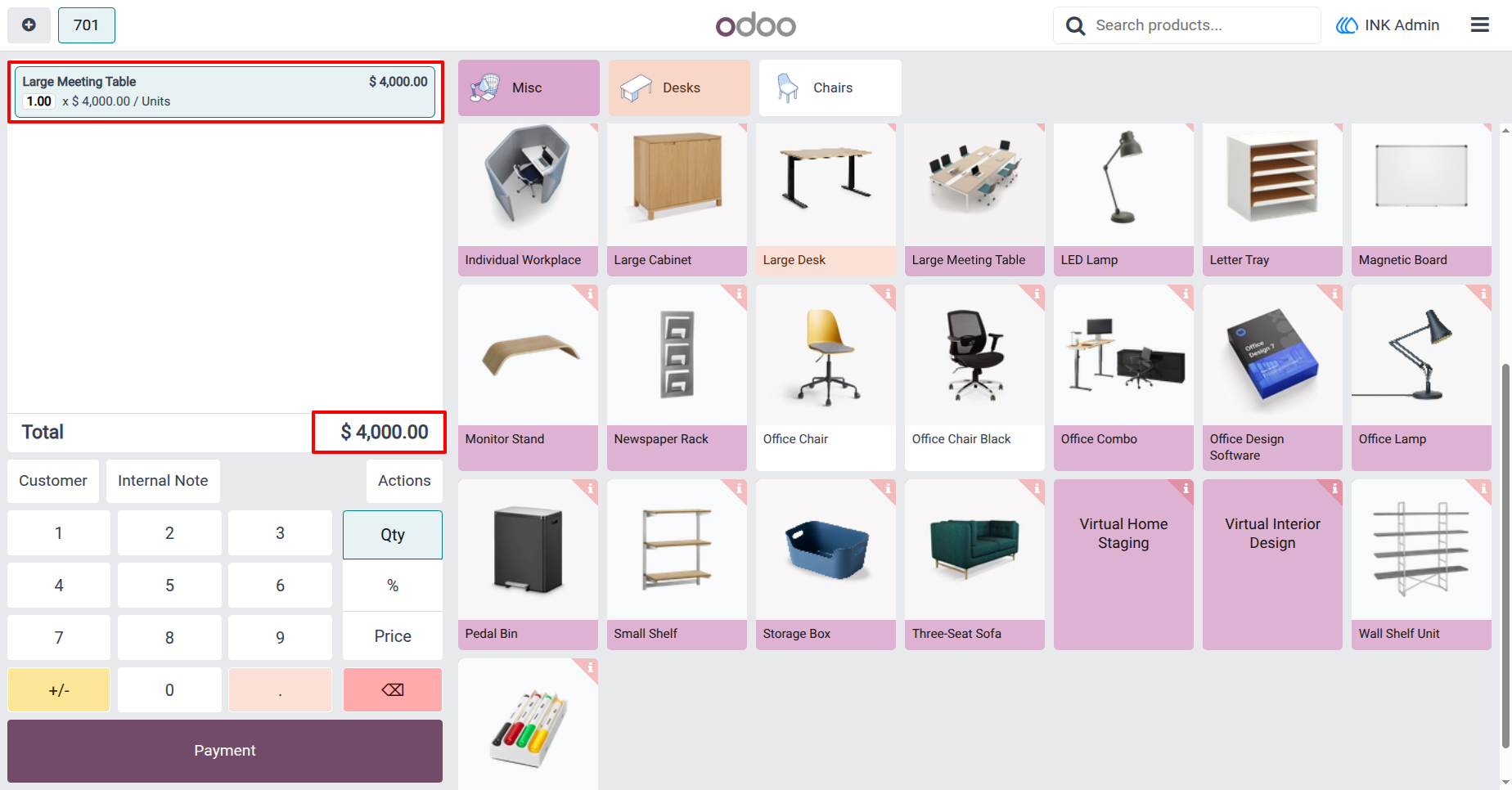
7.) POS Order Screen with Cart Summary
On the POS order screen, products selected by the cashier are displayed in the cart summary with their quantities and prices. The system calculates the total order amount automatically, as shown at the bottom of the cart.
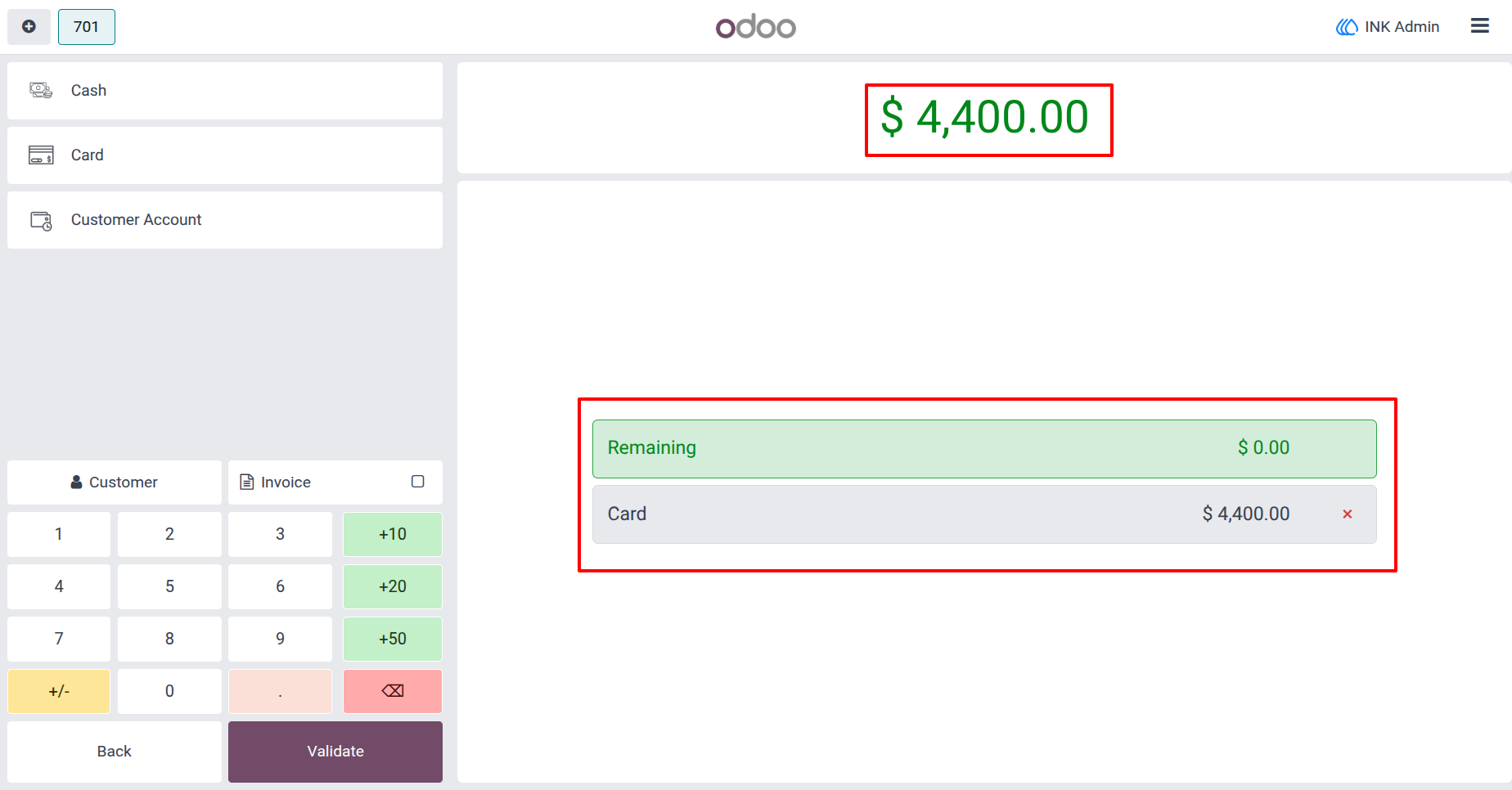
8.) POS Payment Screen with Percentage Transaction Fee Applied
When proceeding to the payment screen, the system automatically applies the configured percentage transaction fee based on the selected payment method.
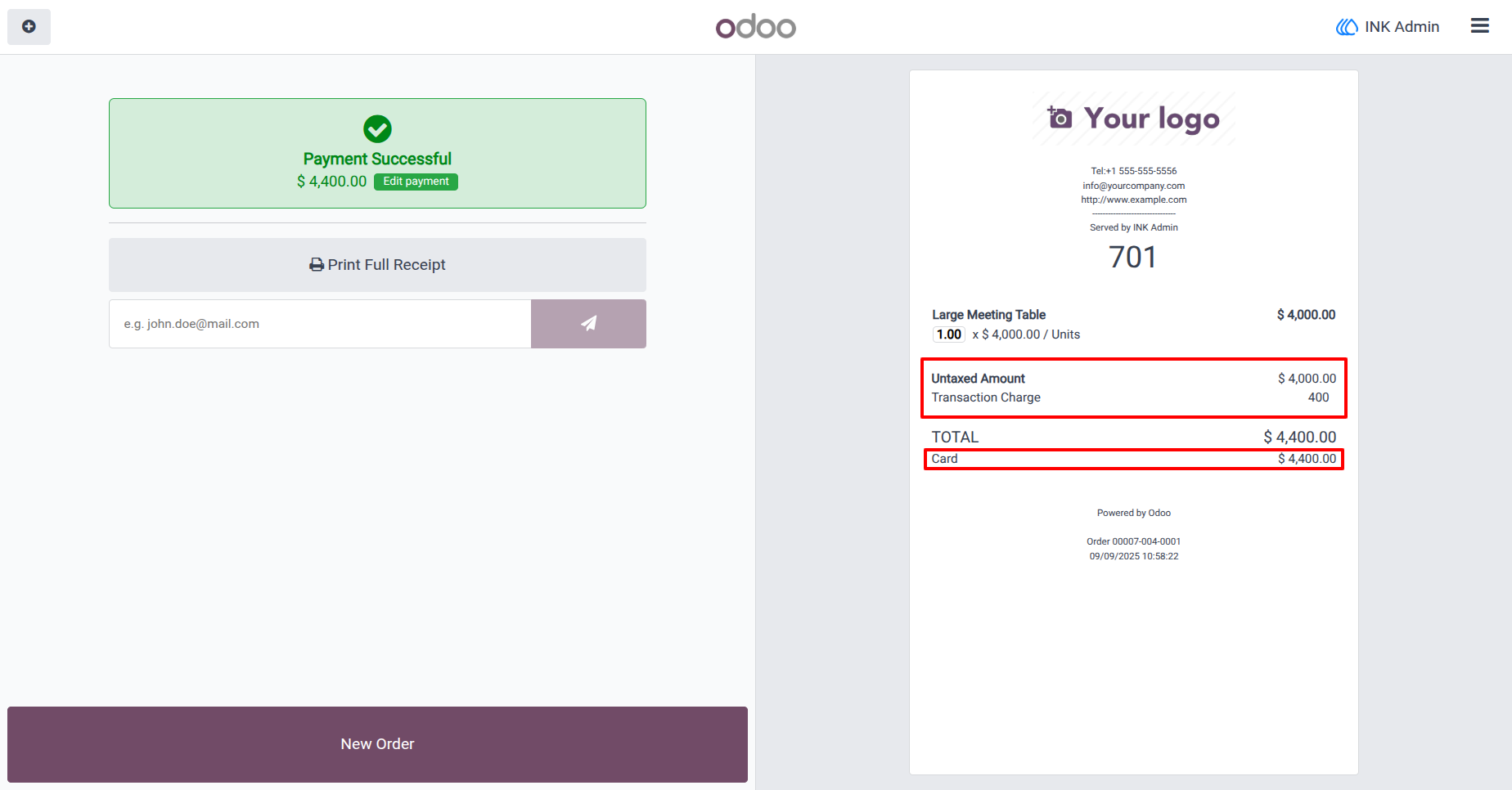
9.) POS Receipt with Percentage Transaction Fee Displayed
After confirming payment, the receipt clearly shows the transaction fee as a separate line item below the untaxed order amount.
User Guide