

EXCLUSIVE CUSTOMER BENEFITS
FREE INSTALLATION
& 90 DAYS FREE SUPPORT!
No worries about installation! This module comes with free installation assistance and 90 days of free support, helping you get started smoothly and confidently.
✦ COMPLIMENTARY INSTALLATION & SUPPORT ✦
MORE VALUE • LESS HASSLE • A BETTER START
Our Most Suggested Products


Assign & Manage Salesperson per Orderline
A powerful tool that lets you assign, change salespersons directly from the POS interface. Designed for speed and flexibility, this module allows assignment per order or per orderline with just one tap.
 Features
 Screenshots
 Support
 Service
Features
Assign Salesperson for Each Product Line
This feature allows you to select a specific salesperson for every product line added in the POS. It’s especially useful when multiple salespeople assist the same customer during a single transaction.
Real-Time Flexibility and Control
Easily change or update the assigned salesperson directly from the POS interface with just a few clicks. Whether you want to adjust assignments before payment or during order review, the process is fast and intuitive.
Screenshot
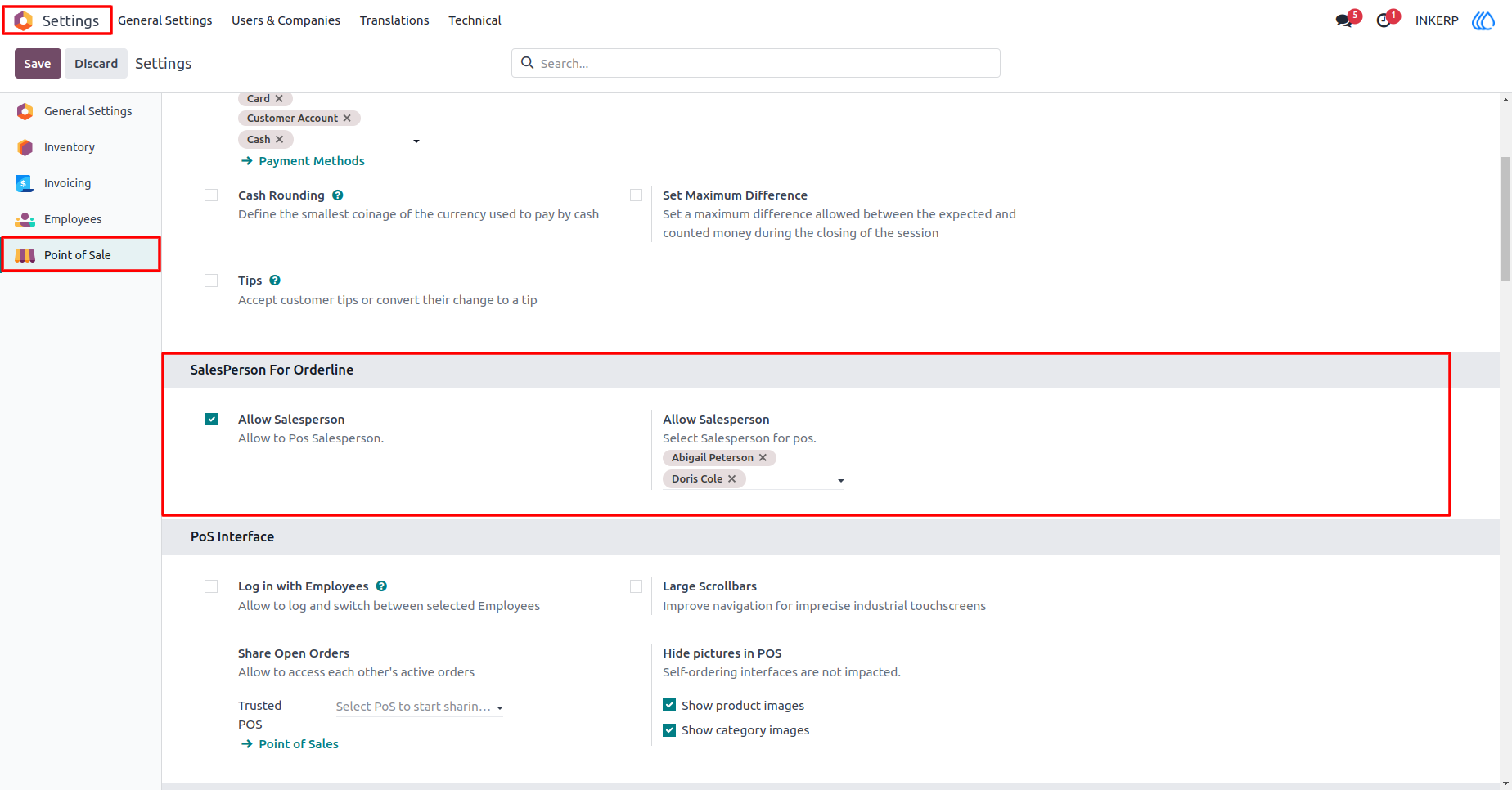
1.) Configuration for Salesperson for Orderline
Allow Salesperson in Orderline for Point of Sale to Assign SalesPerson in Orderline.
Navigation : Setting › Point of Sale › Salesperson Foe Orderline
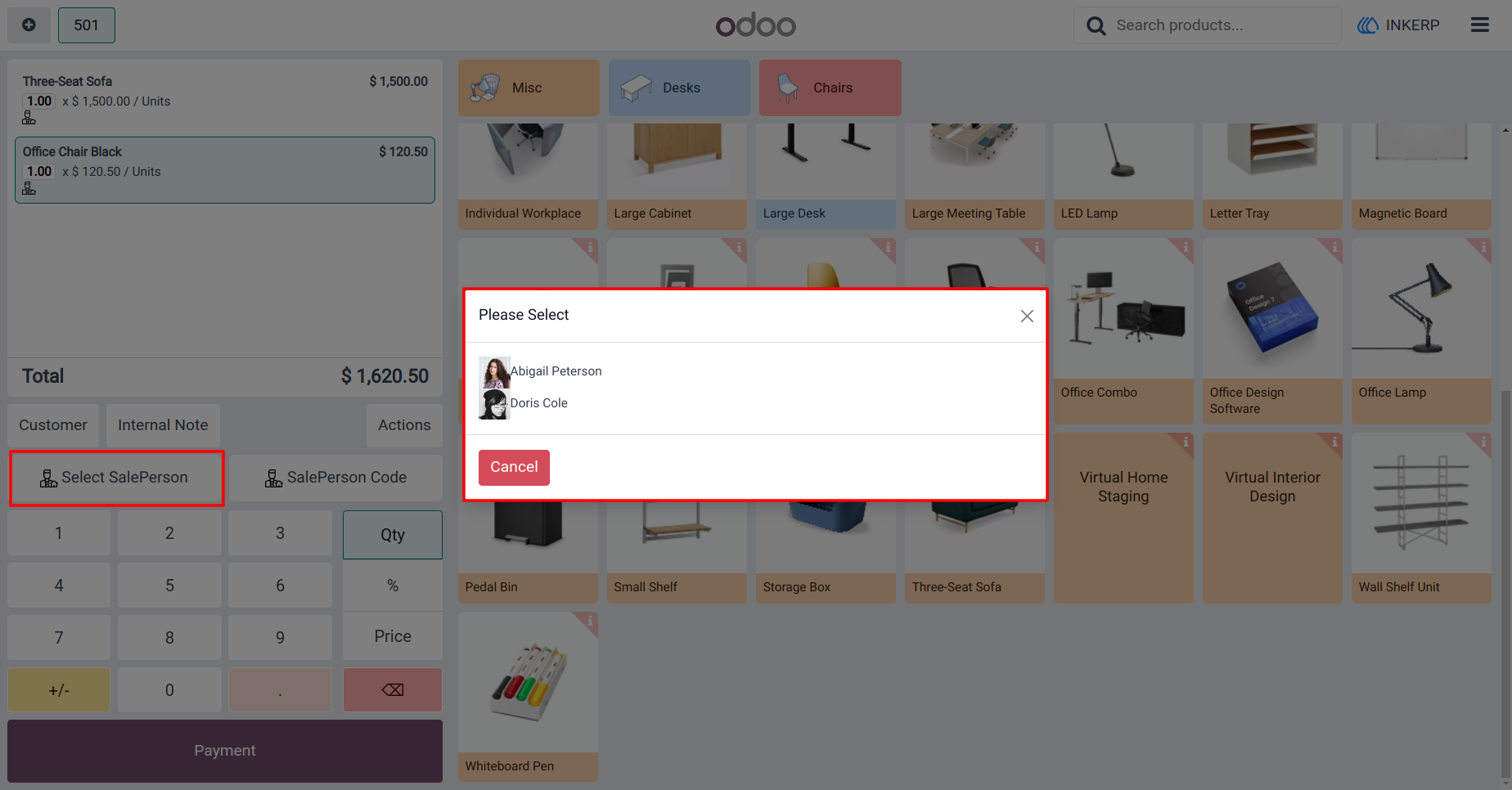
2.) SalesPerson in Point of Sale
When on click select SalesPerson button to open popup to select Salesperson for Orderline.
3.) Add Salesperson
When click on salesperson to add salesperson in POS Orderline
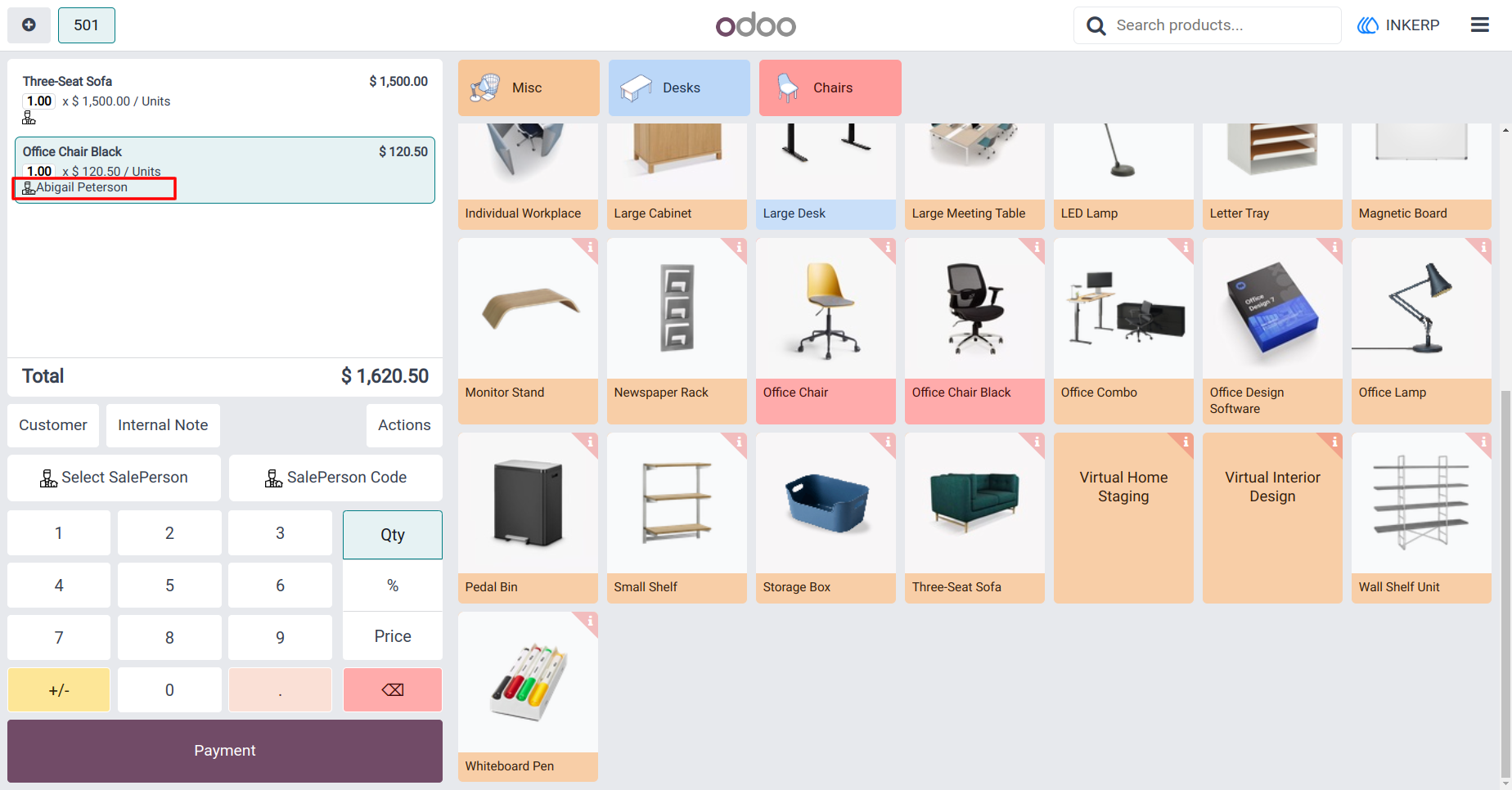
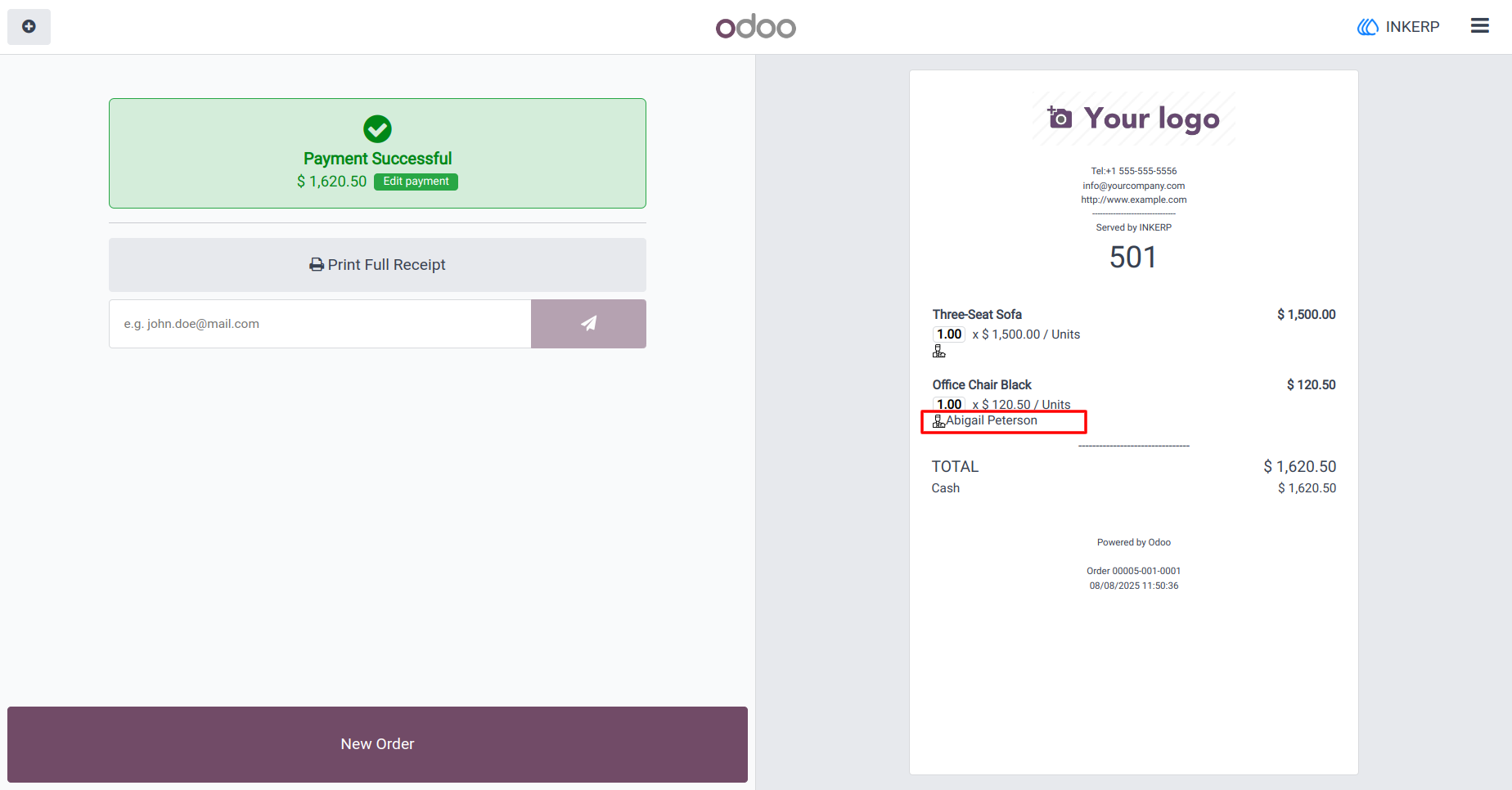
4.) Salesperson in Receipt
Orderline in Add salesperson than the print salesperson in POS Receipt
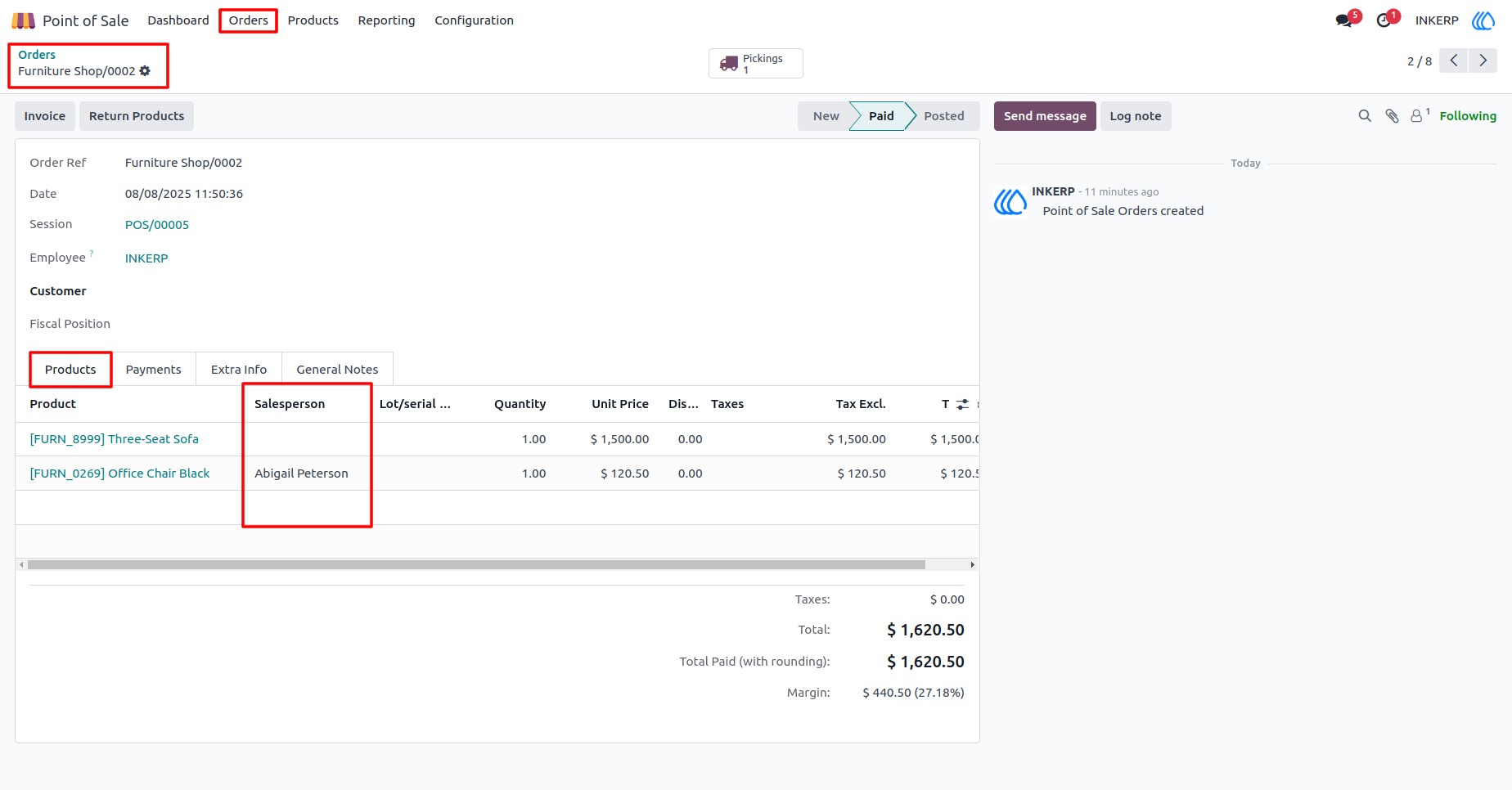
5.) Salesperson in POS Order
When Create POS Order than the add Salesperson in POS Order to Orderline
Navigation : Point of Sale › Orders › Order
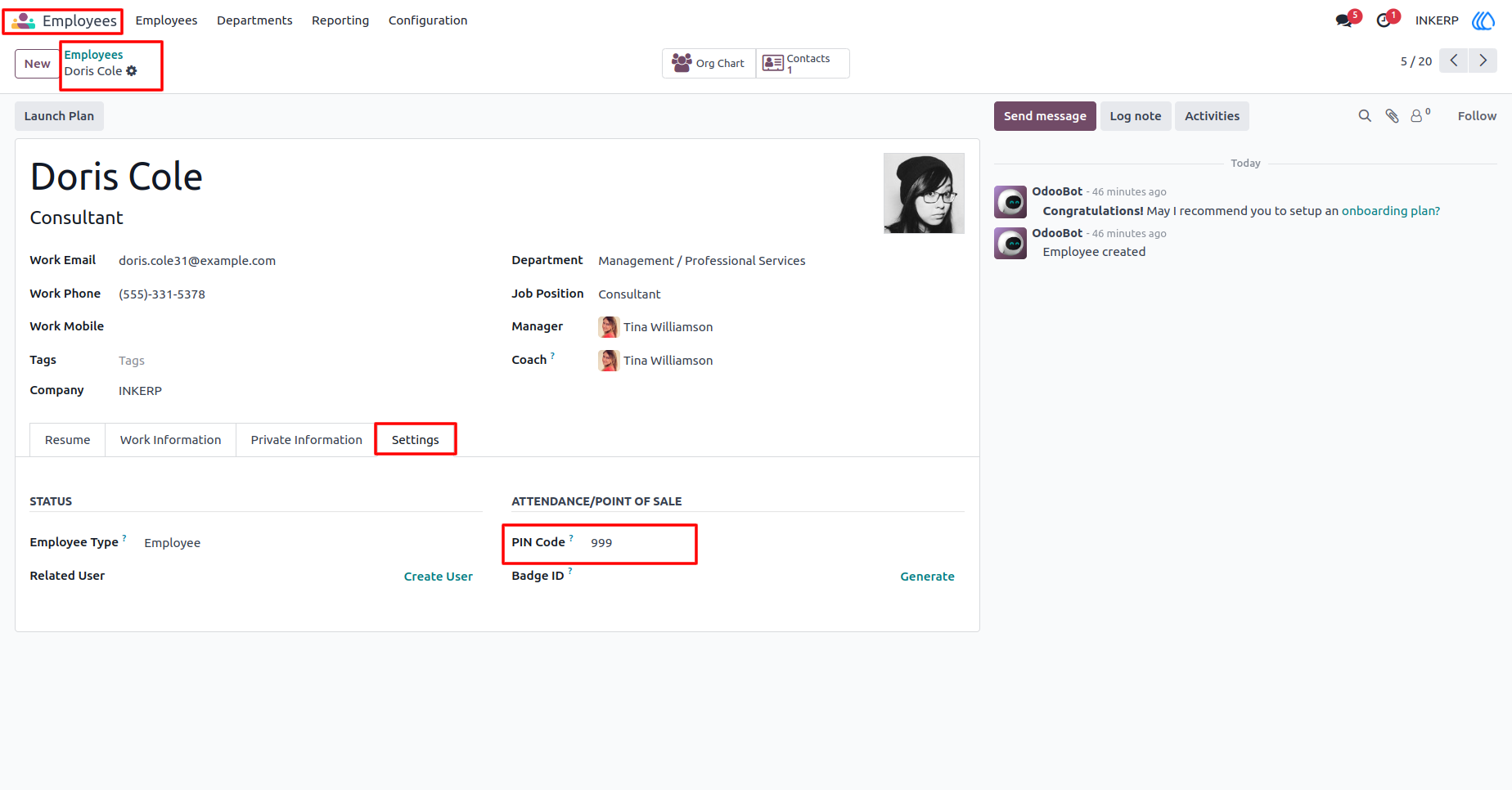
6.) Code For Salesperson
Set Code for Salesperson in Employee
Navigation : Employees › Employee
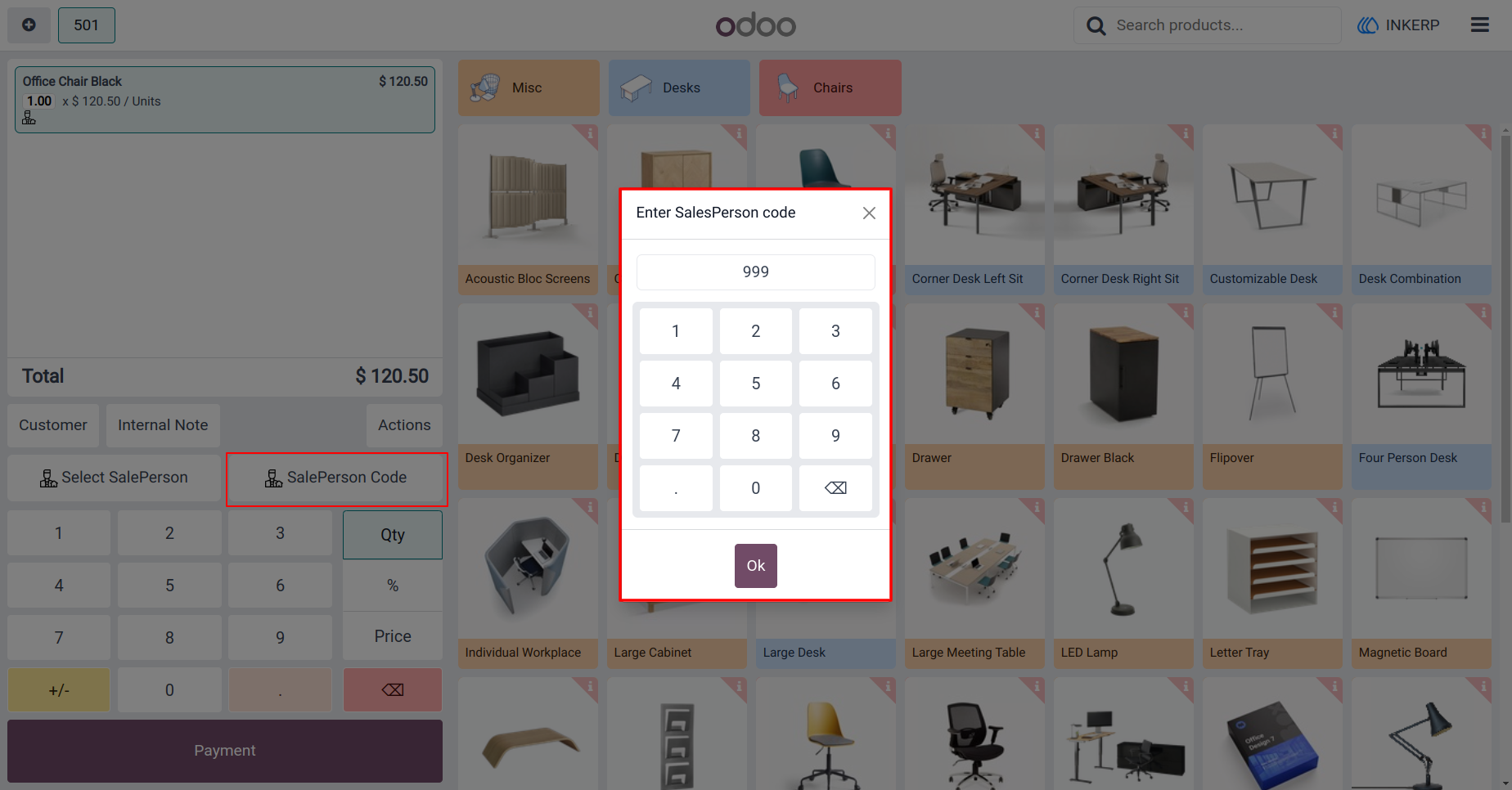
7.) Add Salesperson using Code
Salesperson add using the Code in POS Orderline
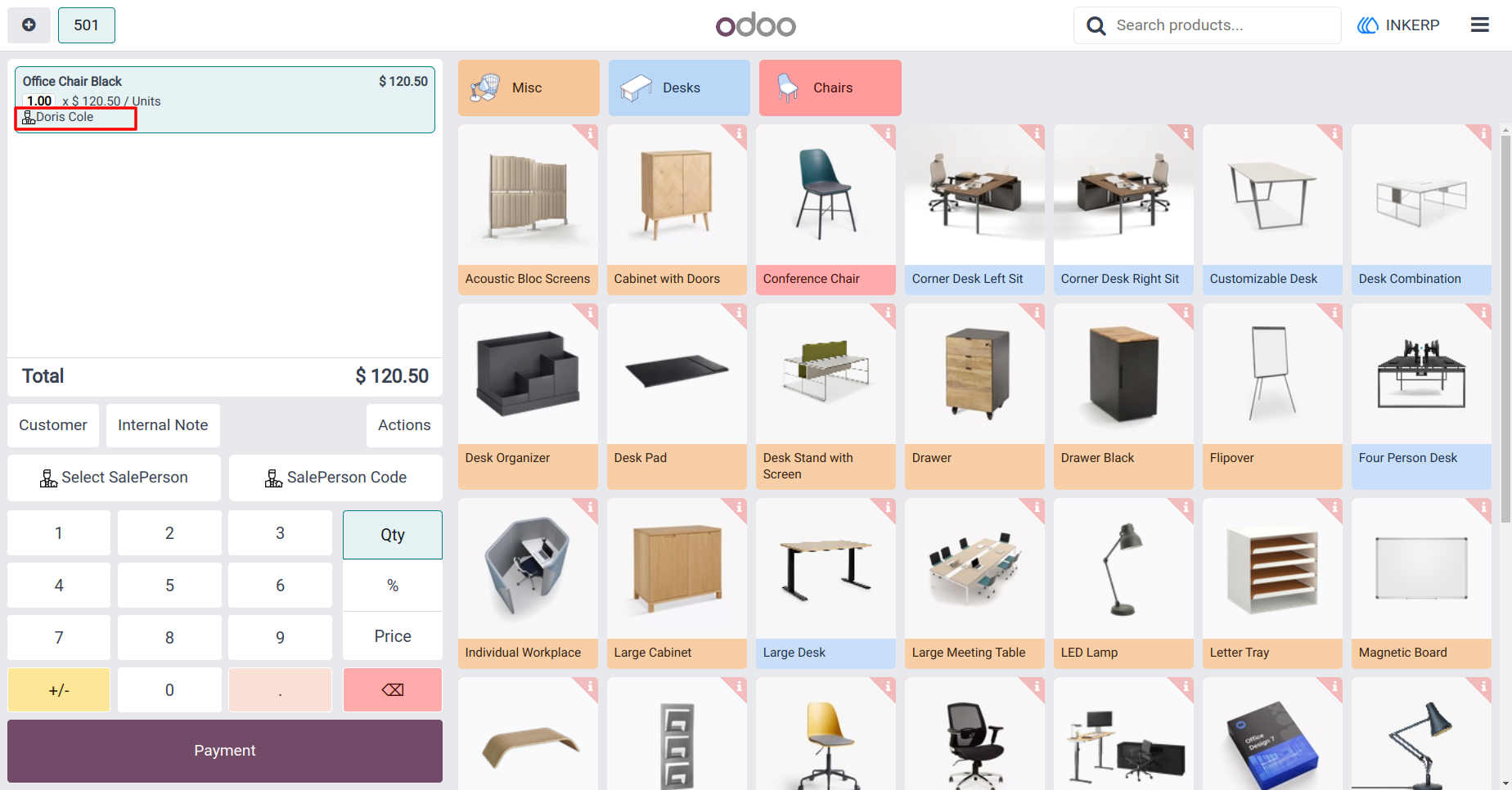
8.) Add Salesperson
When match Salesperson code than add salesperson in POS Orderline
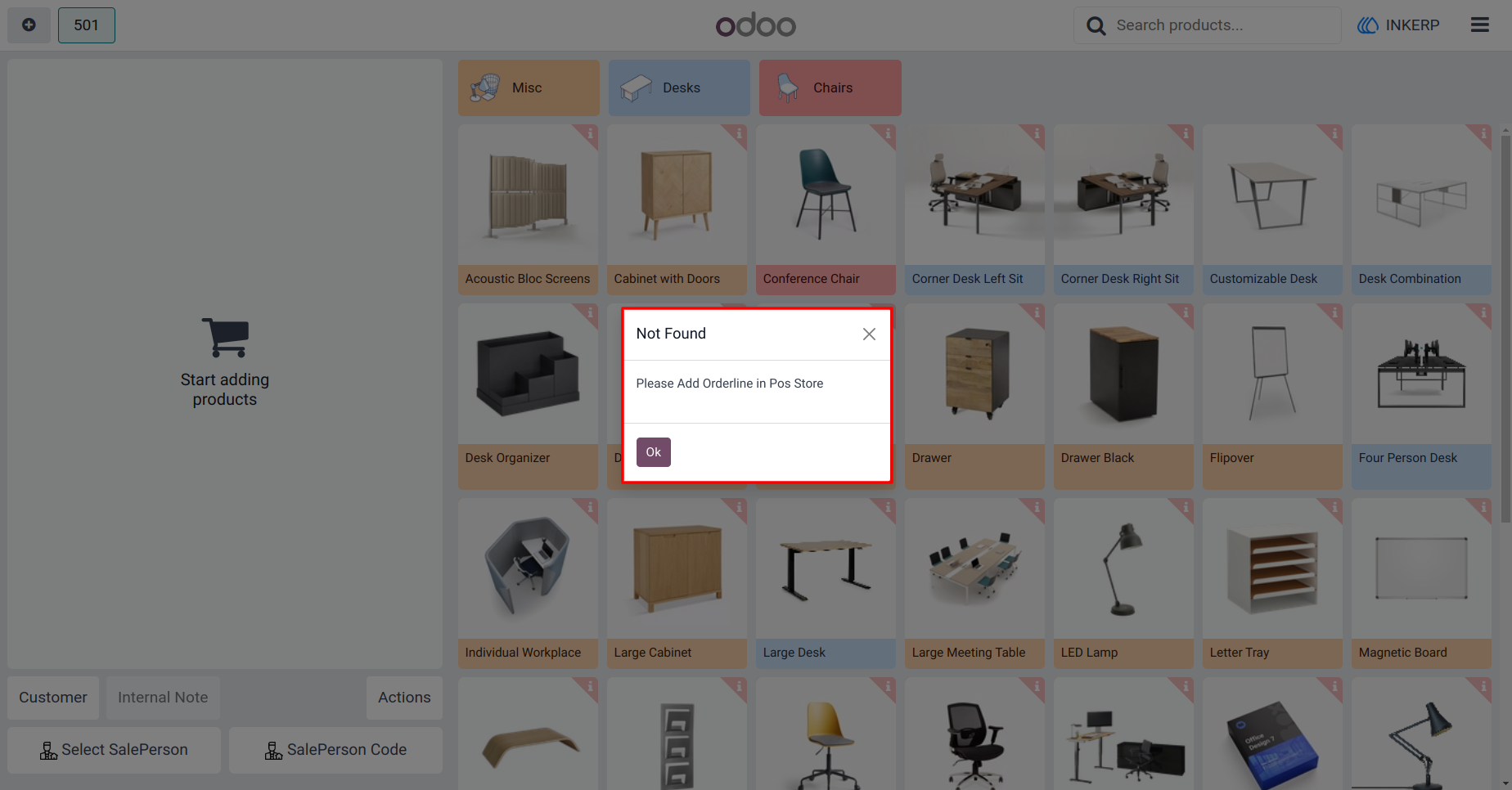
9.) When Order line Empty
When Order line is Empty than Show Alert Msg
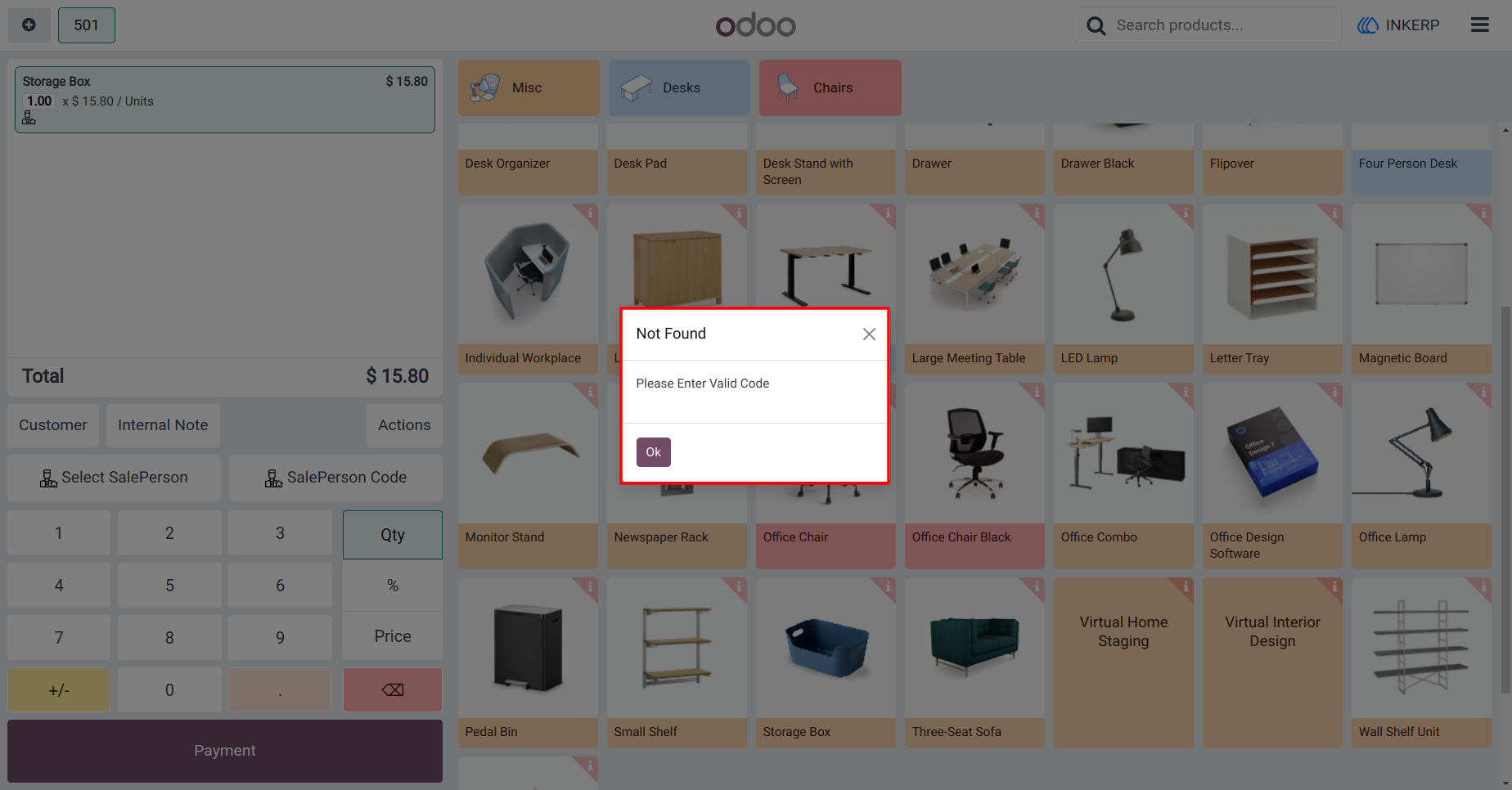
10.) When Enter Wrong Code
When Enter Wrong Salesperson code than the show Alert Msg
User Guide