

Our Most Suggested Products


POS Restaurant Floor-Wise Service Charge Management
POS Restaurant Floor-Wise Service Charge Management is a smart and flexible extension for Odoo POS designed to give restaurant owners full control over service charges based on restaurant floors or areas. This app allows you to define different service charge percentages for each floor such as ground floor, rooftop, AC section, or premium dining area and automatically apply them during POS billing.
 Features
 Screenshots
 Support
 Service
Features
Floor-Wise Service Charge Configuration
This feature allows restaurant managers to define different service charge percentages for each restaurant floor or dining area, such as ground floor, first floor, rooftop, or premium sections. The configuration is done directly from the backend, making it simple to manage pricing variations based on ambiance or service level.
Automatic Service Charge Application in POS
When a cashier selects a table in the POS interface, the system instantly detects the associated floor and applies the correct service charge to the order. This automation eliminates human errors, ensures billing accuracy, and speeds up the checkout process during peak hours.
Service Charge Printed on POS Receipt
This feature ensures that the applied service charge is clearly displayed on the POS receipt as a separate line item. By printing the service charge amount along with the order total, taxes, and discounts, the app maintains full billing transparency for customers.
Screenshot
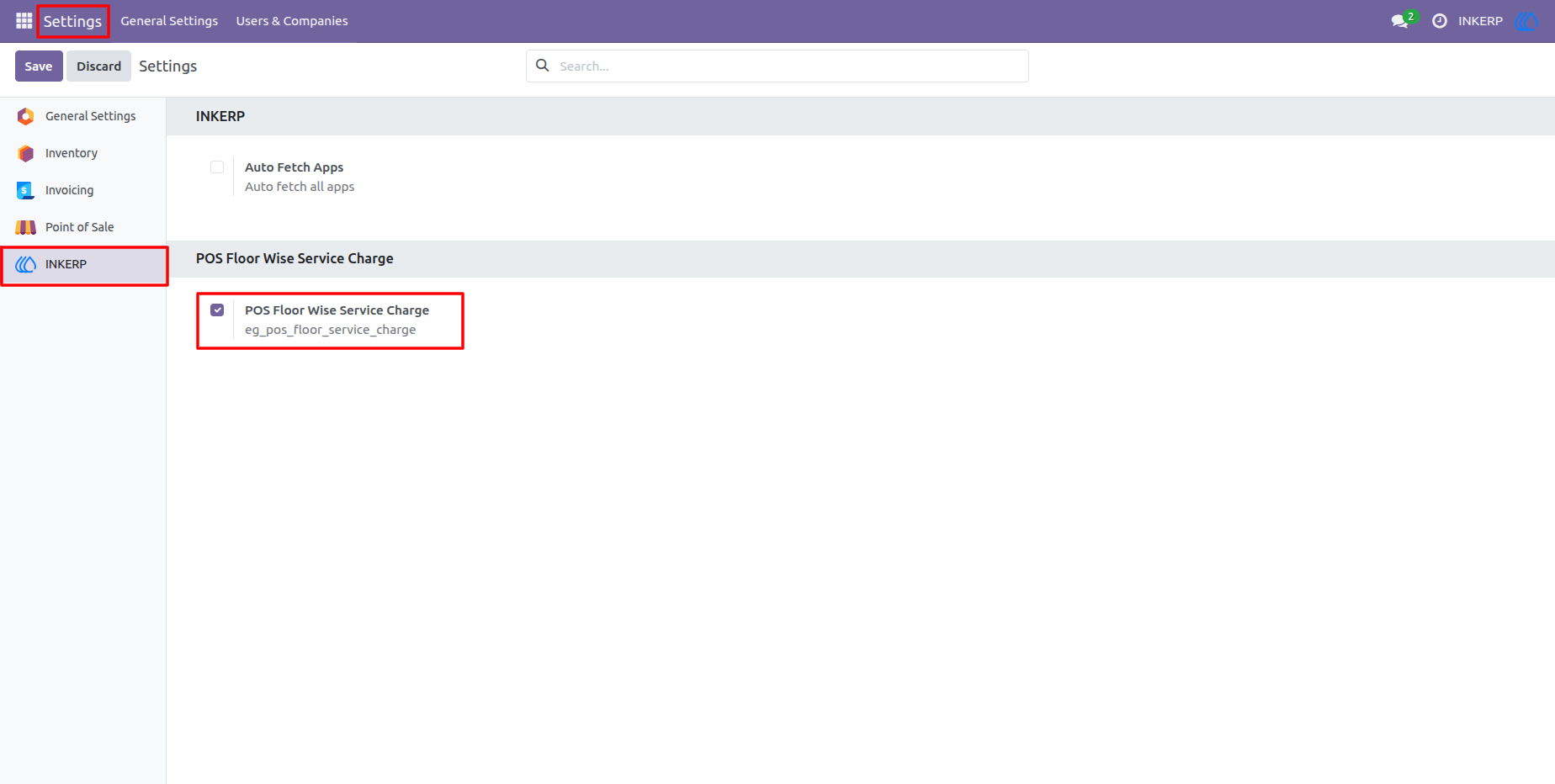
1.) Global Settings
This shows the Odoo Settings menu where the master switch for the "POS Floor Wise Service Charge" module is enabled, ensuring the feature is active across the system.
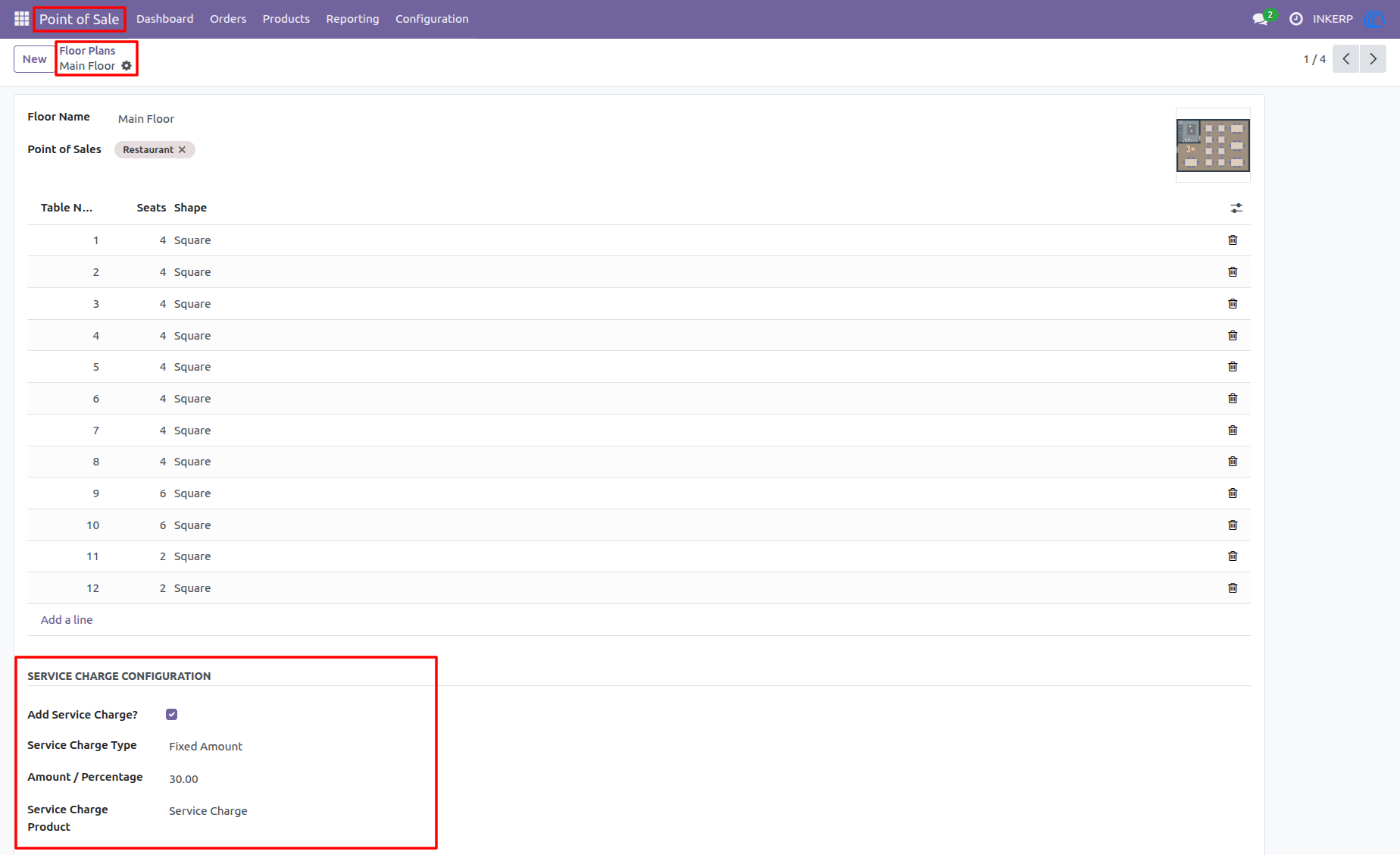
2.) Main Floor Configuration
This view displays the "Service Charge Configuration" block added to the "Main Floor" of the Restaurant. It is currently configured for a Fixed Amount charge of $30.00.
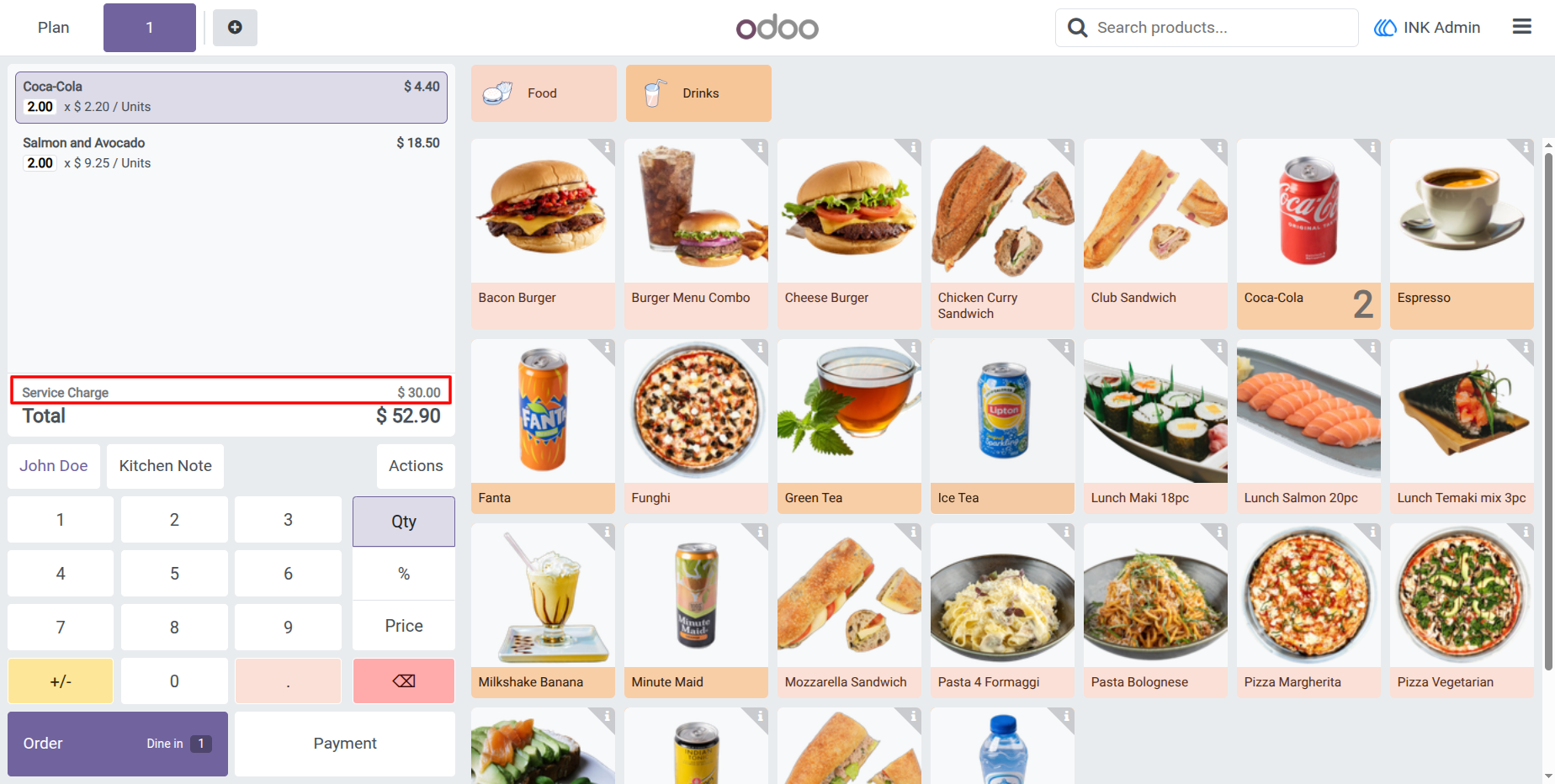
3.) POS Cart (Fixed Amount)
The live POS interface showing a subtotal with a $30.00 "Service Charge" line item automatically injected by the system based on the "Main Floor" configuration.
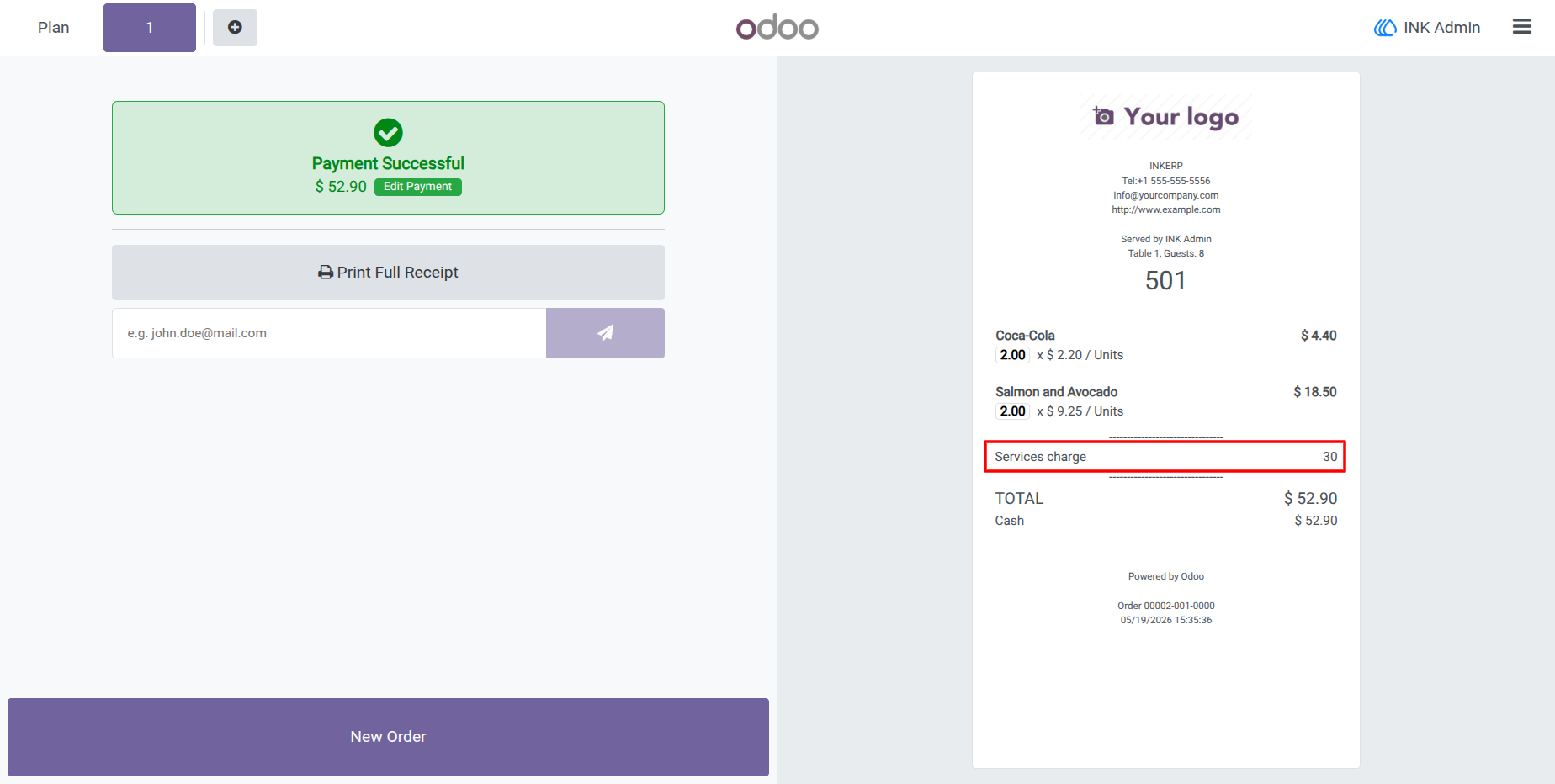
4.) Payment Successful & Receipt
These screenshots display the Payment Successful screen and the resulting printed receipt, both confirming that the "Services charge" has been captured and applied to the final total.
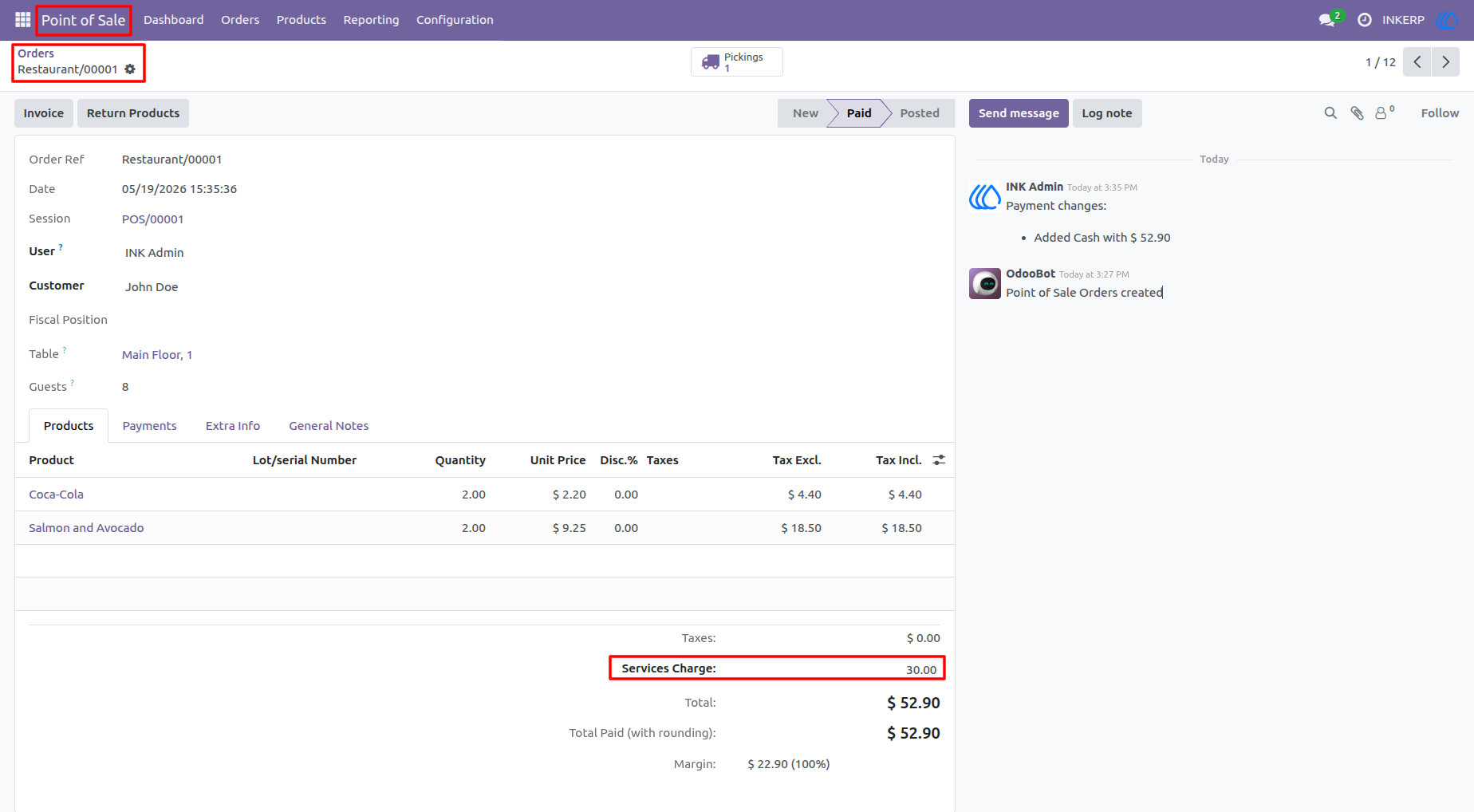
5.) POS Order Record
The backend view of a completed POS order. You can see the dedicated "Services Charge" field at the bottom, accurately reflecting the $30.00 charge.
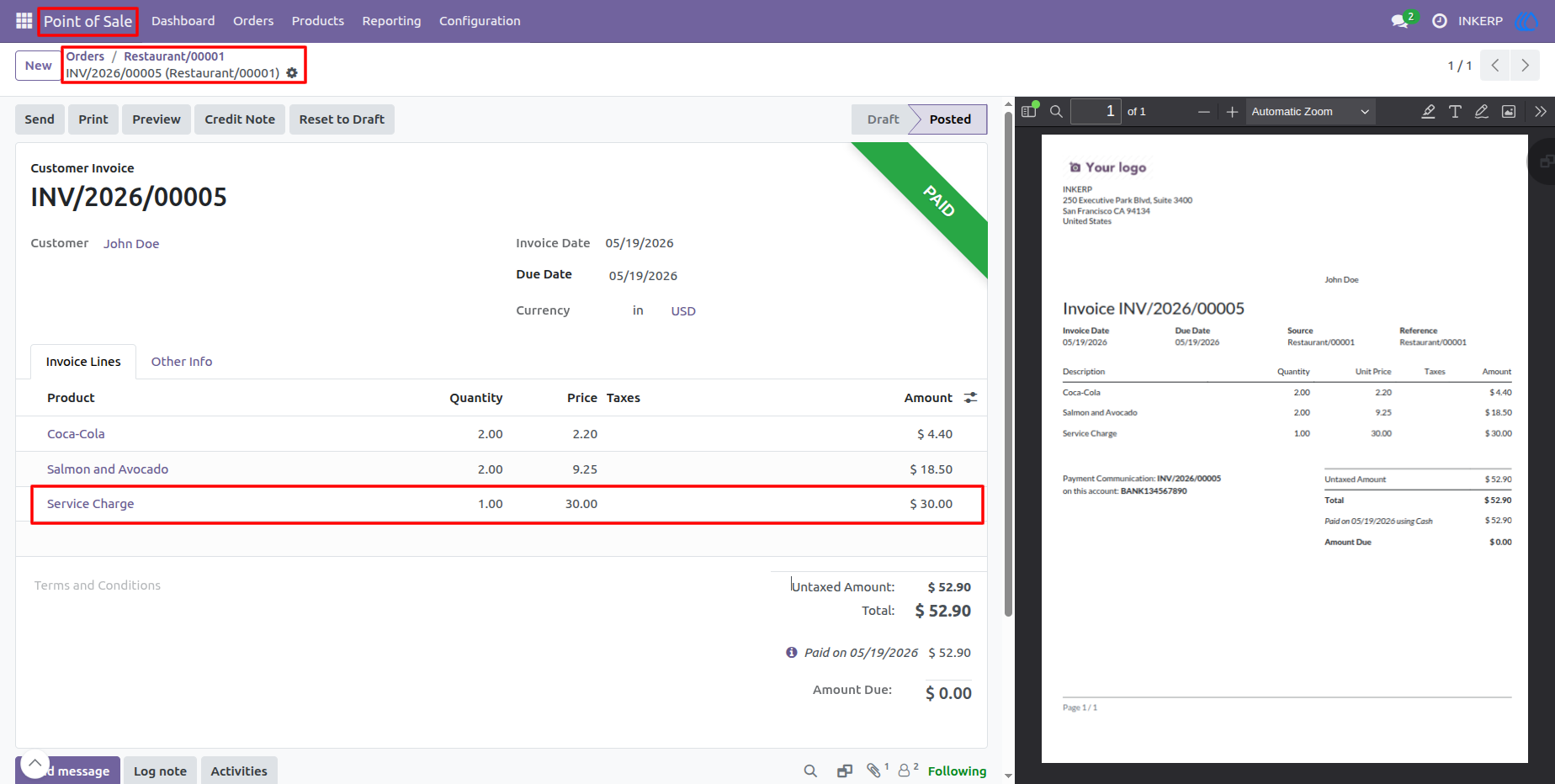
6.) Customer Invoice
The generated Accounting Invoice for the order. The service charge is automatically added as an independent invoice line, ensuring accurate financial reporting.
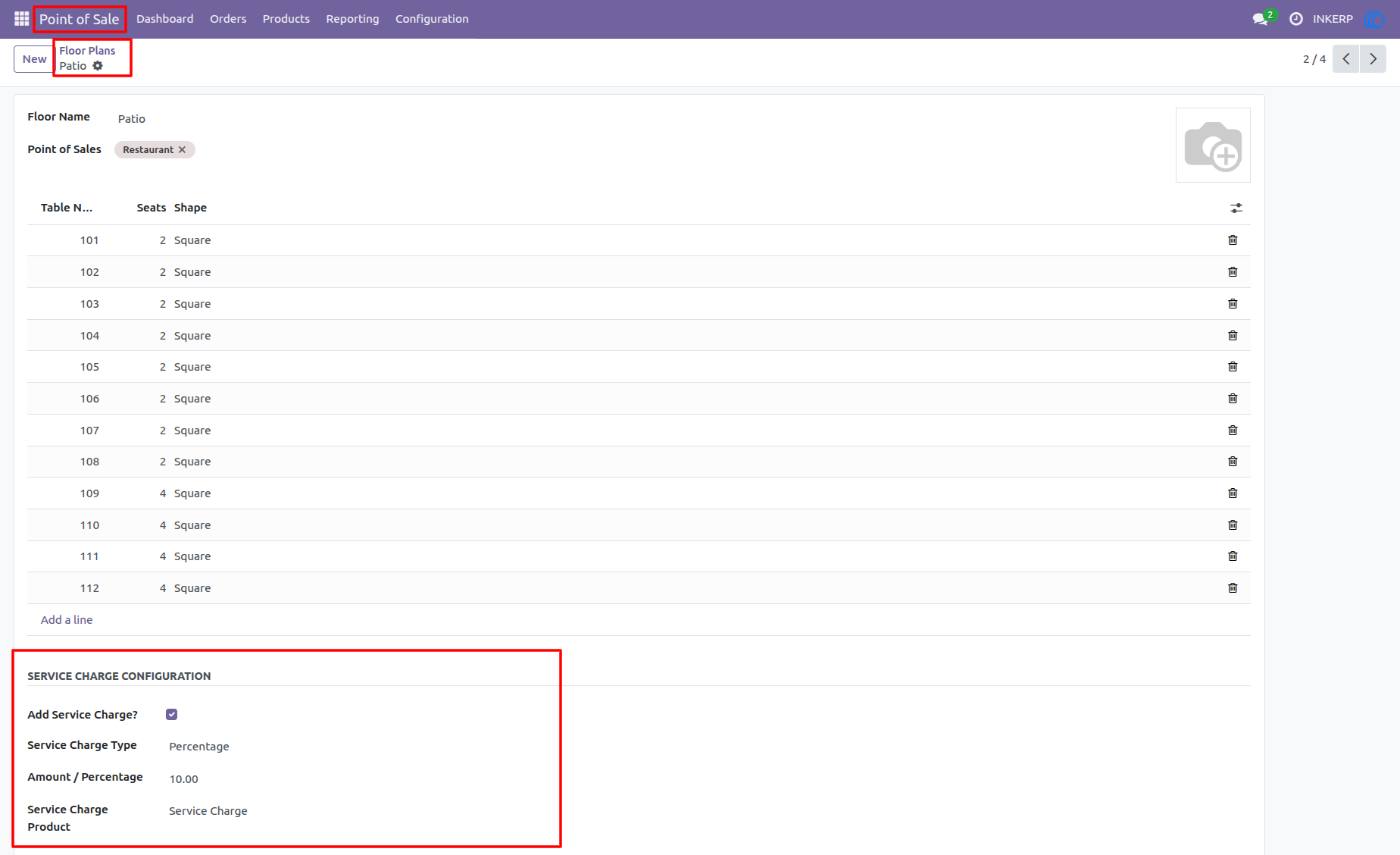
7.) Patio Floor Configuration
This shows the configuration for the Patio floor, demonstrating that the module allows for different settings per floor. Here, it is set to a 10% Percentage charge.
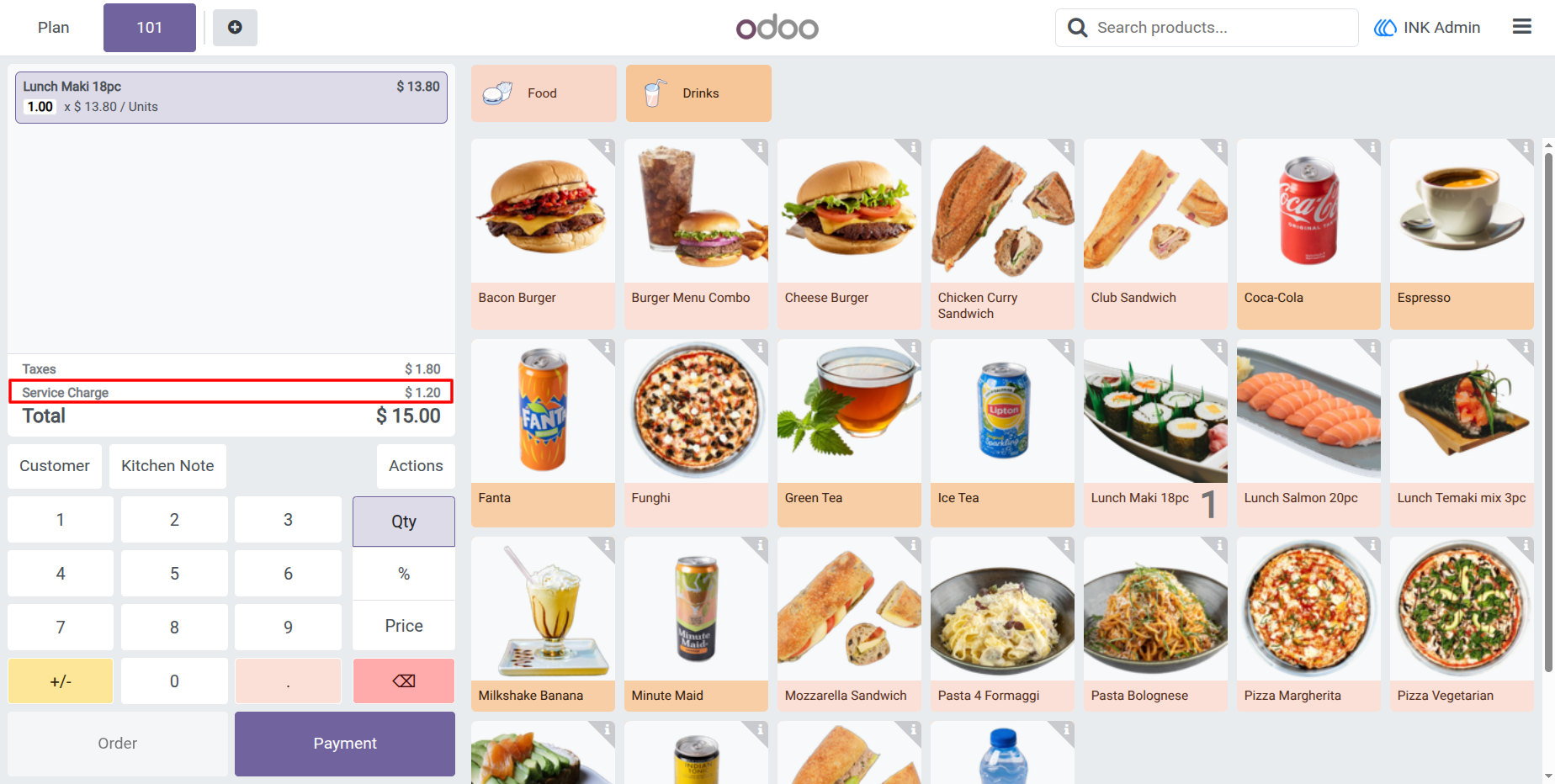
8.) POS Cart (Percentage)
The live POS interface showing the Patio table order. The system has automatically calculated a $1.20 charge (10% of the $12.00 subtotal) and added it to the cart.
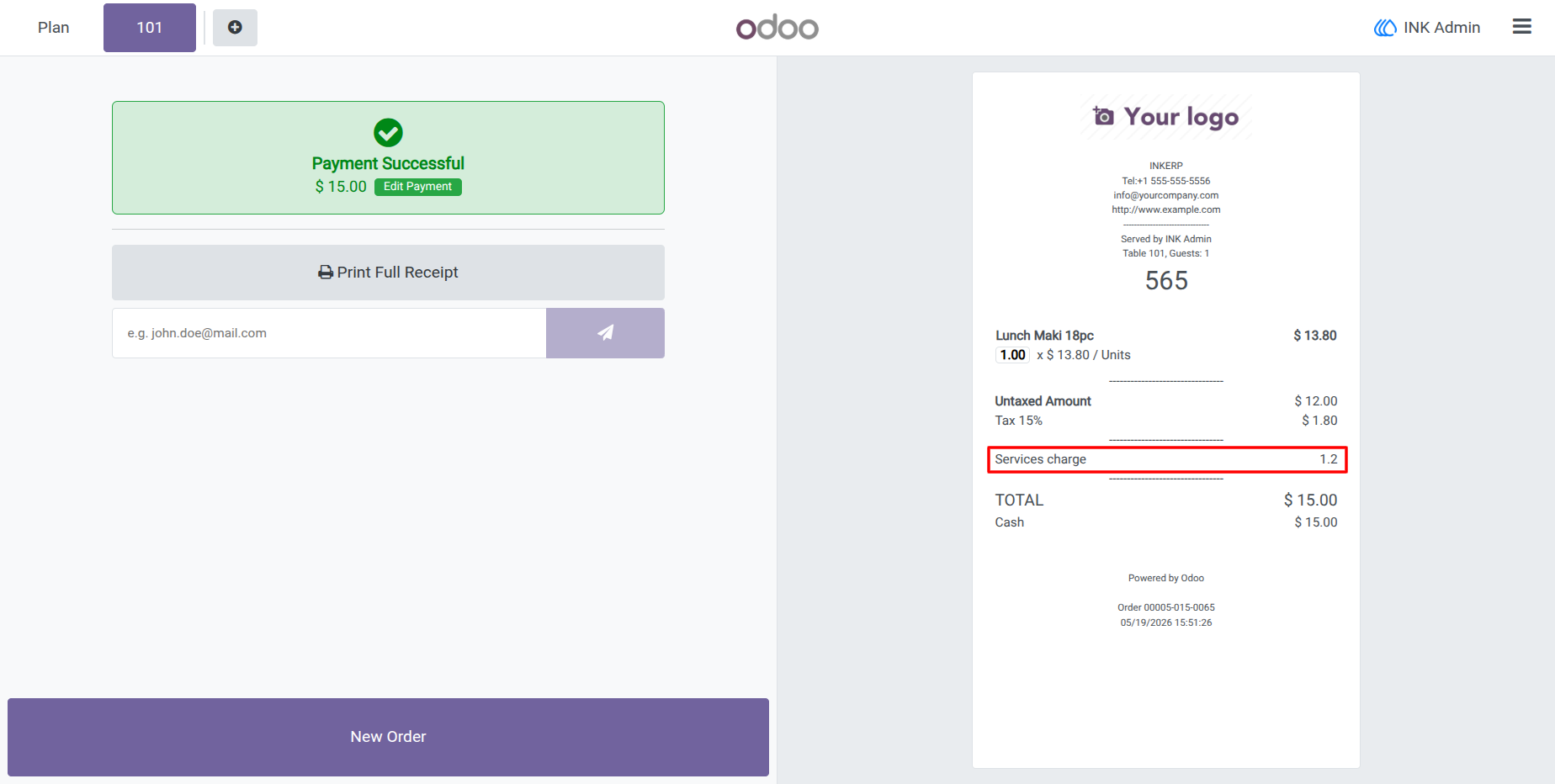
9.) Payment Successful & Receipt
These screenshots display the Payment Successful screen and the resulting printed receipt, both confirming that the "Services charge" has been captured and applied to the final total.
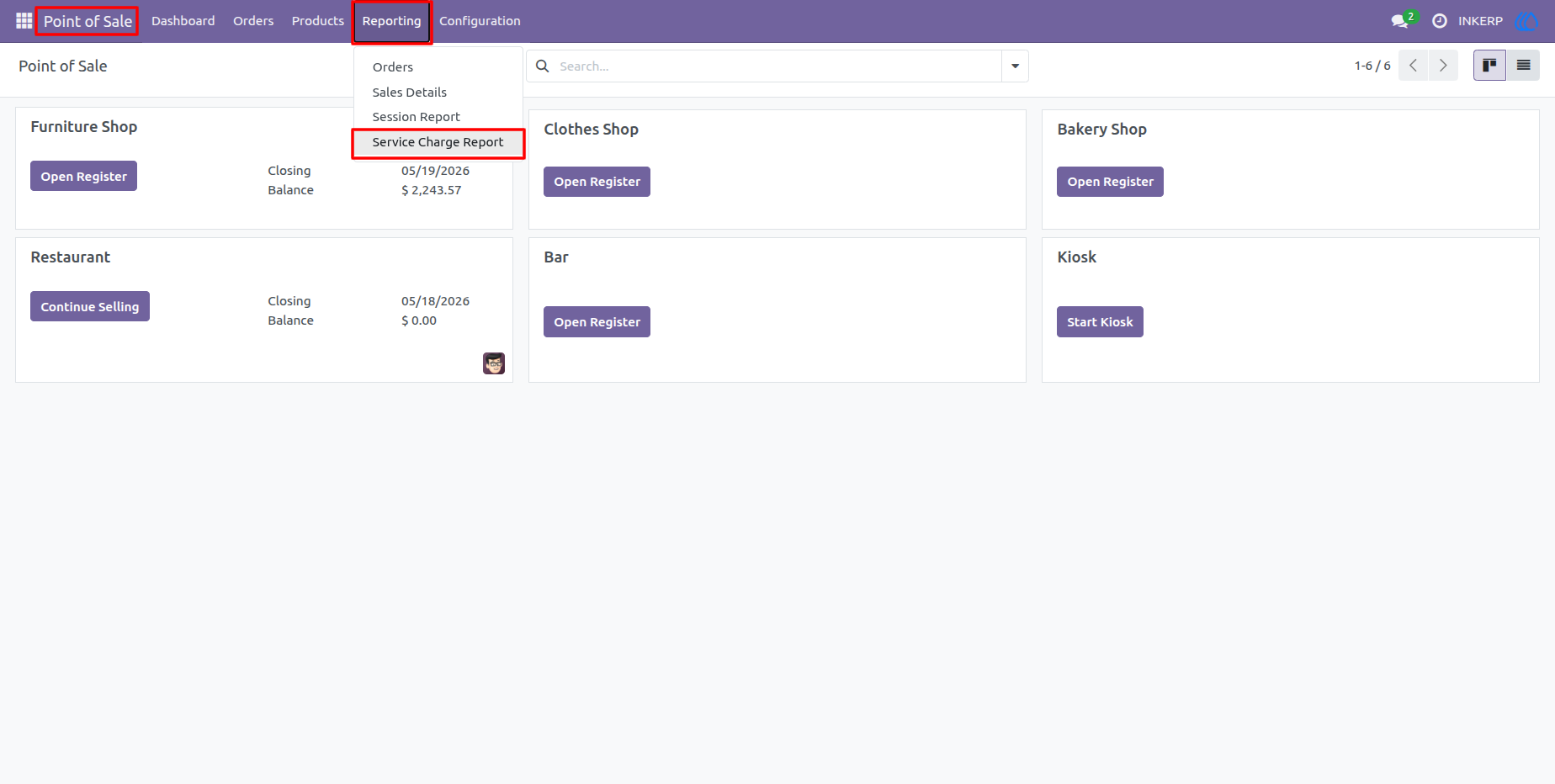
10.) Accessing the Report
This shows the POS dashboard menu. By navigating to Reporting - Service Charge Report, you can launch the custom wizard you built to generate specialized financial insights.
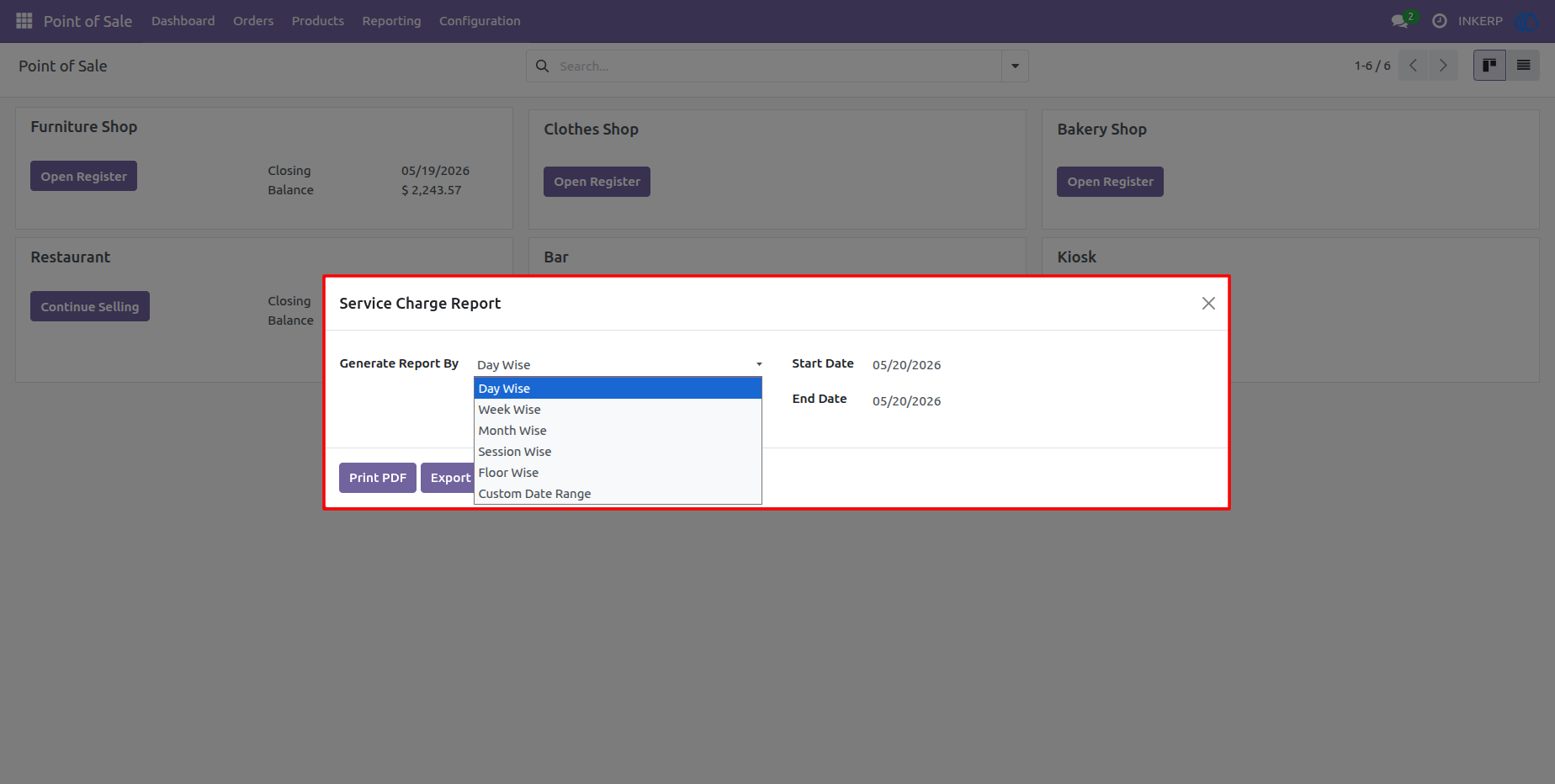
11.) Report Wizard Interface
The generated wizard popup allows the user to define exactly how the data should be grouped (e.g., Day Wise, Floor Wise, Session Wise) and sets the specific date range for the analysis.
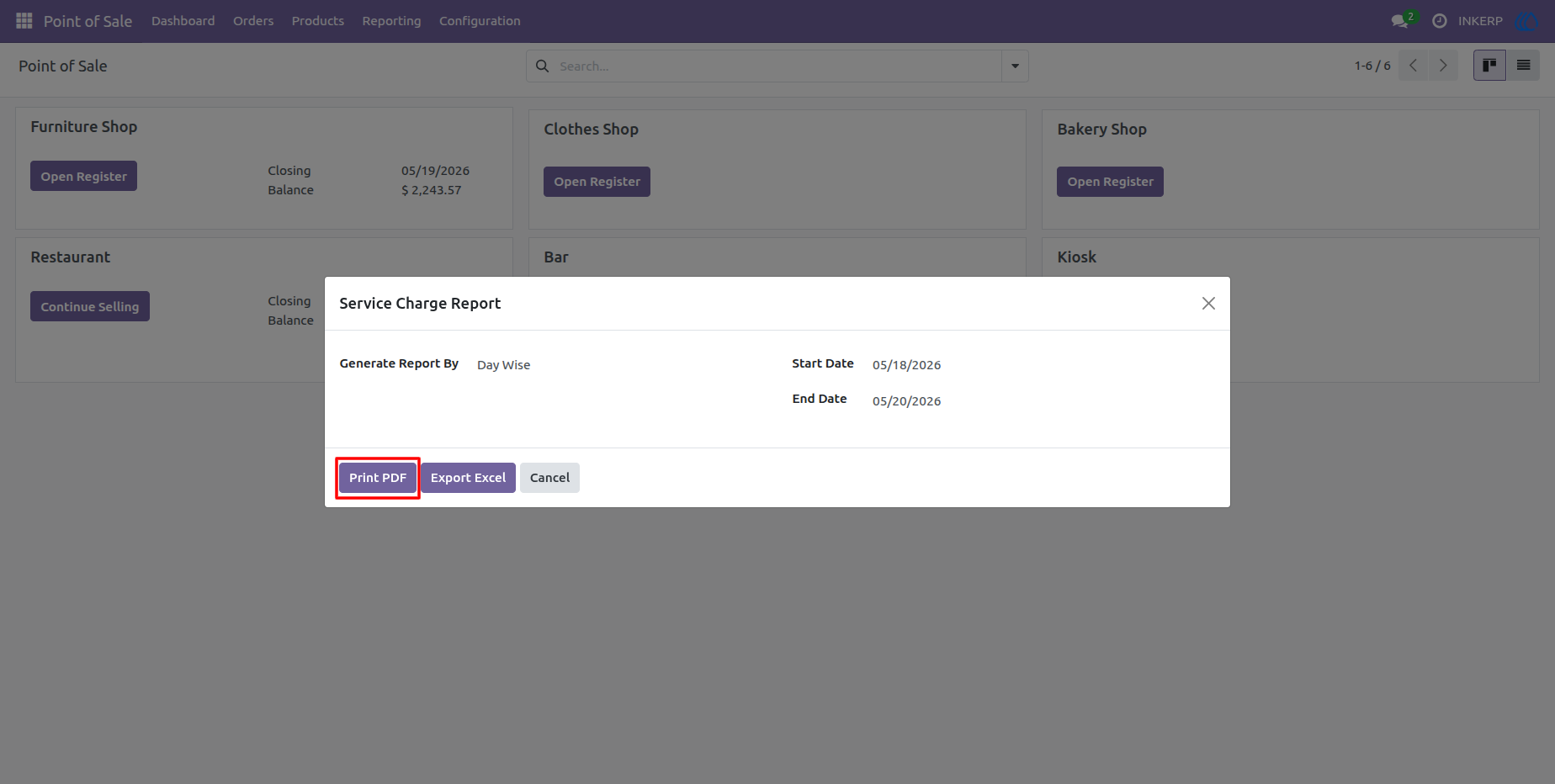
12.) PDF Generation Trigger
After defining the report parameters, the user clicks Print PDF to generate a formal, company-branded document suitable for management reviews or record-keeping.
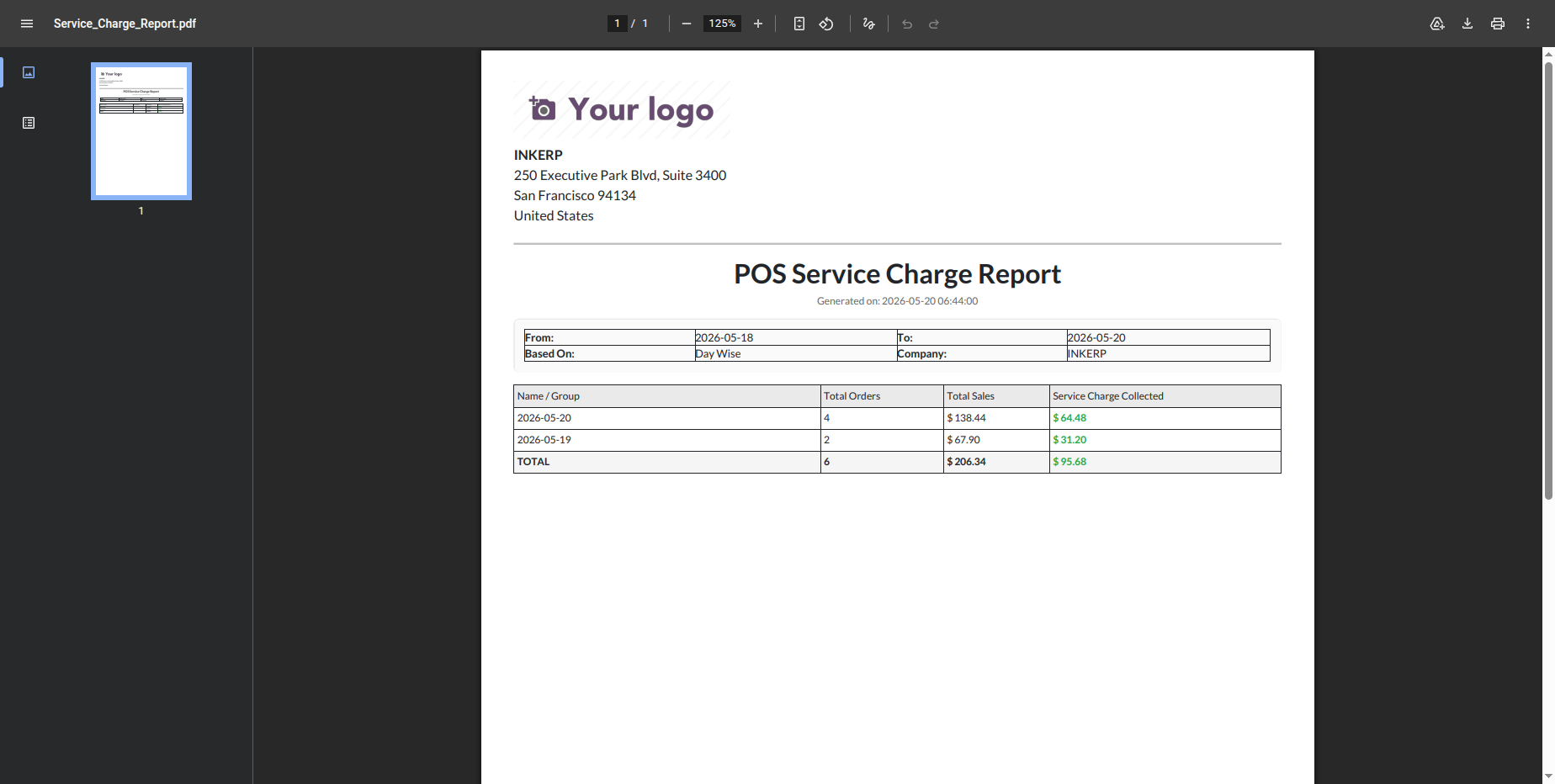
13.) PDF Report
A generated PDF document showing a clean, professional summary of the total orders, sales, and service charges collected for the selected period.
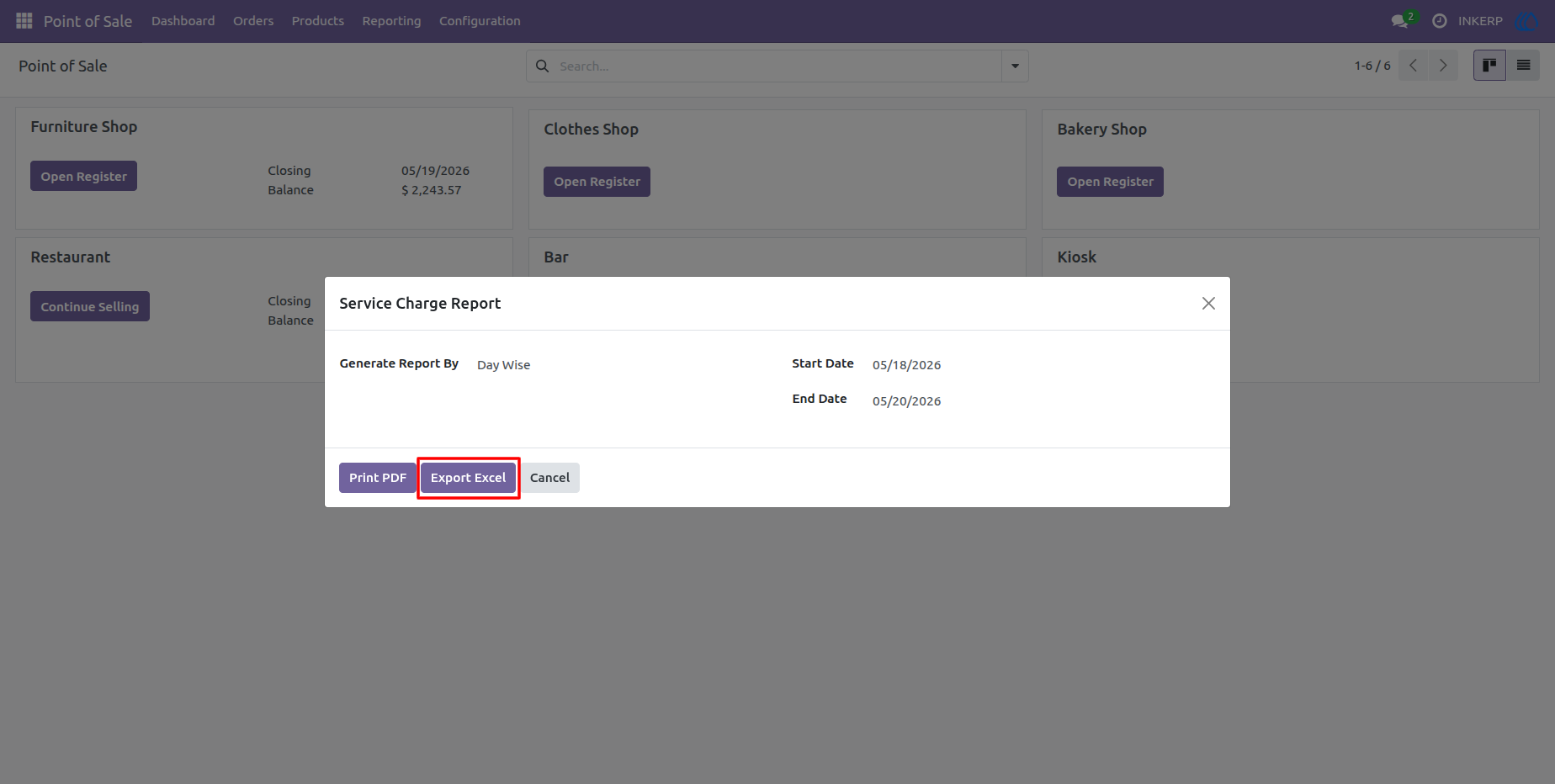
14.) Excel Export Trigger
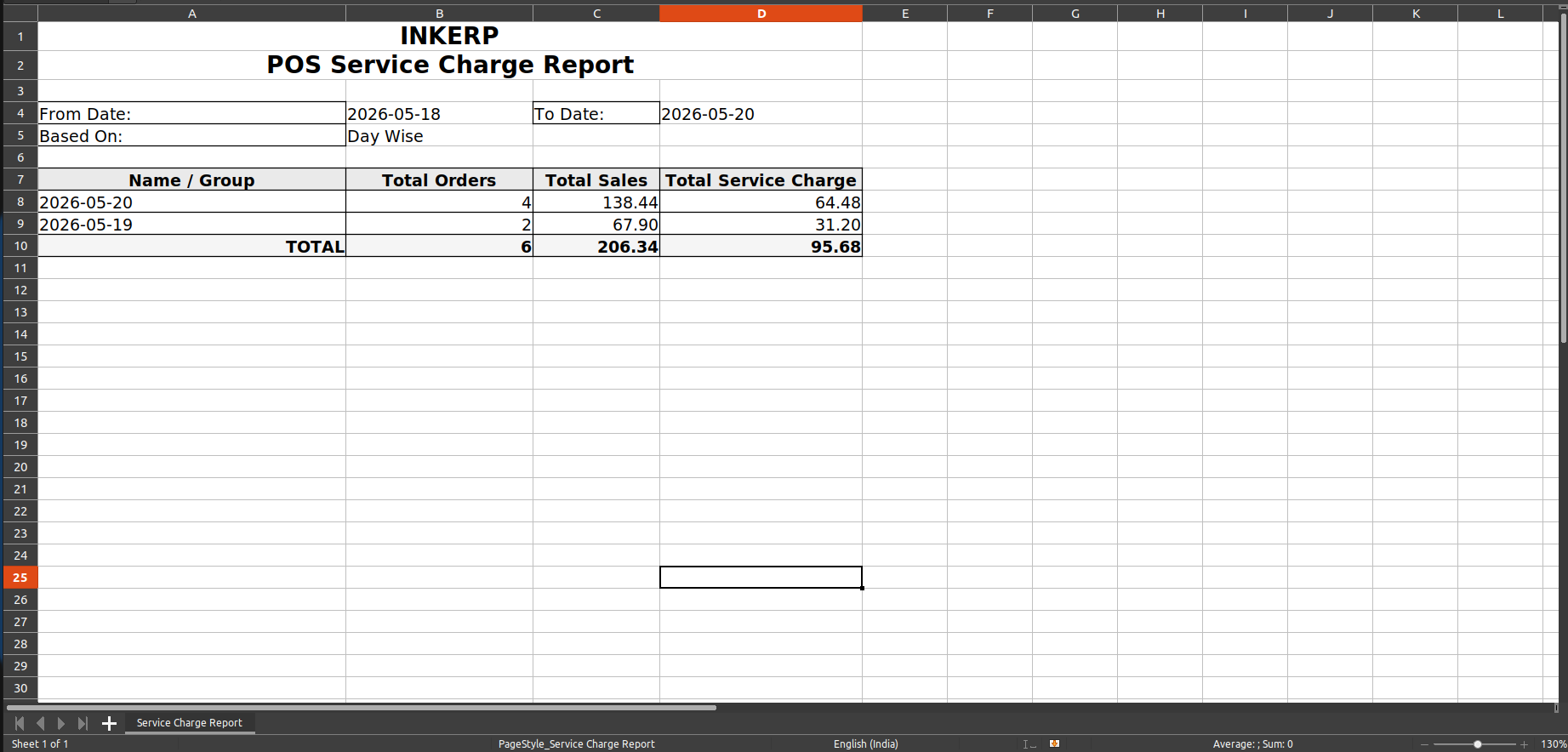
Alternatively, the user can click Export Excel to download a structured spreadsheet. This is ideal for accountants who need to manipulate the data, perform pivot analysis, or import it into other financial software.
15.) Excel Export
The downloaded XLSX file, providing a structured breakdown of the service charge data, ready for further analysis in spreadsheet software.
User Guide