

Our Most Suggested Products


POS Discount Limit Manager - Control Product & Order Discounts in Odoo POS
This module enhances Odoo Point of Sale by adding flexible discount control features. It allows managers to configure discount limits at both the product level and order level, ensuring discounts stay within defined business rules.
 Features
 Screenshots
 Support
 Service
Features
Product Price Discount Limit
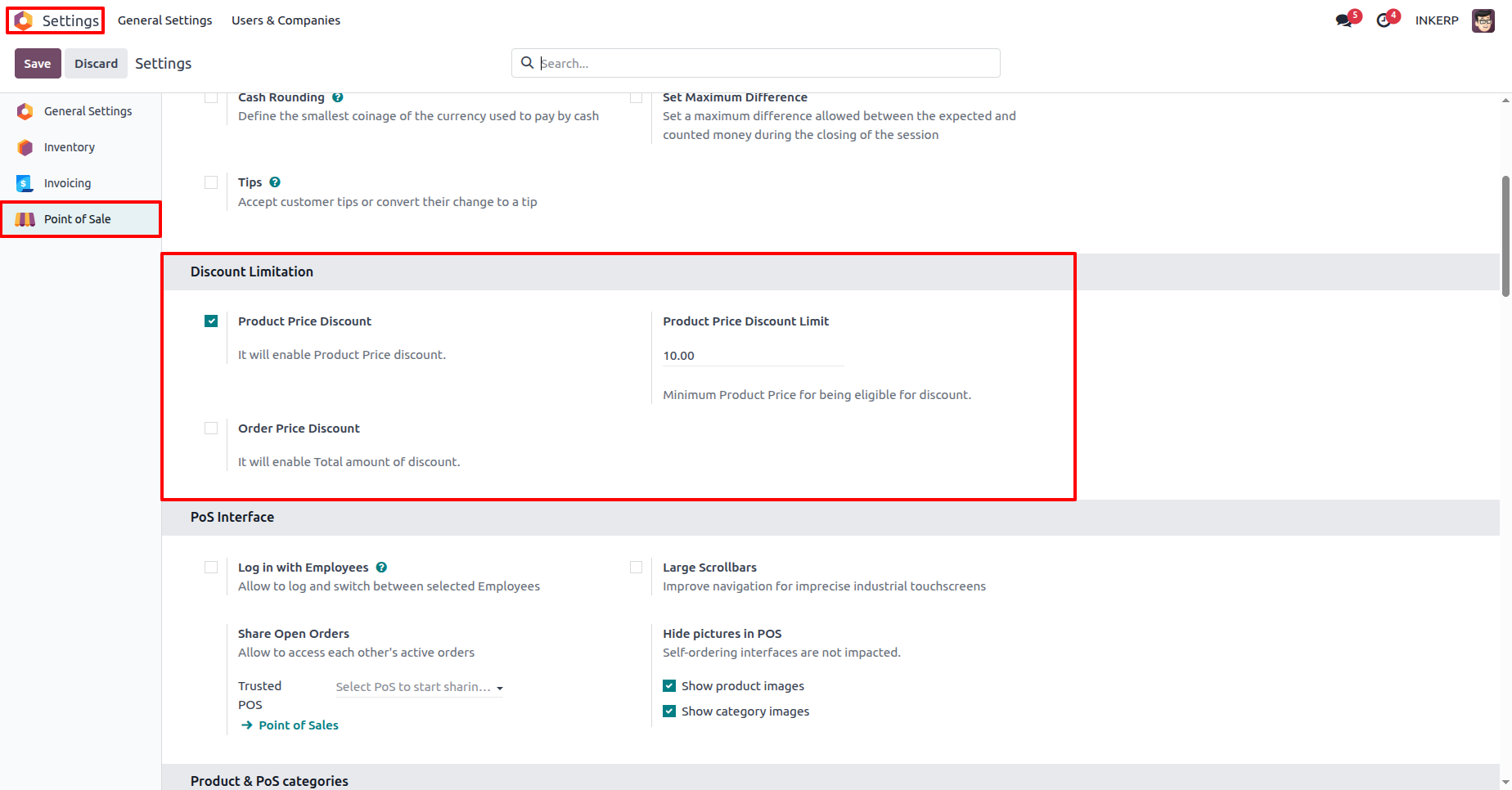
This feature allows you to set a minimum product price below which discounts cannot be applied. For example, if a product price limit is set at $10, cashiers cannot give discounts that reduce the price below this threshold. This ensures that discounts never cut into your profit margin and maintains control over individual product pricing.
Order Price Discount Limit
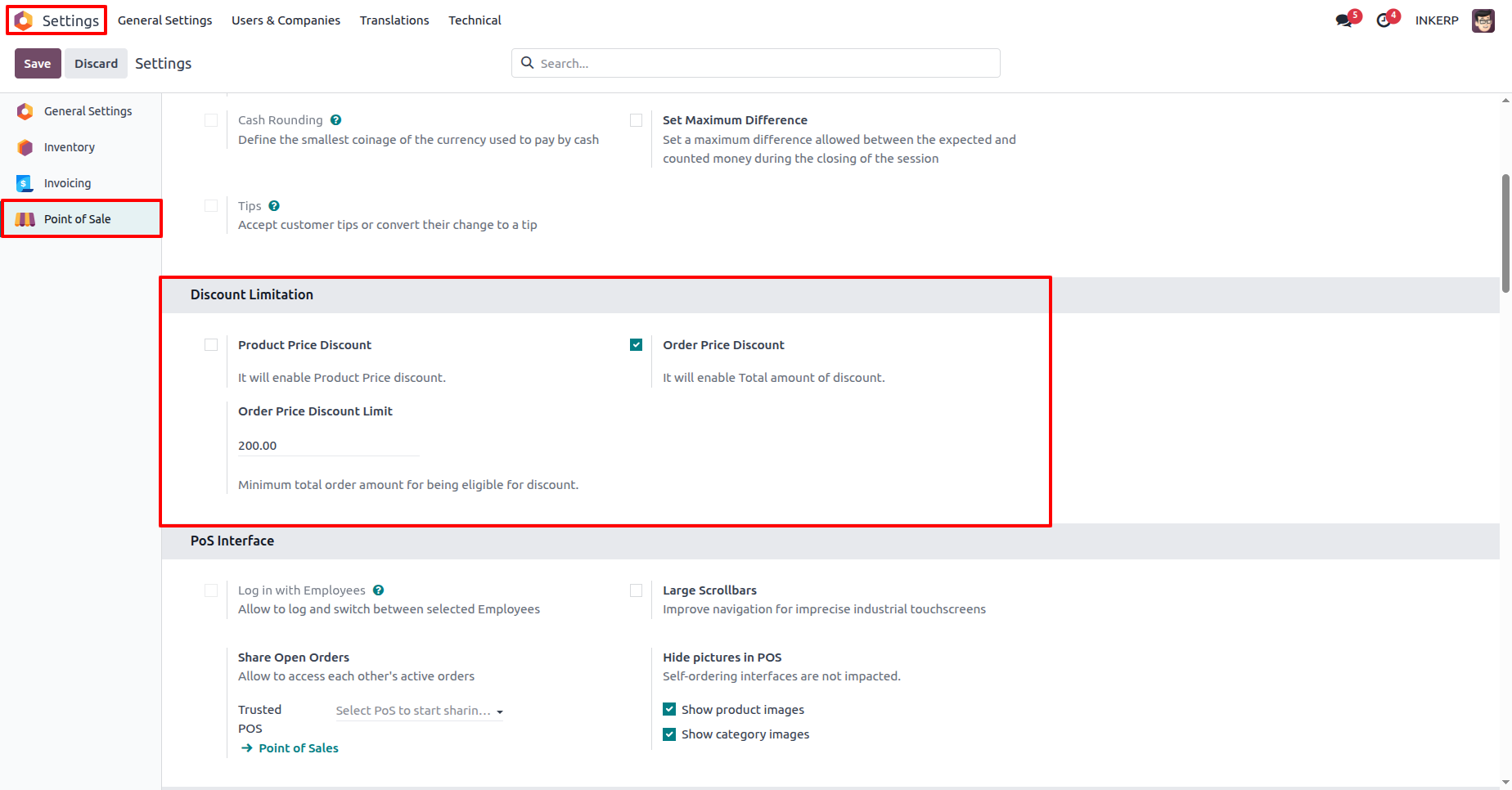
With this feature, you can set a minimum total order amount required before a discount can be applied. For example, if the order limit is set at $200, discounts will only be valid when the cart total is above that amount. This prevents unnecessary discounts on small orders and encourages customers to buy more to qualify for discounts.
Line & Global Discounts
The module supports global discounts (applied to the entire order). Managers can configure the discount rules in POS settings, giving flexibility to businesses while still maintaining full control.
Error Messages & Validation
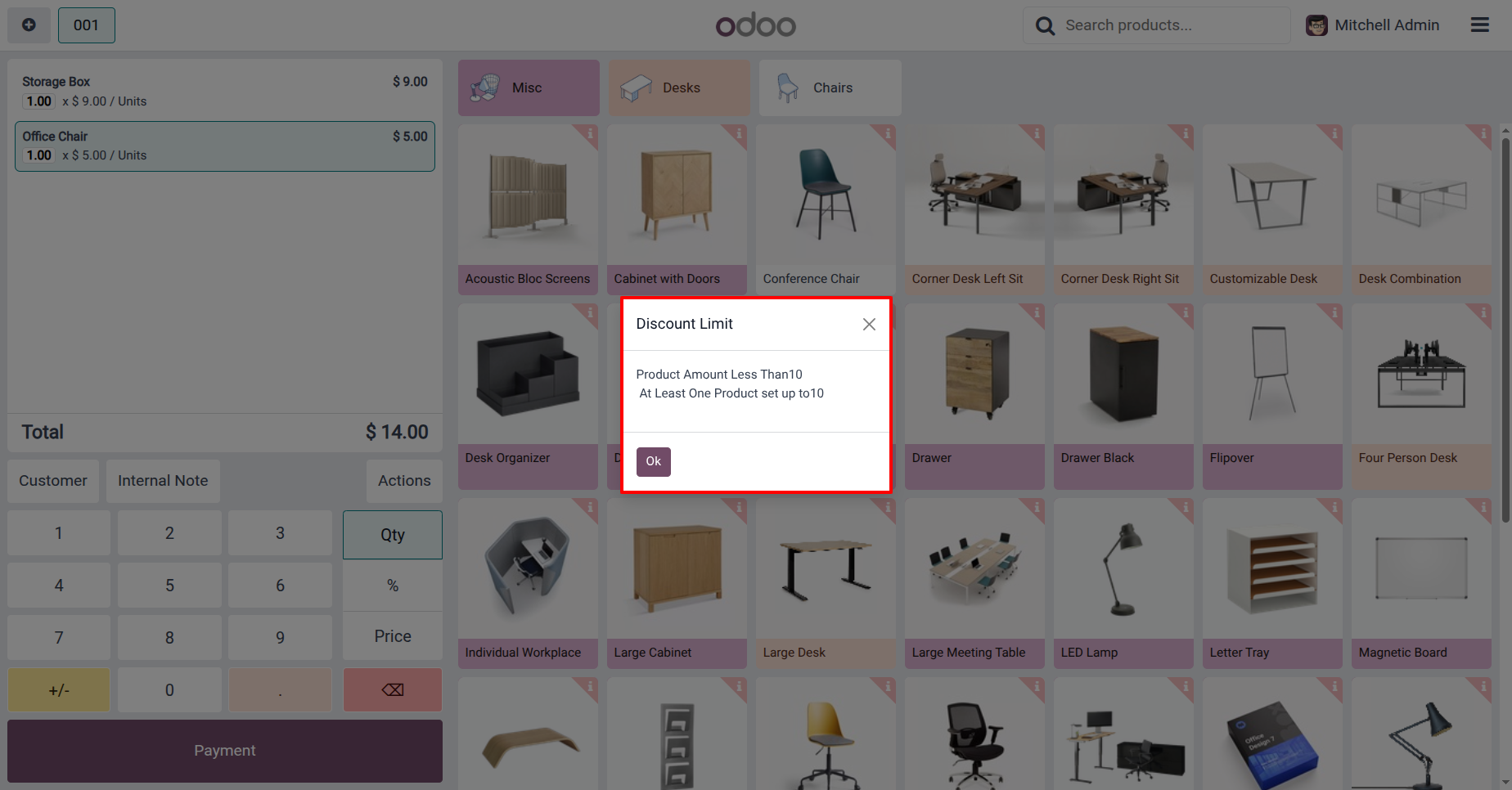
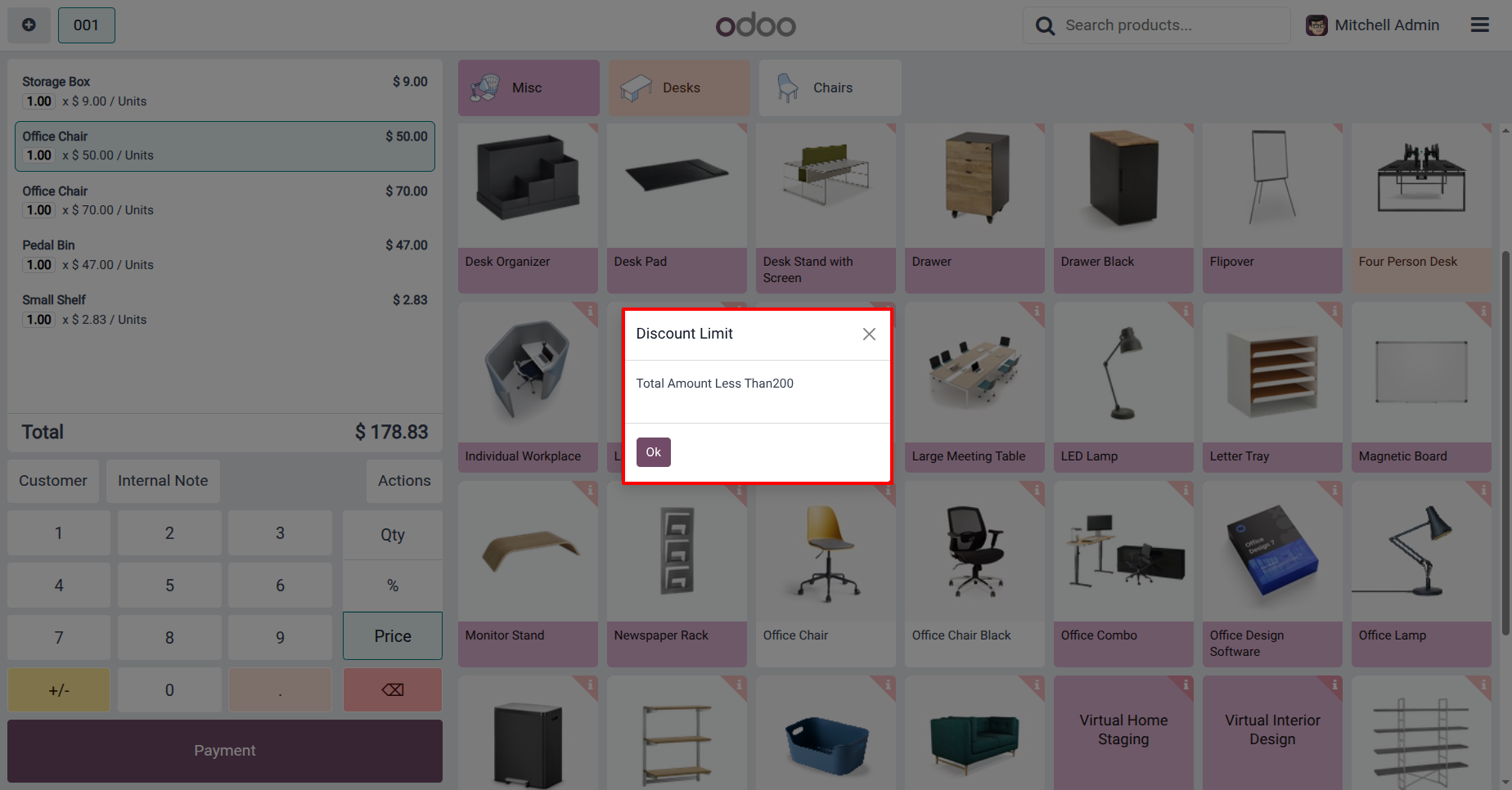
When a discount rule is violated, the system immediately shows a clear error message to the cashier. For example, Product Amount Less Than 10 or Total Amount Less Than 200. These real-time validations prevent unauthorized discounts from being applied and guide cashiers to follow company policies, ensuring smooth and secure POS operations.
Screenshot
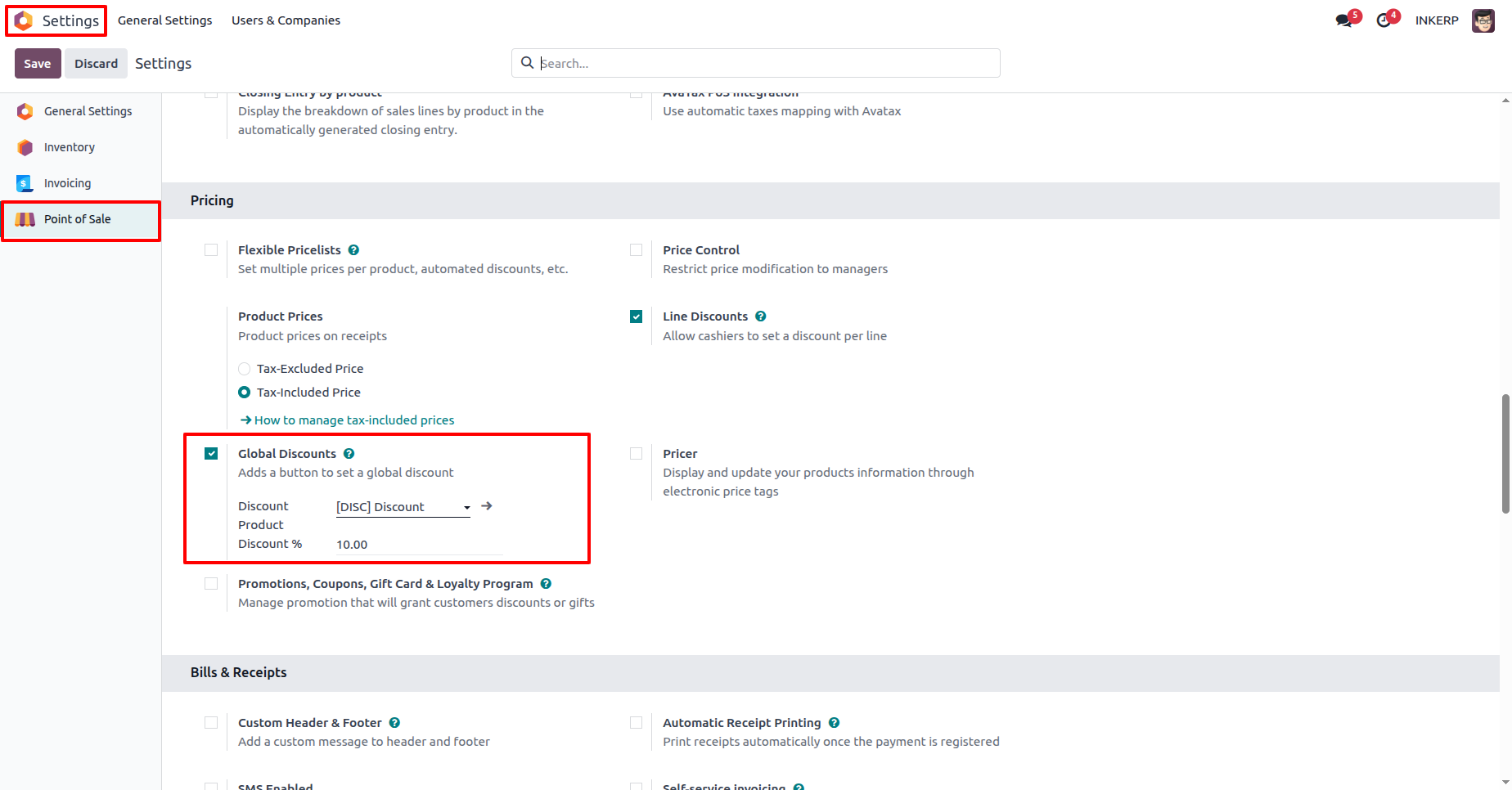
1.) POS Settings - Enable Global Discounts
This screen shows the Point of Sale settings where managers can enable Global Discounts. A global discount button is added in the POS interface, allowing cashiers to apply discounts to the entire order.
Navigation : Setting › Point of Sale › Pricing
2.) POS Settings - Product Price Discount Limit
This configuration allows enabling Product Price Discount Limit under Discount Limitation. The manager sets a minimum product price (e.g., $10). Discounts cannot be applied if the product price goes below this threshold, ensuring that items are not sold at a loss.
Navigation : Setting › Point of Sale › Discount Limitation
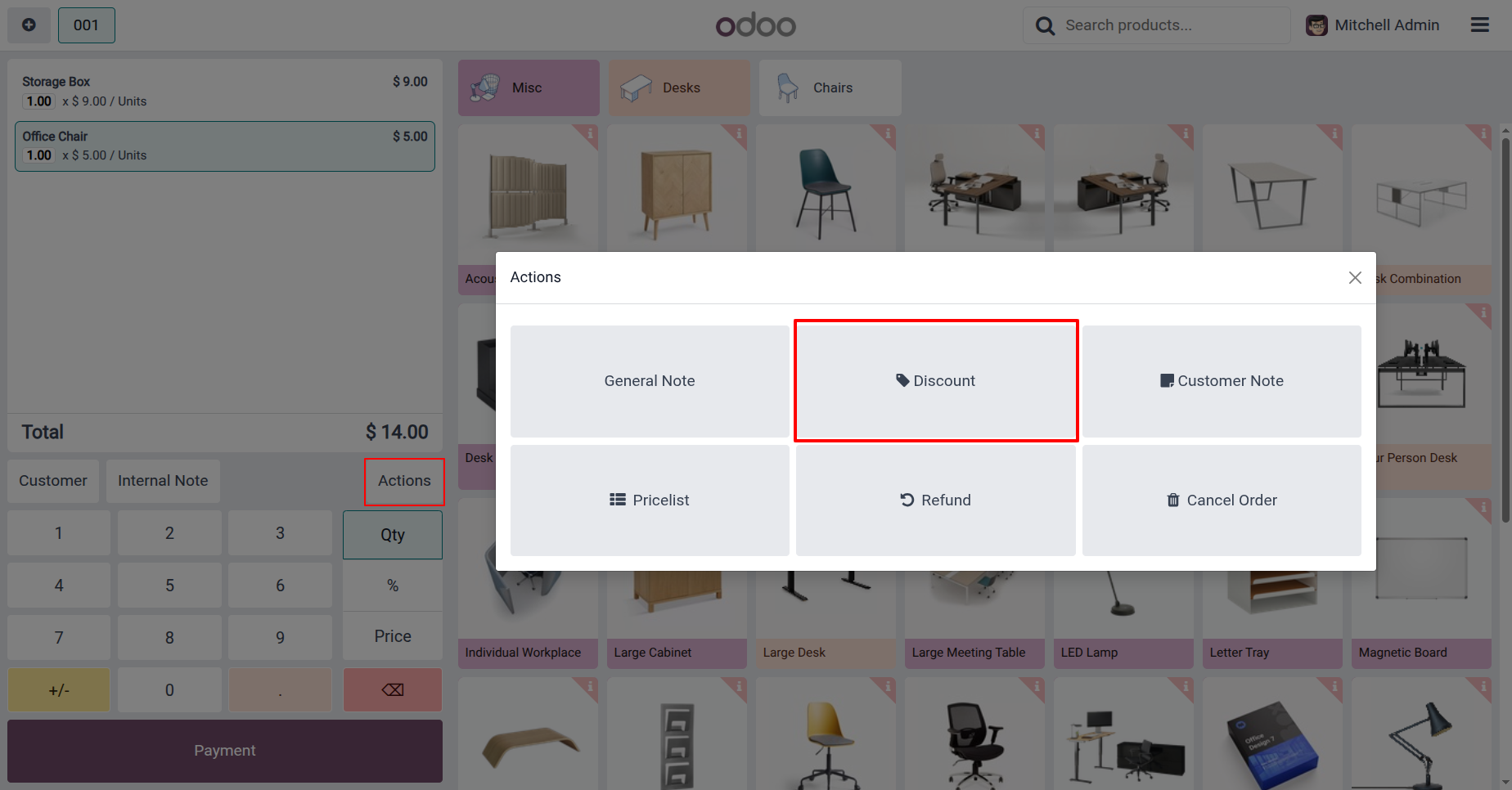
3.) POS Interface - Apply Discount Action
Inside the POS interface, cashiers can access the Actions menu and select the Discount option. This enables them to apply either line discounts or global discounts as per the configuration. The feature makes it easy for staff to apply discounts directly at checkout.
4.) POS Error - Product Price Below Limit
When a cashier tries to apply a discount that reduces a product price below the configured limit, the system shows a Discount Limit error message. For example: Product Amount Less Than 10. This ensures that discount rules are enforced in real time.
5.) POS Settings - Order Price Discount Limit
Here, the manager can configure an Order Price Discount Limit under Discount Limitation. A minimum order value (e.g., $200) must be reached before discounts can be applied. This prevents discounts on very small orders and encourages higher sales volume.
Navigation : Setting › Point of Sale › Discount Limitation
6.) POS Error - Order Total Below Limit
If a cashier tries to apply a discount when the total order amount is below the set threshold, the system blocks it and displays an error message such as: Total Amount Less Than 200. This protects businesses from unnecessary losses on low-value orders.
User Guide