

Our Most Suggested Products


Portal RFQ Price Update
Allow authorized users to easily update product prices directly from Request for Quotation page of the website. With the PO Edit Access permission, users can edit prices only when the Purchase Order is in the Request for Quotation state. Any price changes made on the website are automatically synchronized with the Purchase Order with help of button Update Prices in the Odoo backend. This provides controlled price editing while keeping website and backend data consistent.
Video Tutorial

 Features
 Screenshots
 Support
 Service
Features
Edit RFQ Prices from Website
Allow authorized users to update product prices directly from the website. This makes price adjustments quick and convenient without needing to access the backend.
PO Edit Access Control
Use the PO Edit Access permission to control which users can modify Purchase Order prices. Only users with the required access can edit prices from the website.
Edit Prices Only in RFQ State
Price editing is available only when the Purchase Order is in the Request for Quotation state. This ensures prices cannot be changed after the order moves to a other stage.
Automatic Backend Price Update
Any price changed from the website is automatically synchronized with the corresponding Purchase Order with help of button Update Prices in the Odoo backend. This keeps website and backend pricing consistent.
Secure & Controlled Price Management
Provide flexible Odoo Purchase Order price management while maintaining proper user permissions. The app helps prevent unauthorized price changes and keeps your purchasing workflow organized.
Screenshot
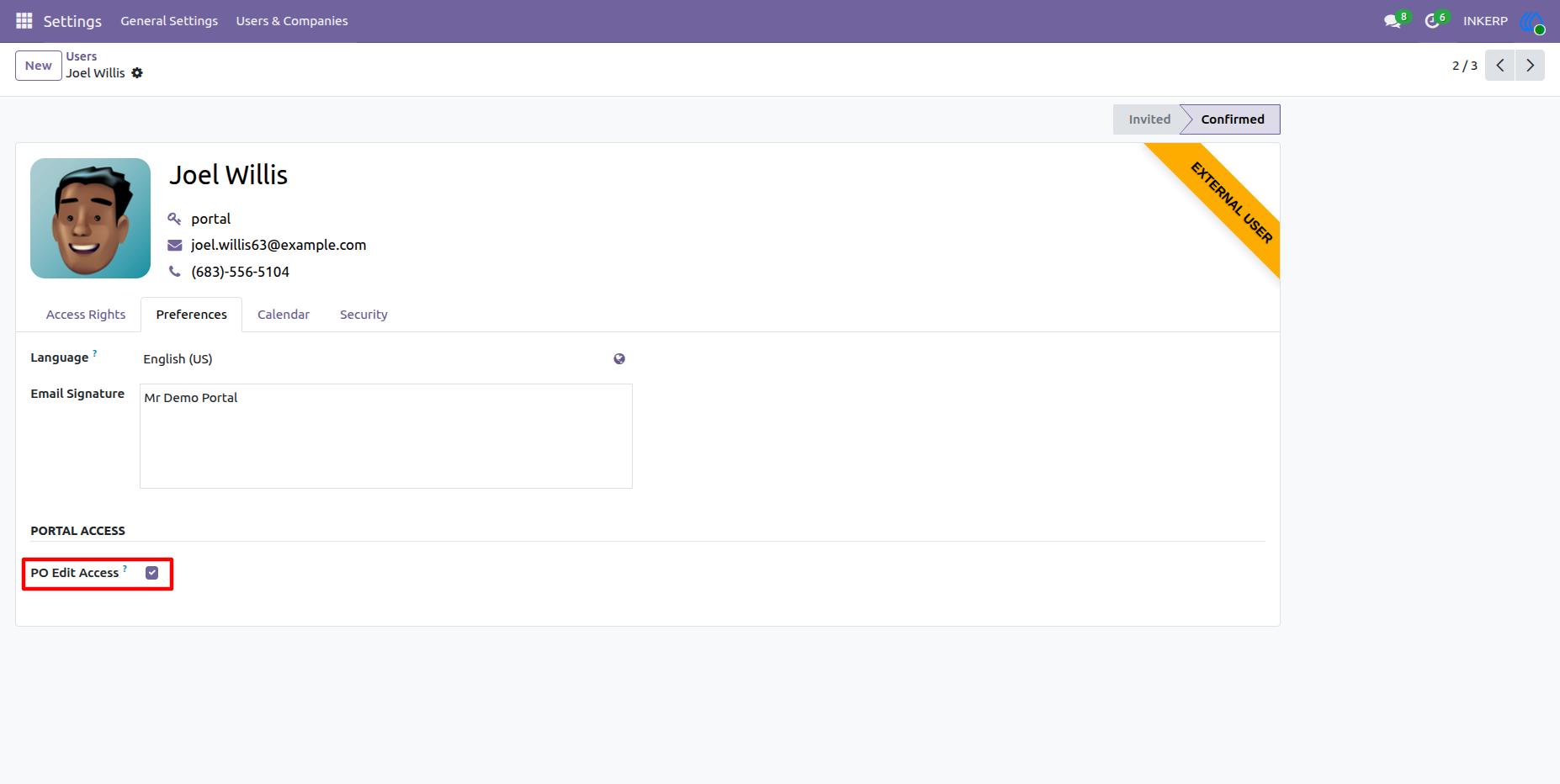
1.) Grant PO Edit Access :
To authorize a portal user to update product prices on Request for Quotation page of the website, you must enable the PO Edit Access permission for their account. As highlighted in the image, this setting is controlled via a checkbox in the user's preferences. Only external users with this specific configuration enabled will be permitted to edit prices while the Purchase Order remains in the RFQ state.
Navigation : Settings › Users & Companies › Users
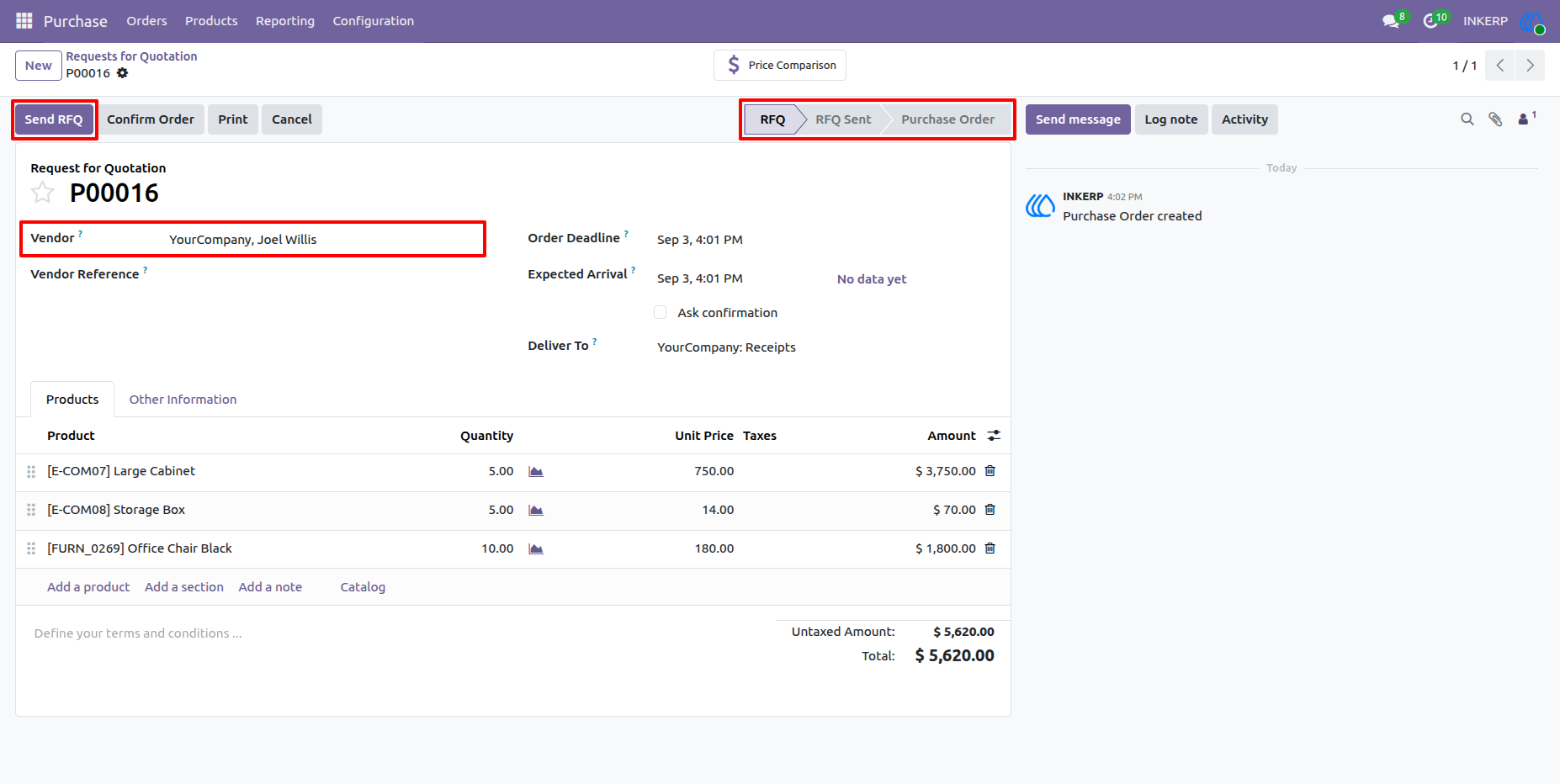
2.) Create and Send RFQ to Vendor :
Create a Request for Quotation (RFQ) and select the vendor who has been granted the PO Edit Access permission. As highlighted in the image, ensure the document is currently in the "RFQ" state, because portal users can only edit prices during this specific stage.
Navigation : Purchase › Orders › Requests for Quotation
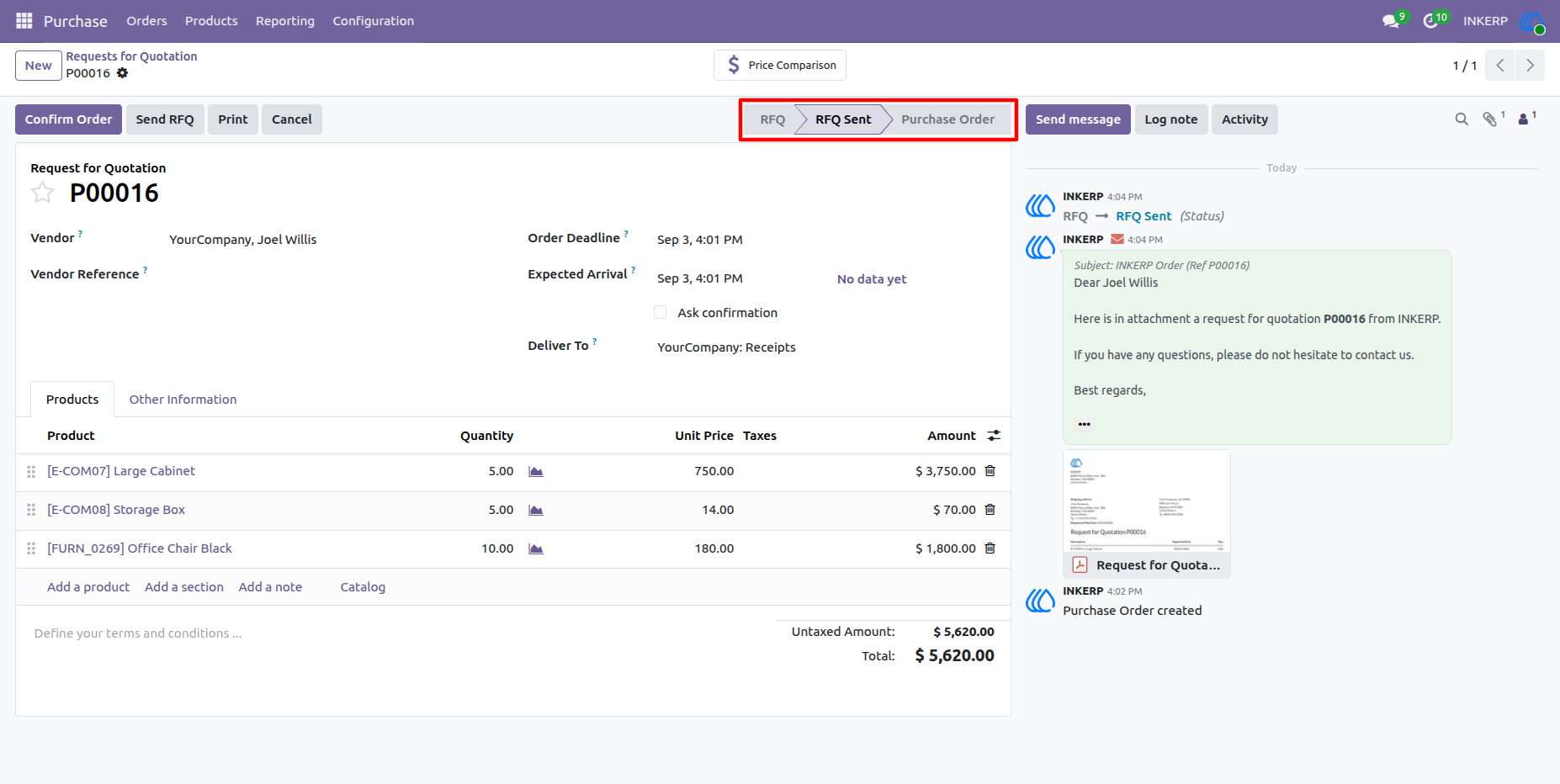
3.) Verify RFQ Sent Status :
After sending the email to the vendor, the status of the document automatically updates to "RFQ Sent", as indicated by the highlighted status bar. This confirms that the request has been successfully dispatched to the vendor. The authorized portal user can now log into their account to review the document and update the product prices directly from the website.
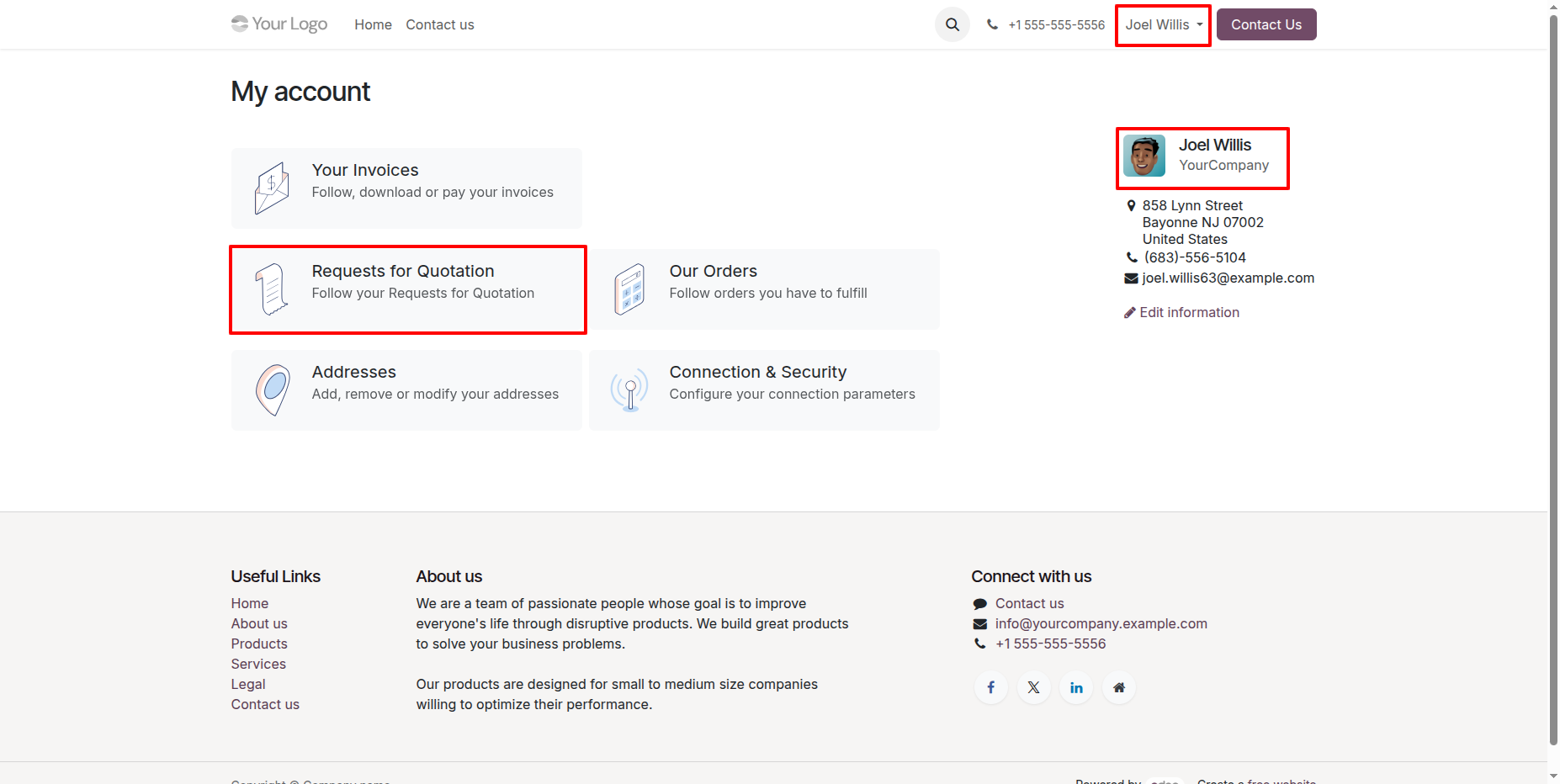
4.) Access Requests for Quotation via Customer Portal :
Once the RFQ is sent, the authorized vendor can log into their web portal. As shown in the "My account" dashboard, the vendor selects the highlighted Requests for Quotation menu to view all pending RFQs assigned to them.
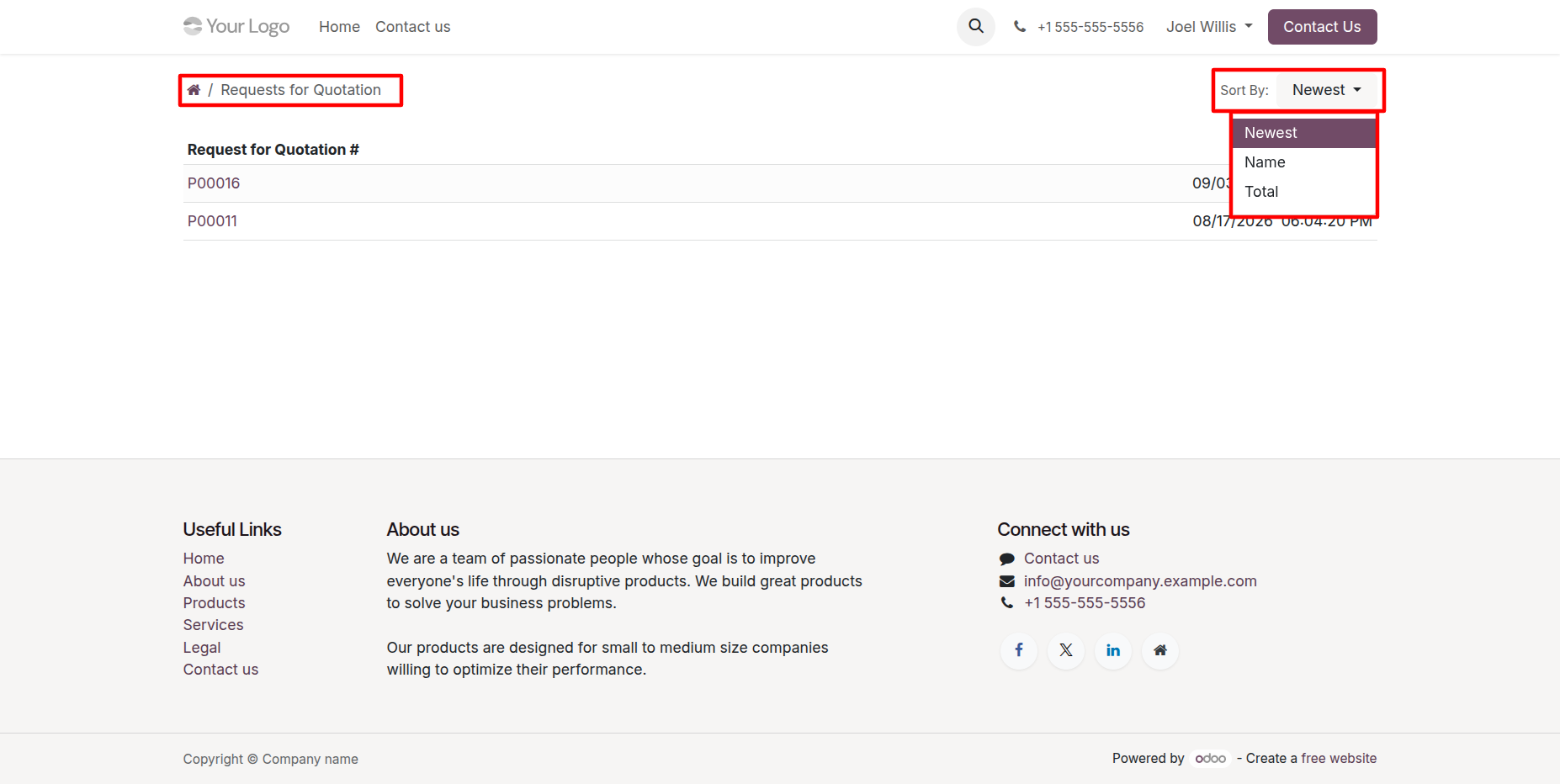
5.) View and Sort RFQs in Portal :
Upon navigating to the Requests for Quotation page, the vendor can view a comprehensive list of all their assigned RFQs. As highlighted, users can rely on the breadcrumbs for quick navigation and utilize the "Sort By" dropdown menu to organize the documents by Newest, Name, or Total.
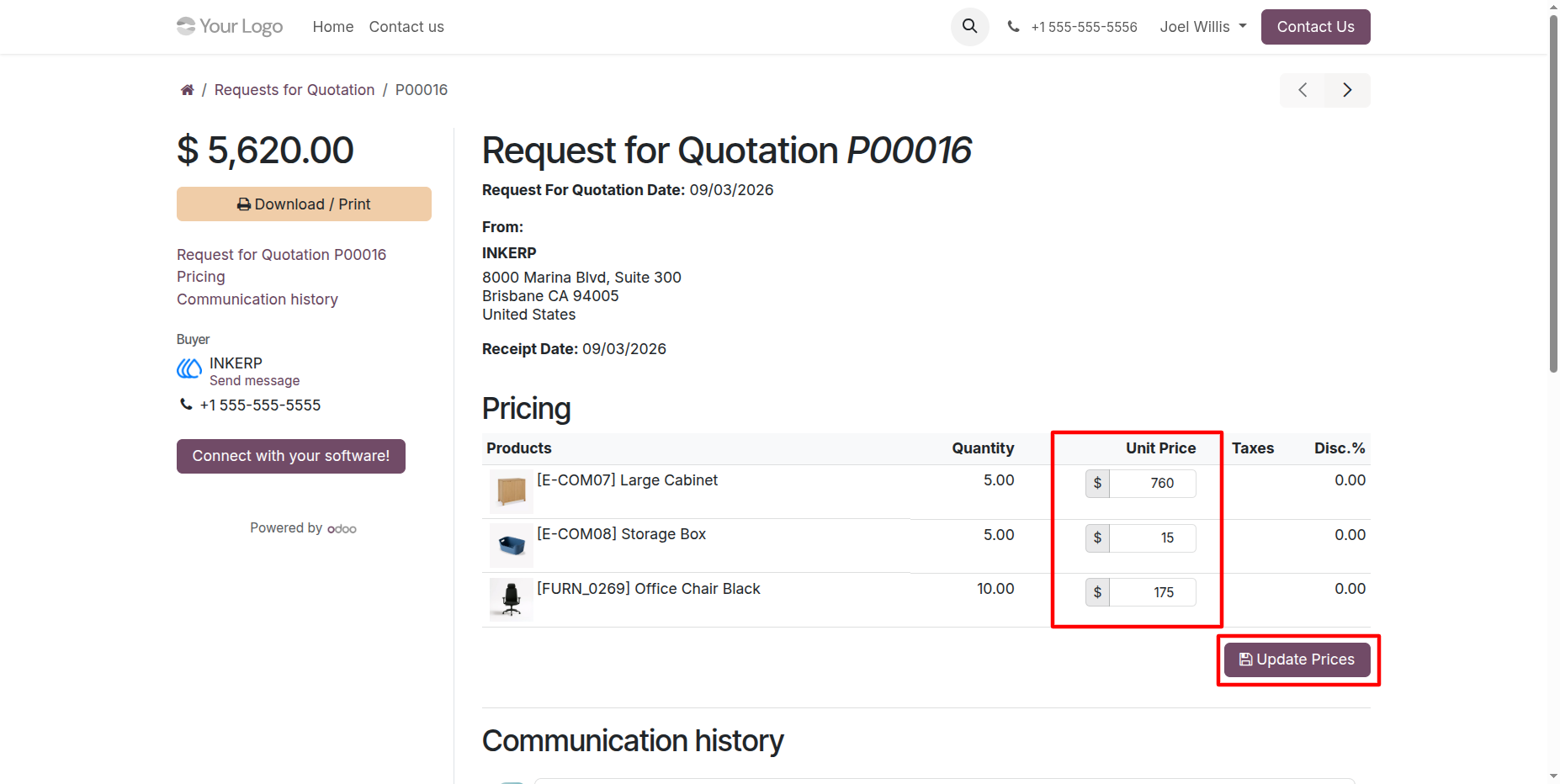
6.) Update Unit Prices on Portal RFQ Page :
After opening a specific Request for Quotation, the authorized vendor can review the product list under the Pricing section. As highlighted in the image, the Unit Price column contains editable input fields for users granted the appropriate permissions. The vendor can directly modify the prices for each item and then click the Update Prices button below the table to submit the changes and synchronize them with the backend system.
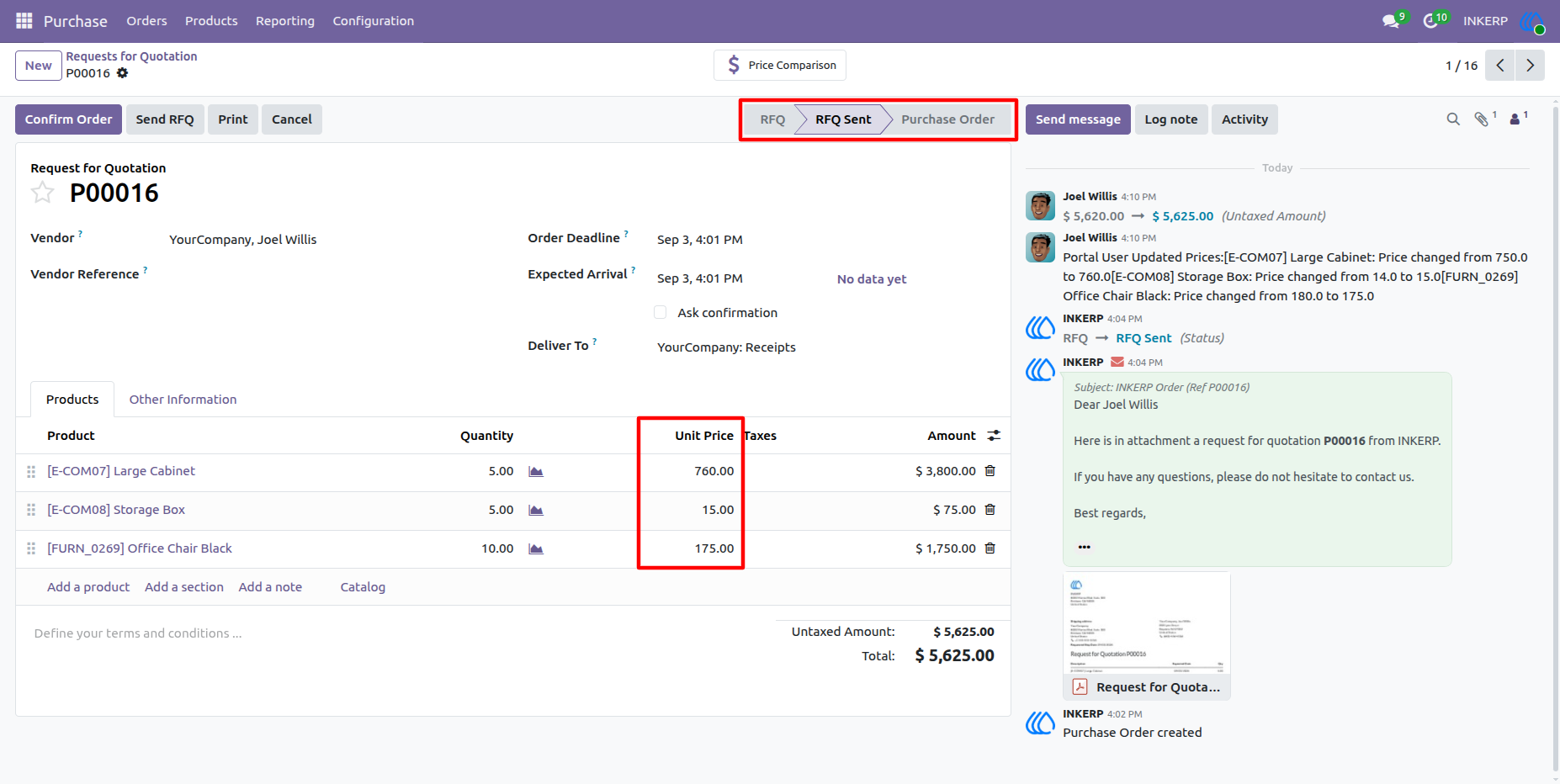
7.) Review Synchronized Prices in Backend RFQ :
Once the vendor updates the prices on the portal, the changes are automatically synchronized with the backend system. As highlighted in the image, the document remains in the "RFQ Sent" state, but the "Unit Price" column now reflects the newly submitted values from the website.
Navigation : Purchase › Orders › Requests for Quotation
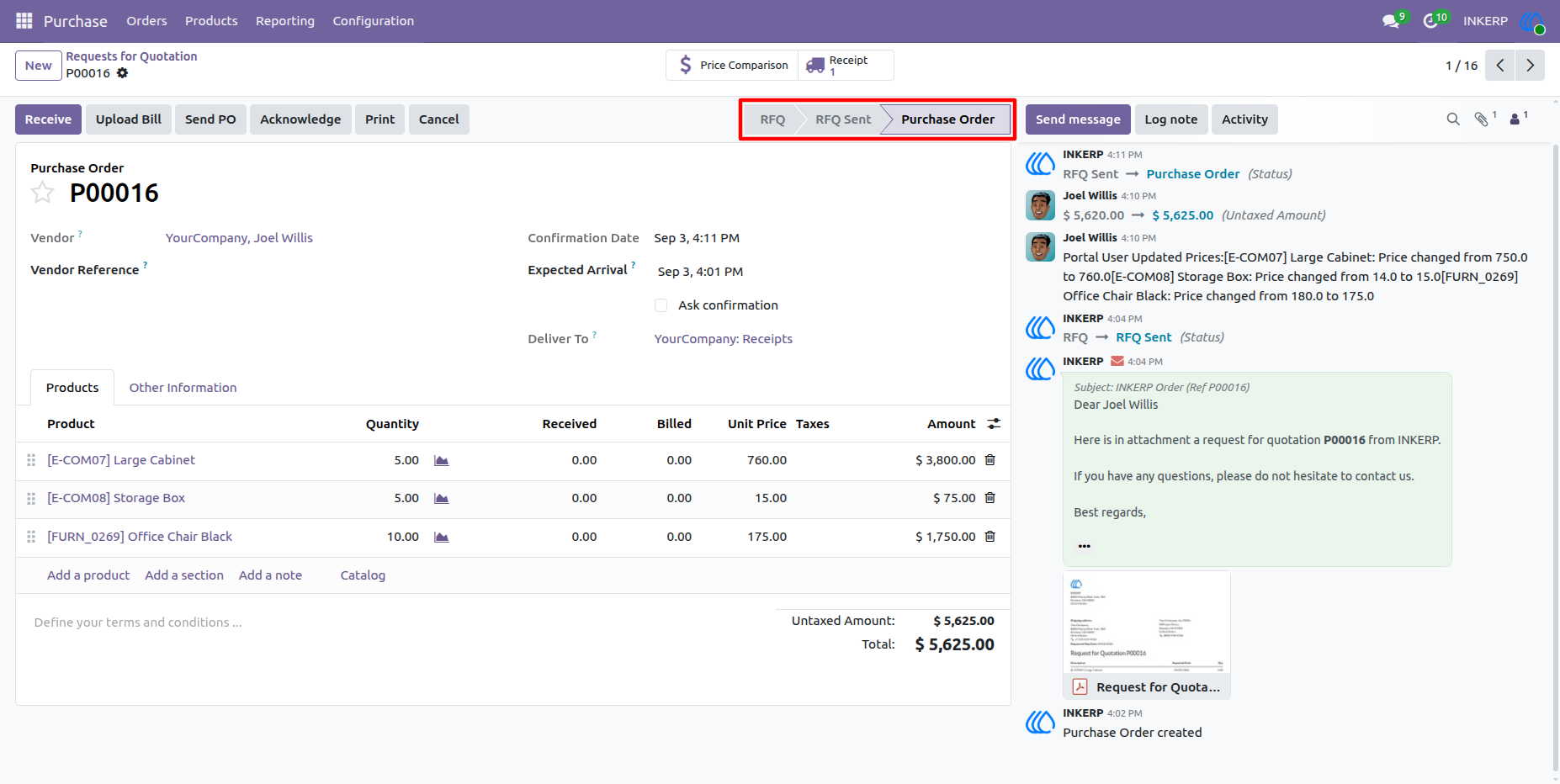
8.) Confirm Purchase Order with Updated Prices :
After reviewing the synchronized prices submitted by the portal user, the internal user can proceed to confirm the order. As highlighted by the status bar in the image, the document has advanced to the "Purchase Order" state.
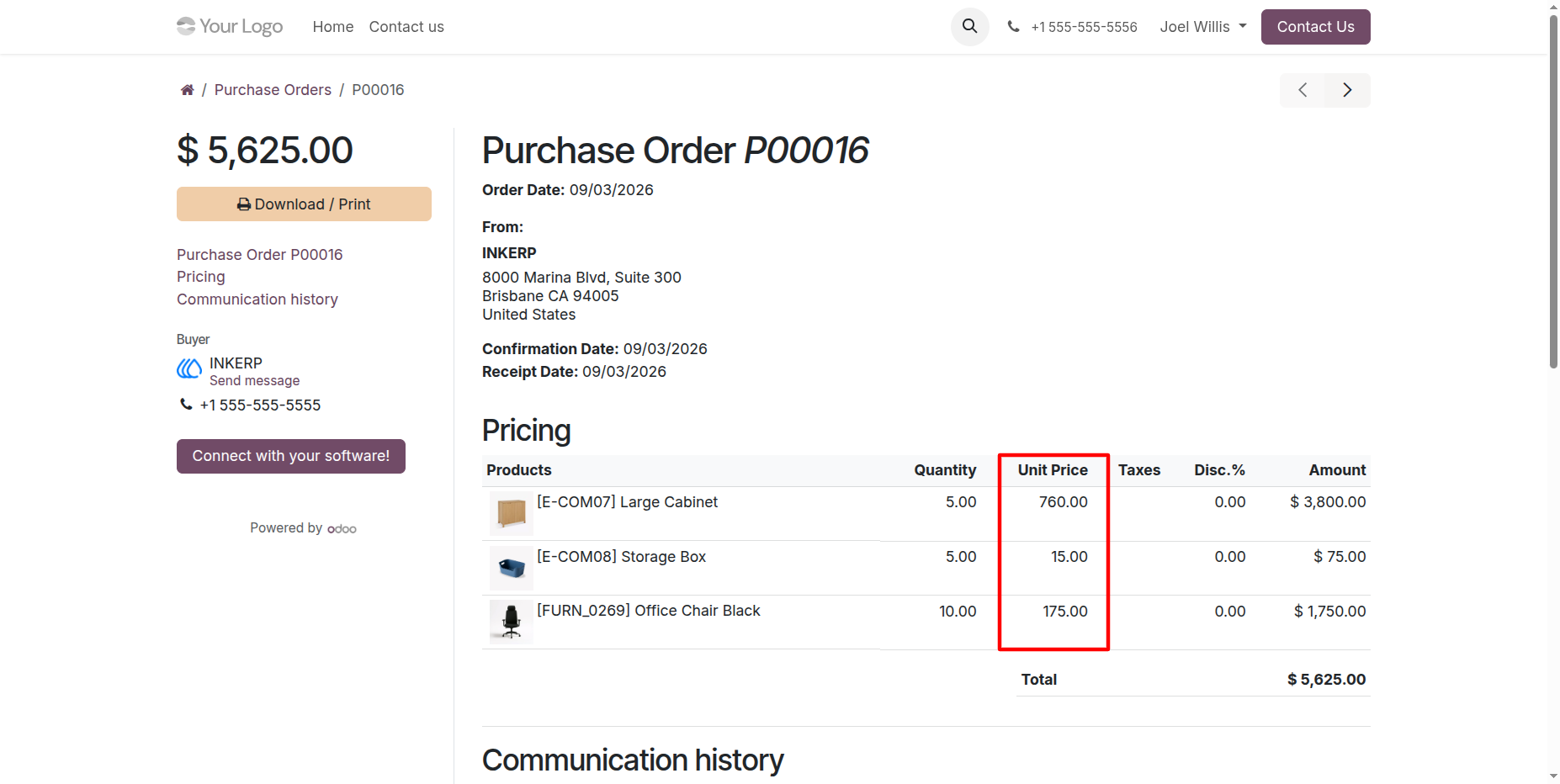
9.) View Confirmed Purchase Order on Portal :
When the portal user accesses the confirmed Purchase Order from their account, the pricing is now locked. As highlighted in the image, the "Unit Price" column displays the finalized, synchronized prices as read-only text. The editable fields and the update button are no longer available because the document has advanced past the Request for Quotation state, preventing any further modifications by the external user.
User Guide