

Our Most Suggested Products


POS Out of Stock Alert
The POS Out of Stock Alert module notifies cashiers when a product is out of stock, helping prevent overselling and improving inventory awareness. Unlike restrictive modules, it does not block sales - instead, it provides a clear warning so users can make informed decisions during checkout.
Video Tutorial

 Features
 Screenshots
 Support
 Service
Features
Real-Time Stock Visibility in POS
This feature displays live product stock information directly within the POS interface. Cashiers can instantly see whether an item is in stock or out of stock, helping them make informed decisions and avoid selling unavailable products.
Out-of-Stock Product Alert
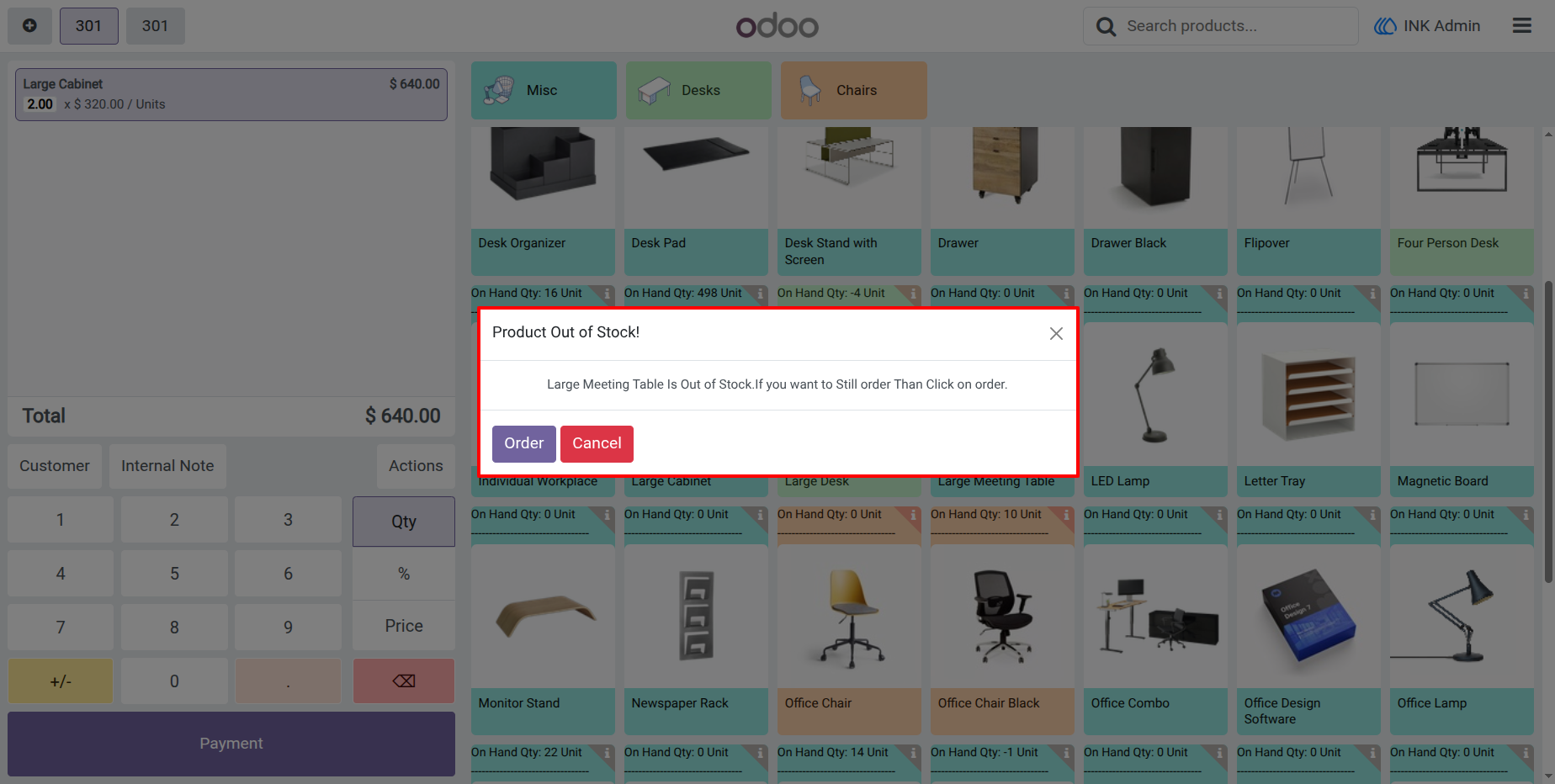
When a cashier attempts to add an out-of-stock product to the POS cart, the system shows a warning popup notifying that the item is unavailable. The alert helps prevent overselling and reduces stock discrepancies - while still allowing the sale to proceed if needed.
Simple POS-Level Activation
The alert feature can be enabled or disabled directly from POS settings. This gives businesses control over whether stock warnings are displayed in specific POS sessions or for particular outlets.
Screenshot
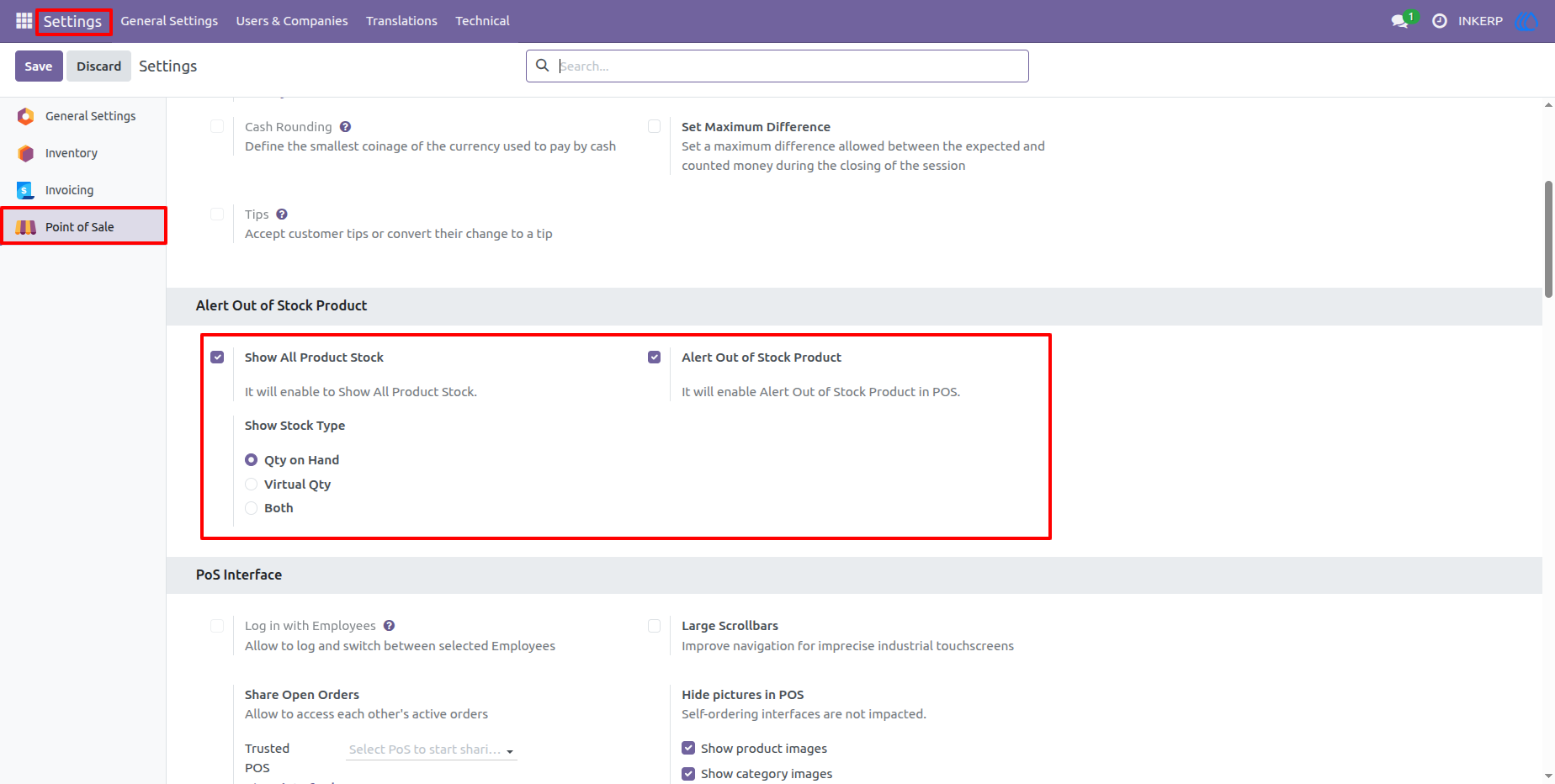
1.) Configuration in POS
A) Setting in Enable show Product Stock as a On hand qty, Virtual Qty and Both.
B) Setting in Enable Alert Product Out of Stock.
Navigation : Setting › Point of Sale ›Alert Out of stock Product
2.) Show on hand Qty in pos
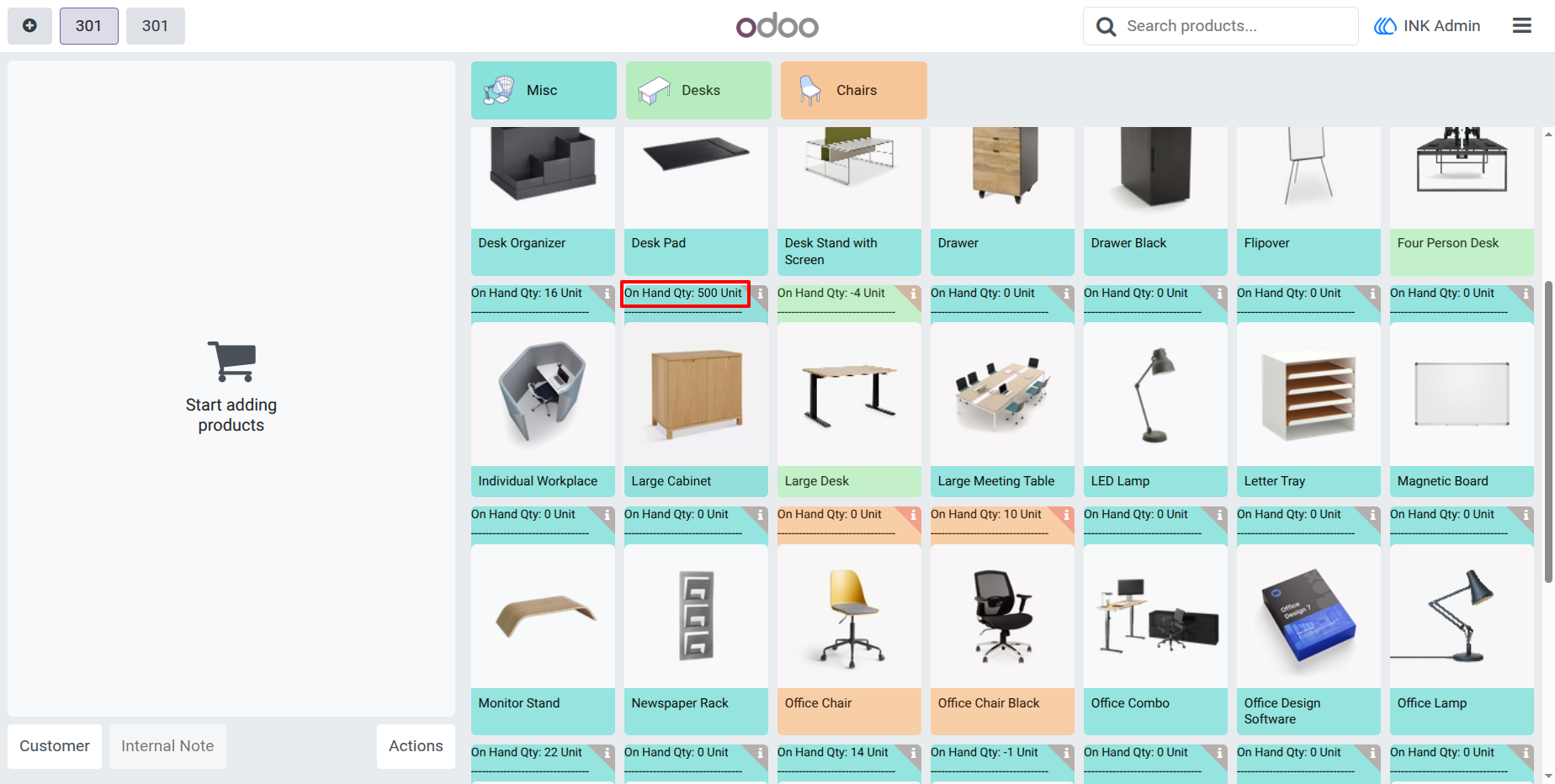
Show Product On hand Qty in pos When setting in select Show Product stock as On hand qty.
Navigation : Point of Sale › Shop
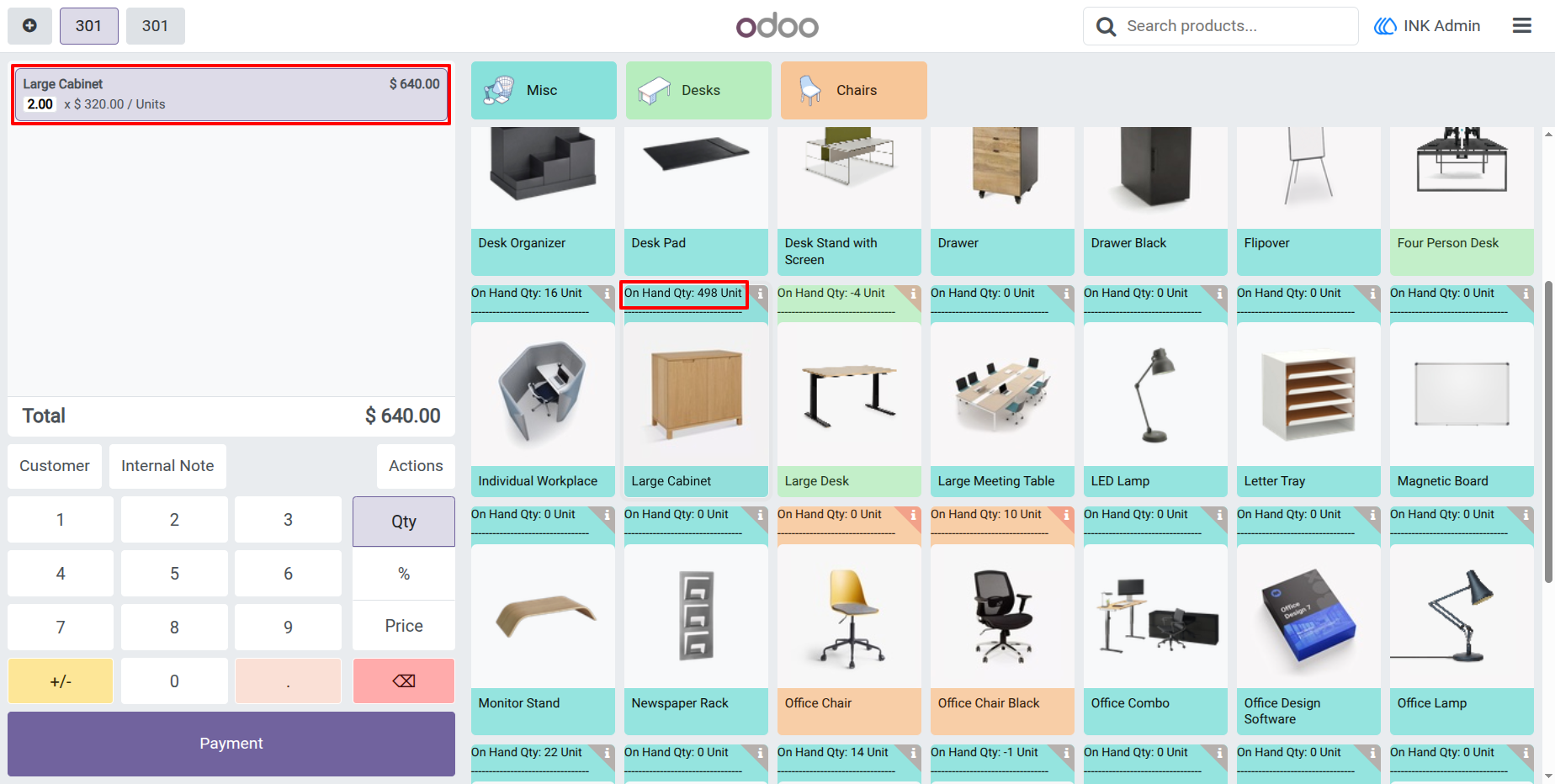
3.) Add Product in Orderline
When Product stock available than Product add in Orderline and stock is Deacrese.
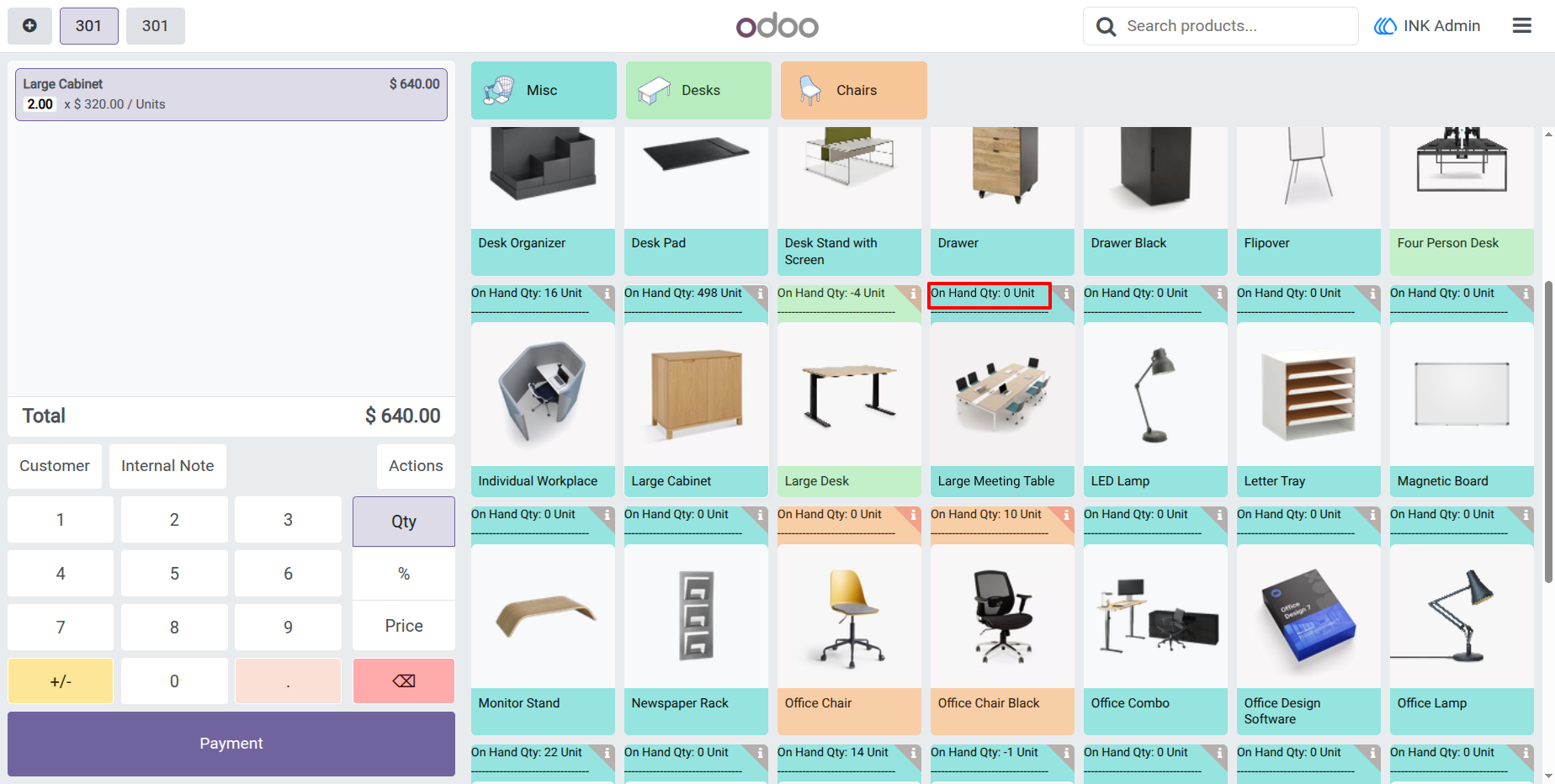
4.) Show Stock when product Out of stock
When product is out of stock than show qty is 0 Unit.
5.) Alert Message
When Product Out of stock than Alert Message Show.
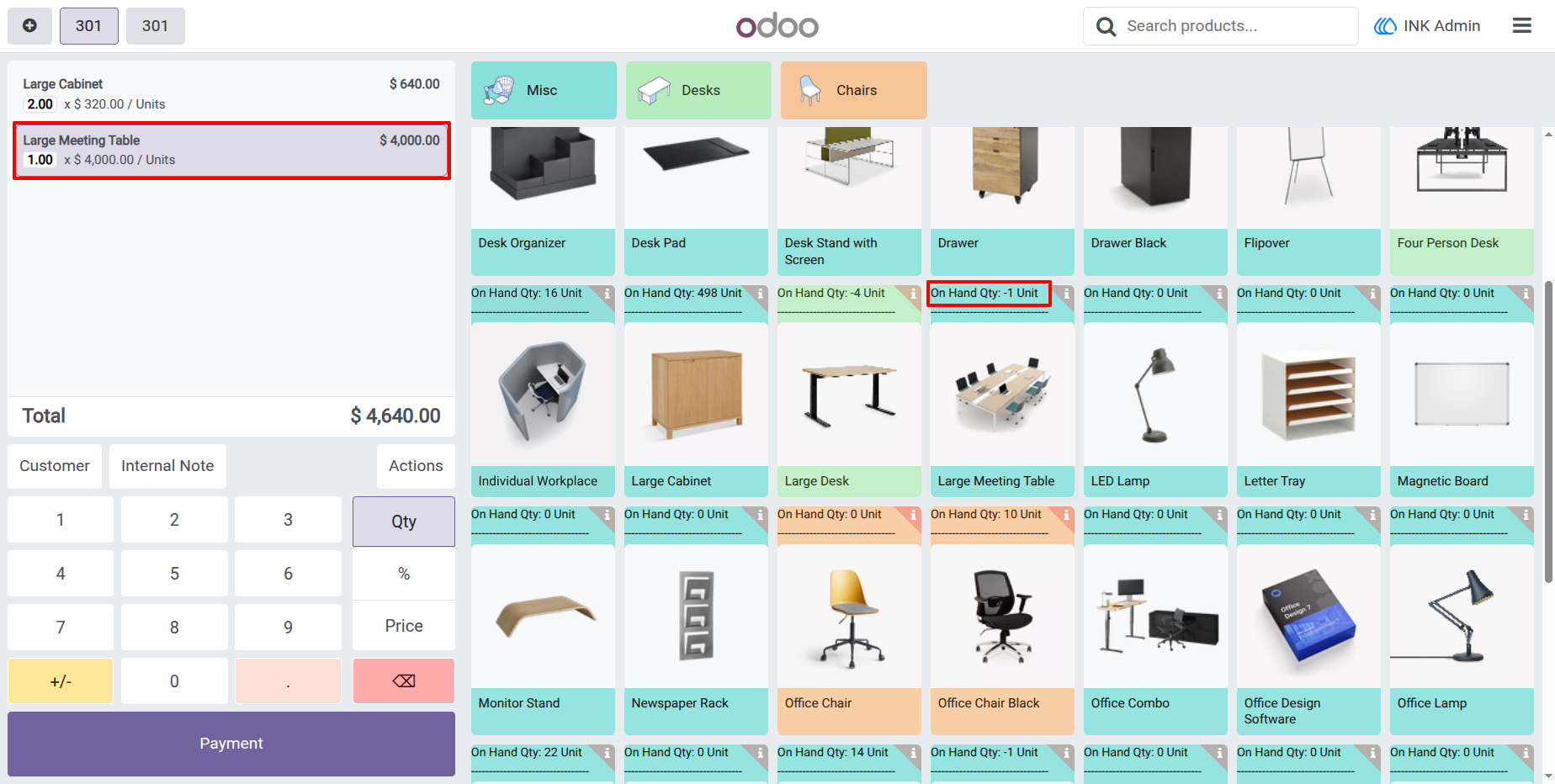
6.) Add Product
When click on Order than add Product in orderline and stock is Deacrese with Negative unit.
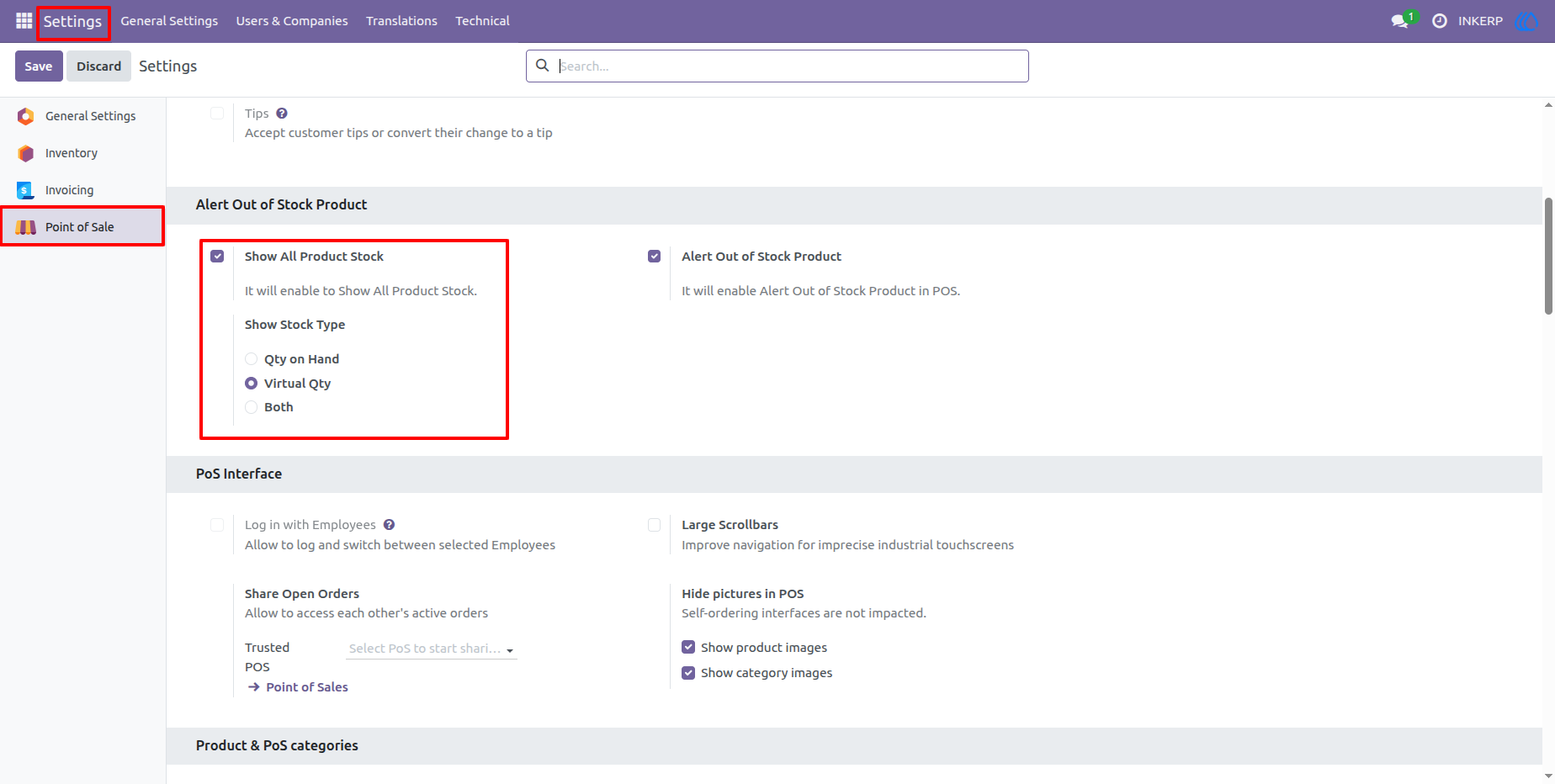
7.) Configuration for Virtual qty
Setting in Enable show Product Stock as a Virtual Qty.
Navigation : Setting › Point of Sale ›Alert Out of stock Product
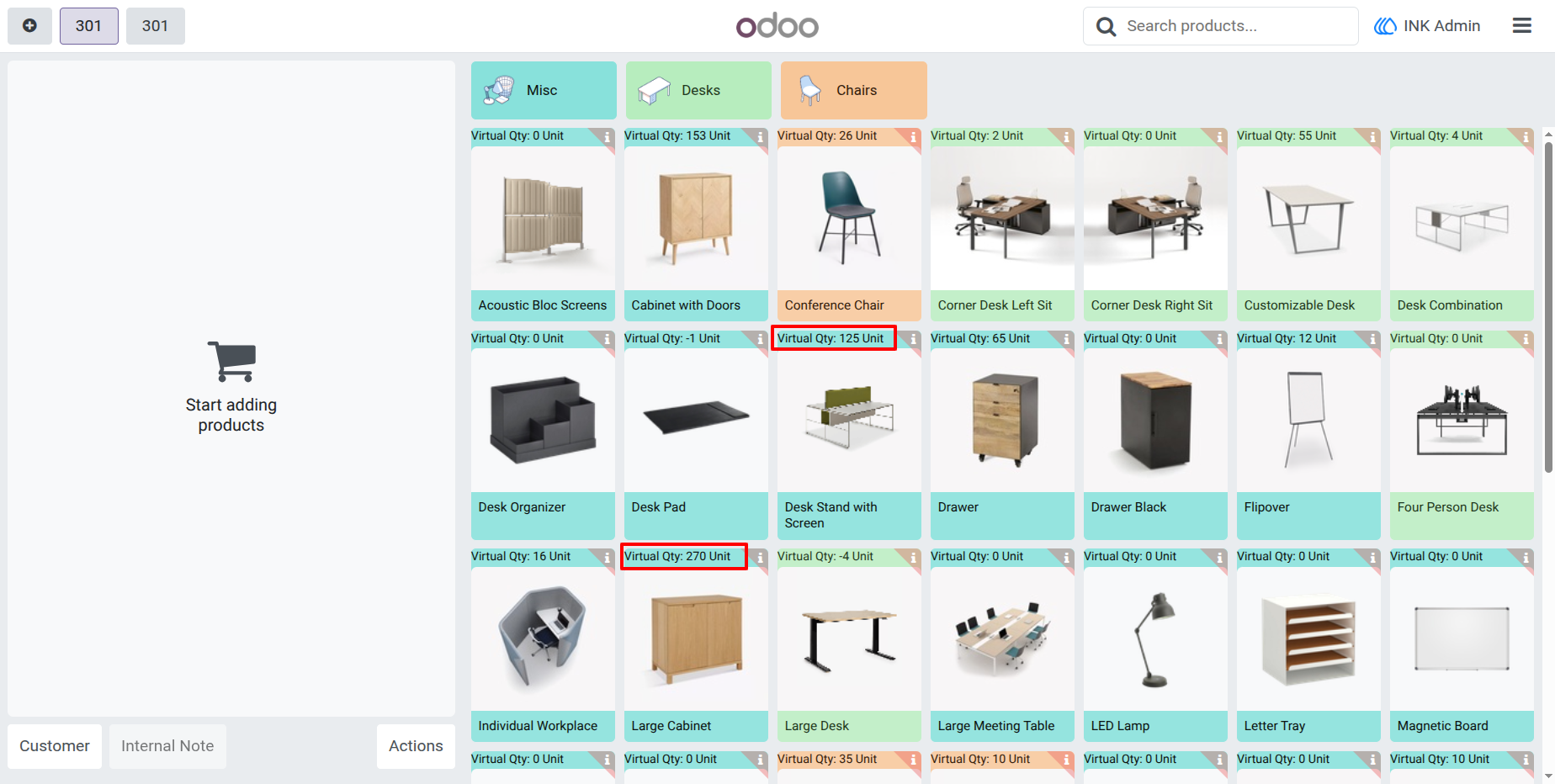
8.) Virtual qty Show in Pos
Show Virtual Qty in pos shop.
Navigation : Point of Sale › Shop
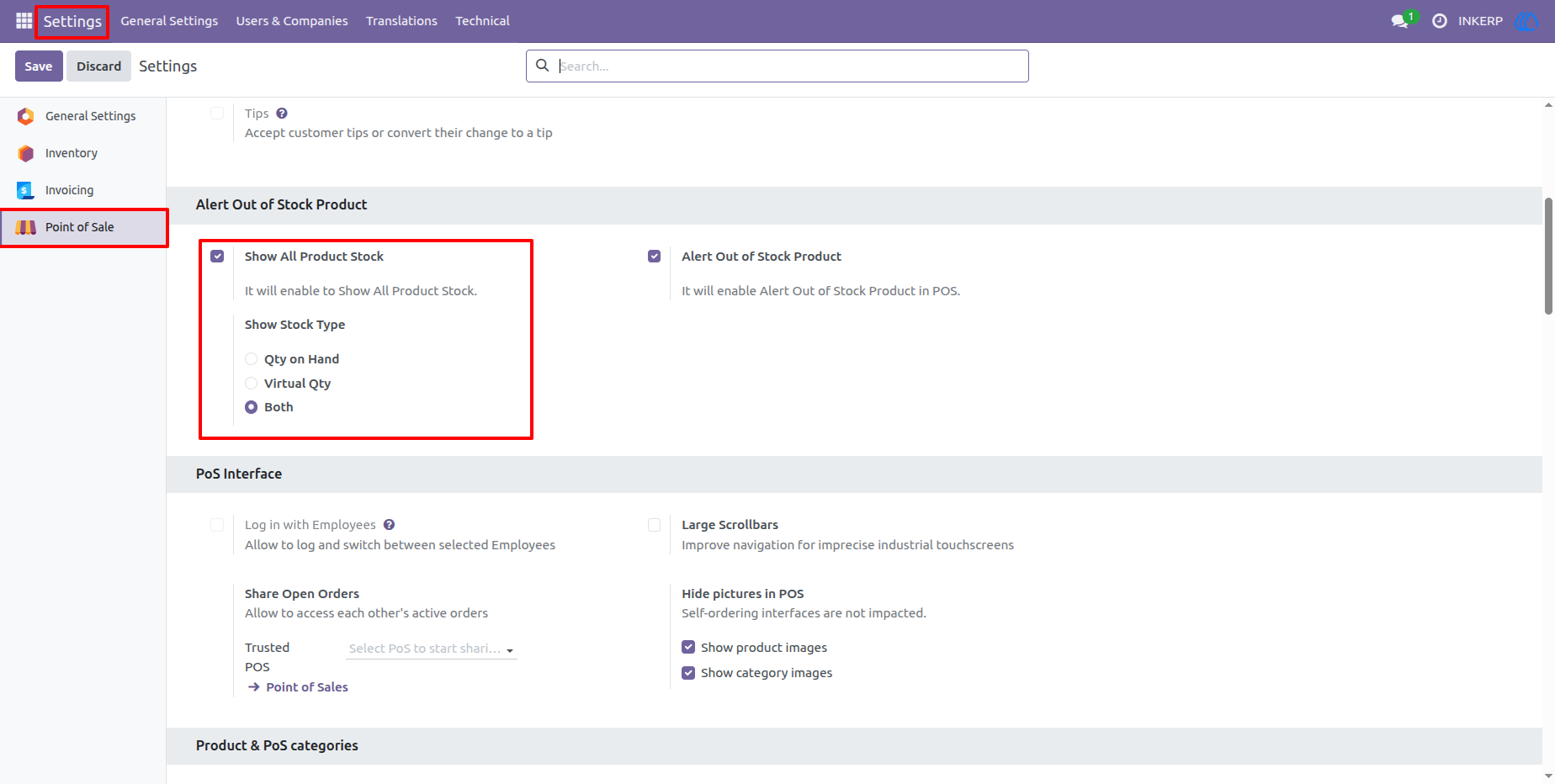
9.) Configuration for Both qty
Setting in Enable show Product Stock as a Both Qty.
Navigation : Setting › Point of Sale ›Alert Out of stock Product
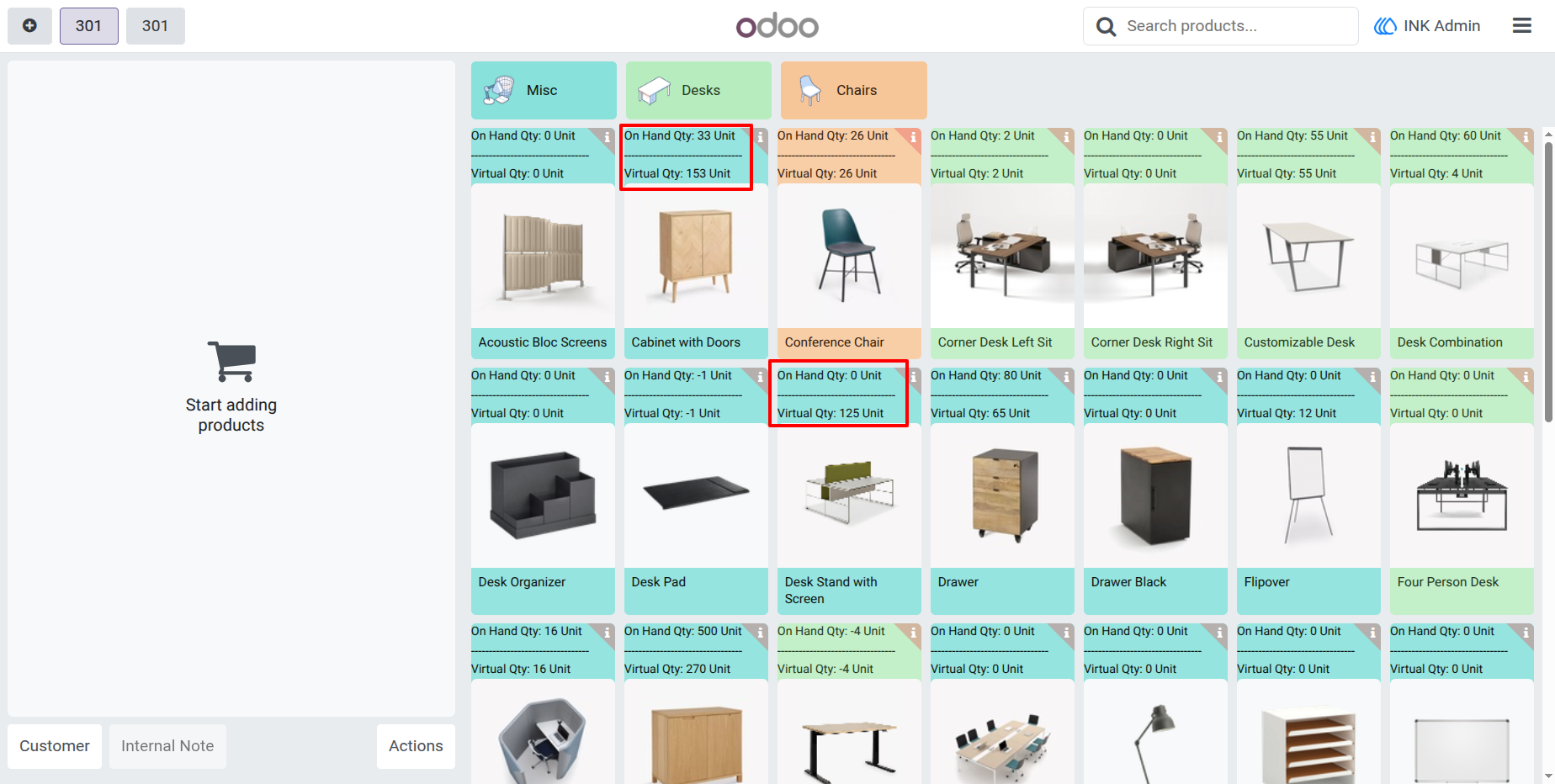
10.) Both qty Show in Pos
Show Both Qty in pos shop.
Navigation : Point of Sale › Shop
User Guide