

Our Most Suggested Products


Pos Minimum Quantity
Once this module is installed and 'POS minimum Quantity' is enabled, then you can use the functionality of this module.Functionality is that you can set a number of product minimum quantity in POS. When Add product than add minimum product in orderline. Also you can set a number as minimum Quantity for all Products.
 Features
 Screenshots
 Support
 Service
Features
Product-Level Minimum Quantity Enforcement
Enable a strict minimum order threshold per product, configured directly in the Odoo backend. POS users can only add a product to the cart if the quantity meets or exceeds this minimum-preventing sales below cost or intended packaging units. This ensures consistent order volumes, improved margin control, and easier inventory planning.
Multiplication Factor & Bulk-Sale Validation
Support for a multiplier logic where customers can only purchase products in multiples of a specified unit (e.g. 5, 10, 15). If a customer tries an invalid quantity-either below the minimum or not matching the multiple-the system blocks the sale and prompts them to adjust.
Screenshot
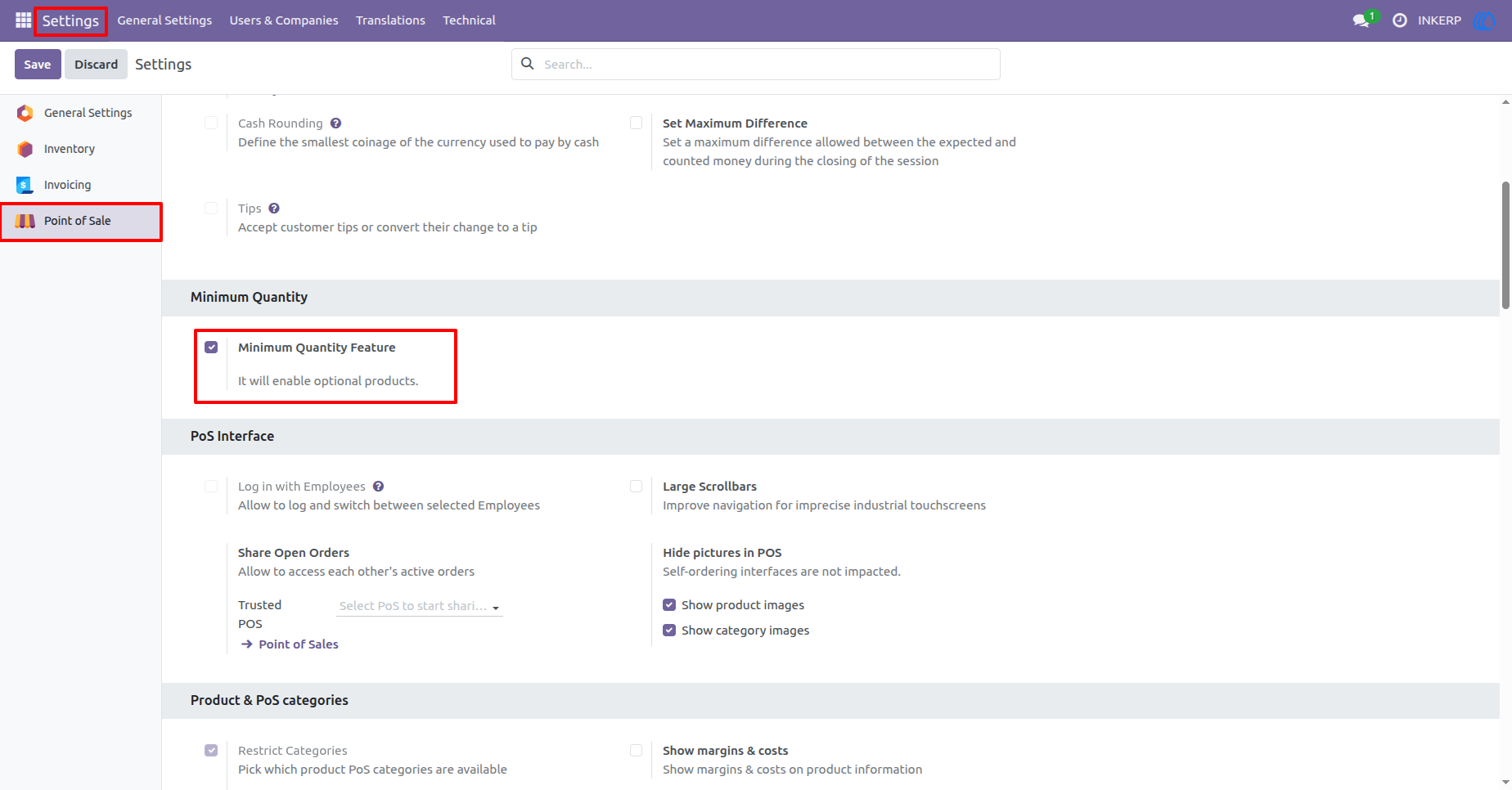
1.) Enable Settings 'MInimum Quantity Feature'
Demonstrates the setting that allows users to enable or disable the feature.
Navigation : Setting › Point of Sale › Minimum Quantity Feature
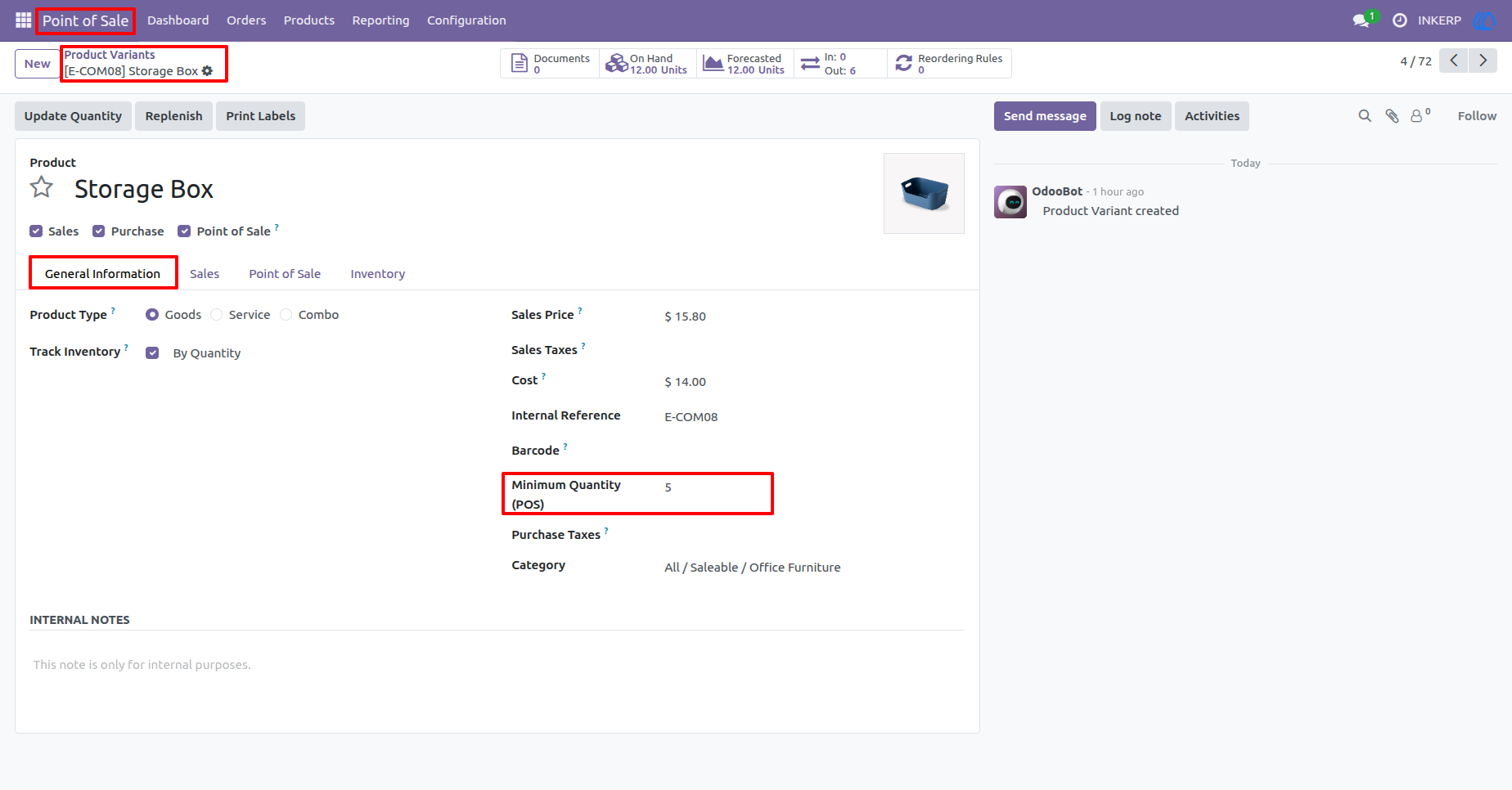
2.) Set Number of Minimum Quantity for product
Set the Number of MInimum Quantity in product for POS.
Navigation : Point of Sale › Product Variants › Product
3.) Click on Product
Click on product to add in POS Orderline with minimum Quantity
Navigation : Point of Sale › Shop › Select Product
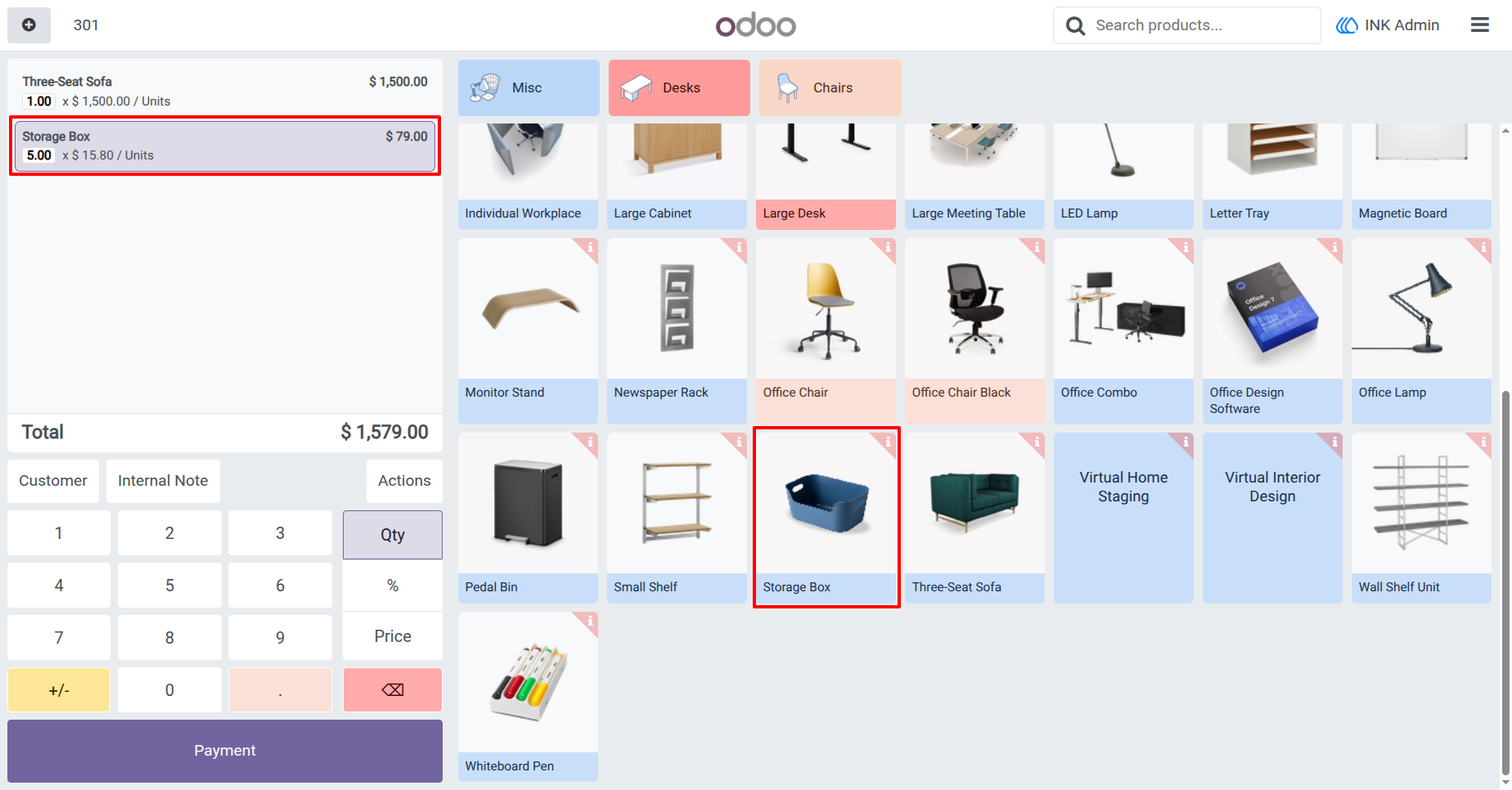
4.) Second time Click on Product
Click on product to add in POS Orderline with normal Quantity
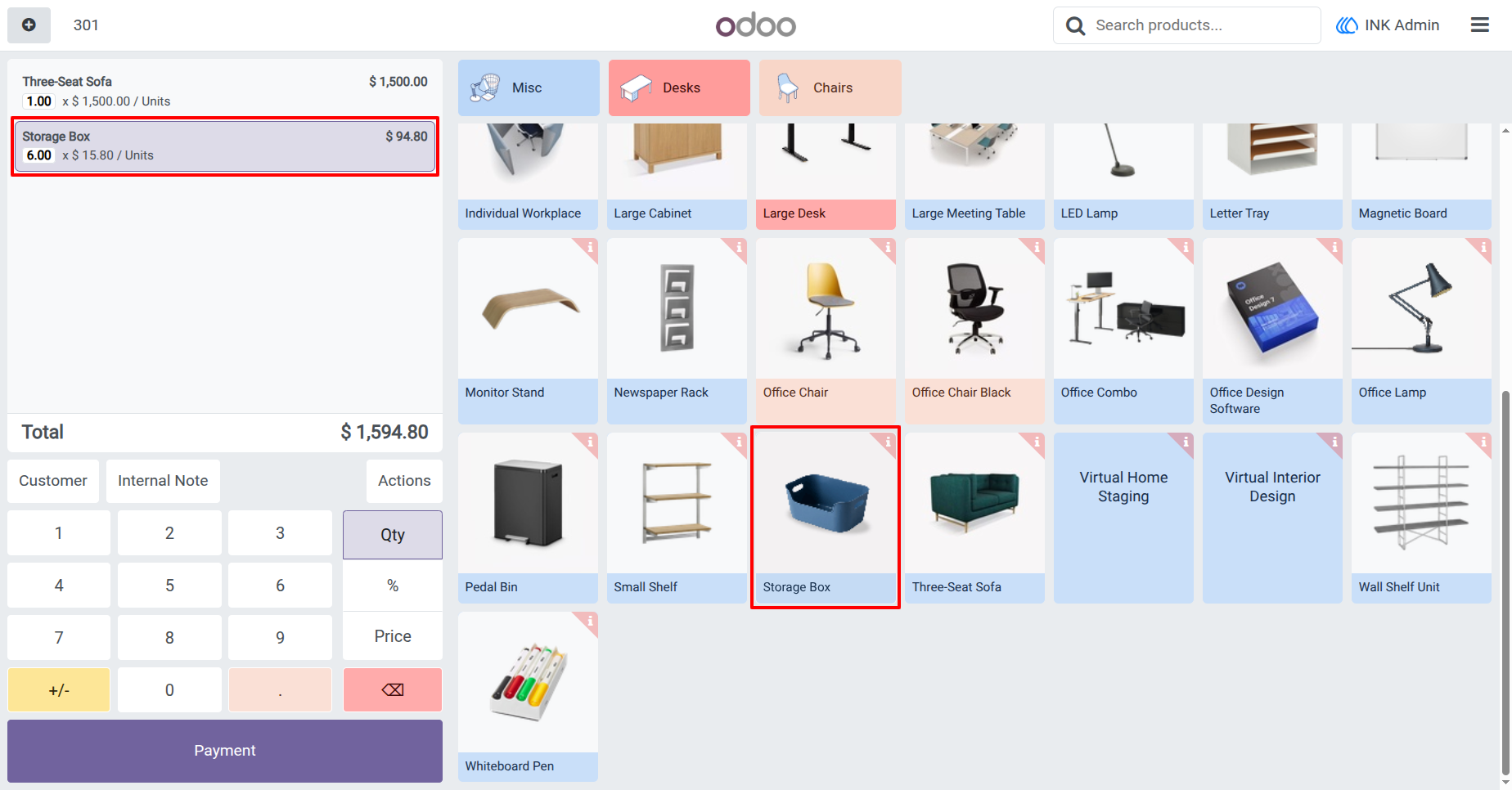
User Guide