

Our Most Suggested Products


Partial Product Quantity check
Partial Product Quantity Check is an Odoo application designed to simplify the management of partially completed product quantities in the MRP production process. It provides a dedicated wizard to enter and verify partially produced quantities accurately. The application automatically records quantity check details for easy tracking and monitoring. Users can view all quality-related information directly from the Quality Reporting menu. It helps reduce manual work and keeps production quality records organized digitally. A PDF Quality Check Report can also be generated for documentation, review, and future reference.
 Features
 Screenshots
 Support
 Service
Features
Partial Quantity Check Wizard
The application provides a dedicated wizard to check partially completed product quantities during the MRP production process. Users can enter the produced quantity and verify the required quantity easily. This helps maintain accurate production records and reduces manual tracking.
Automatic Quality Check Details
Once the quantity is checked, the application automatically records the related quality check details. Users can view the checked quantity and other relevant information in an organized format. This makes quality monitoring faster and more reliable.
Quality Reporting
All quantity check information is available in the Quality Reporting menu. Users can easily review production quality details and track partially completed quantities. This provides better visibility into the overall production and quality process.
Quality Check PDF Report
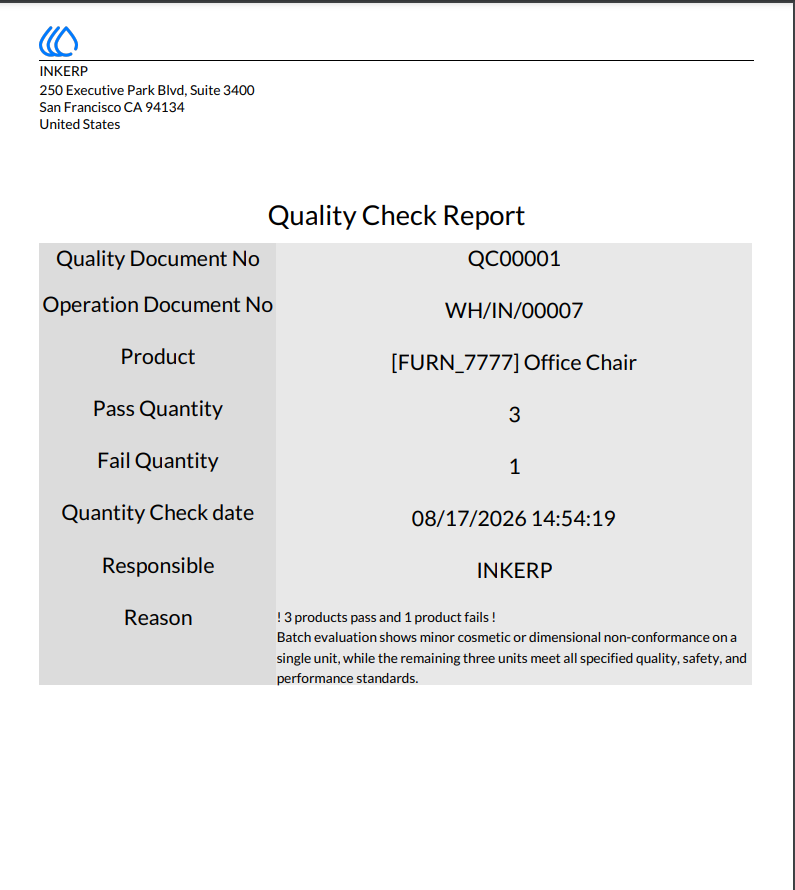
The application allows users to generate a professional Quality Check PDF Report with the recorded quantity check details. The report can be used for documentation, review, and maintaining digital production records.
Screenshot
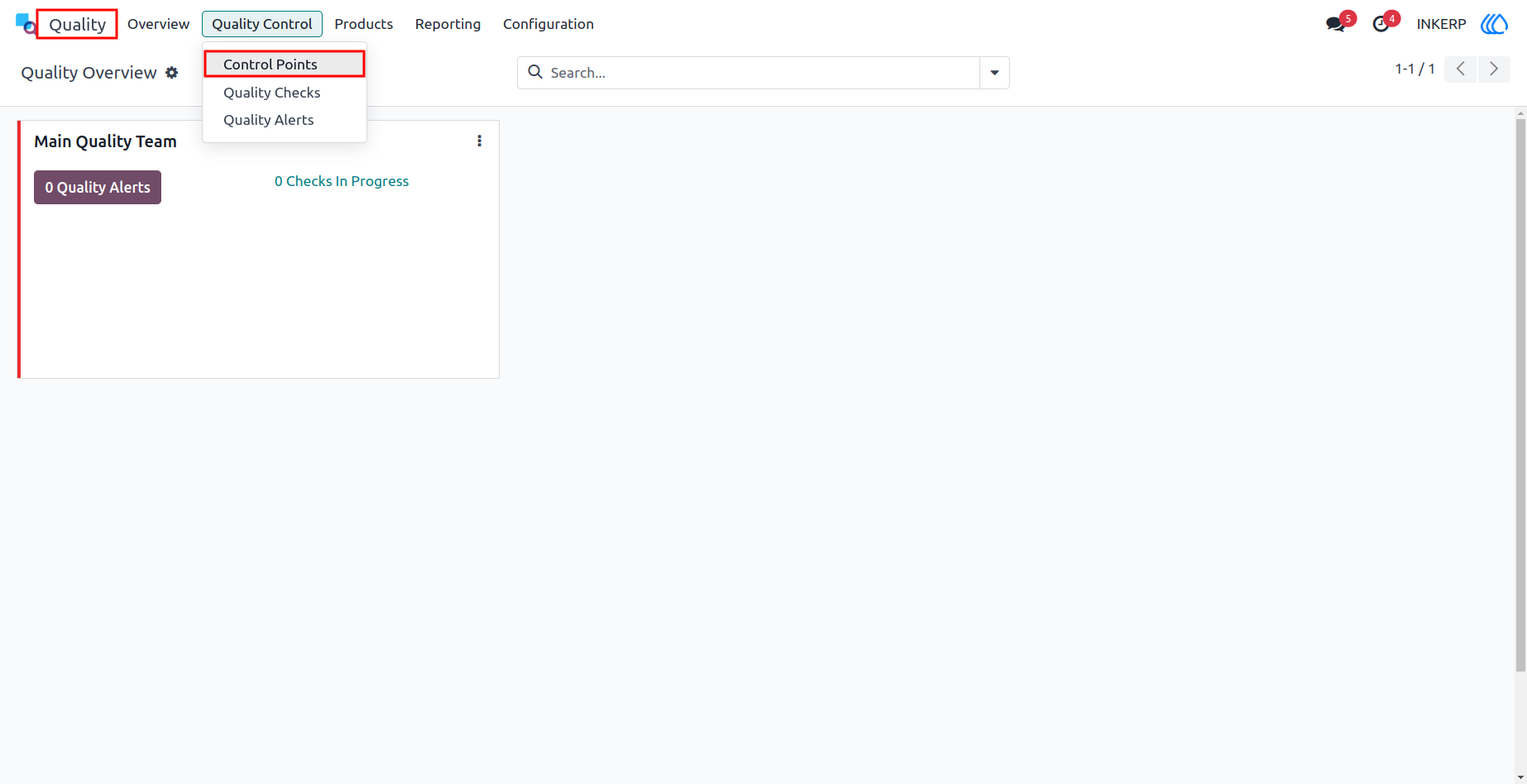
1.)Control Point
Users can create a Quality Control Point from the Quality Control menu in quality. The quality control point helps define the required quality checks for products during the production process. Users can configure the relevant product and quality check details according to their requirements. This ensures that quality checks are properly organized and consistently applied during manufacturing.
Navigation : Quality › Quality Control › Control Point
2.)Quality Control Point
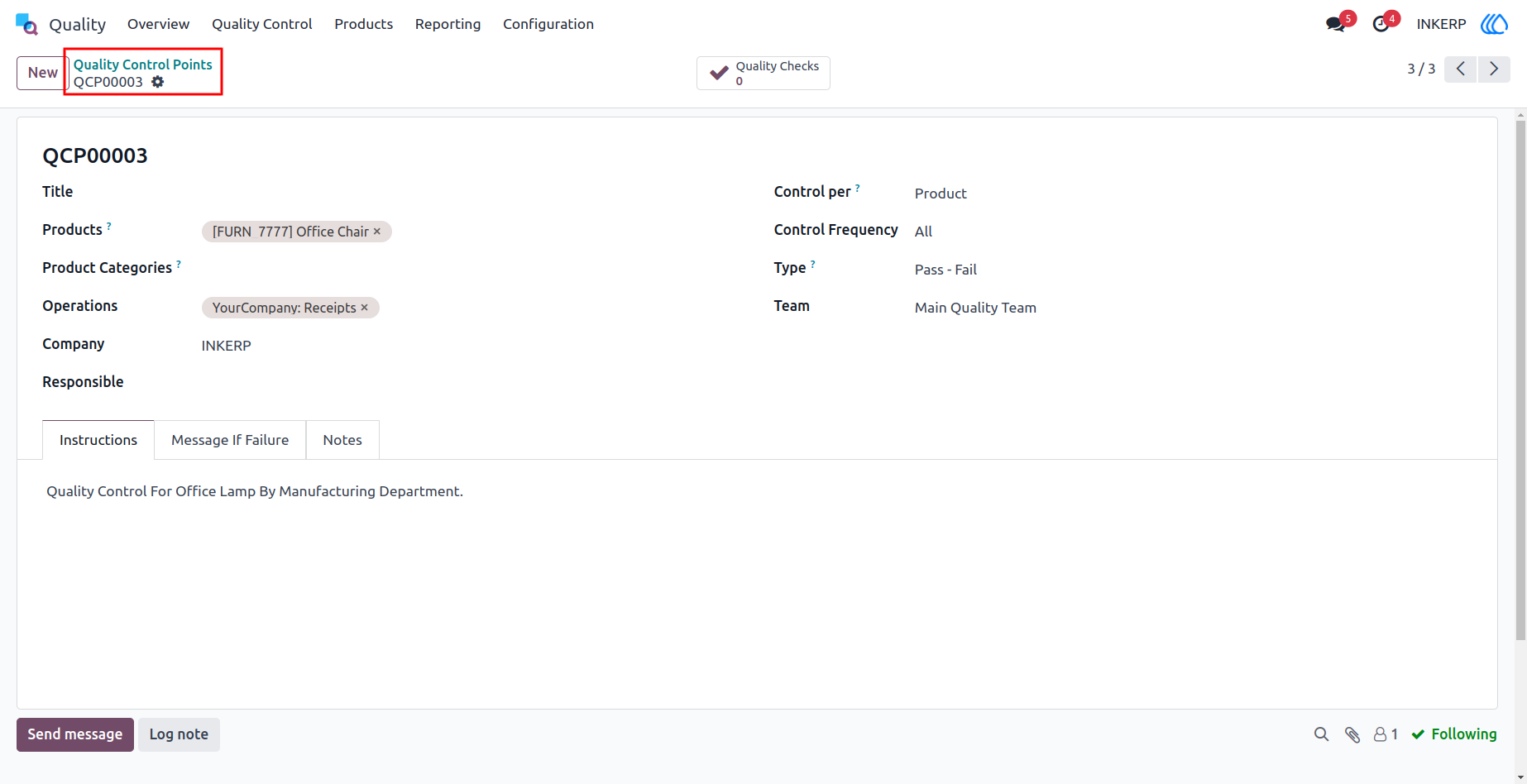
You can view the Quality Control Point form view to configure quality check requirements. Users can select multiple products or a specific product category for the quality control point. The control can be applied based on Product or Quantity according to the production requirement. Users can also select the quality check type as Pass-Fail to verify whether the required quality condition is successfully met. This helps maintain a consistent and organised quality control process.
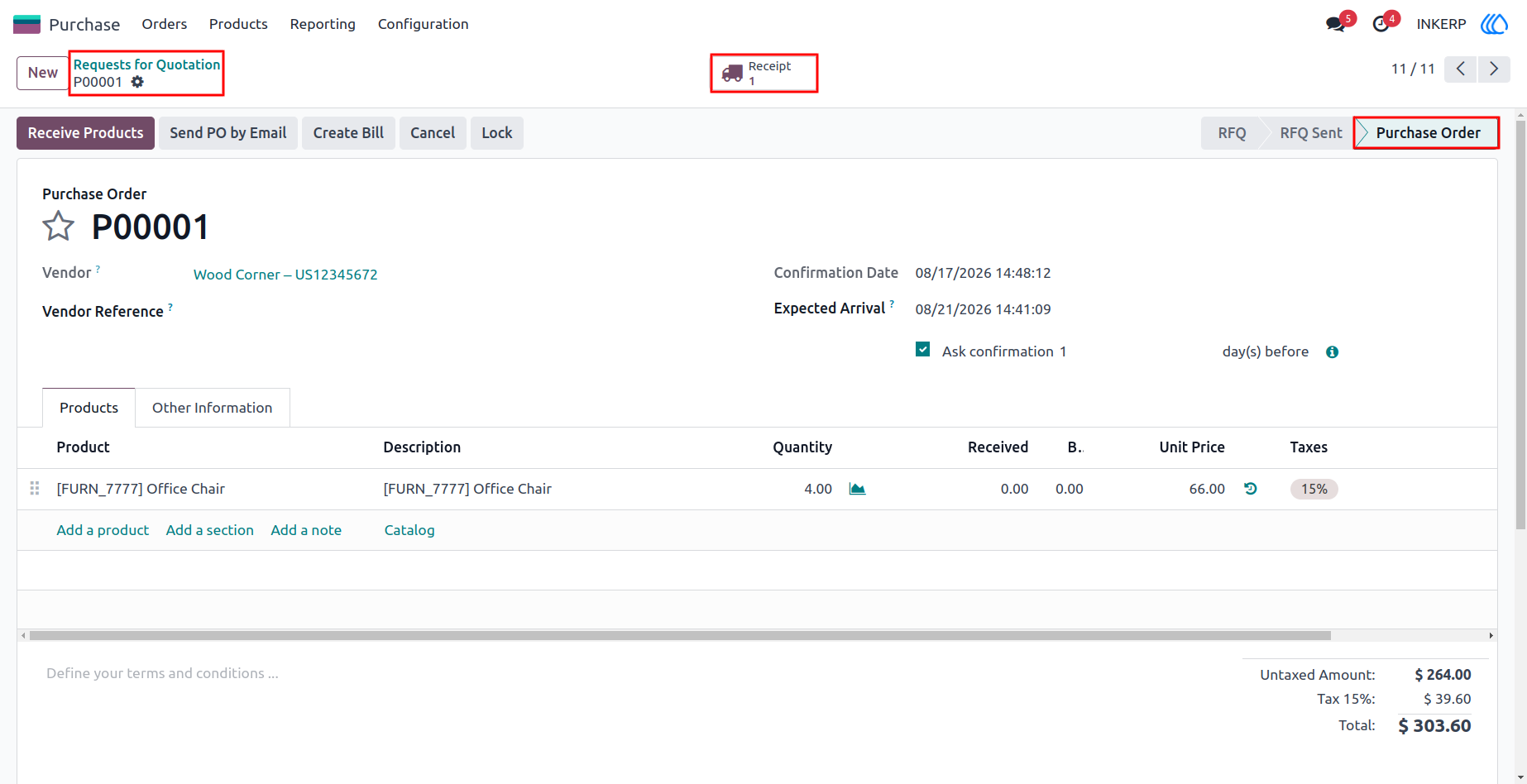
3.)Purchase Order
Create a Purchase Order and confirm the order to proceed with the receiving process. After confirmation, the Receipt button becomes available on the purchase order. Click the Receipt button to open the related incoming shipment. From the receipt, users can continue the product receiving and quality checking process as required.
Navigation : Purchase › Requests for Quotation
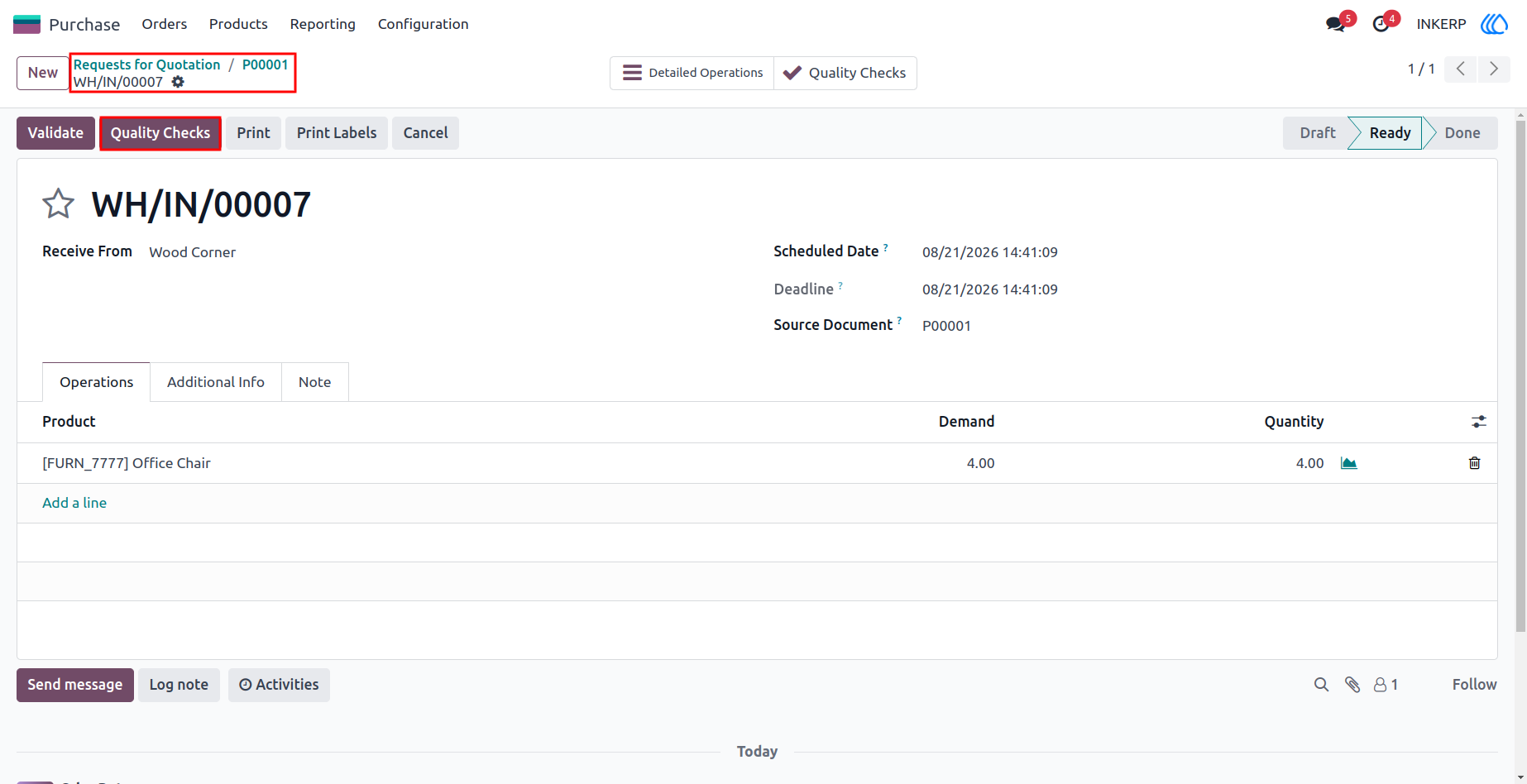
4.)Stock Picking form
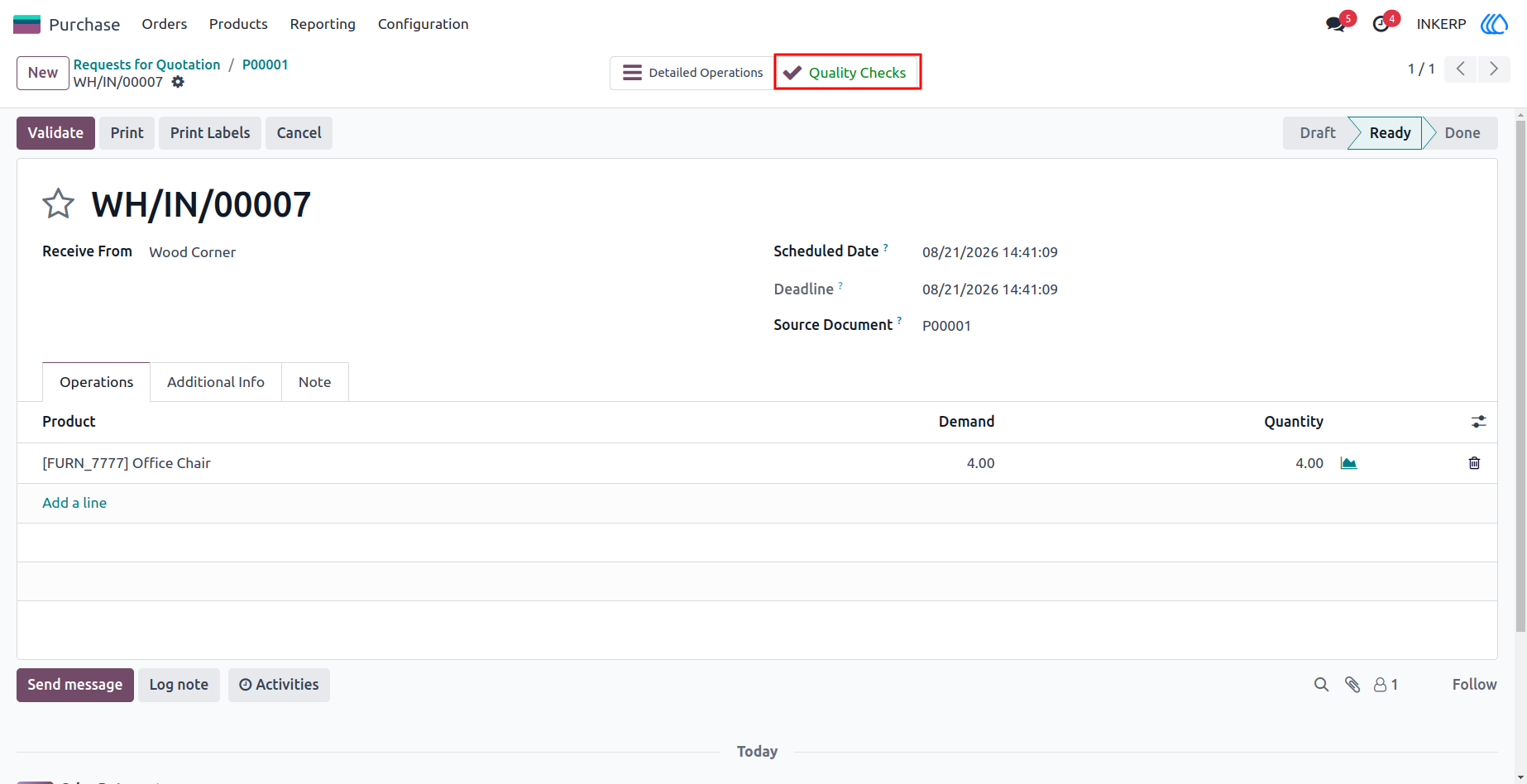
Click the Receipt button to open the related Stock Picking form for the confirmed purchase order. In the stock picking form, the Quality Check button is available for the received products. Click the Quality Check button to start the quality verification process. The Partial Quantity Check Wizard opens, allowing users to enter and verify the partially completed product quantity.
Navigation : inventory › operations › receipts
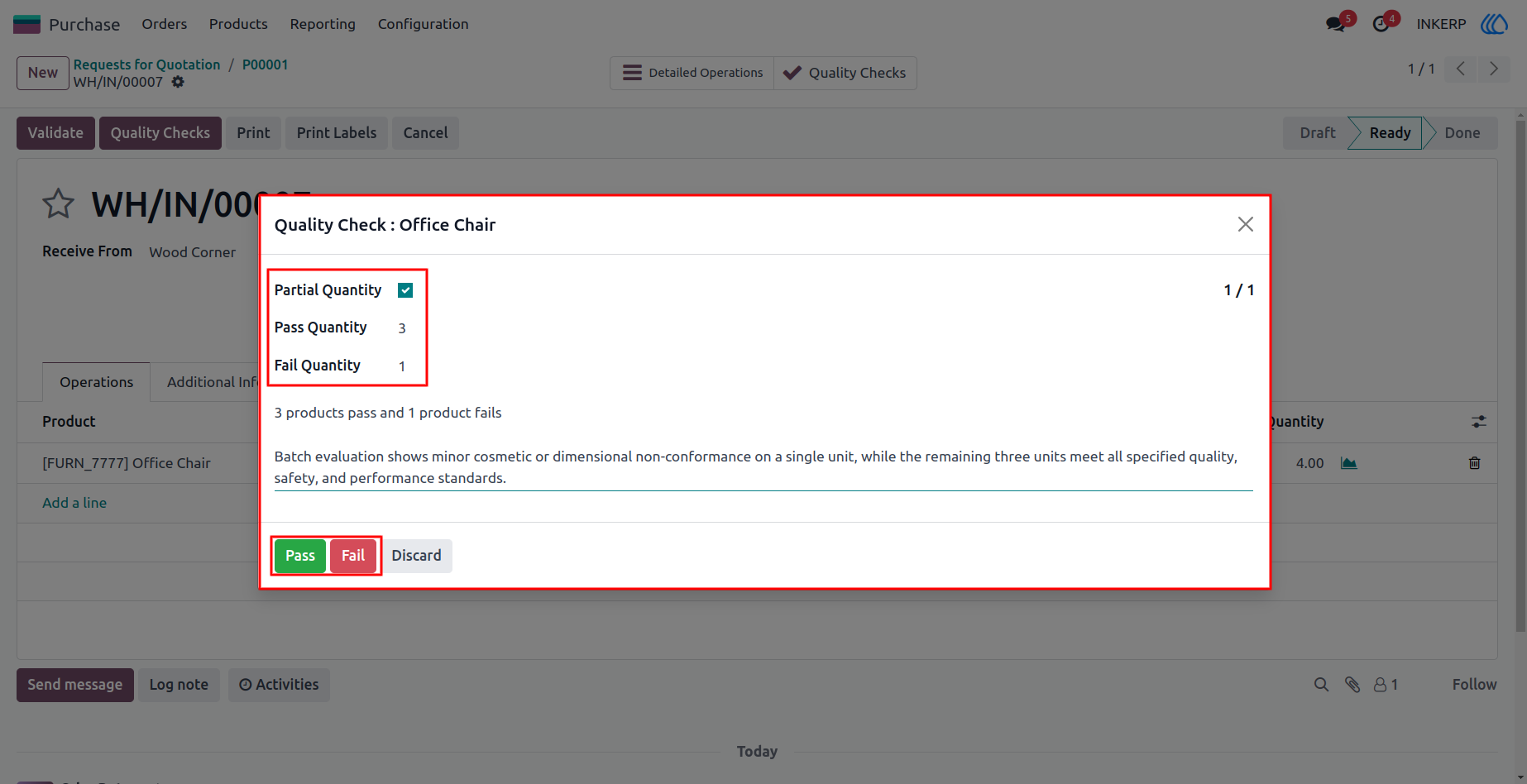
5.)Quality Check Wizard
The Partial Quantity Check Wizard opens with the available Partial Quantity Check option. Select the checkbox to display the Pass Quantity and Fail Quantity fields for entering the checked quantities. Users can add a note related to the product or quality check for additional information. After entering the required details, click the Pass or Fail button to record the quality check result accordingly.
6.)Quality Check
After completing the quality check, the checked quantity details are recorded automatically. Click the Quality Check smart button to open the related quality check details. Users can review the checked product, pass quantity, fail quantity, notes, and quality check result. This provides a clear overview of the completed quality verification for the received product.
7.)Quality Check List View
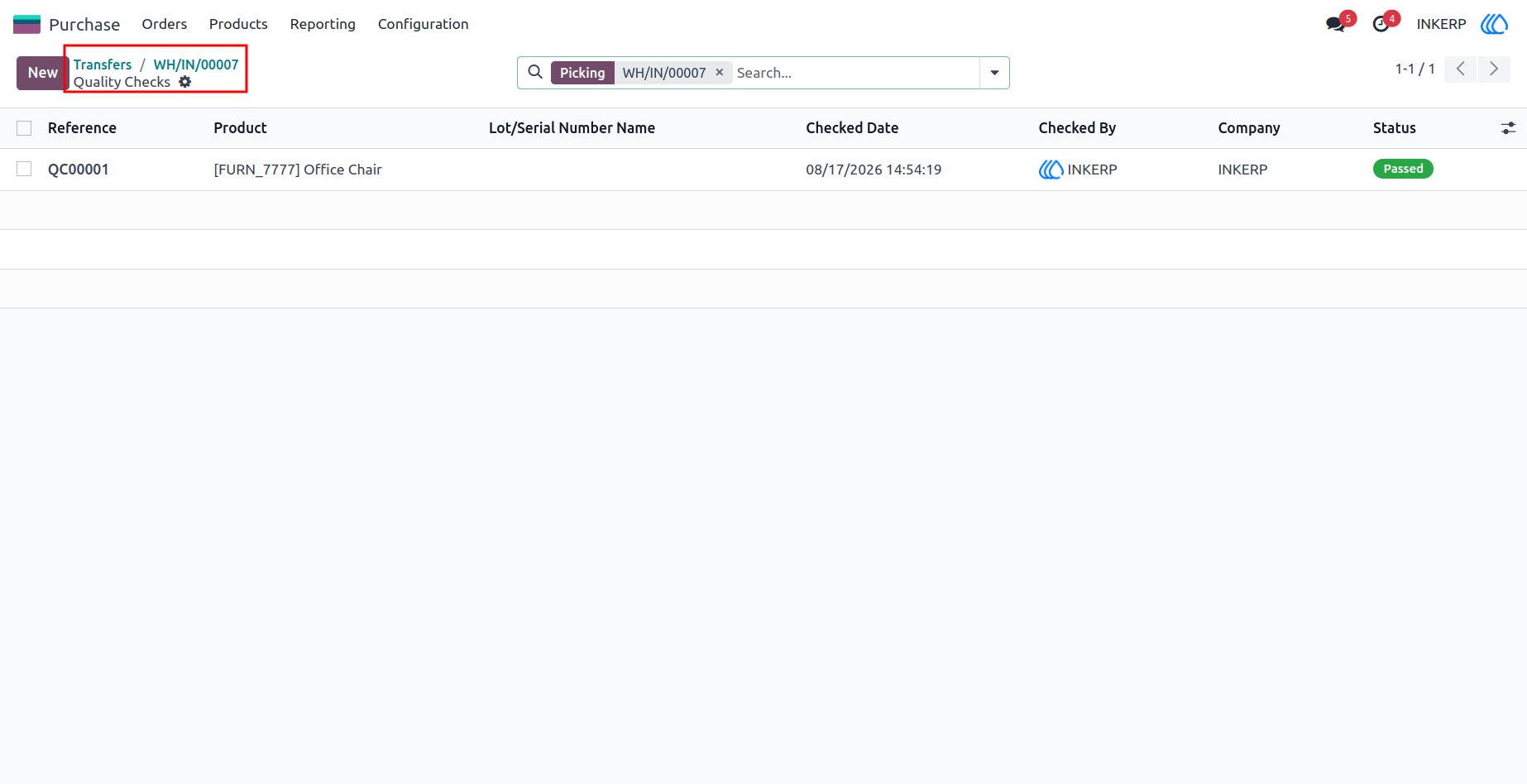
The Quality Check List View displays all recorded quality check details in an organized format. Users can easily review the checked product, pass quantity, fail quantity, quality result, and related information. This list provides a quick overview of completed quality checks and helps users monitor product quality efficiently. It also makes it easier to track and review partial quantity check records.
Navigation : Quality › Quality Control › Quality Checks
8.)Quality Check Form View
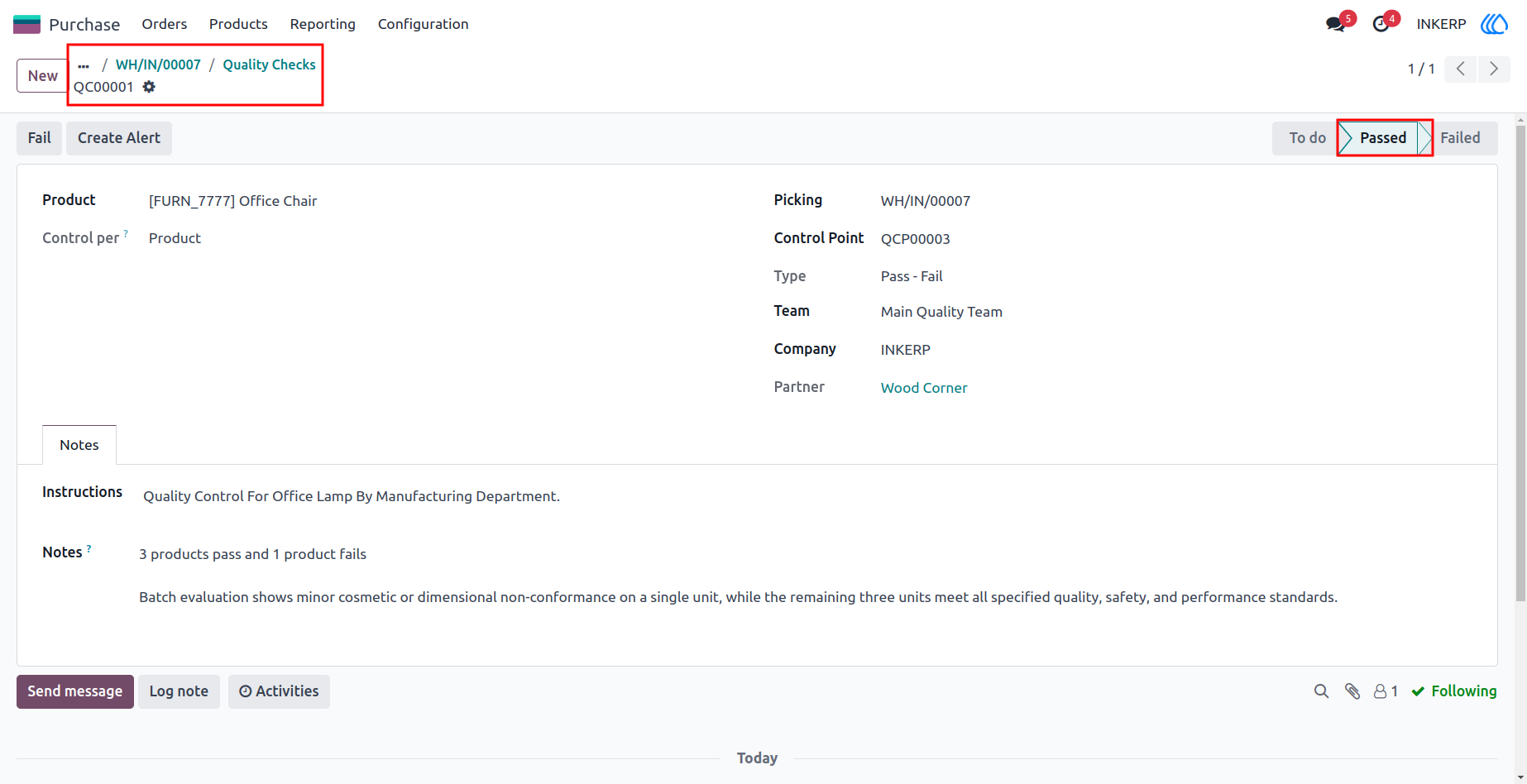
The Quality Check Form View displays all generated quality check details in one place. Users can review the product, checked quantity, pass quantity, fail quantity, notes, and other related information. After completing the quality verification, the quality check status is automatically moved to the Pass state when the check is successful. This provides a clear and organized record of the completed quality check.
9.)Quality Check Report
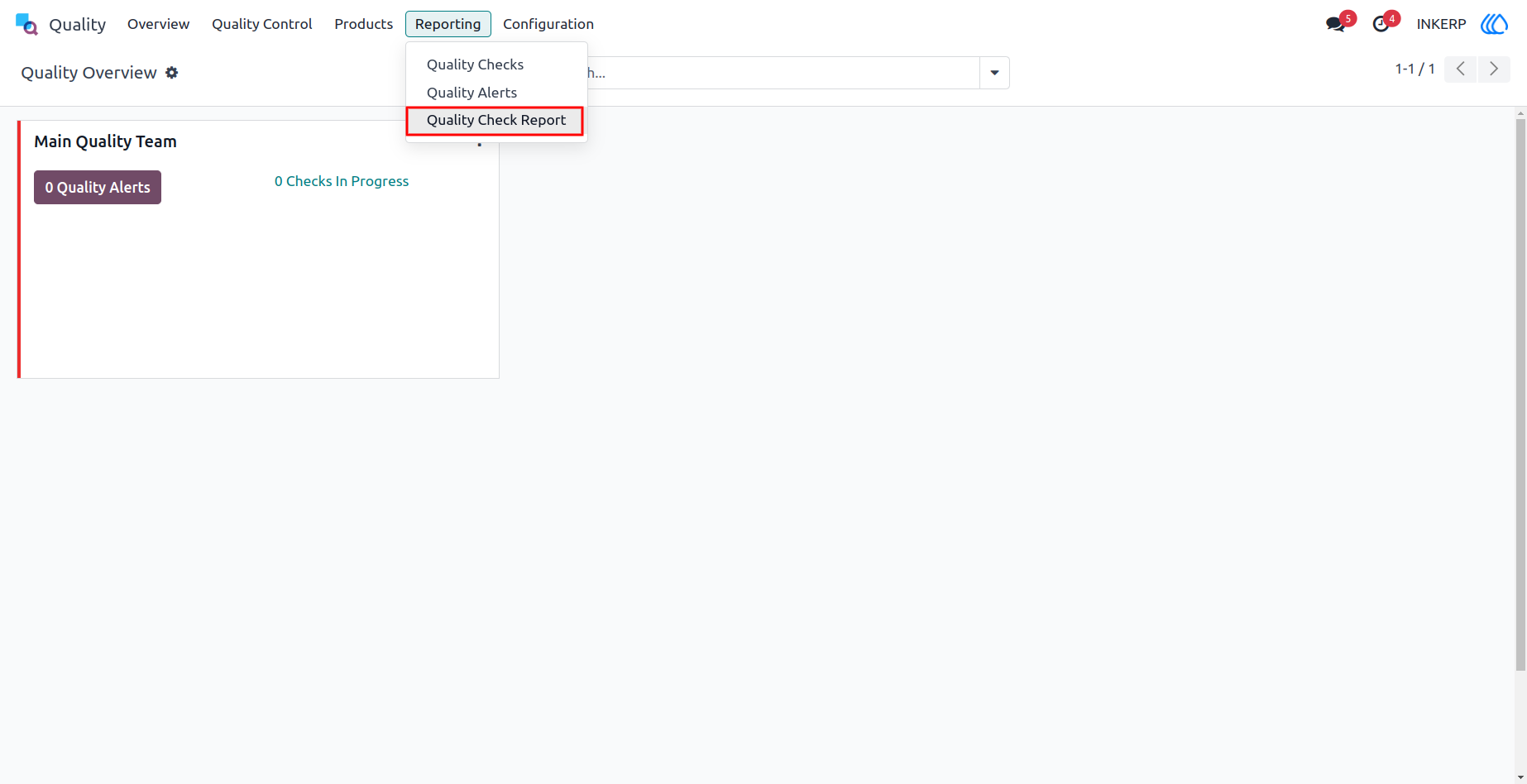
Open the Quality Check Report from the Reporting menu to review the recorded quality check information. The report provides details such as the product, checked quantity, pass quantity, fail quantity, notes, and quality check result. Users can use the report to monitor completed quality checks and maintain organized production quality records.
Navigation : Quality › Reporting › Quality Check Report
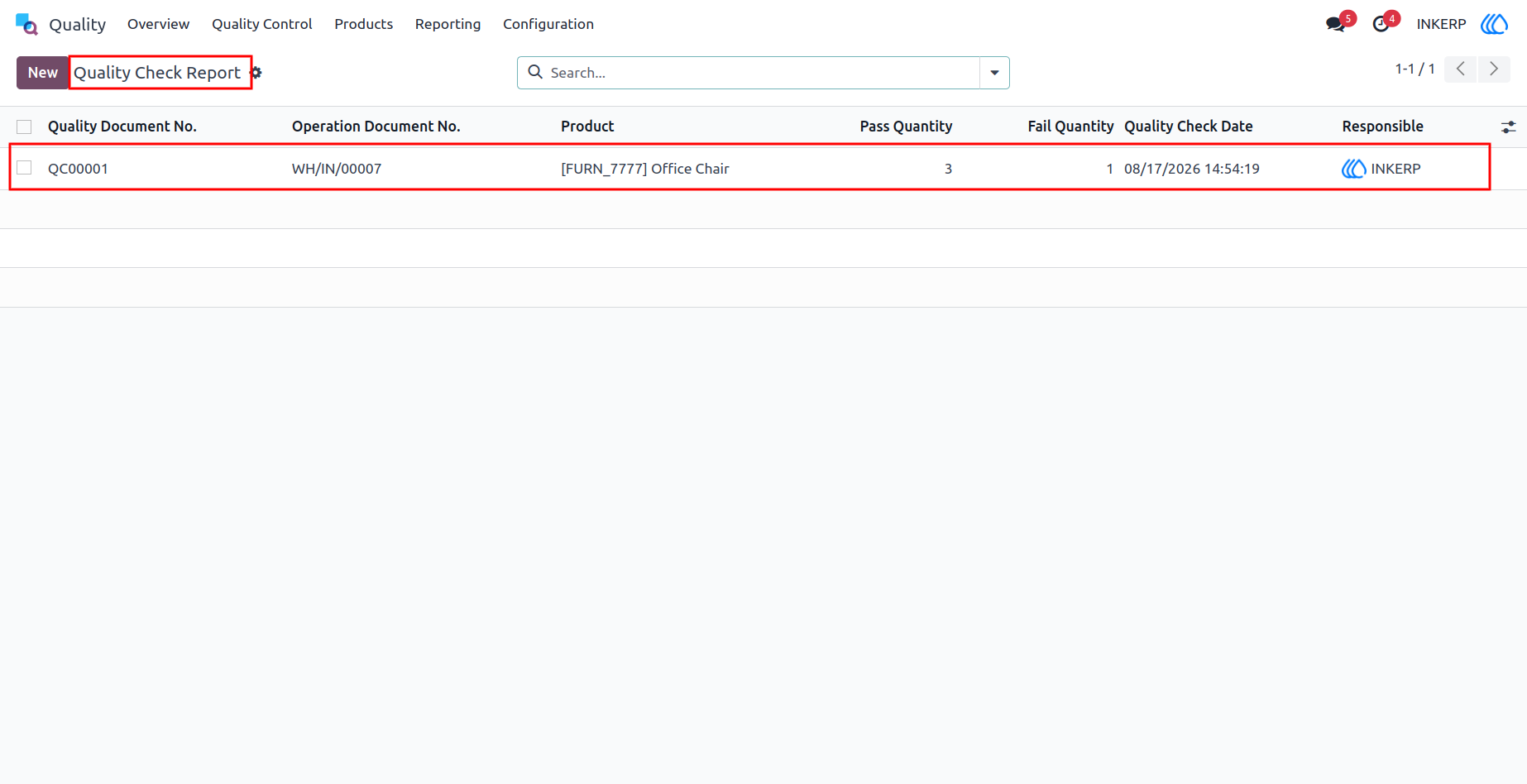
10.)Quality Check Report List View
The Quality Check Report List View displays the quality check records generated automatically from the Partial Quantity Check Wizard. When users click the Pass or Fail button in the wizard, the corresponding quality check details are automatically recorded in the report. Users can review the product, pass quantity, fail quantity, notes, and quality result in the list view. This provides an easy way to track and monitor all completed quality checks.
11.)Quality Check Report Form View
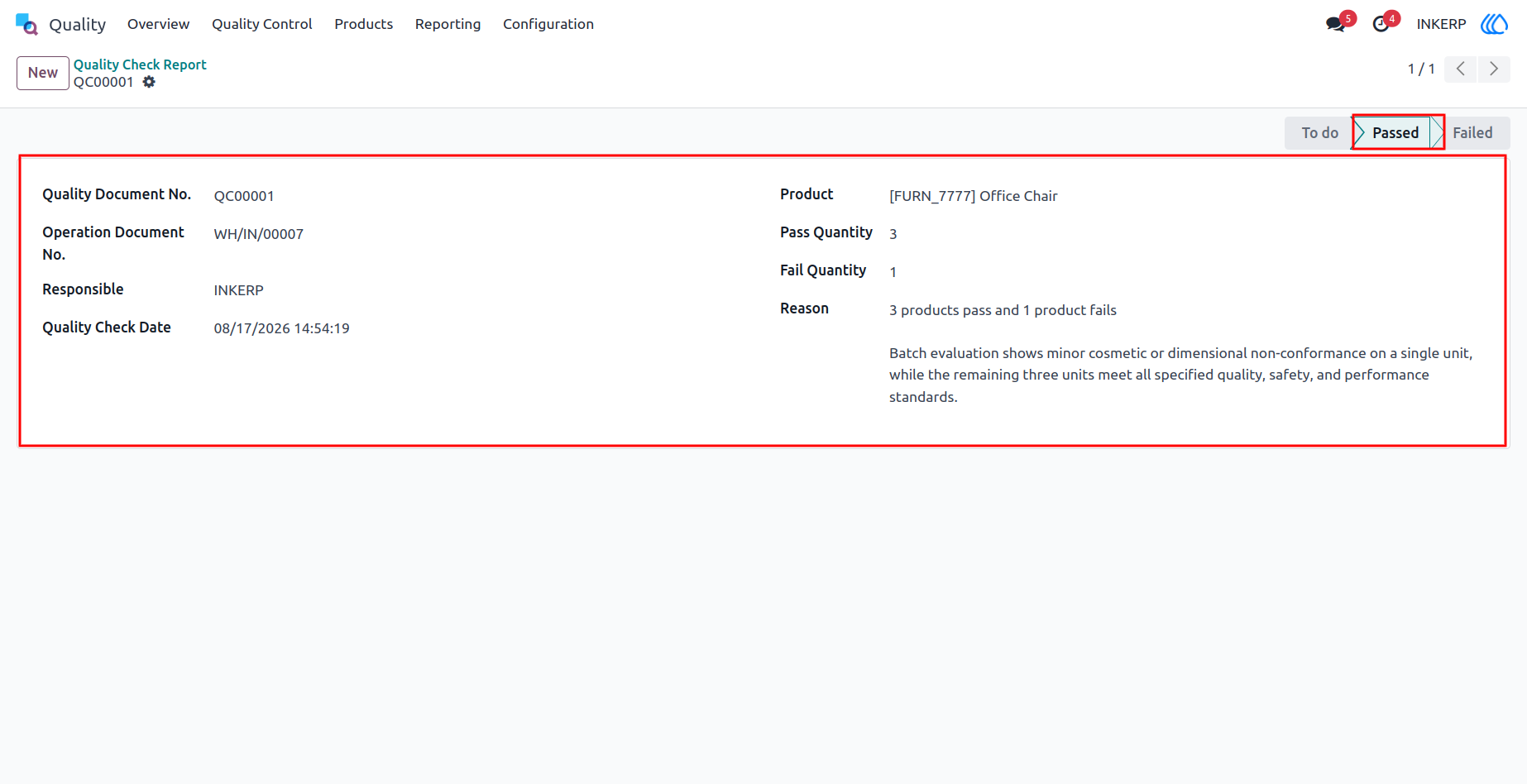
The Quality Check Report Form View provides complete details of the generated quality check record. Users can view the Pass Quantity, Fail Quantity, Quality Document Number, Quality Status, and Date in the report. These details are automatically generated from the quality check process and provide a clear record of the product quality verification. This helps users easily review and maintain accurate quality check documentation.
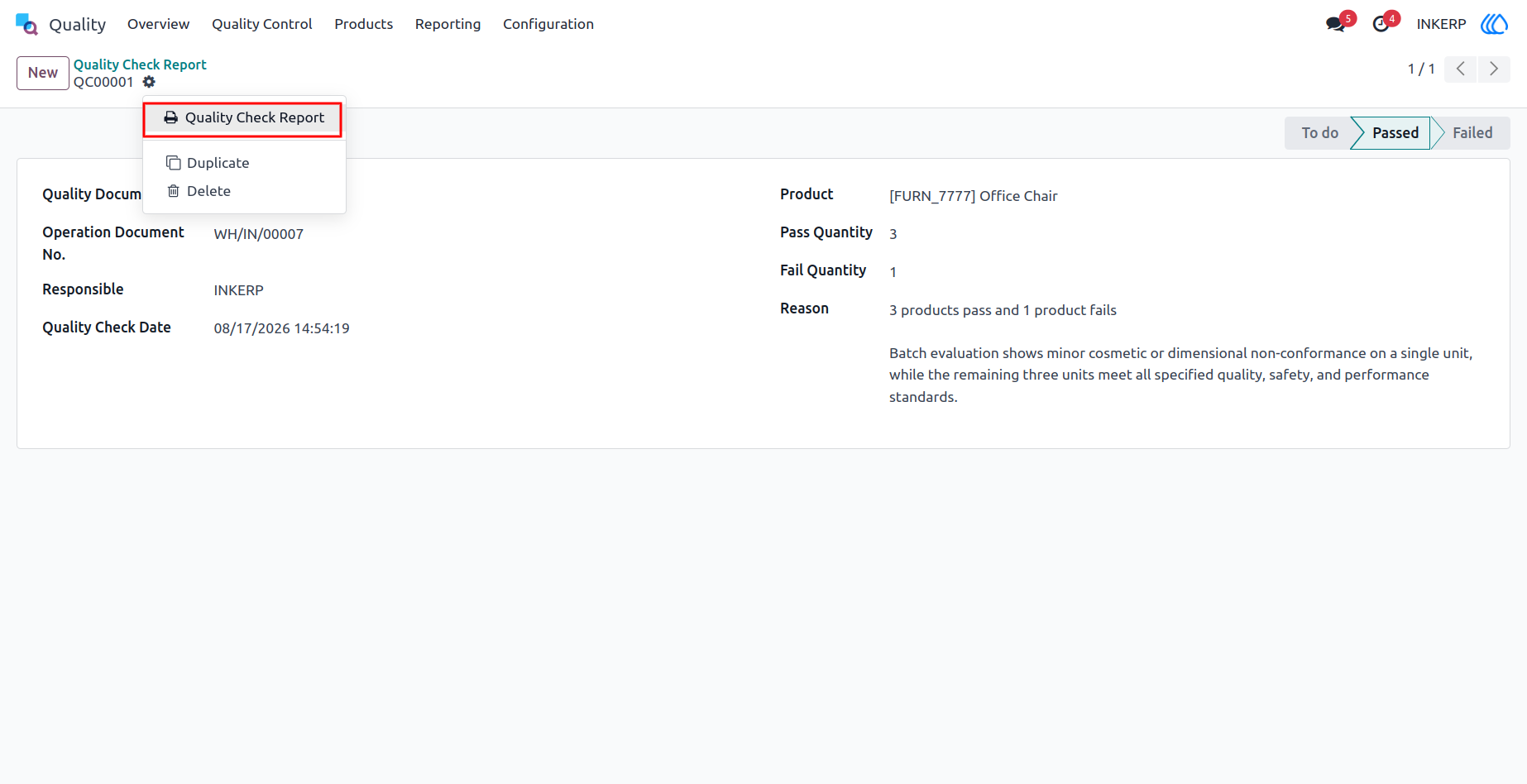
12.)Create PDF Report
Open the Action menu and click Quality Check Report to generate the PDF report directly. The report is automatically created with all related quality check details in a clear and organized format. It includes important information such as the product, pass quantity, fail quantity, quality document number, quality status, and date. This PDF report can be used for quality documentation and record-keeping.
13.)PDF Report
User Guide