

Our Most Suggested Products


One Click in SO PO
One Click in SO PO is an Odoo productivity module designed to accelerate the complete Sales Order and Purchase Order workflow by allowing users to execute multiple operational steps from a single action. Instead of manually confirming orders, generating invoices, registering payments, validating deliveries, and processing vendor bills one by one, the module automates the full transactional sequence in a controlled flow.
 Features
 Screenshots
 Support
 Service
Features
One Click Sale Order
The One Click Sale Order feature allows users to complete the full sales workflow directly from a quotation without moving through multiple manual stages. A single action can confirm the quotation, generate the customer invoice, register payment, and validate delivery, making the process significantly faster for day-to-day operations.
One Click Purchase Order
The One Click Purchase Order feature streamlines procurement by allowing users to process the entire purchase cycle from order confirmation through vendor billing and payment using a single action.
One Click Refund
The One Click Refund feature simplifies both customer and vendor refund processes by automating refund creation and related financial actions in one step. Instead of manually creating credit notes, validating refund documents, and processing associated entries separately, the module handles the workflow through a single command.
Screenshot
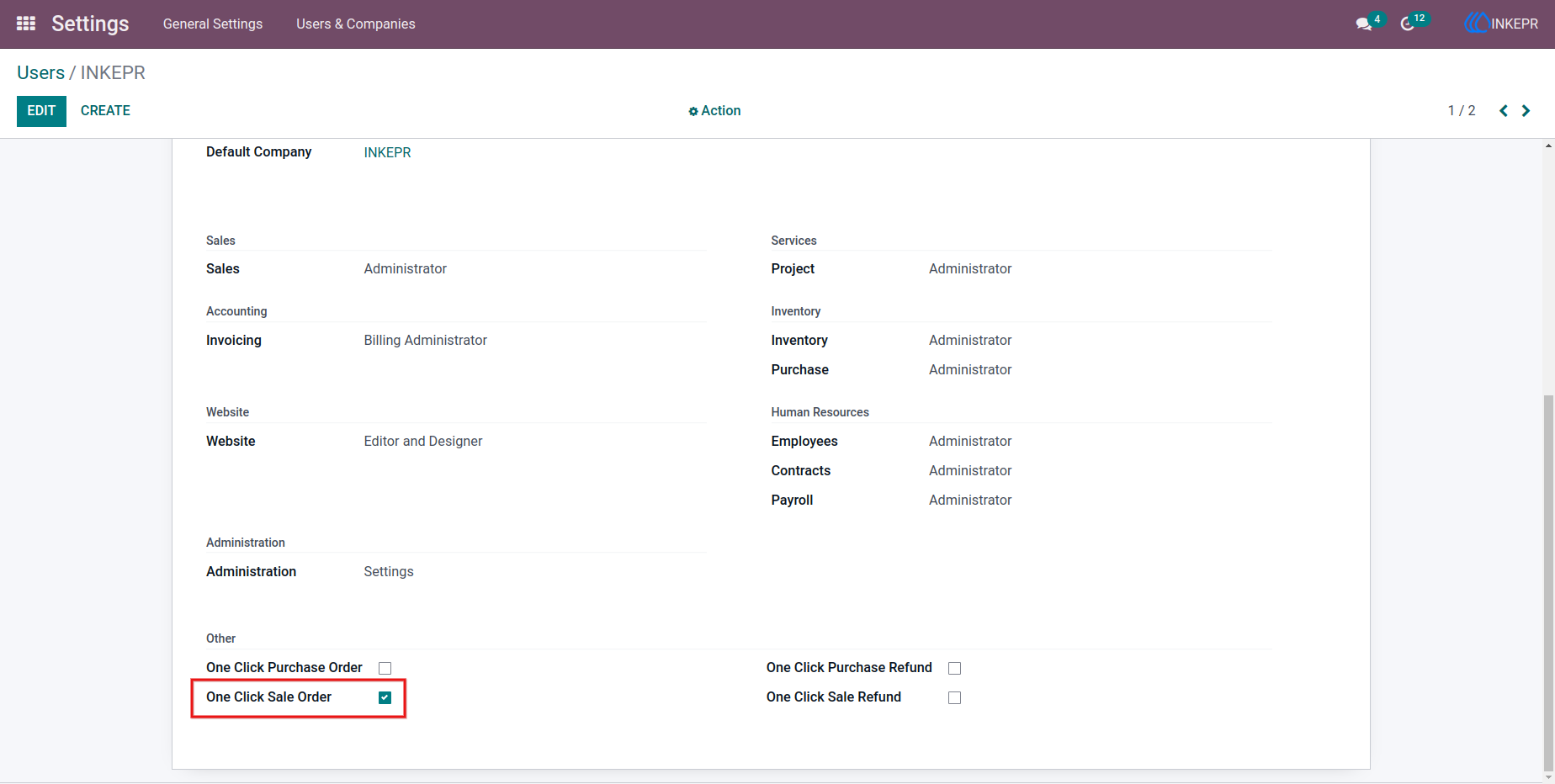
1.) Sales Order with One-Click Action
A new action button is available directly inside the sales order, making it easy to complete the order workflow without opening additional forms.
Navigation : Settings → Users & Companies → Users
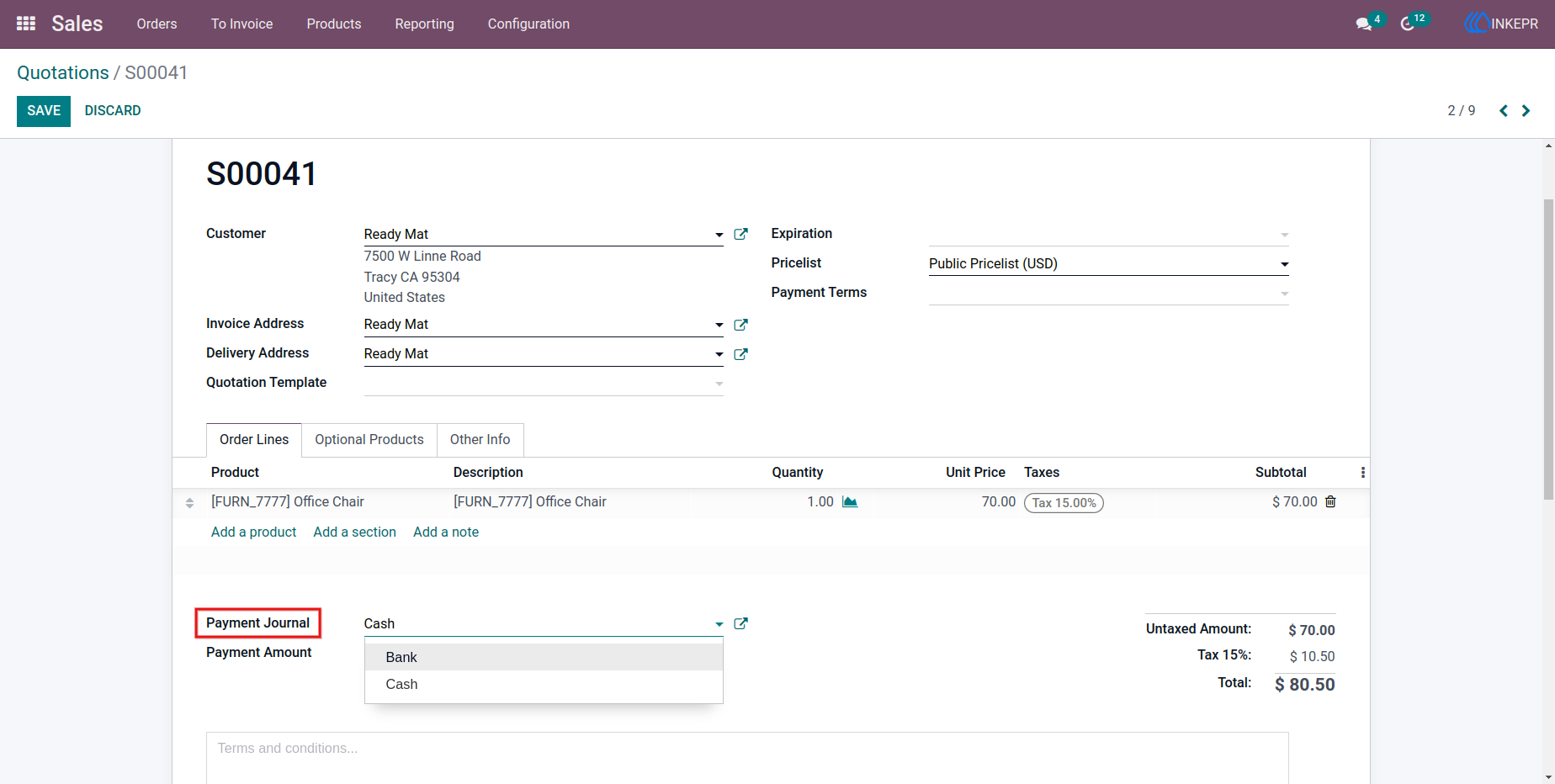
2.) Sales Order Processing Wizard
A confirmation popup helps users choose how the automated flow should proceed before execution begins.
Navigation : Sales → Orders → Quotations
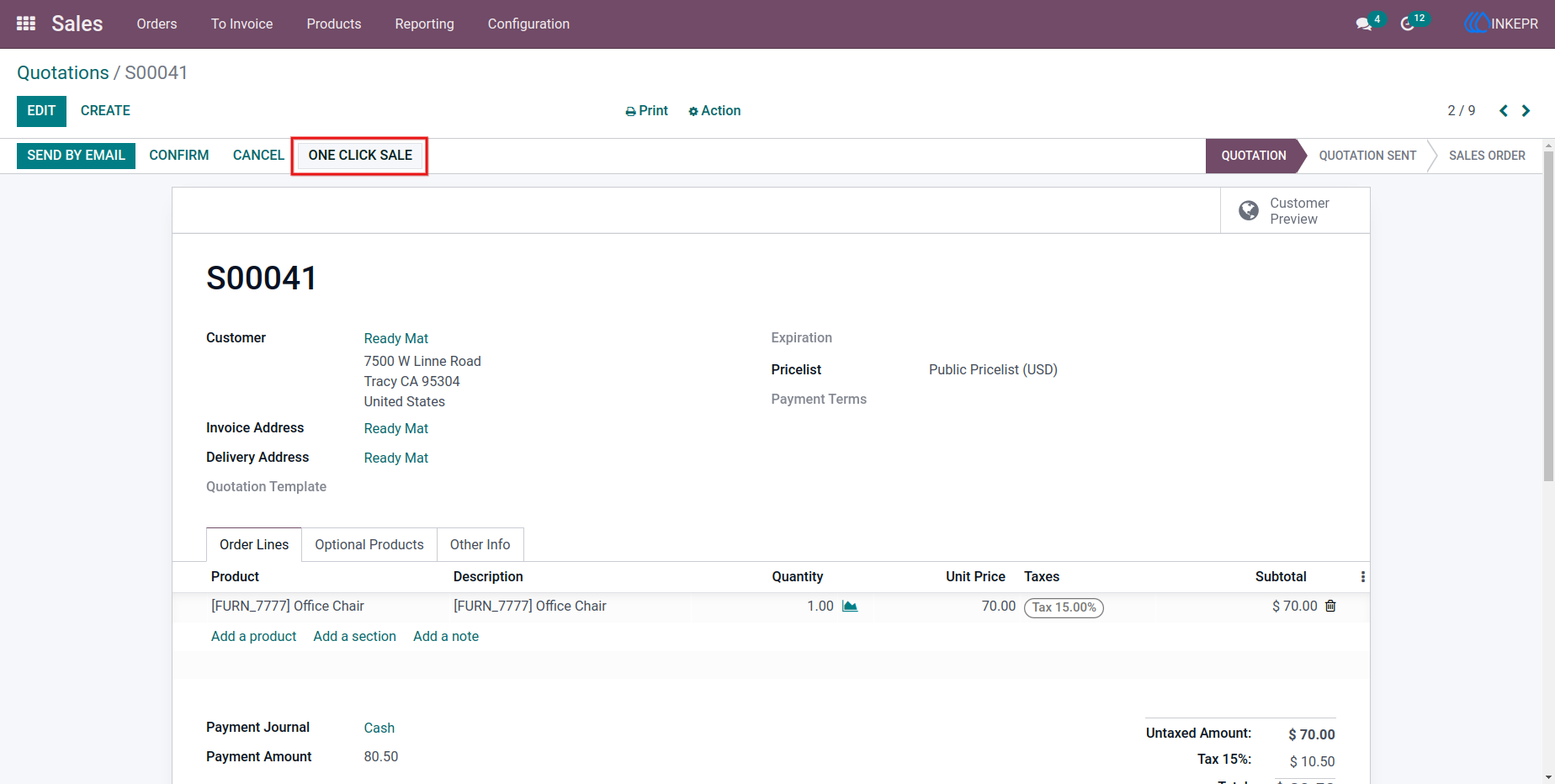
3.) Sales Order Completed State
The sales document reflects completed operational steps after automation, including invoice and delivery progress.
Navigation : Sales → Quotations
4.) Action Menu Selection
The module integrates naturally into Odoo actions, allowing users to trigger automation from standard menus.
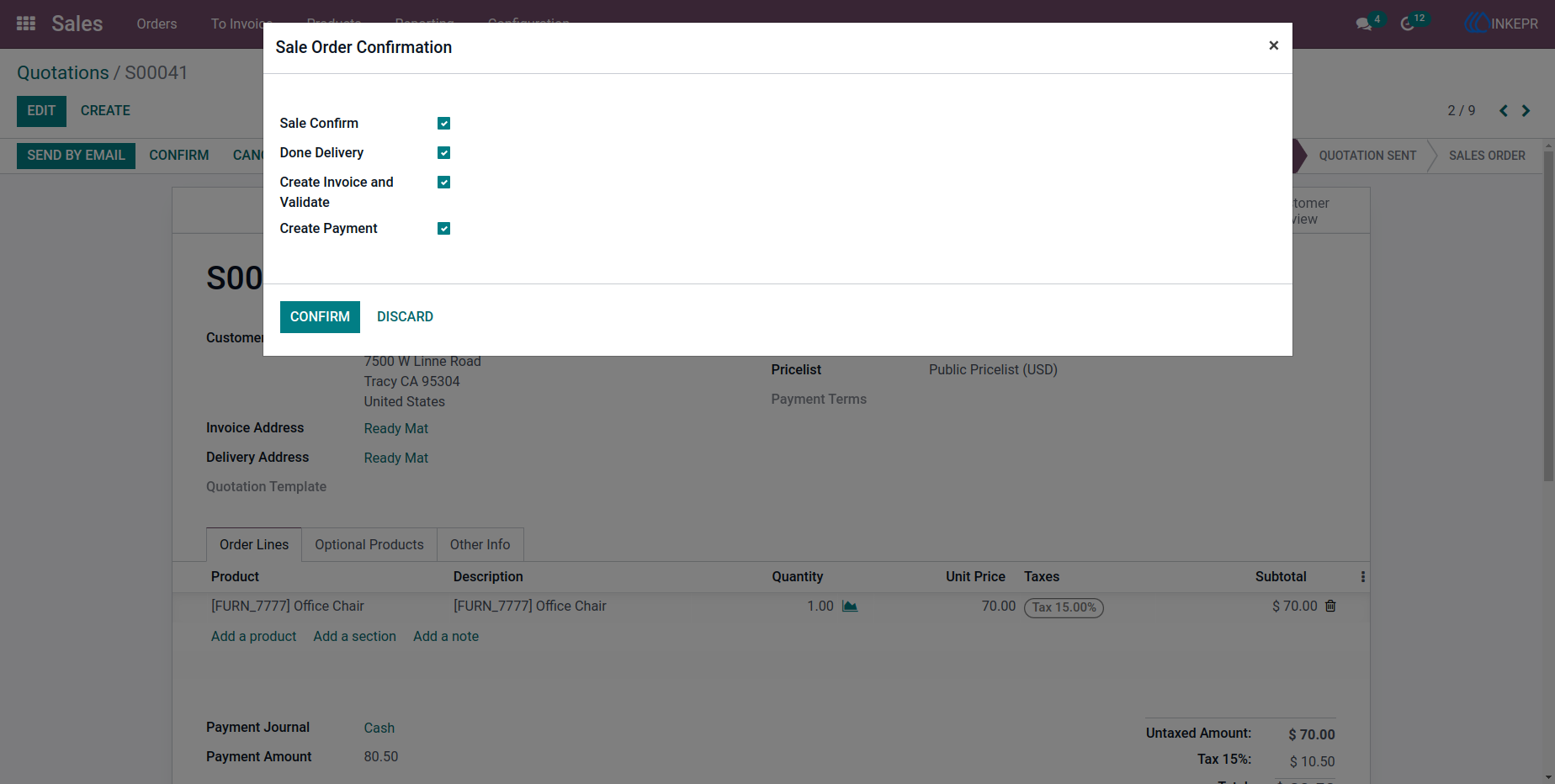
5.) Invoice Generated from Sales Order
Customer invoicing becomes immediately available after order confirmation, reducing accounting delay.
Navigation : Sales → Quotations
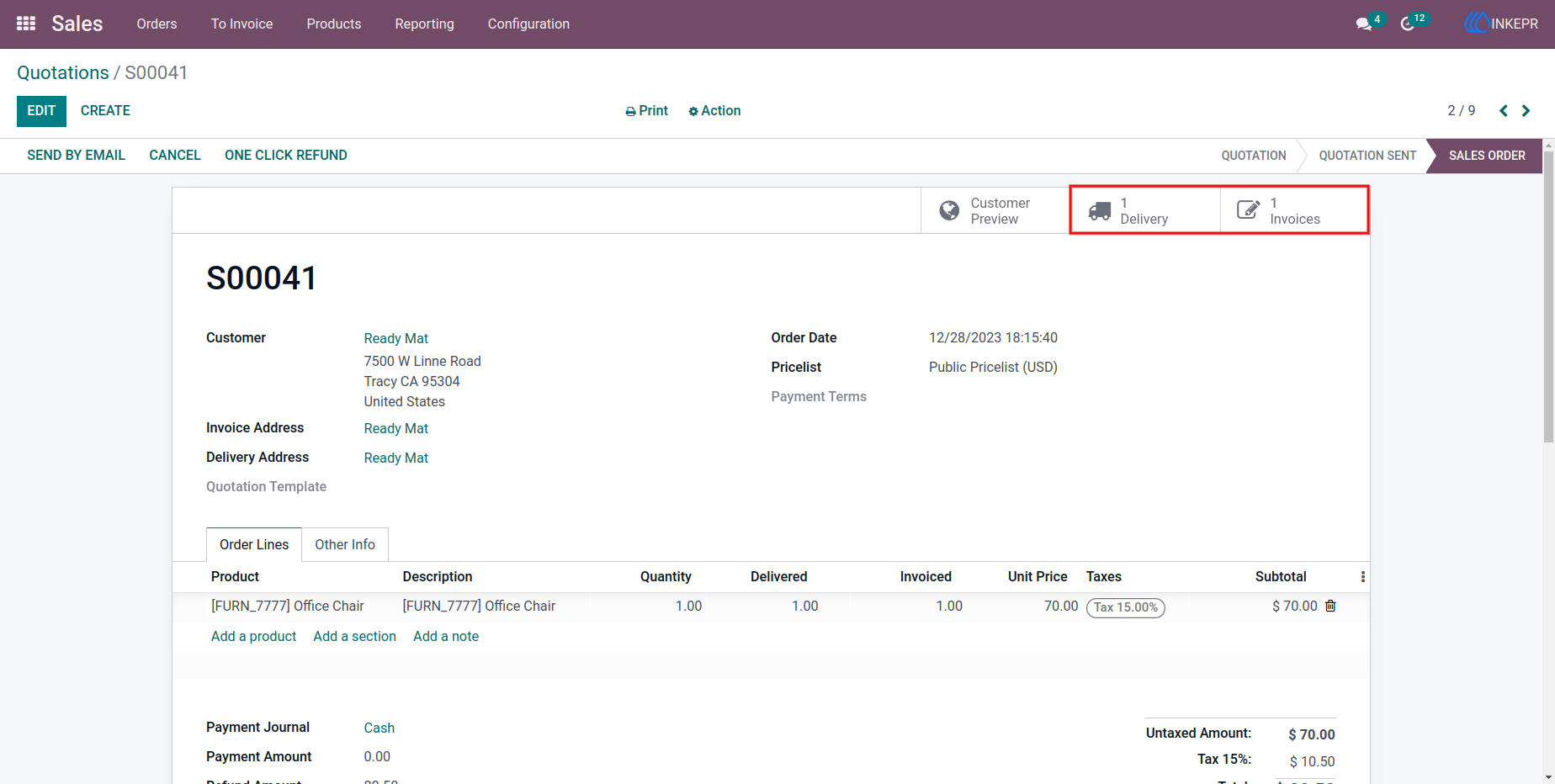
6.) Payment Registered on Customer Invoice
Payment information is added directly after invoice creation so the receivable cycle closes faster.
Navigation : Sales → Quotations → Delivery
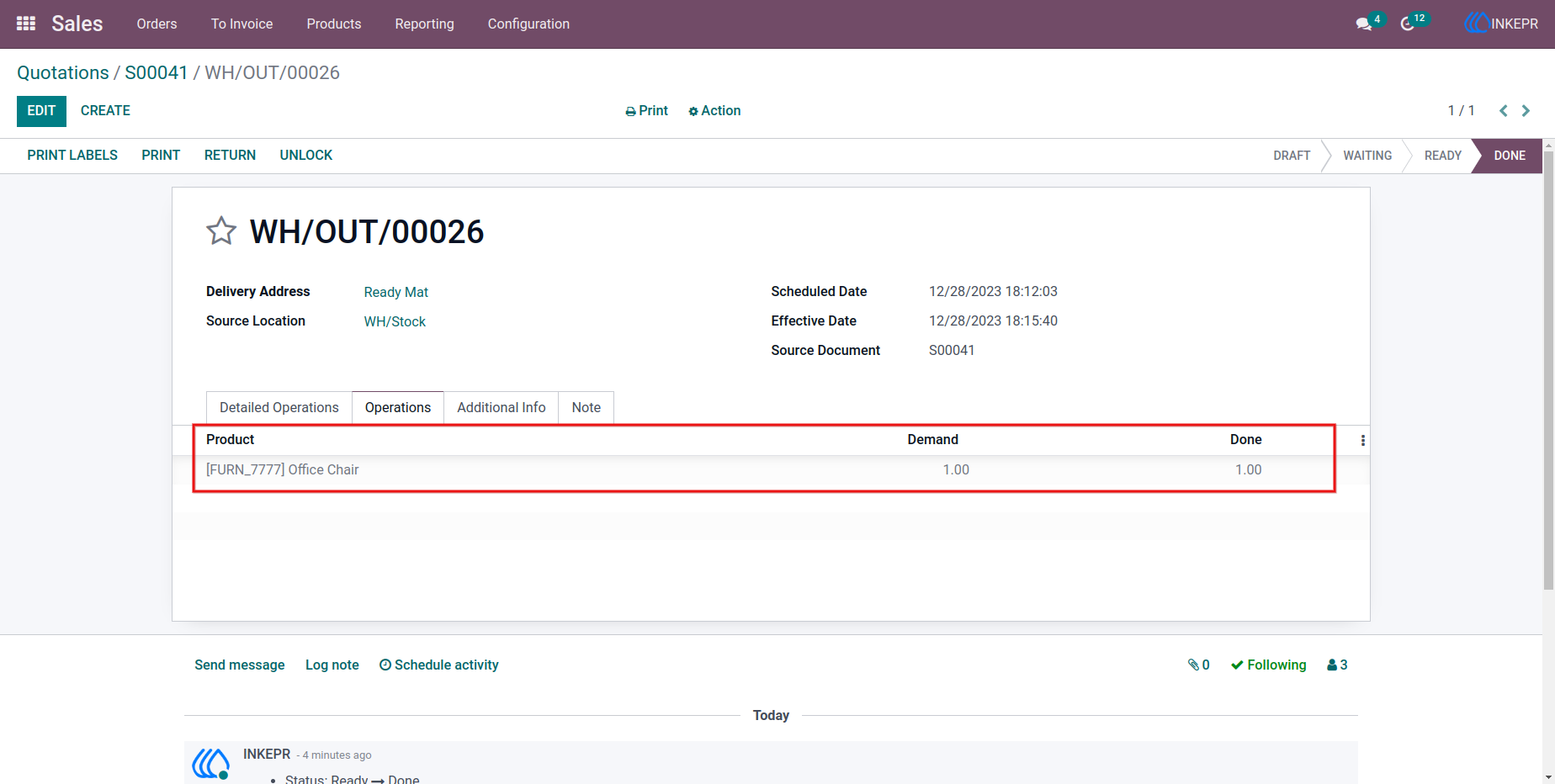
7.) Customer Invoice Validation
The invoice reaches a validated state automatically, ready for accounting records.
Navigation : Sales → Quotations → Invoices
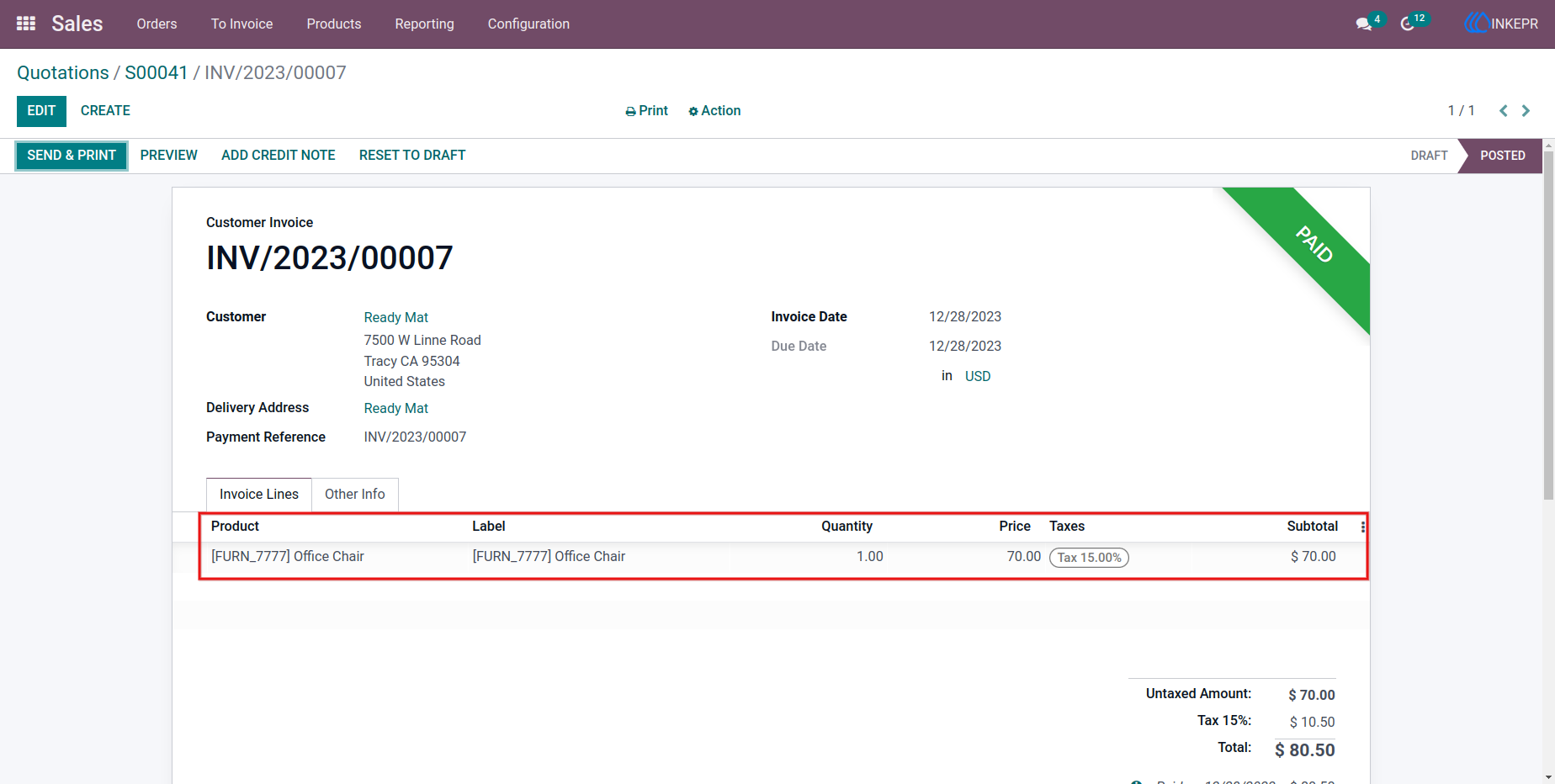
8.) Delivery Validation Trigger
A delivery-related action appears as part of the same automated sales process.
Navigation : Settings → Users & Companies → Users
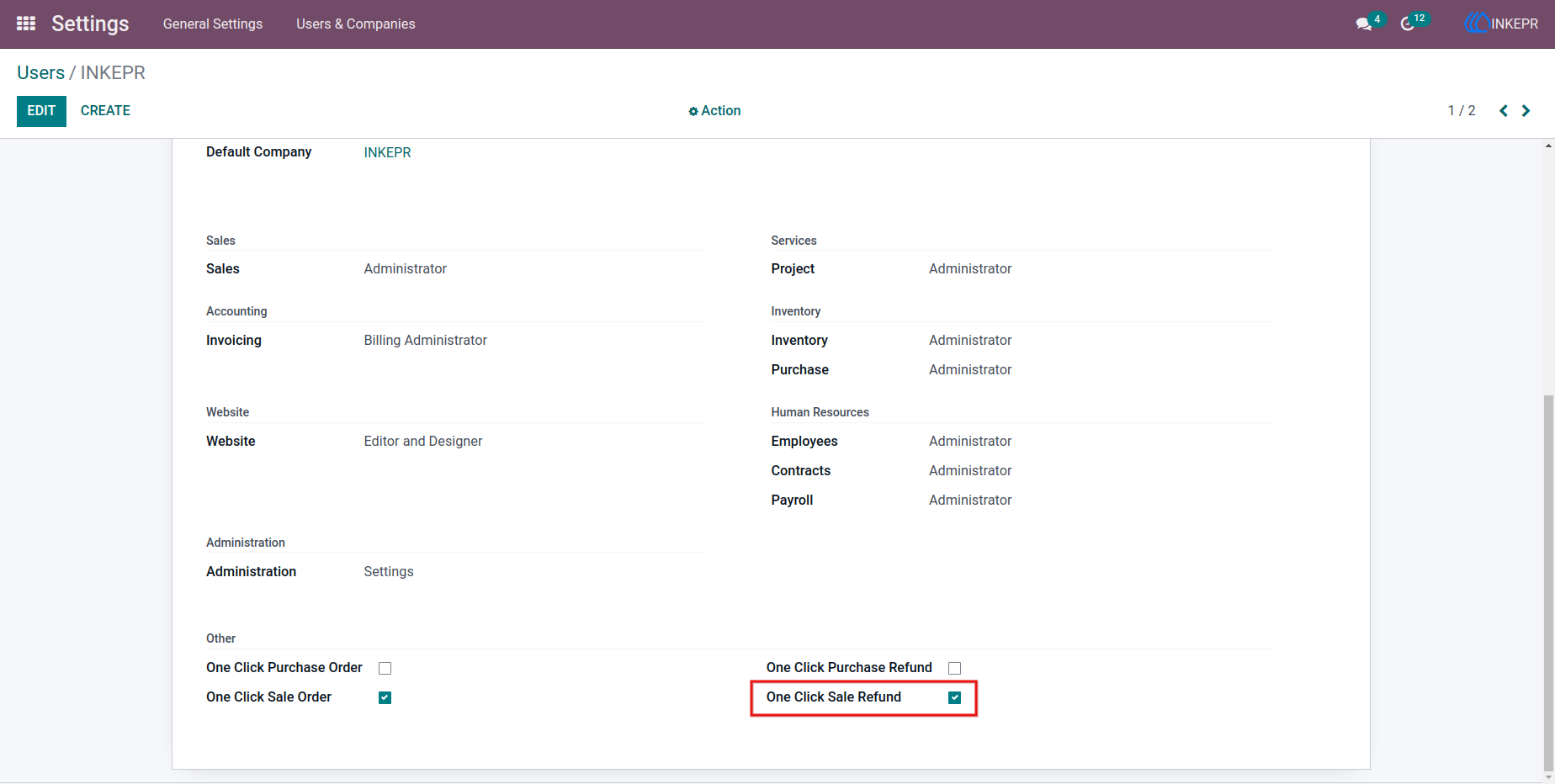
9.) Delivery Order Completed
Inventory movement is validated so stock updates happen immediately after sales completion.
Navigation : Sales → Quotations
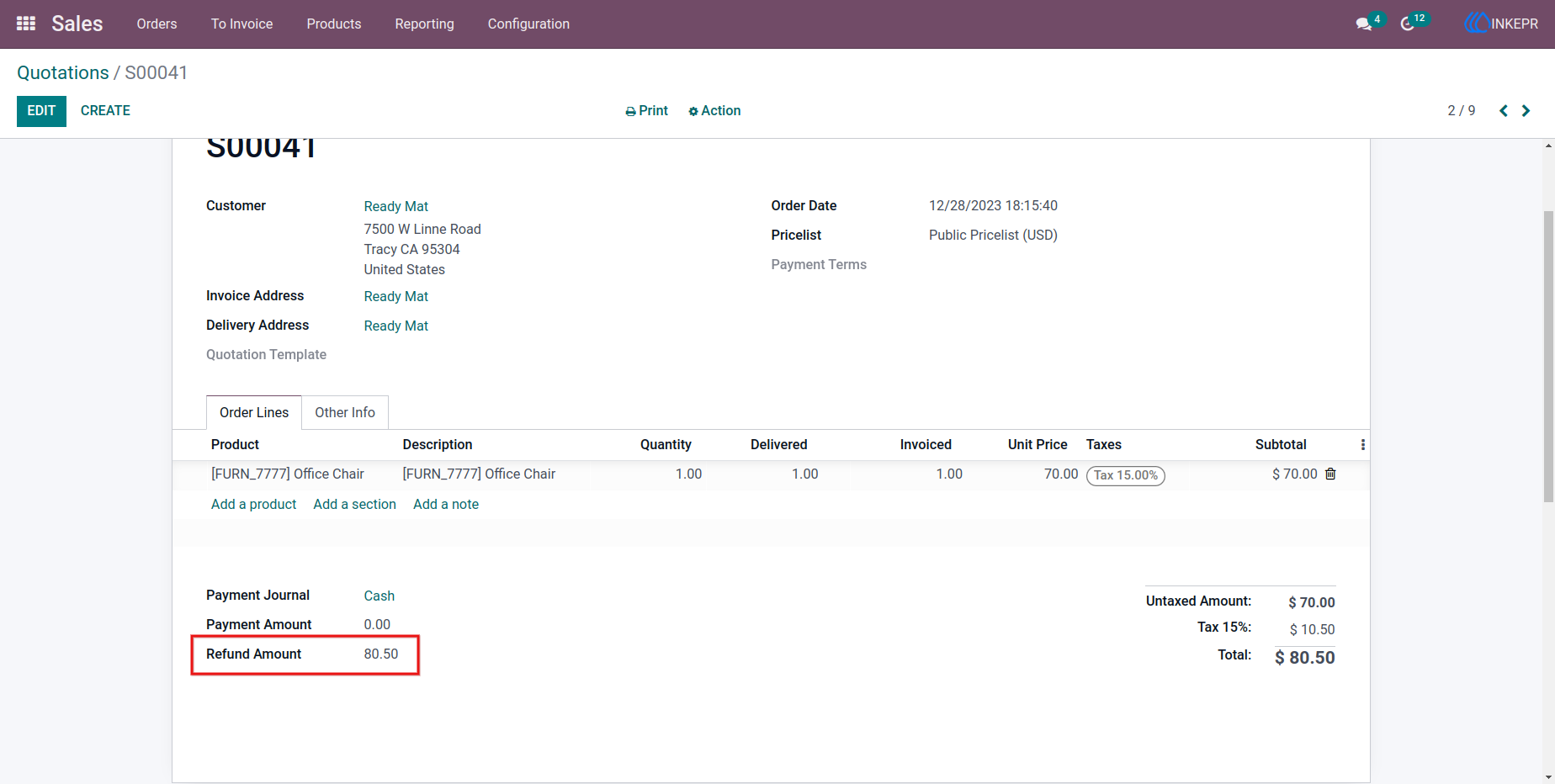
10.) Sales Workflow Popup Confirmation
Users receive a guided step before launching the automation to maintain control over execution.
Navigation : Sales → Quotations
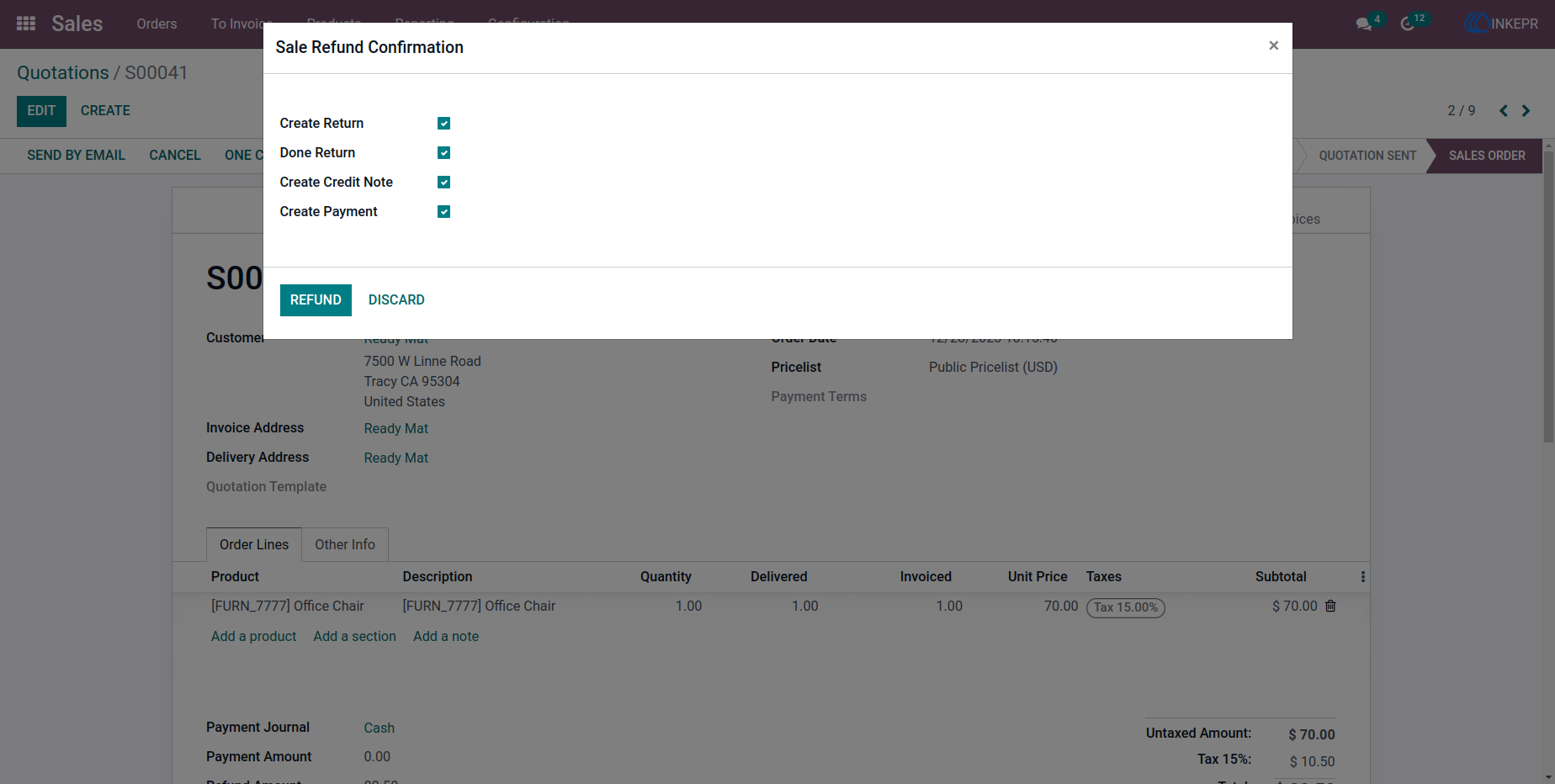
11.) Additional Sales Order Action
The quick-action button remains accessible for repeat operational use on active orders.
Navigation : Sales → Quotations
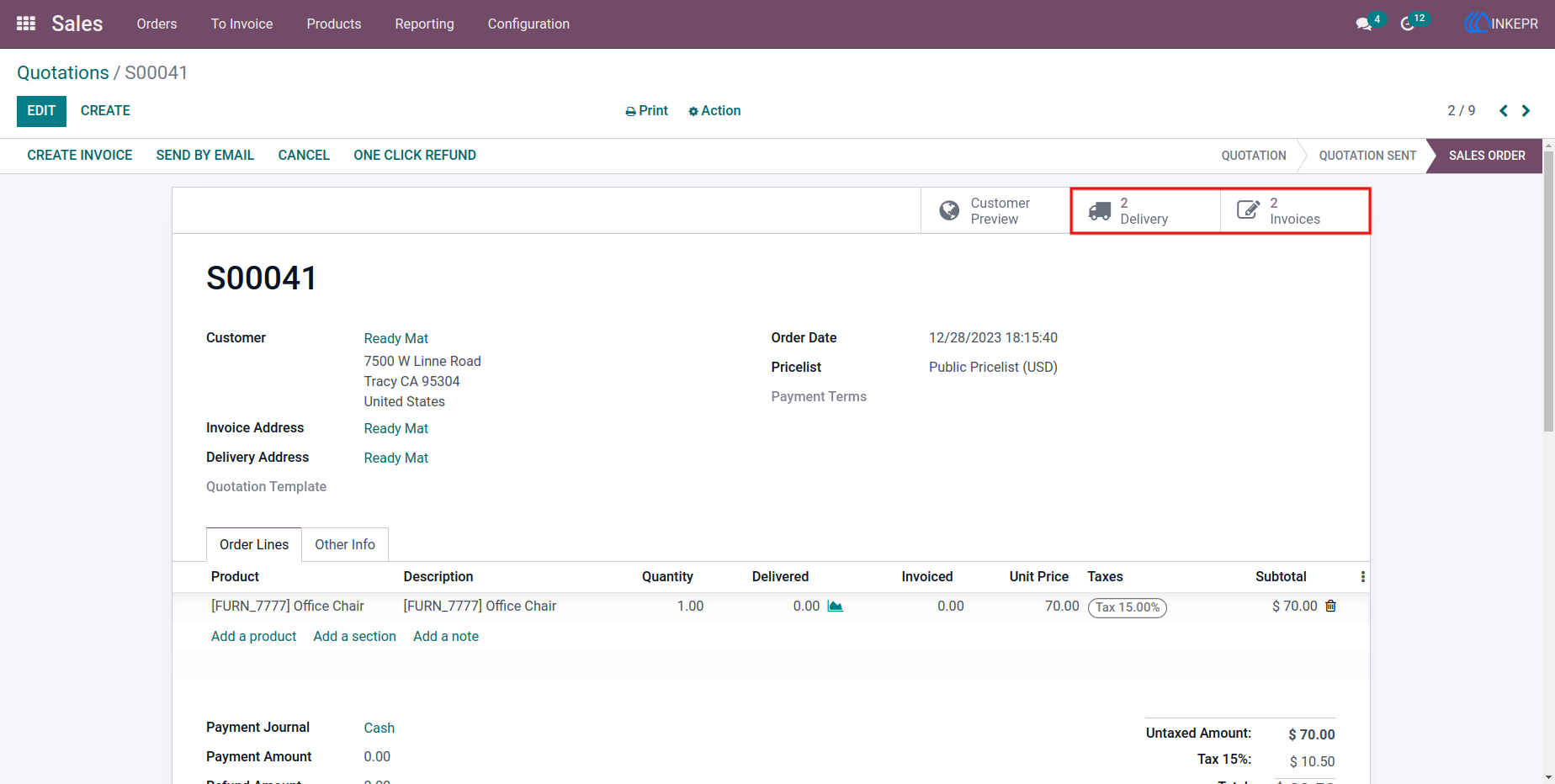
12.) Sales Order Line Completion
Order lines remain fully traceable while the backend workflow completes automatically.
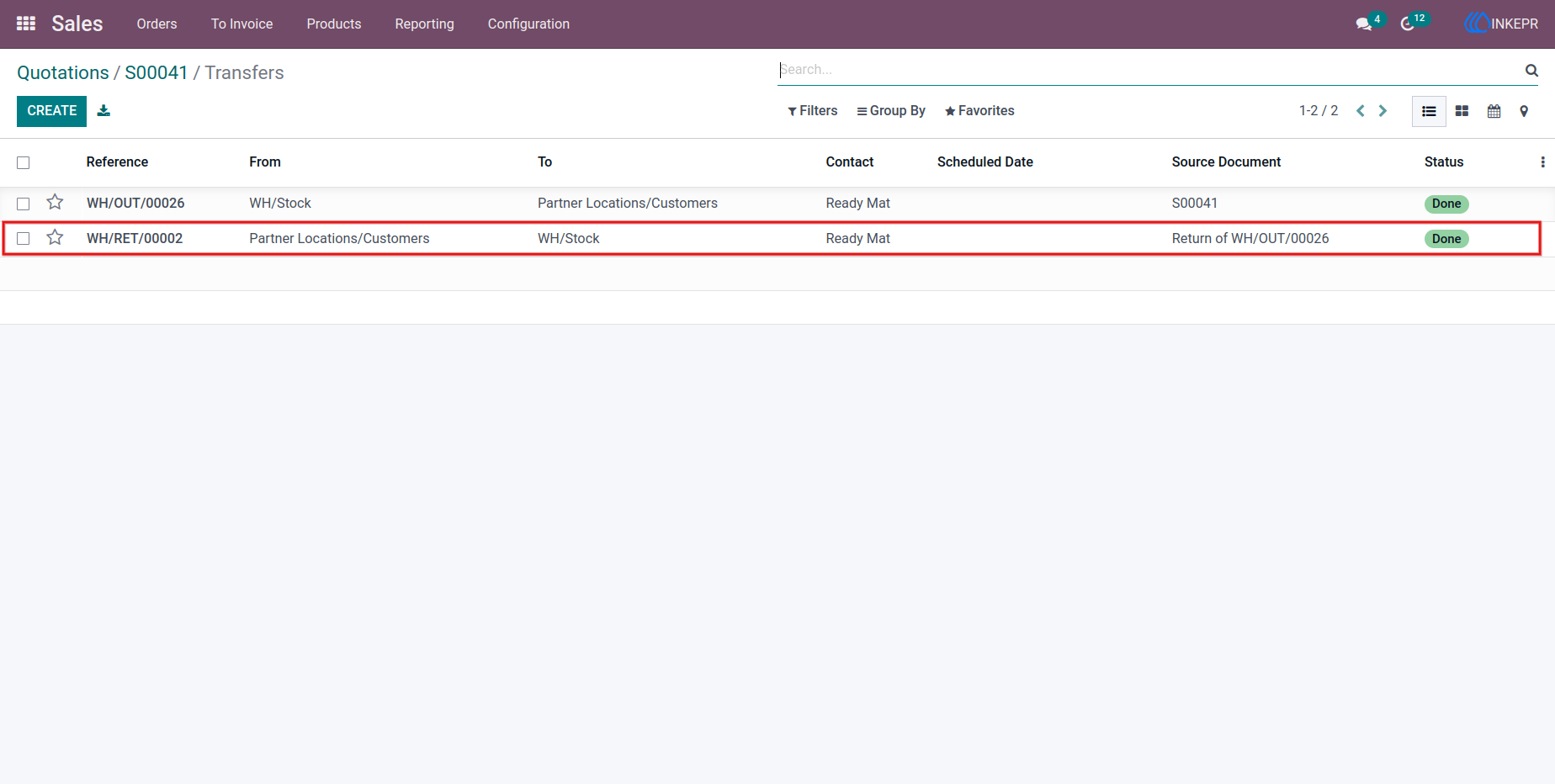
13.) Outgoing Shipment Record
Shipment documents are linked directly with the originating sales order for easy tracking.
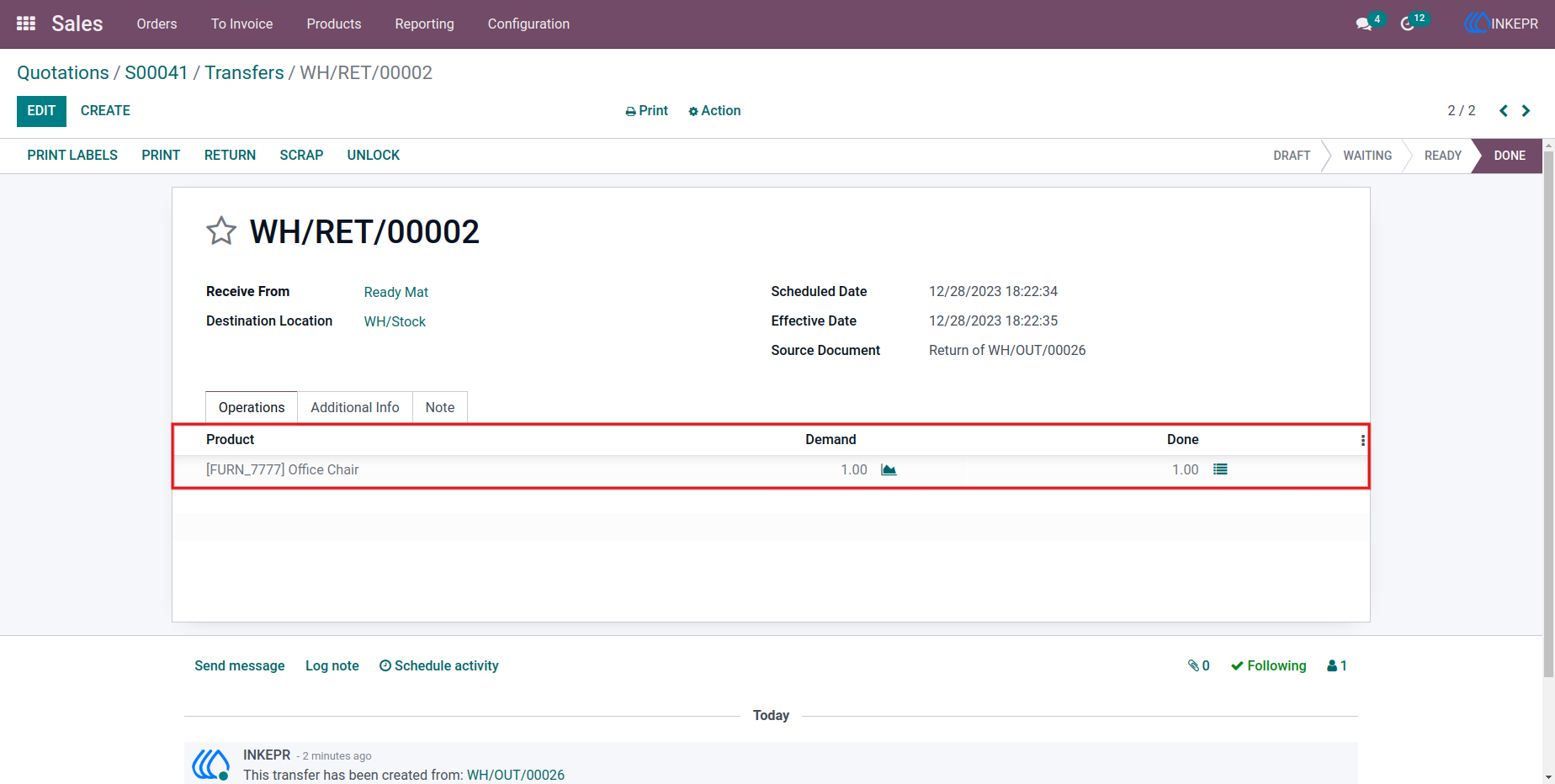
14.) Delivery Smart Button Result
Stock transfer information becomes visible immediately after processing.
Navigation : Sales → Quotations → Invoices
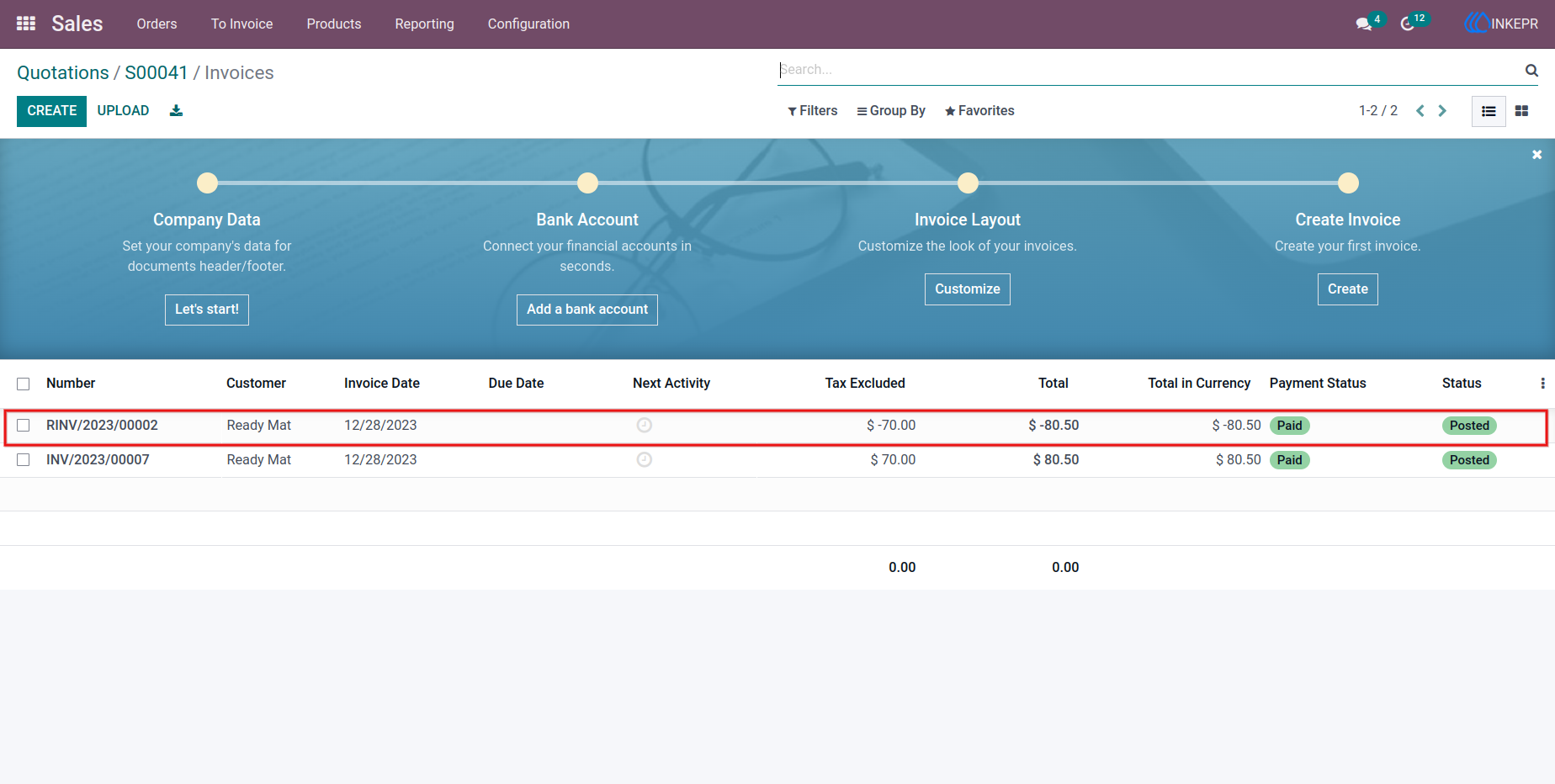
15.) Customer Invoice in Posted Status
The invoice reaches posted status without manual accounting intervention.
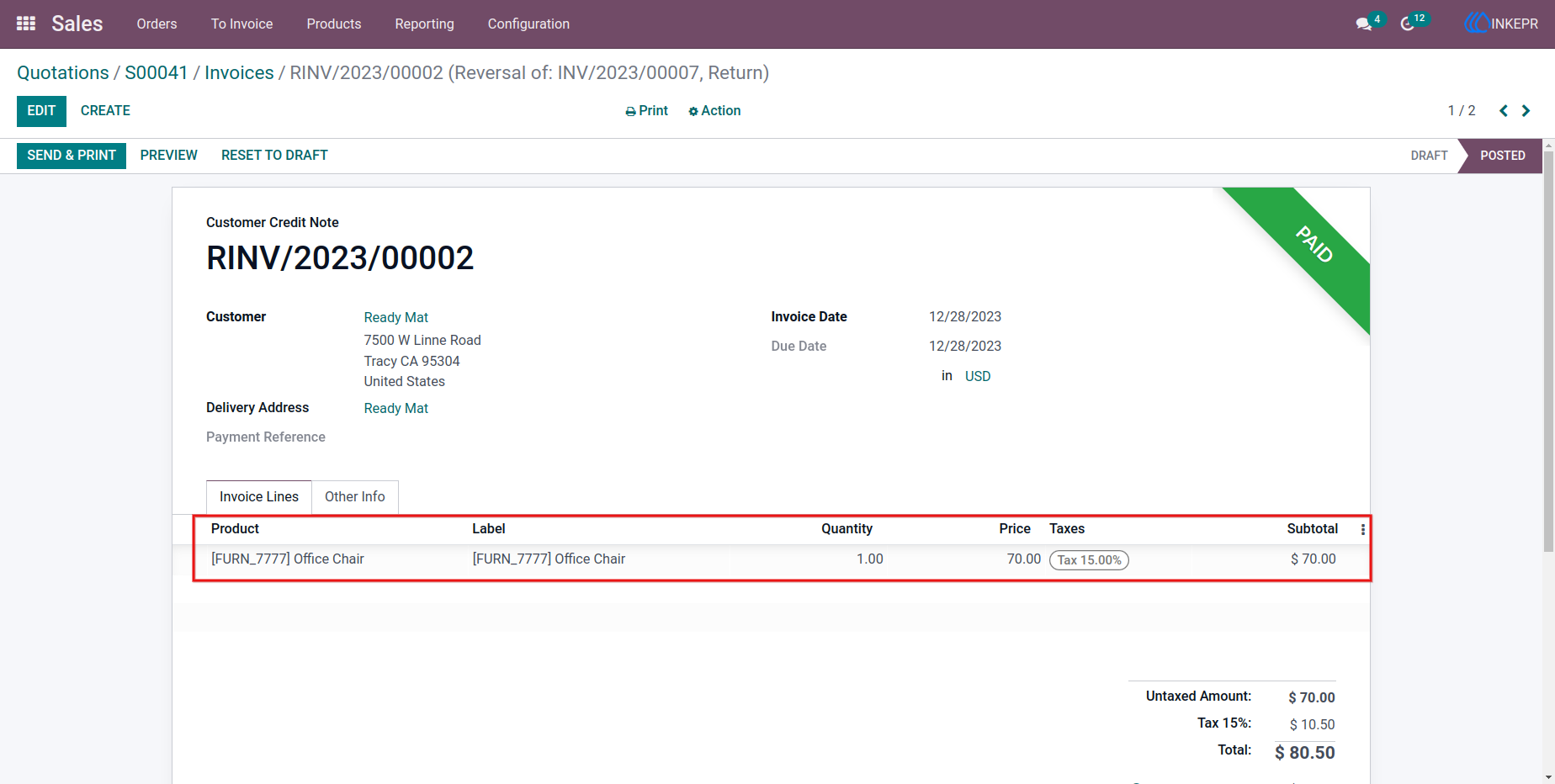
16.) Purchase Order with One-Click Action
The purchase form includes a dedicated action for vendor-side automation.
Navigation : Settings → Users & Companies → Users
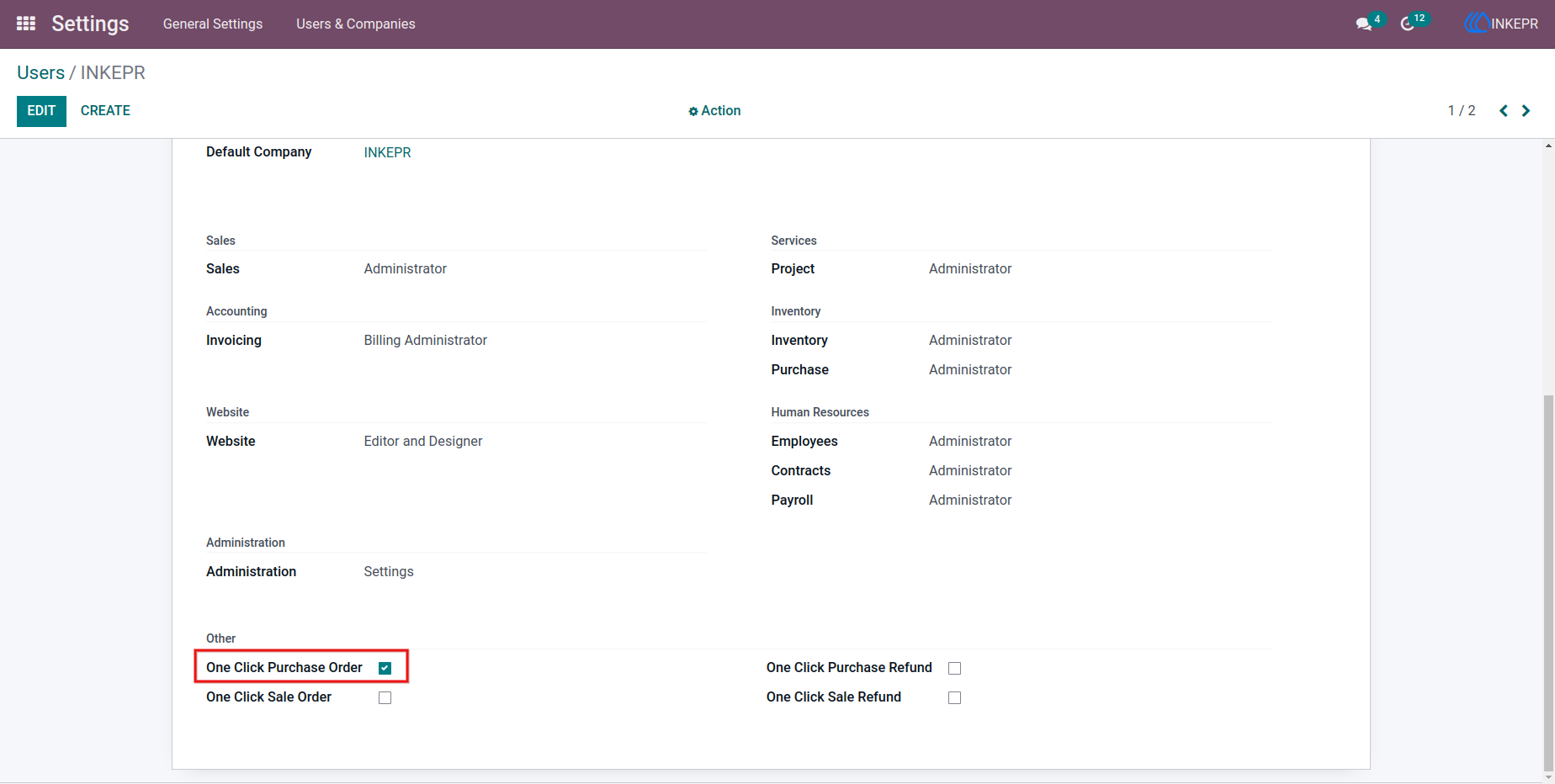
17.) Purchase Workflow Wizard
A guided popup helps confirm automated procurement steps before execution.
Navigation : Purchases → Request for Quotation
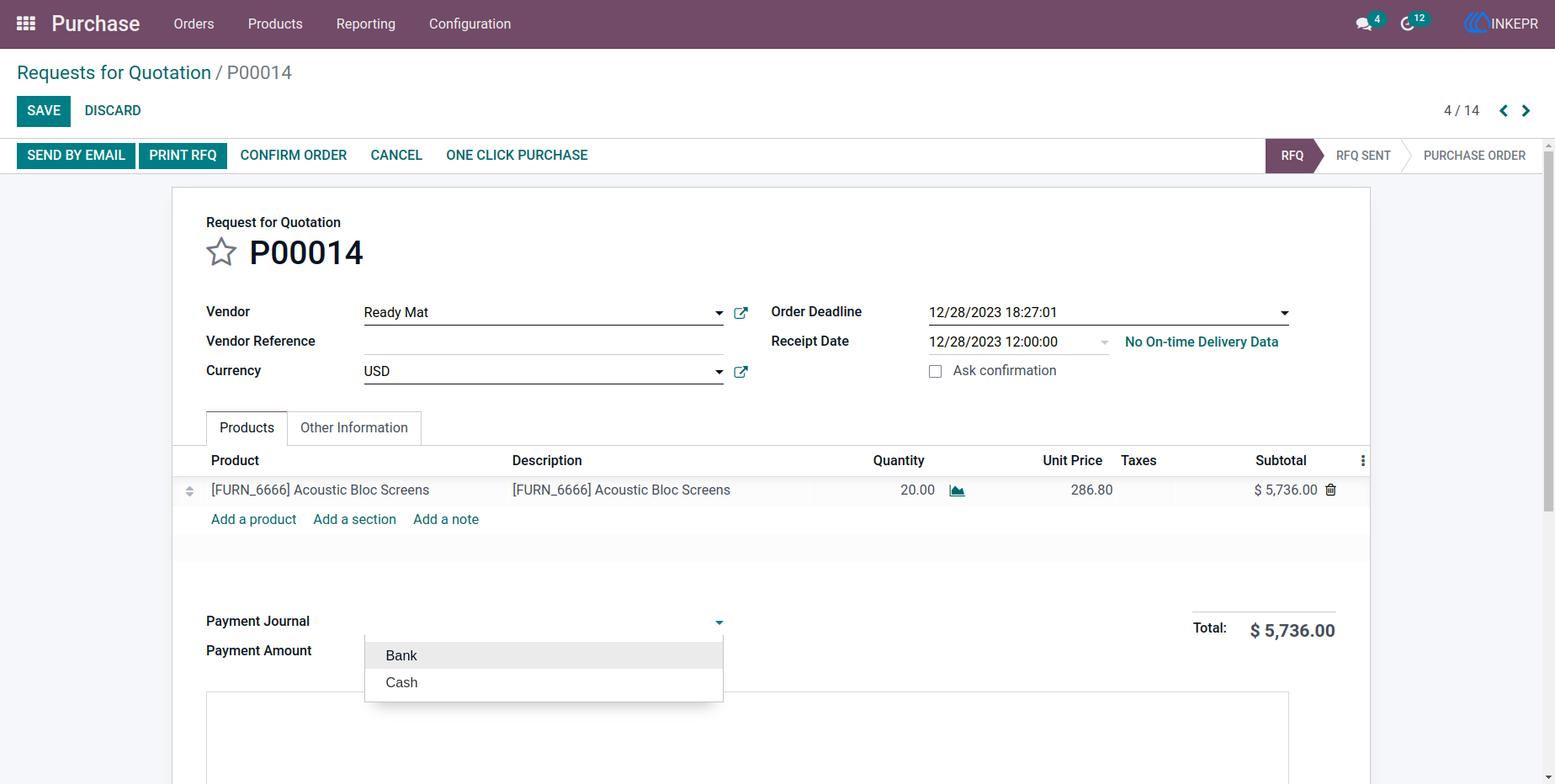
18.) Purchase Order Confirmed
The purchase document advances quickly to a confirmed operational stage.
Navigation : Purchases → Request for Quotation
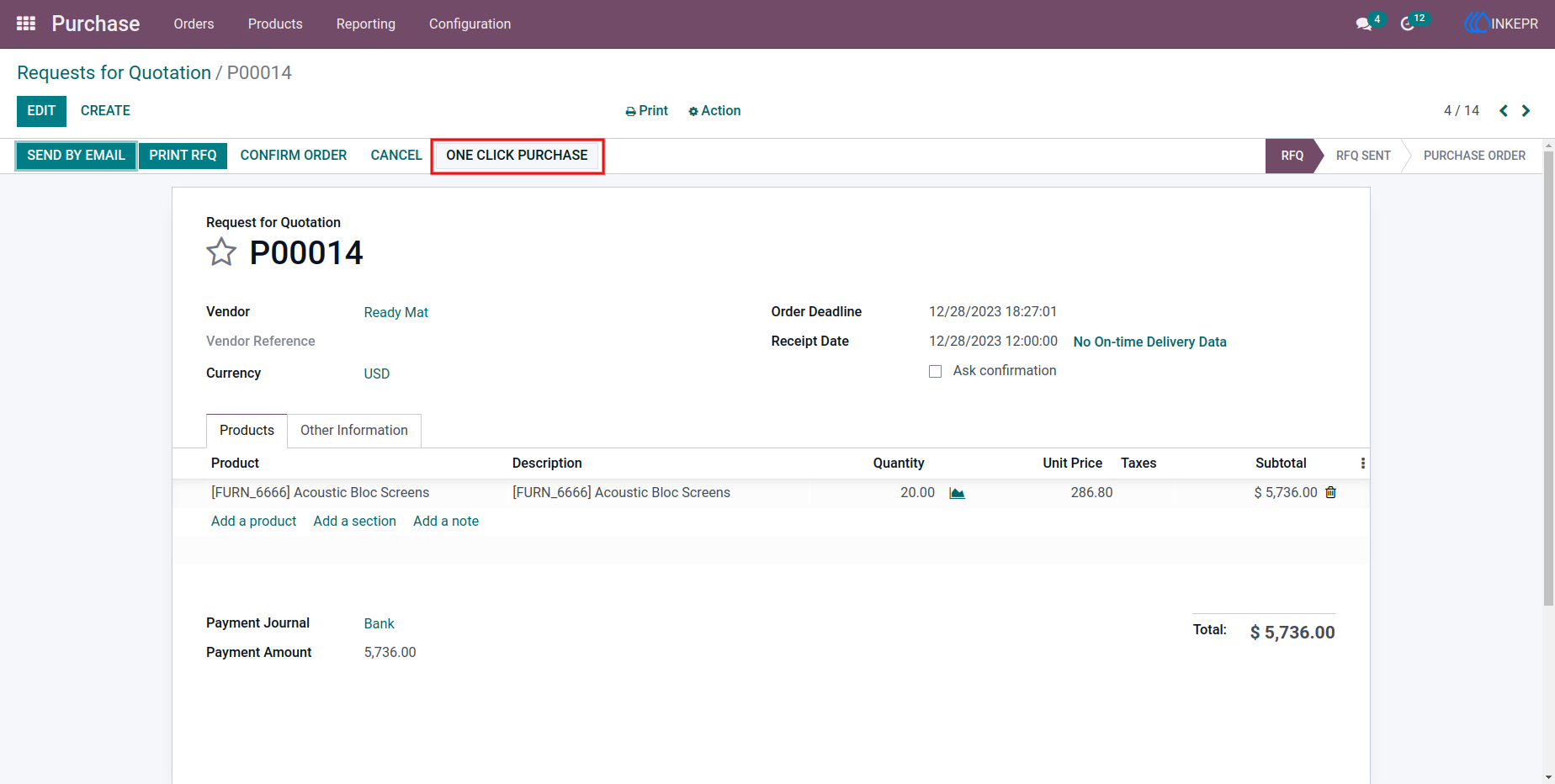
19.) Vendor Bill Generated
Vendor billing is created automatically from the purchase order.
Navigation : Purchases → Request for Quotation → One Click Purchase [button]
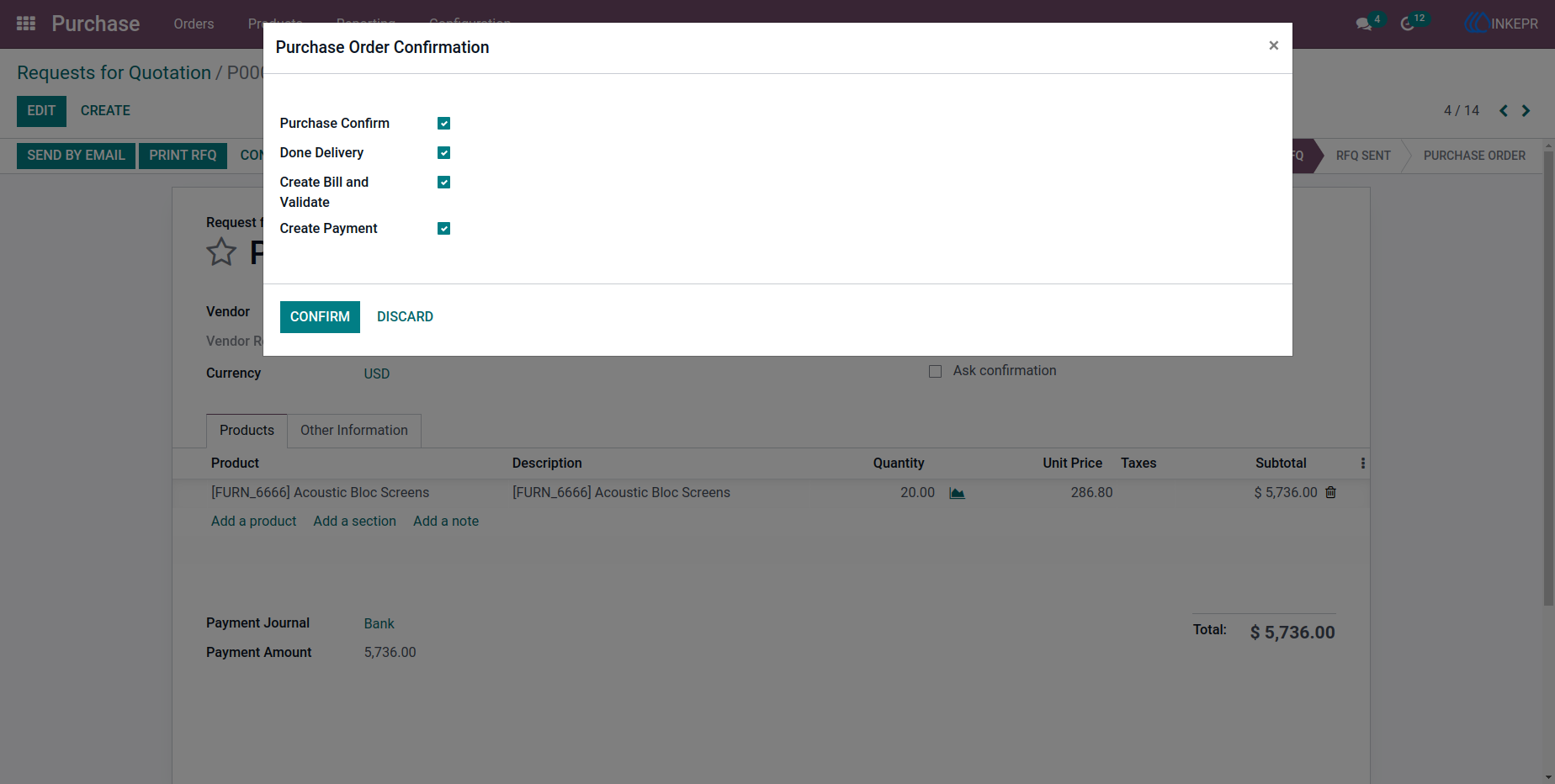
20.) Vendor Payment Registered
Payment registration becomes part of the same procurement sequence.
Navigation : Purchases → Request for Quotation
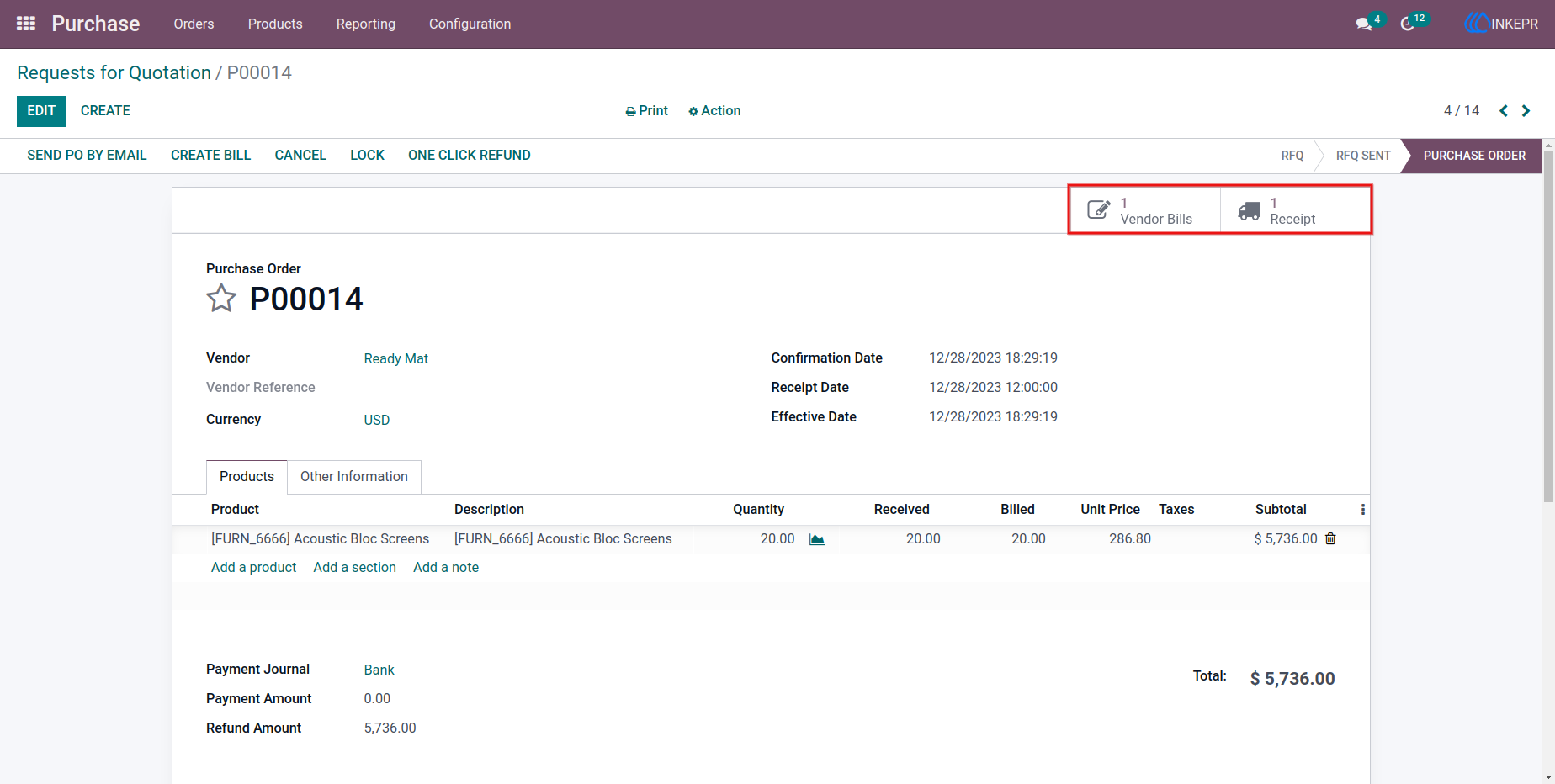
21.) Vendor Bill Posted
Accounting entries are finalized immediately after bill creation.
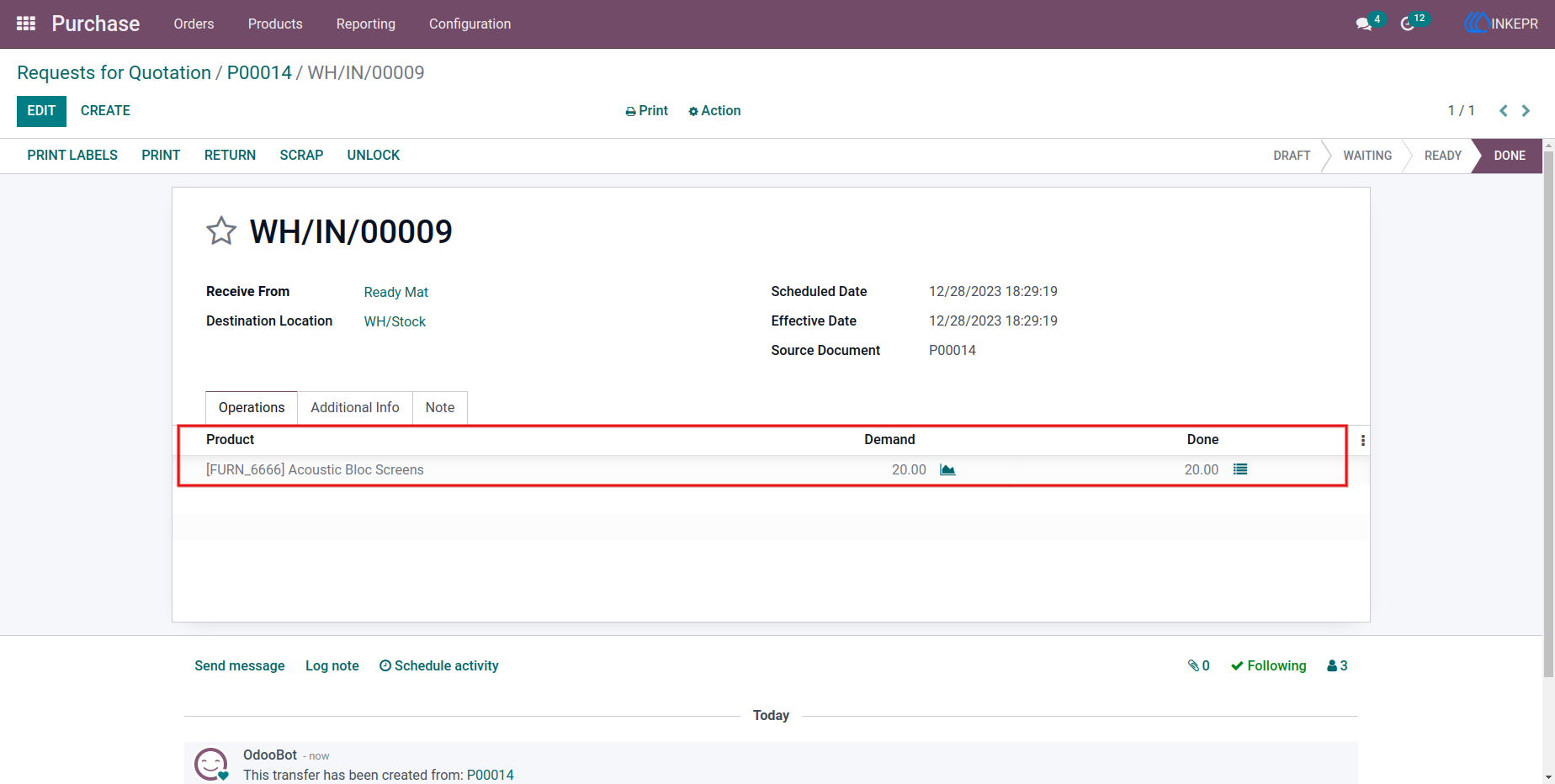
22.) Purchase Delivery Receipt Trigger
Receipt processing becomes part of the one-click procurement cycle.
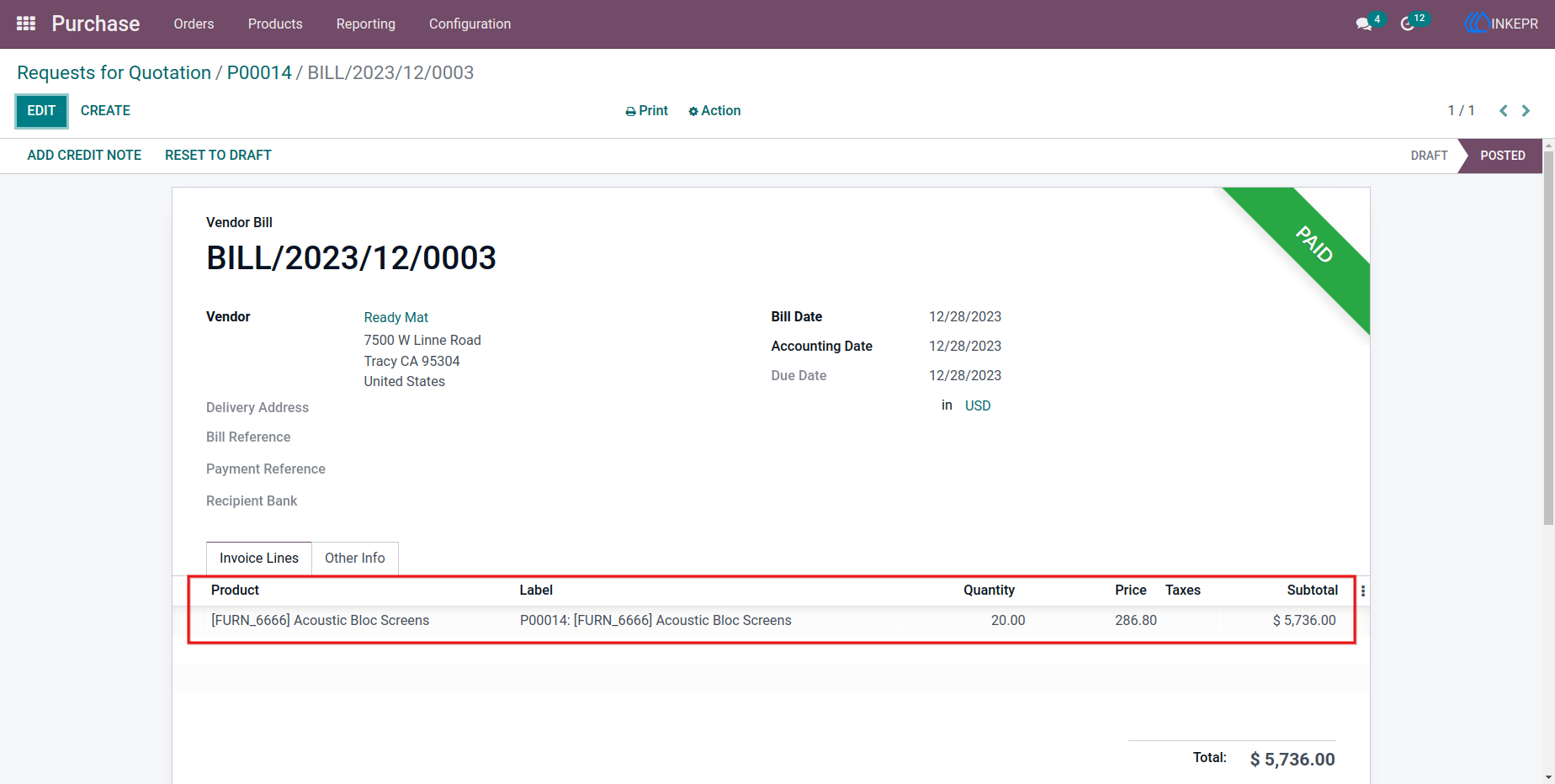
23.) Receipt Validation Result
Incoming products are validated into inventory without extra navigation.
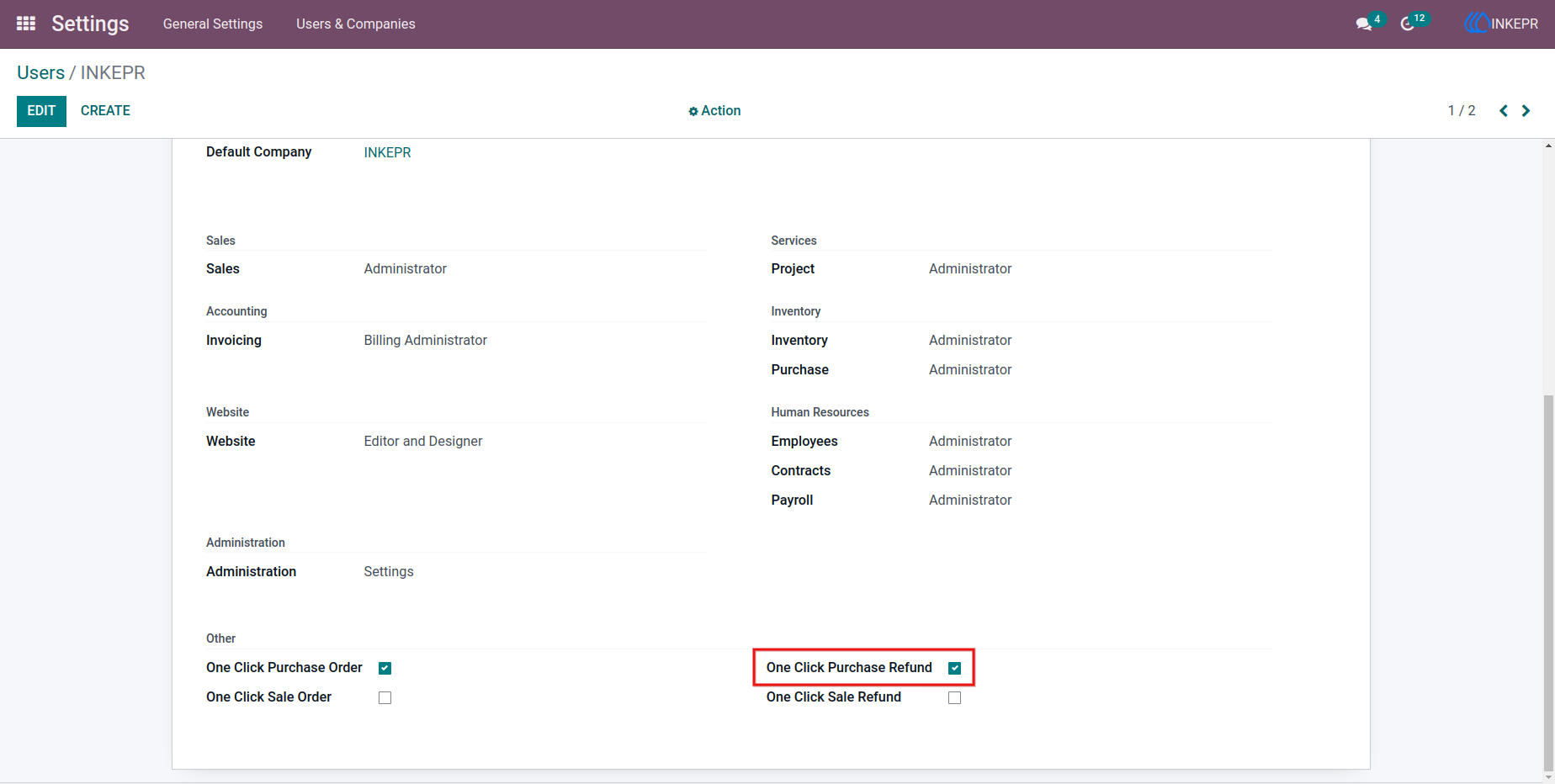
24.) Purchase Order Completed State
The purchase order reflects linked accounting and stock completion.
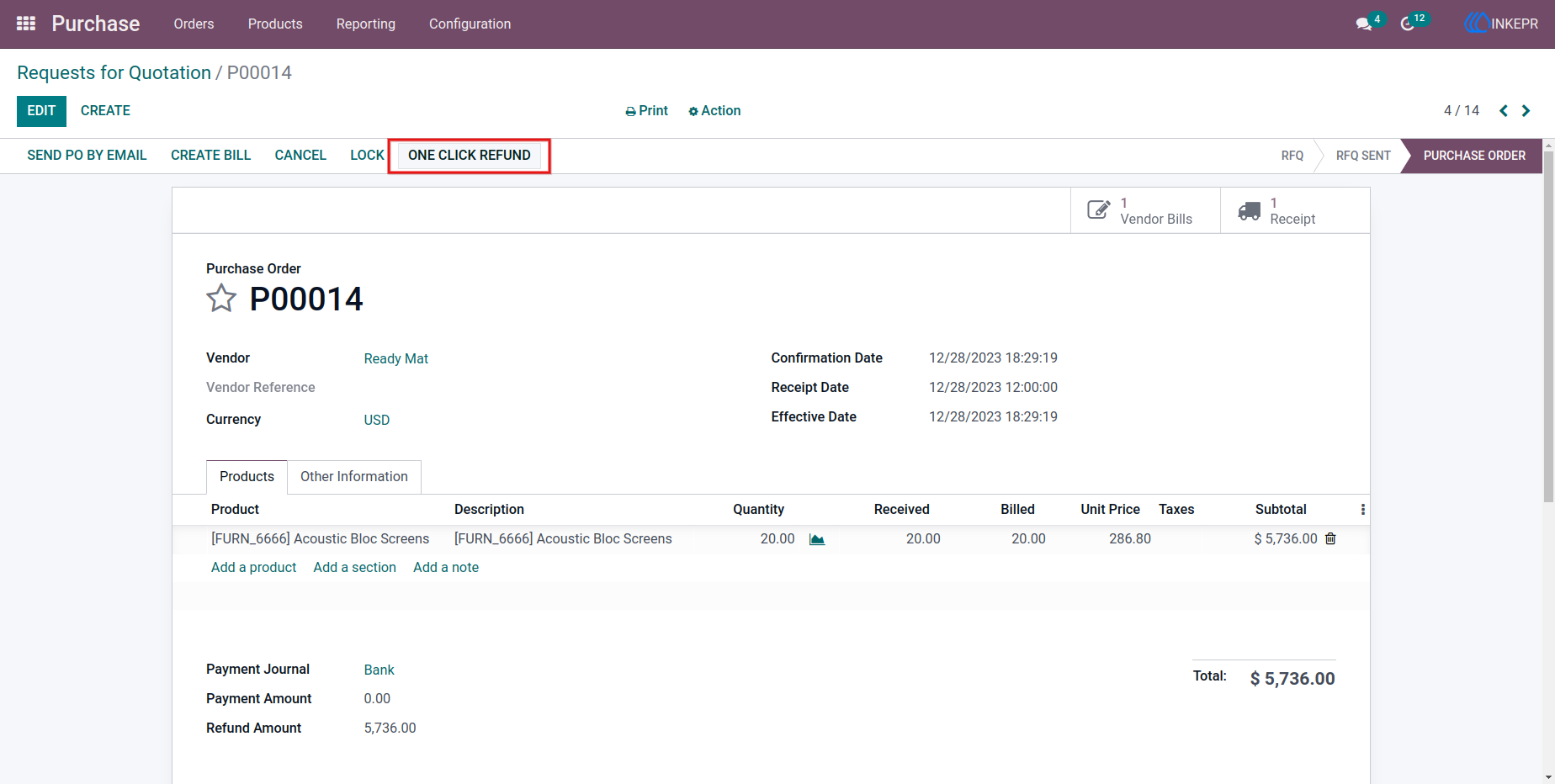
25.) Incoming Shipment Record
Receipt documents remain connected for stock traceability.
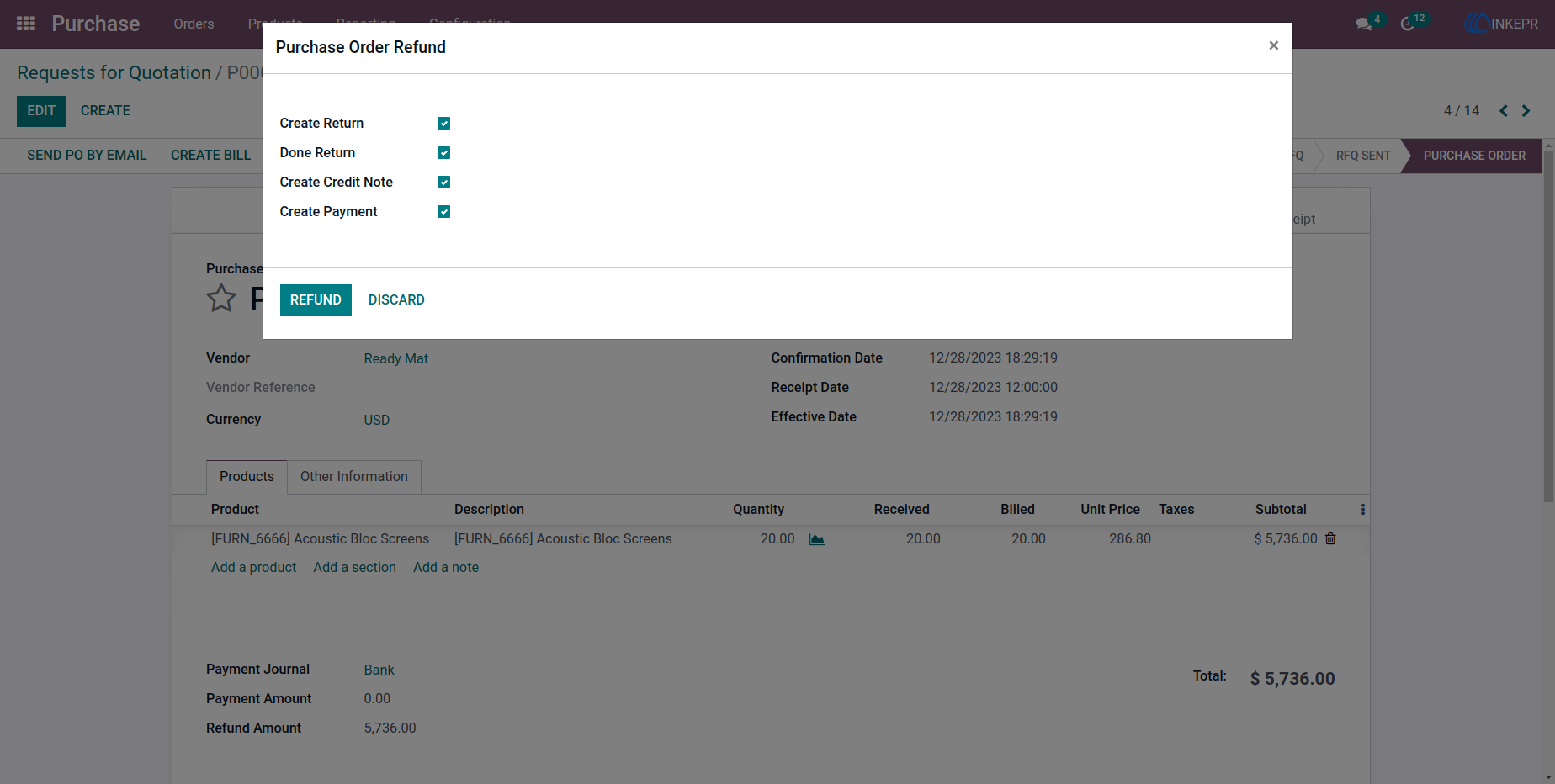
26.) Additional Purchase Action Popup
The module offers repeated guided confirmation for procurement actions.
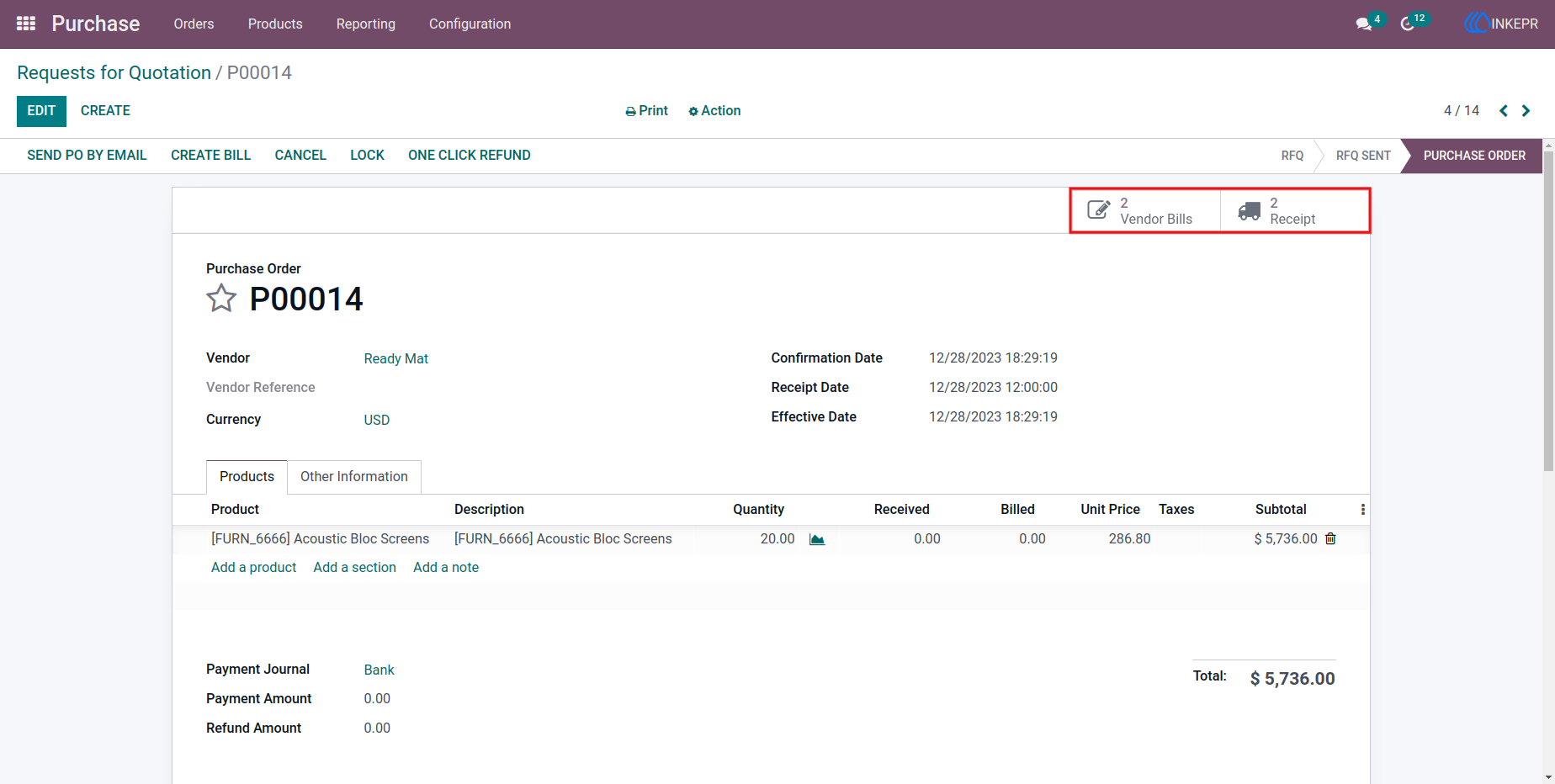
27.) Purchase Order Line Tracking
Order lines stay visible while automated backend actions complete.
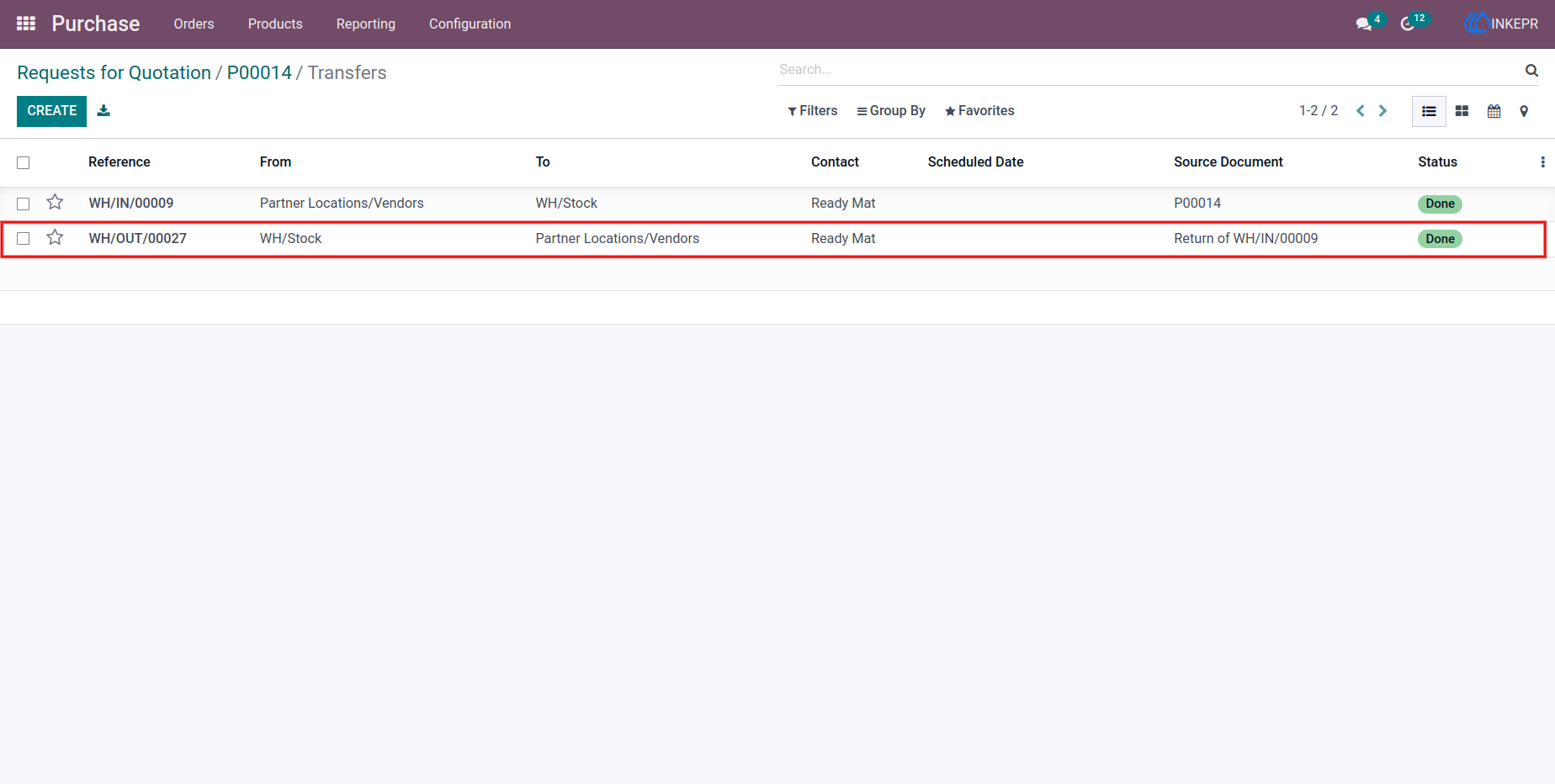
28.) Vendor Bill Linked to Purchase Order
Billing records remain directly connected for financial audit clarity.
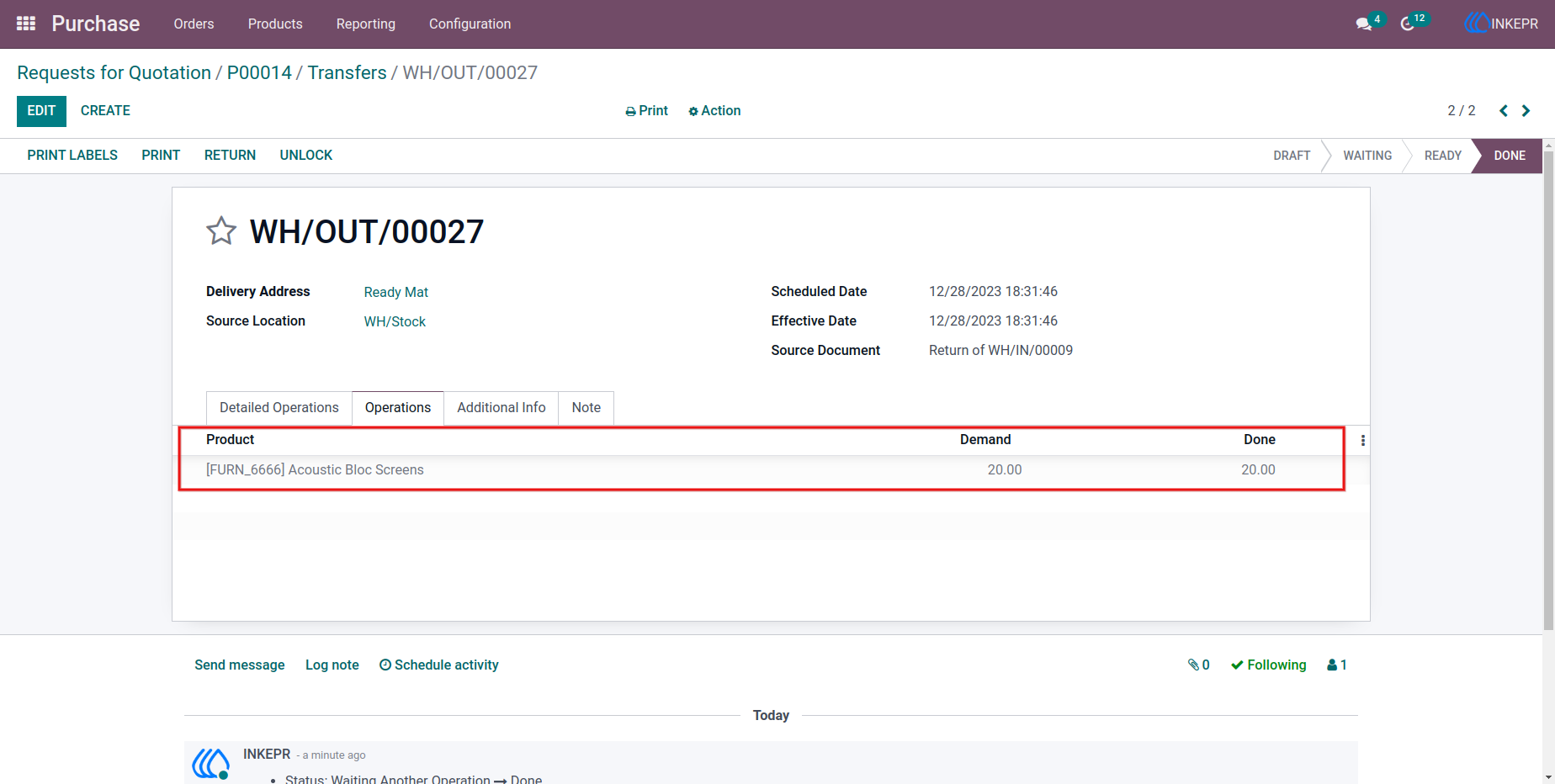
29.) Accounting Line Completion
Generated accounting lines show synchronized values after automation.
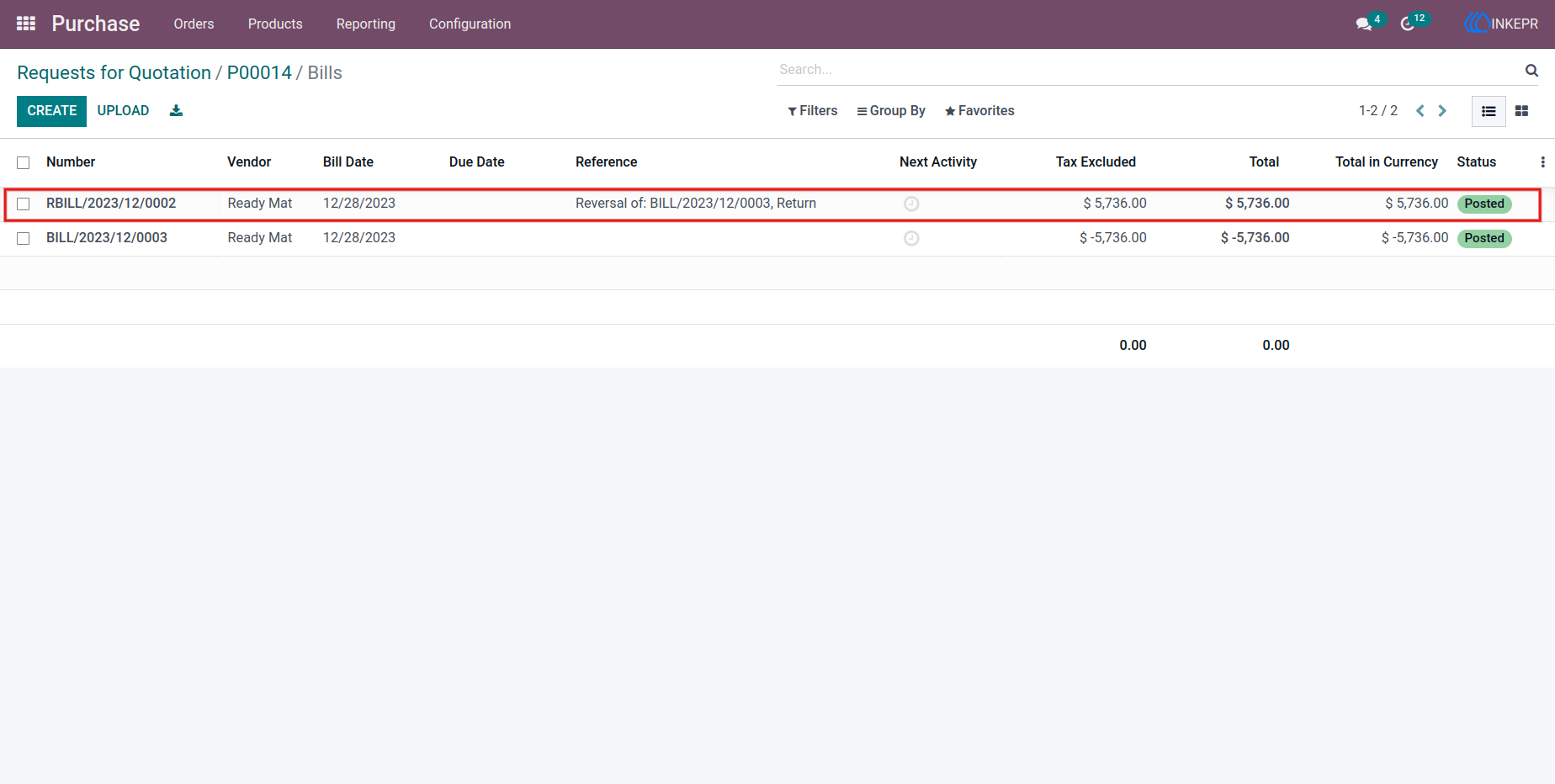
30.) Final Posted Procurement Document
The full purchase cycle closes with billing and stock updates aligned for reporting.
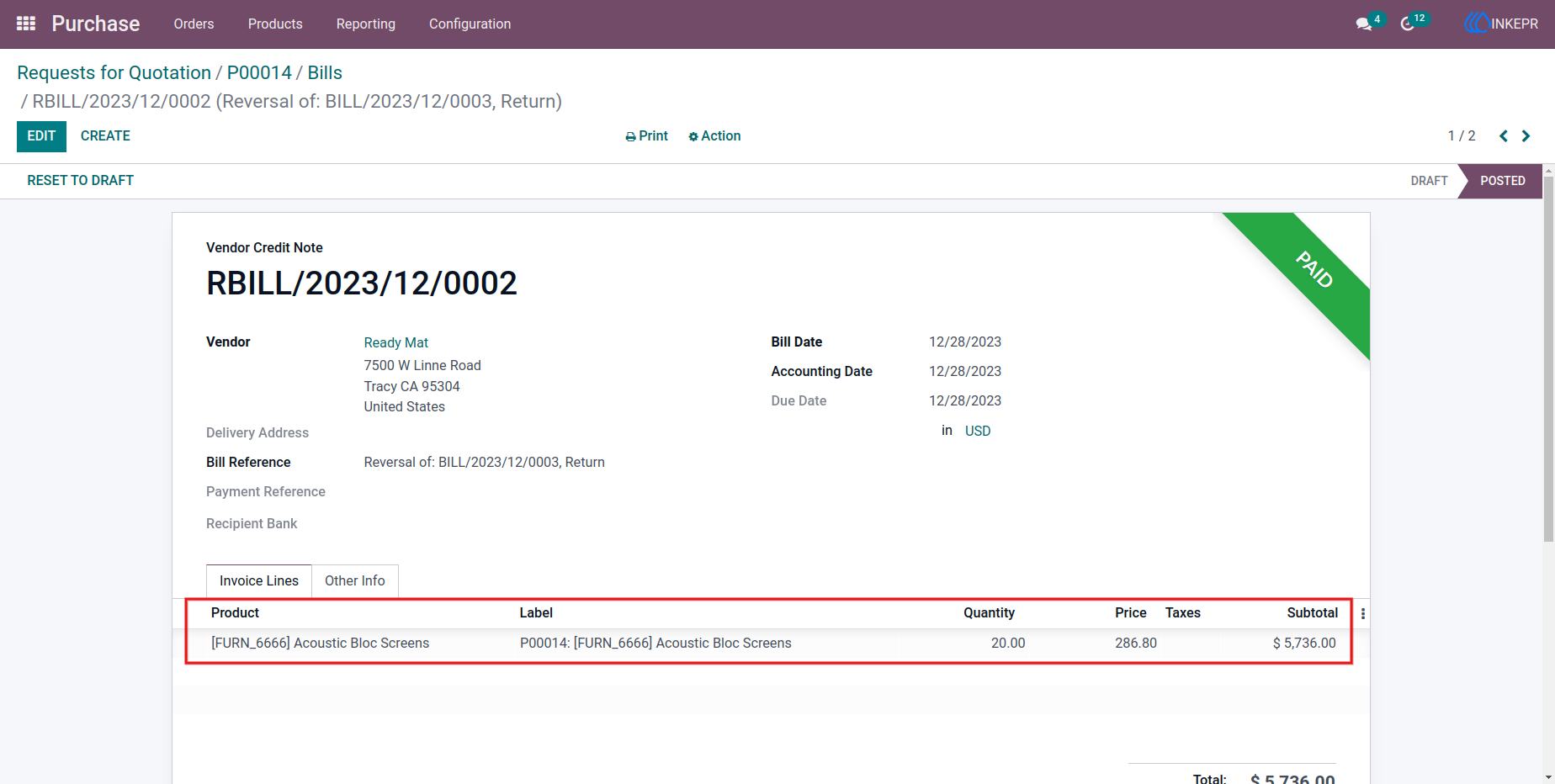
User Guide





