

Our Most Suggested Products


Manufacturing Order QR Code
Empower your production floor with the Manufacturing Order QR Code app, adding highly customizable QR codes directly to your Odoo order documents. Designed for multi-company setups, it allows you to securely tailor specific data payloads for each company natively. Floor workers can instantly scan these with any standard smartphone camera, translating critical manufacturing data into a clean, human-readable text format.
 Features
 Screenshots
 Support
 Service
Features
Dynamic & Secure Multi-Company Generation
Seamlessly configure distinct, fully customizable QR code payloads for each company in your Odoo database. Built natively without third-party APIs, the app securely auto-generates a unique QR code directly on every Manufacturing Order in real-time ensuring your sensitive production data never leaves your server.
Universal & Offline Mobile Scanning
Empower floor workers to scan manufacturing orders instantly using any standard smartphone camera, even in warehouse dead zones without Wi-Fi. The embedded data is instantly translated into a clean, human-readable "Label-to-Value" text format, making critical production information incredibly easy to read and share on the go.
Screenshot
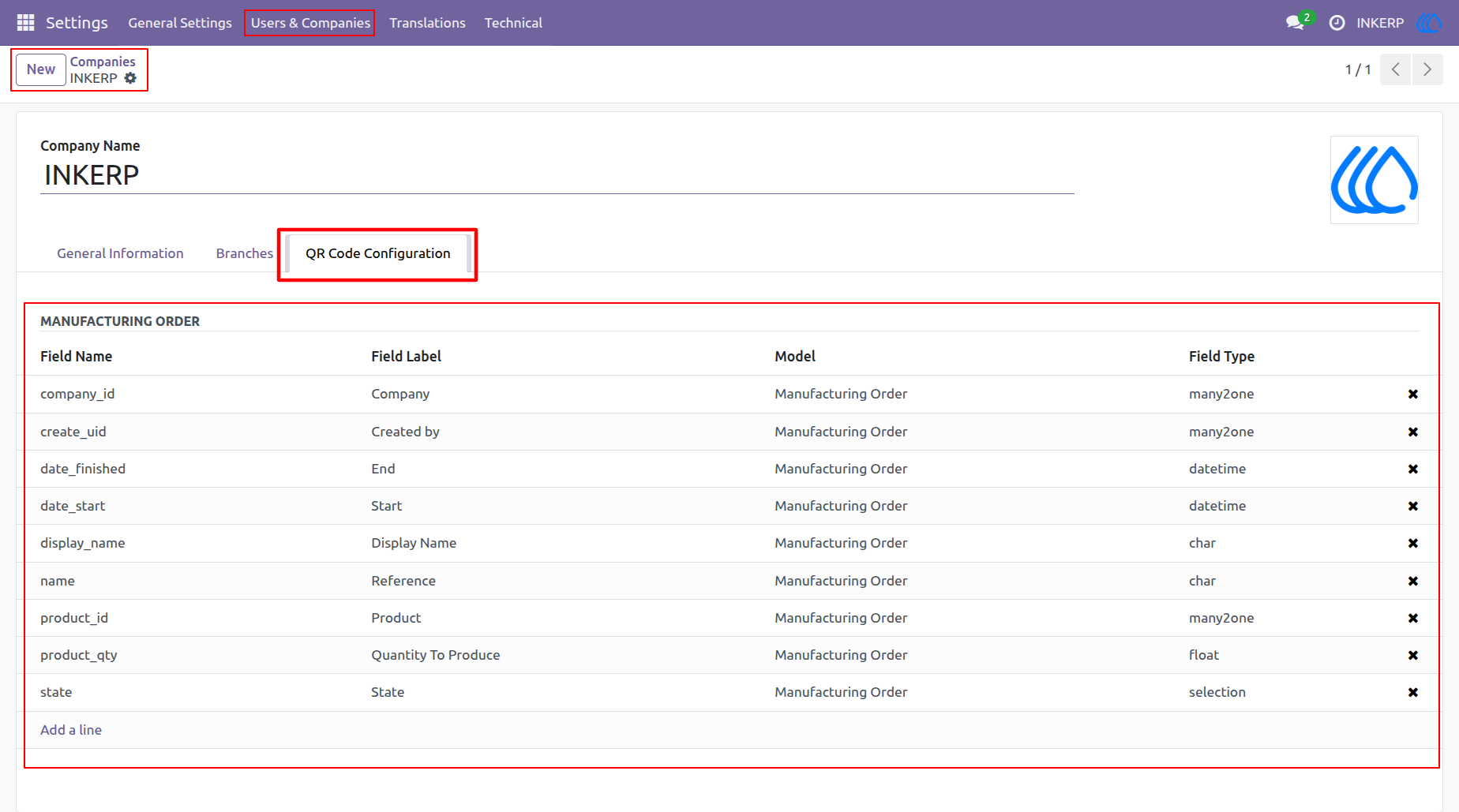
1.) QR Field Setup
Easily configure which data points are included in your payload by adding them to the custom list view. This allows you to dynamically control the mobile output for each individual company without altering any base code.
Navigation : Settings › Users & Companies › Companies
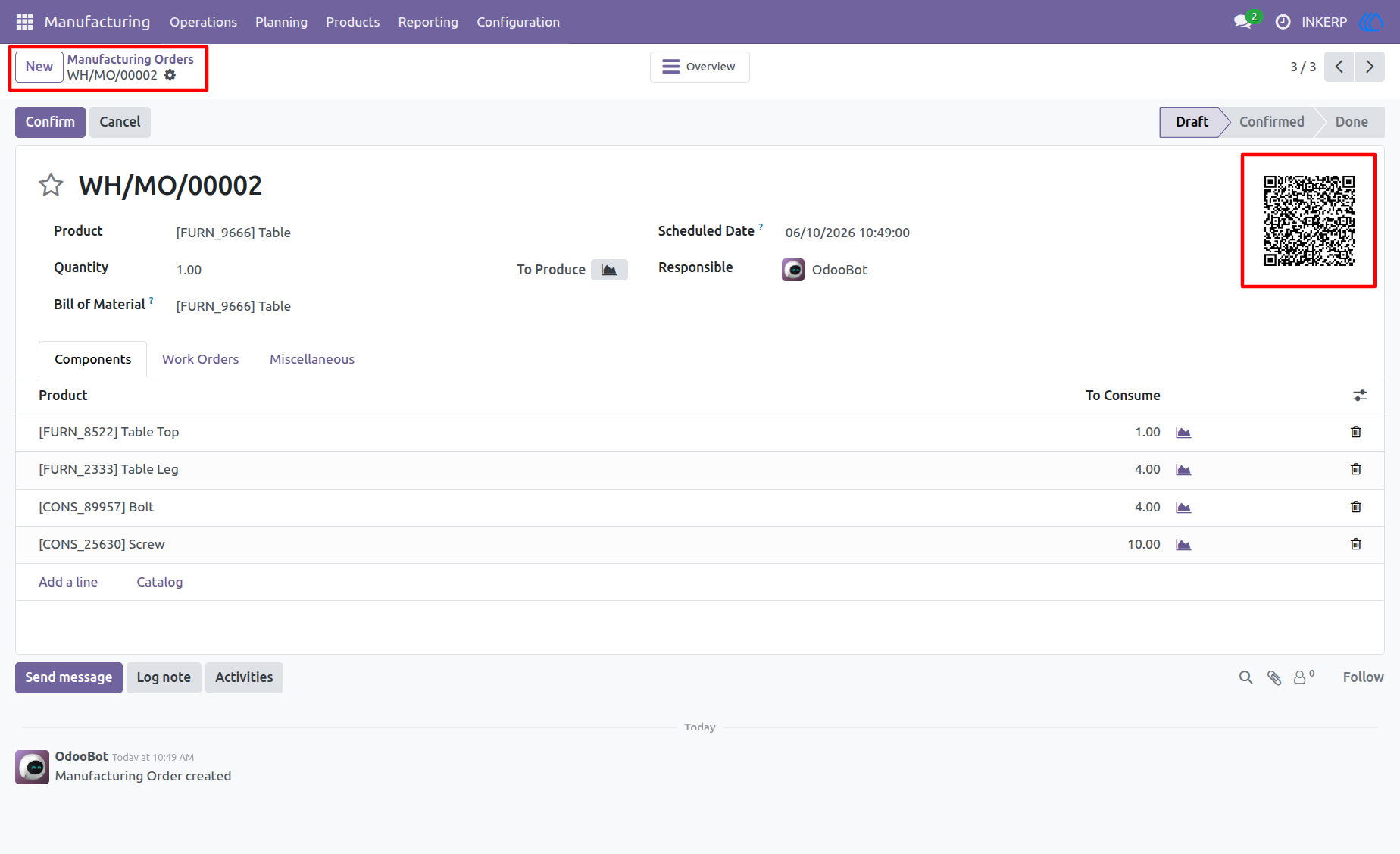
2.) Order QR Code
Once your fields are configured, the custom QR code automatically renders in the top right corner of the document. The image instantly compiles and updates its embedded data based on the real-time values of the underlying order.
Navigation : Manufacturing › Operations ›Manufacturing Orders
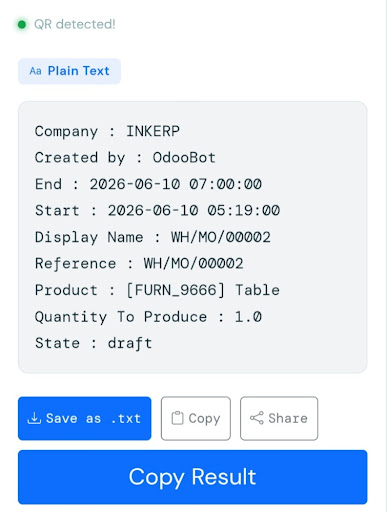
3.) Scanned Result
Scanning the code with any standard mobile device instantly translates the custom payload into clean, human-readable text. The output perfectly formats your chosen database fields into a simple label-to-value list for quick reading and sharing.
Navigation : Mobile Device › Open Camera / QR Scanner › Scan the Odoo Screen
User Guide