

Our Most Suggested Products


Inventory User Confirmation
The Inventory User Confirmation module enhances Odoo’s inventory operations by adding an extra layer of control through confirmation and cancellation popups. It ensures that critical actions such as validating or canceling inventory transfers are not performed accidentally by requiring user confirmation with appropriate permissions.
 Features
 Screenshots
 Support
 Service
Features
Confirmation Before Validating Inventory Operations
This feature introduces a confirmation popup whenever a user attempts to mark an inventory operation as done. It acts as a safeguard against accidental validations by requiring explicit user approval before proceeding.
Controlled Cancellation with Permission-Based Popup
Canceling inventory operations becomes more secure with a dedicated confirmation popup that can be tied to user permissions. Only authorized users can proceed with cancellations after reviewing the action. This ensures that sensitive operations are not reversed without proper oversight, maintaining data integrity and accountability.
Screenshot
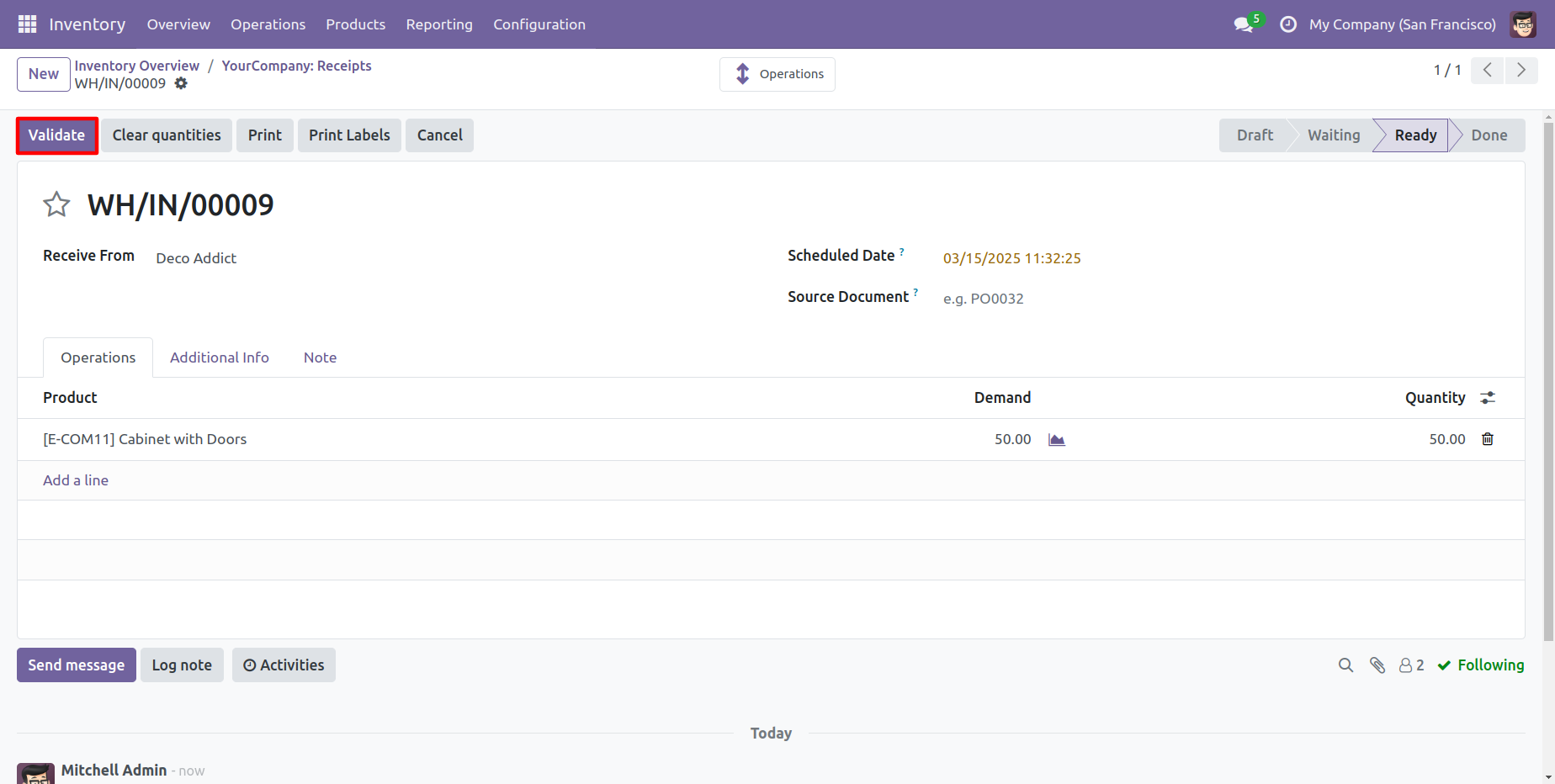
1.) Validate the Inventory
Initiating a new inventory operation and selecting the Validate button begins the process of confirming stock movements.
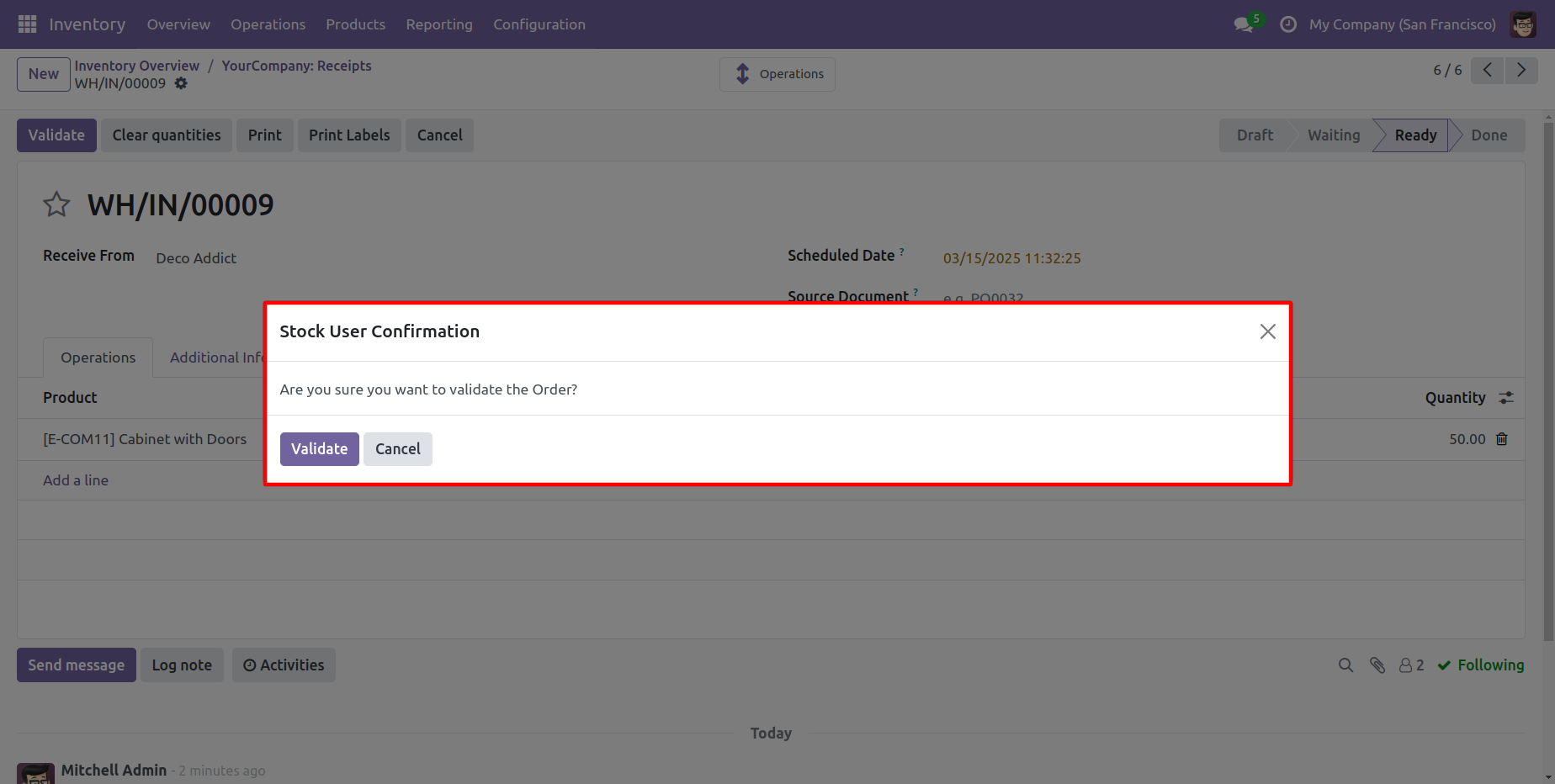
2.) User Confirmation Pop-up
A confirmation dialog appears before completing the validation, prompting the user to review and approve the action.
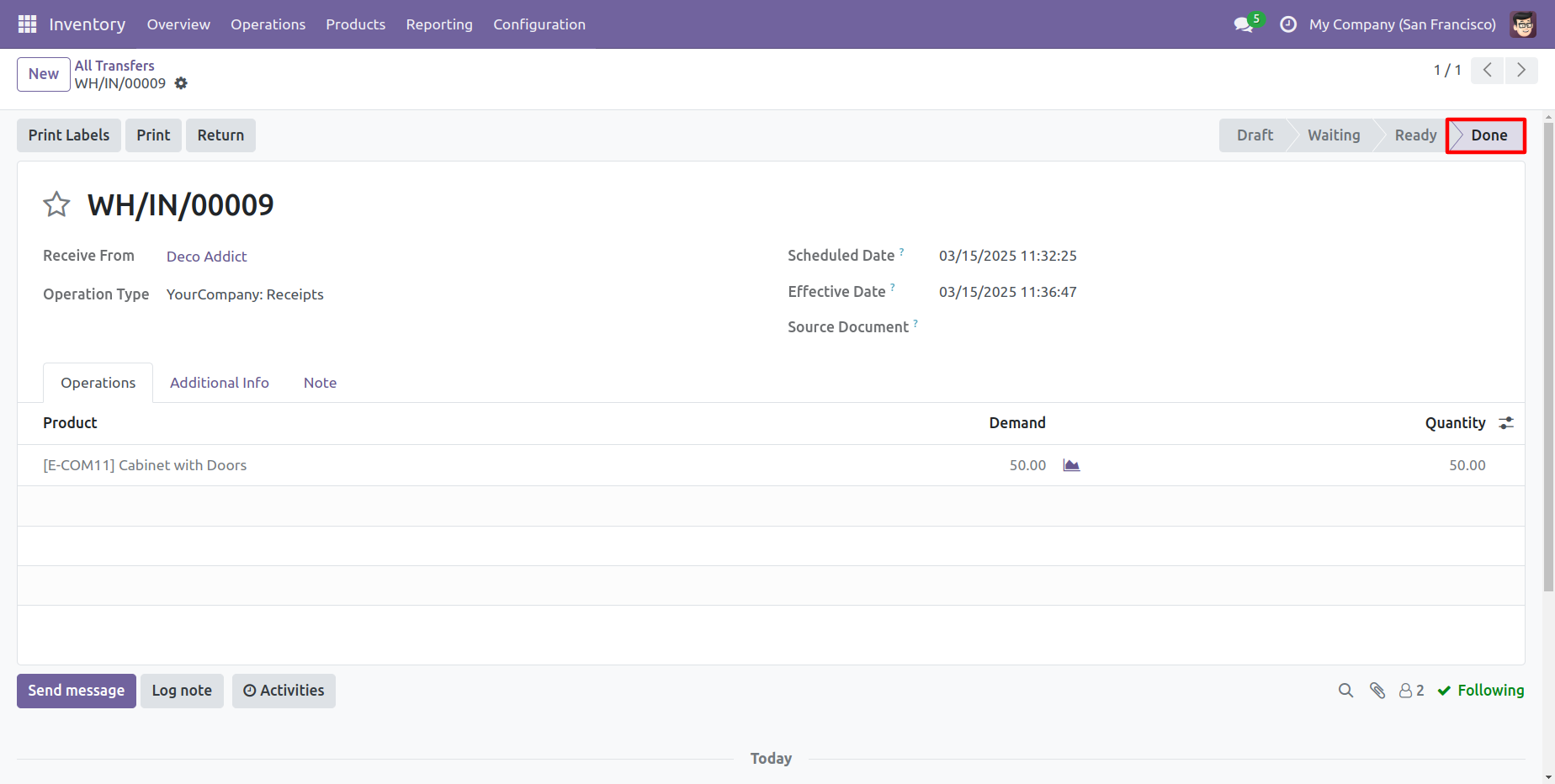
3.) Inventory Marked as Done
After confirming the validation, the inventory operation is successfully completed and moved to the Done state.
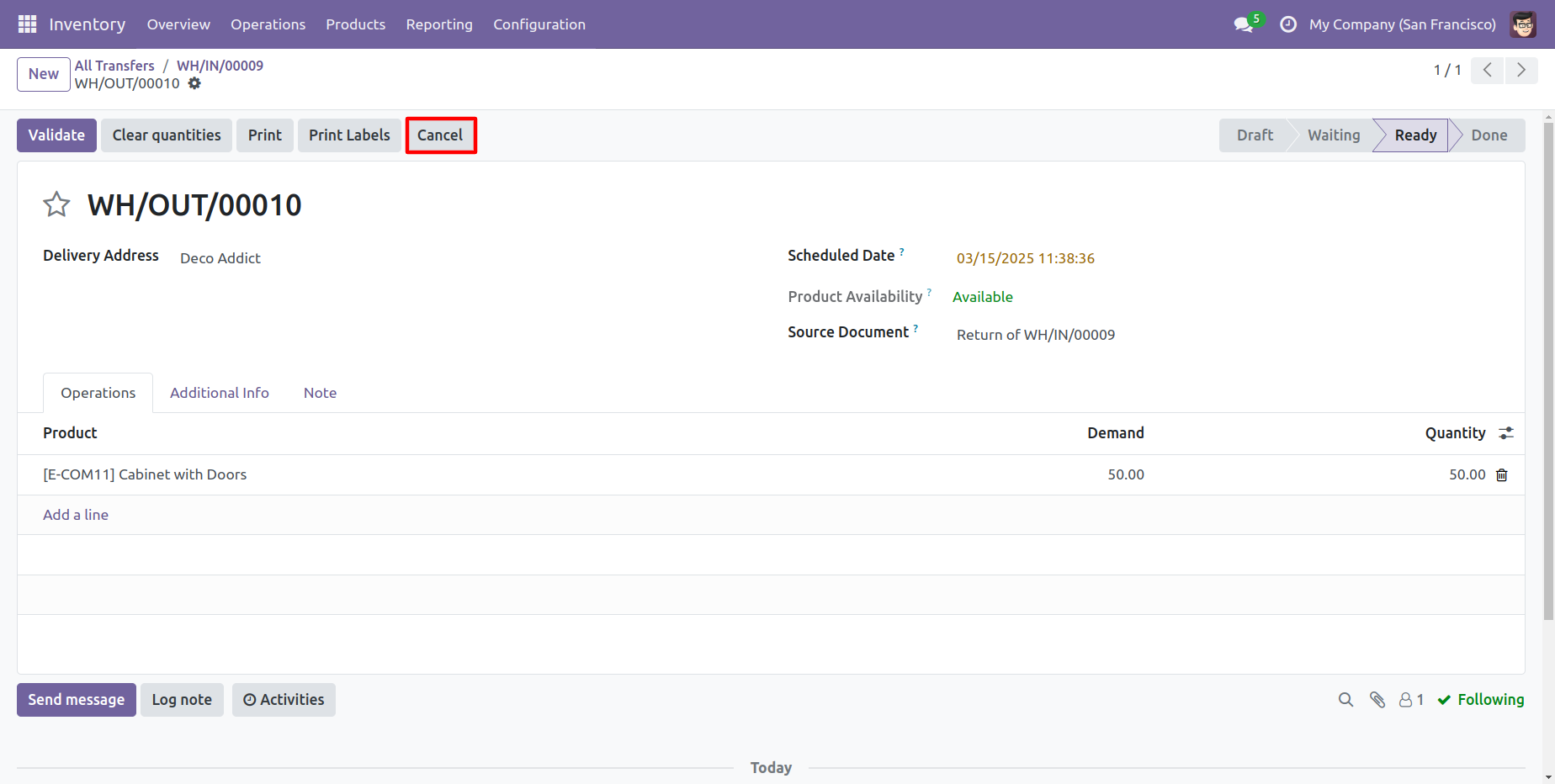
4.) Cancel the Inventory
Accessing an existing inventory record and choosing to cancel initiates the reversal process. This step allows users to stop or undo inventory operations when necessary.
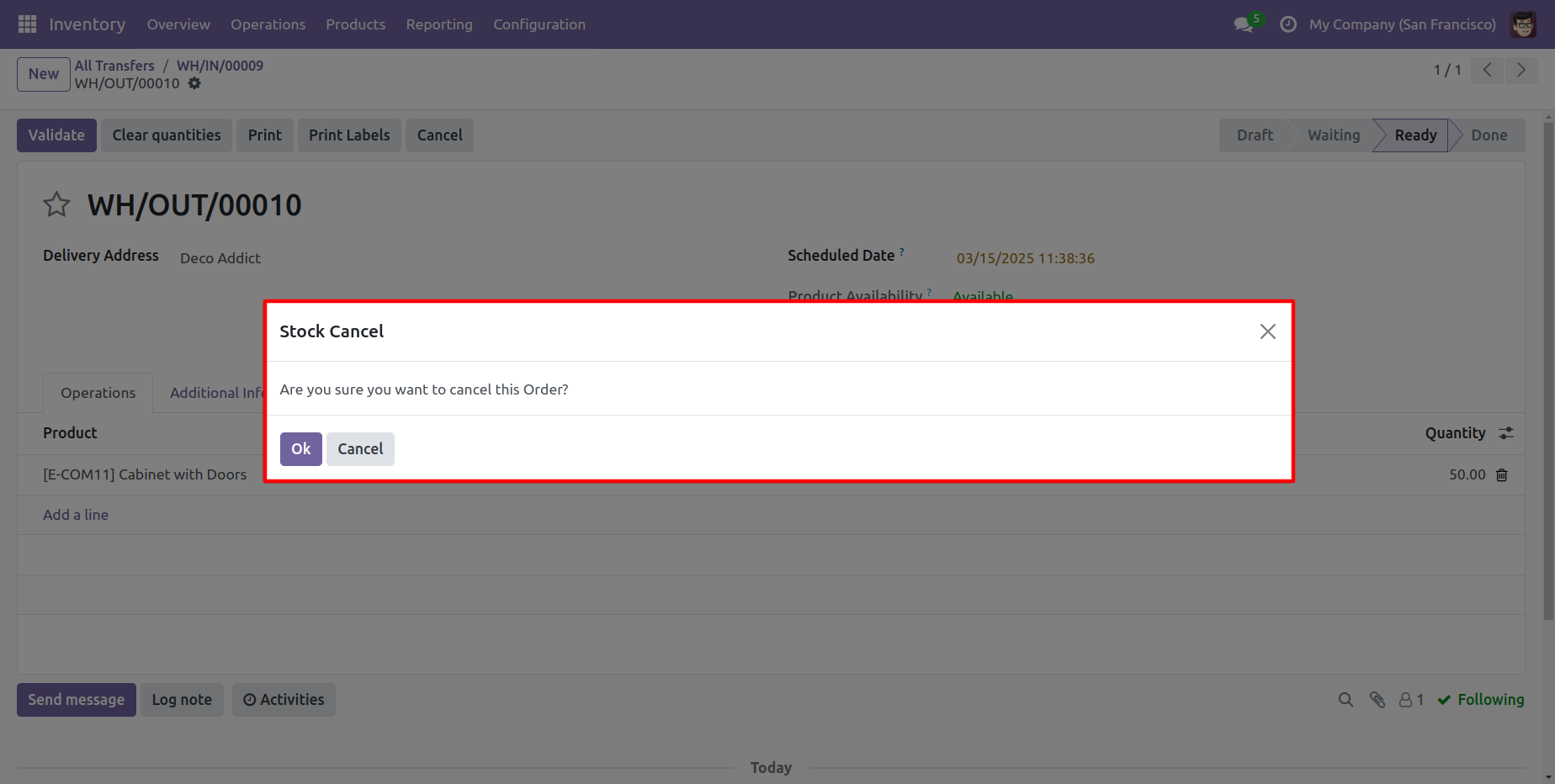
5.) Stock Cancel Pop-up
A confirmation prompt appears when attempting to cancel an inventory operation, requiring user approval before proceeding. This control helps ensure that cancellations are intentional and authorized.
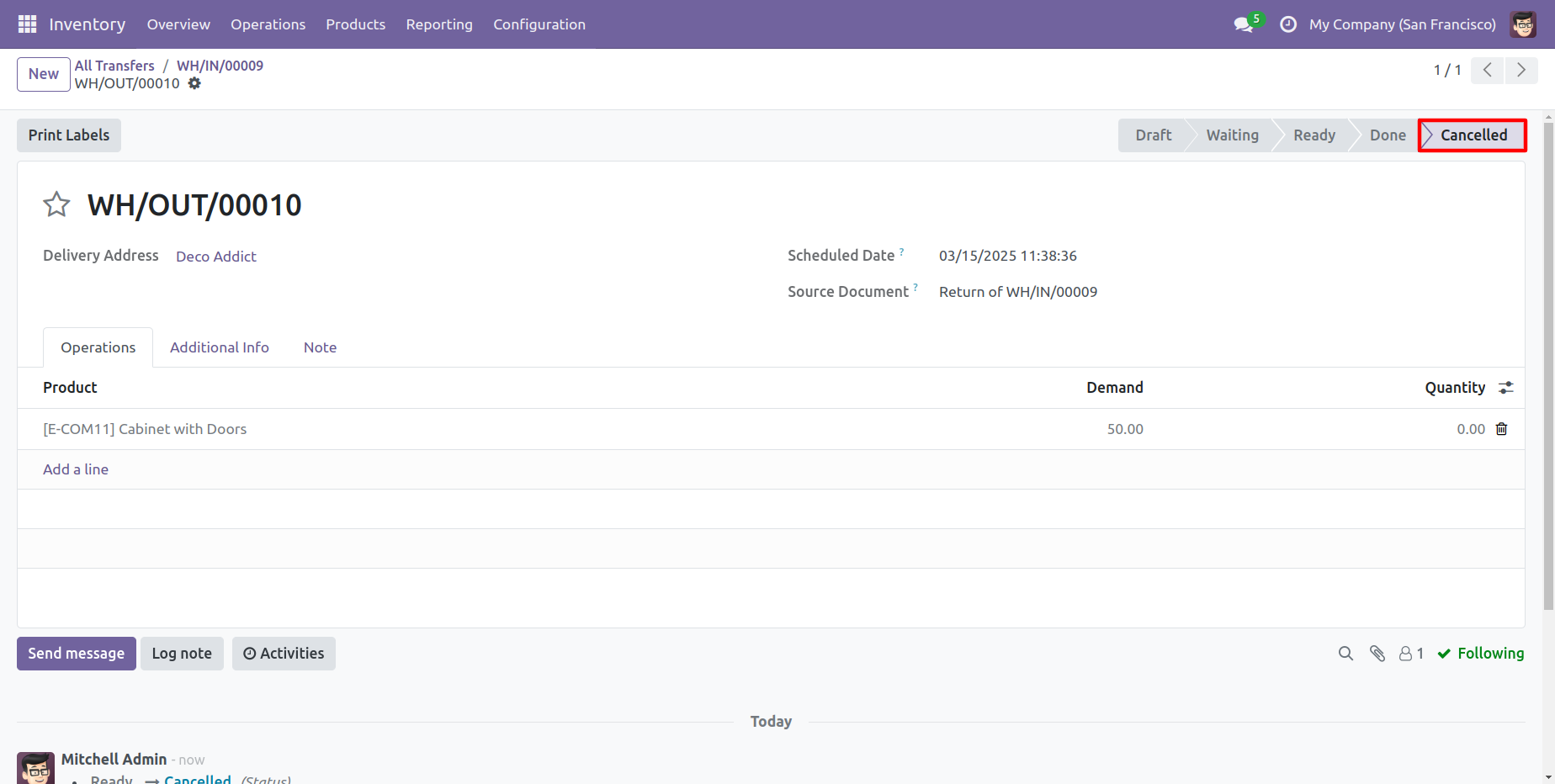
6.) Inventory Successfully Cancelled
Once confirmation is provided, the inventory operation is transitioned to the Cancelled state. This reflects that the transaction has been safely reversed while maintaining system integrity.
User Guide