

Our Most Suggested Products


CRM Survey Management
CRM Survey Management enables seamless integration of customer feedback directly within your Odoo CRM. This module allows you to create, distribute, and manage surveys from the CRM interface, facilitating enhanced customer engagement and data collection.
 Features
 Screenshots
 Support
 Service
Features
Default Survey Form Setup
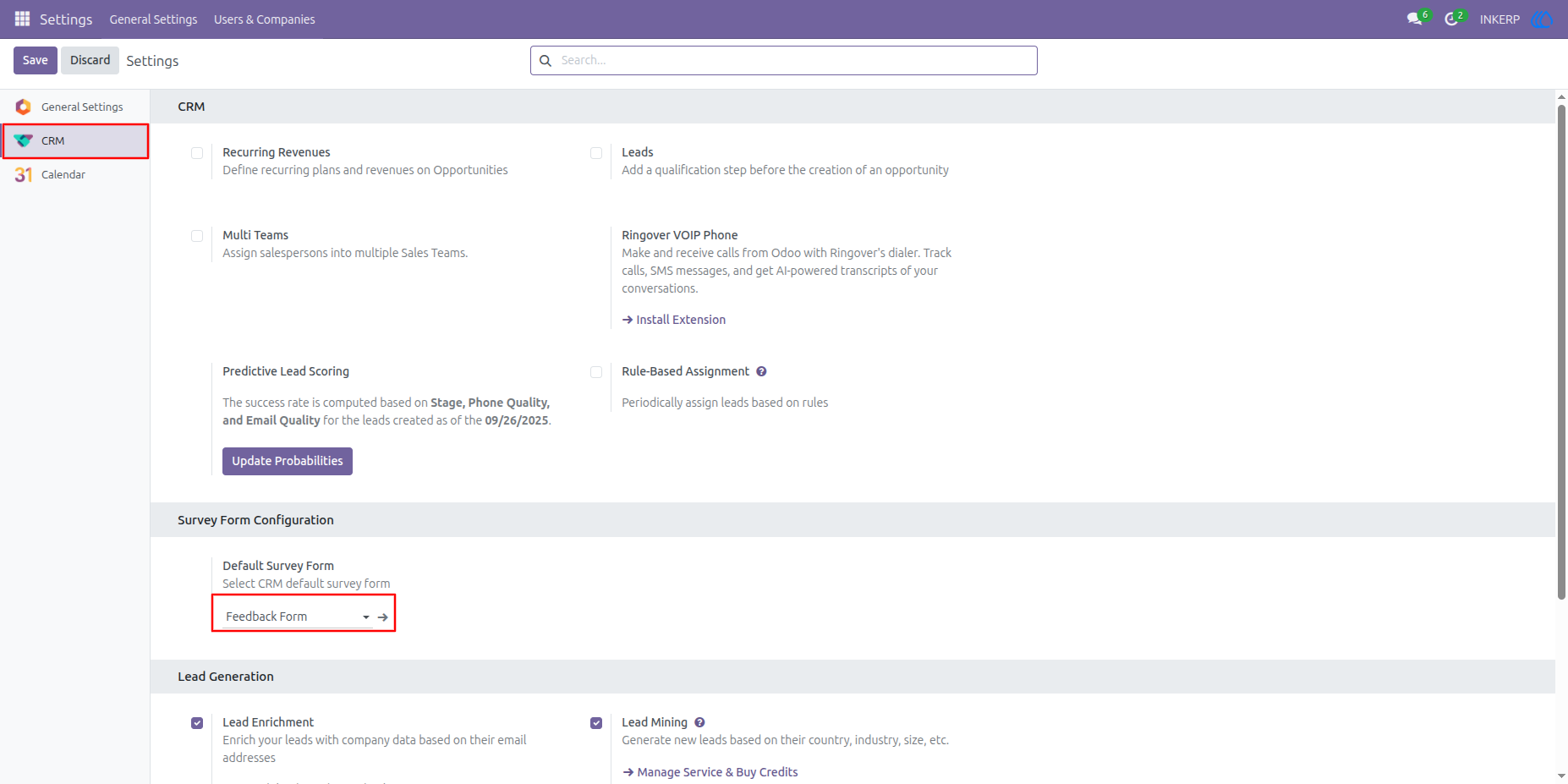
You can set a default survey form that will automatically be linked with CRM records (leads/opportunities).
Customer Survey from CRM
From a CRM record, you can initiate a survey that is tied to the customer or opportunity. Odoo Apps Store Detail: Allows sales teams to collect feedback directly in the CRM workflow without switching modules.
Resume Postponed Survey Form
Partial or interrupted surveys can be resumed later.Useful if a customer couldn’t complete the survey in one go; survey progress is saved and tracked.
Print Survey Form from CRM
Ability to print a survey form (blank or partially filled) directly from the CRM record.Ideal for field teams who might fill the survey offline or manually before uploading responses.
View Results Directly in CRM
From a CRM record you can click a View Results smart button to see survey outcomes.Sales or account managers can see feedback linked to that particular lead or customer conveniently.
Screenshot
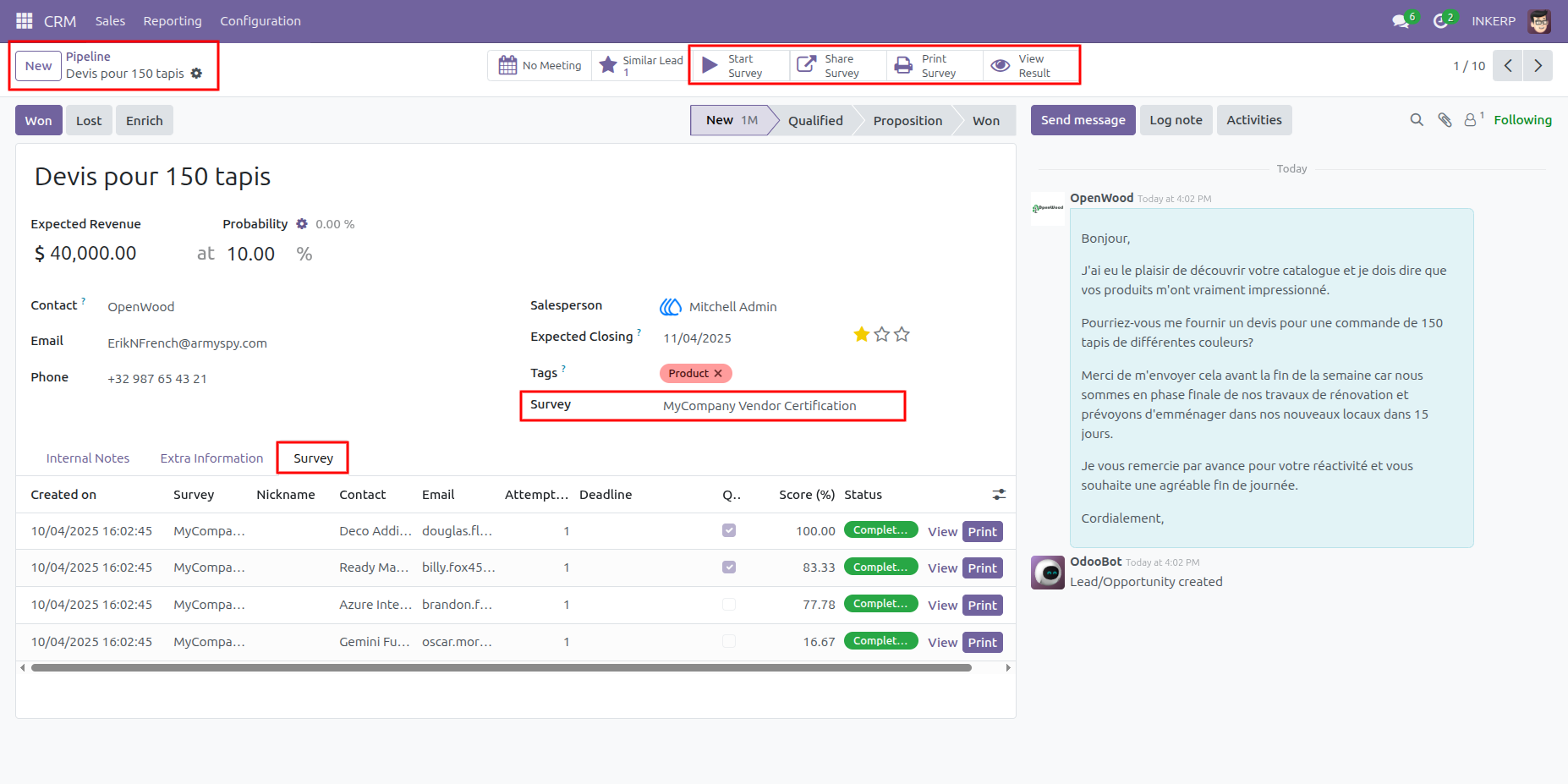
1) Survey Features in CRM
Here, in CRM form user can see Survey Start button, Share button, Print button, View result button, default
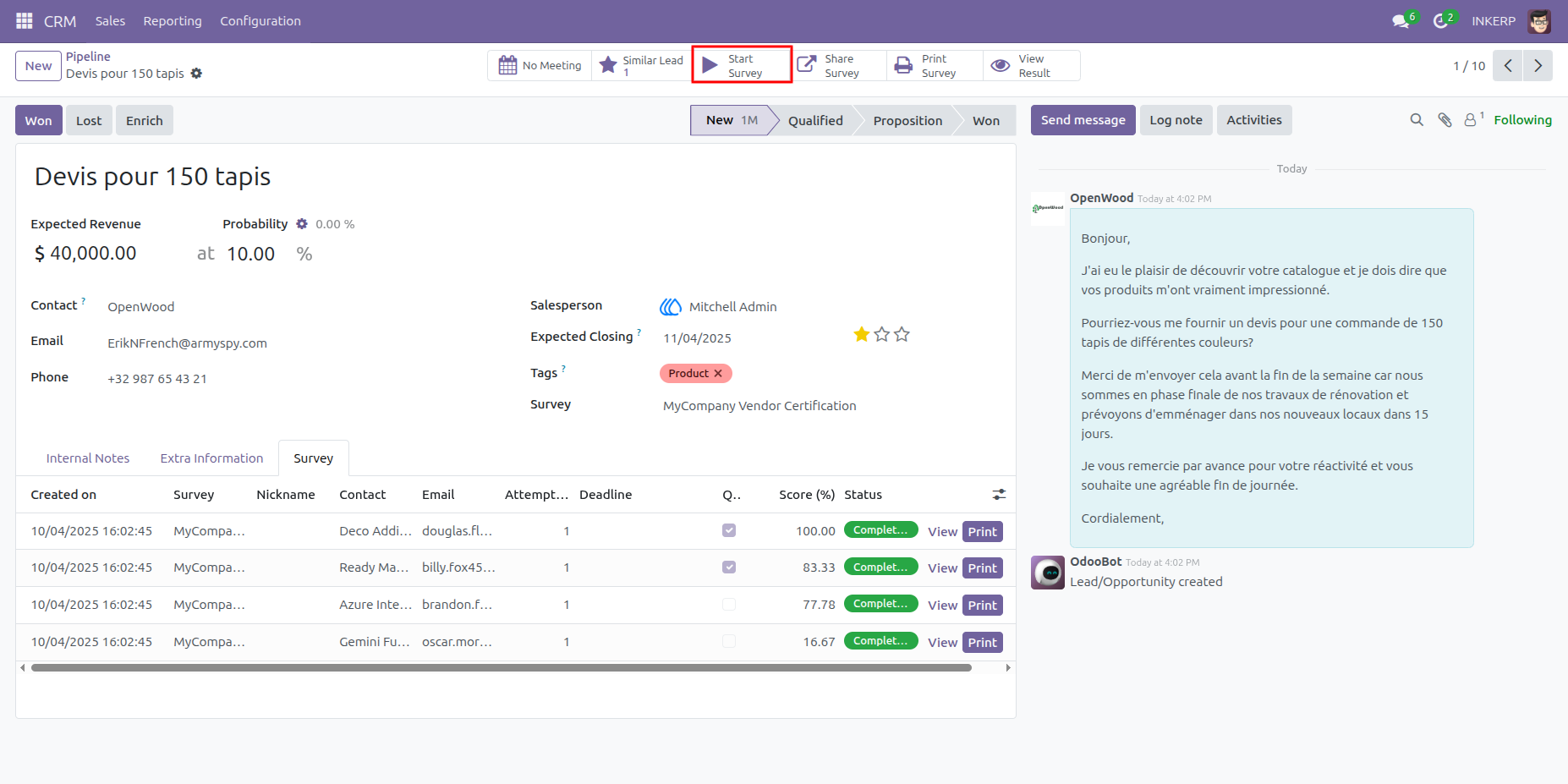
2) Survey Start Button
Start Survey from CRM Lead. User can start Survey directly from Lead in single click.
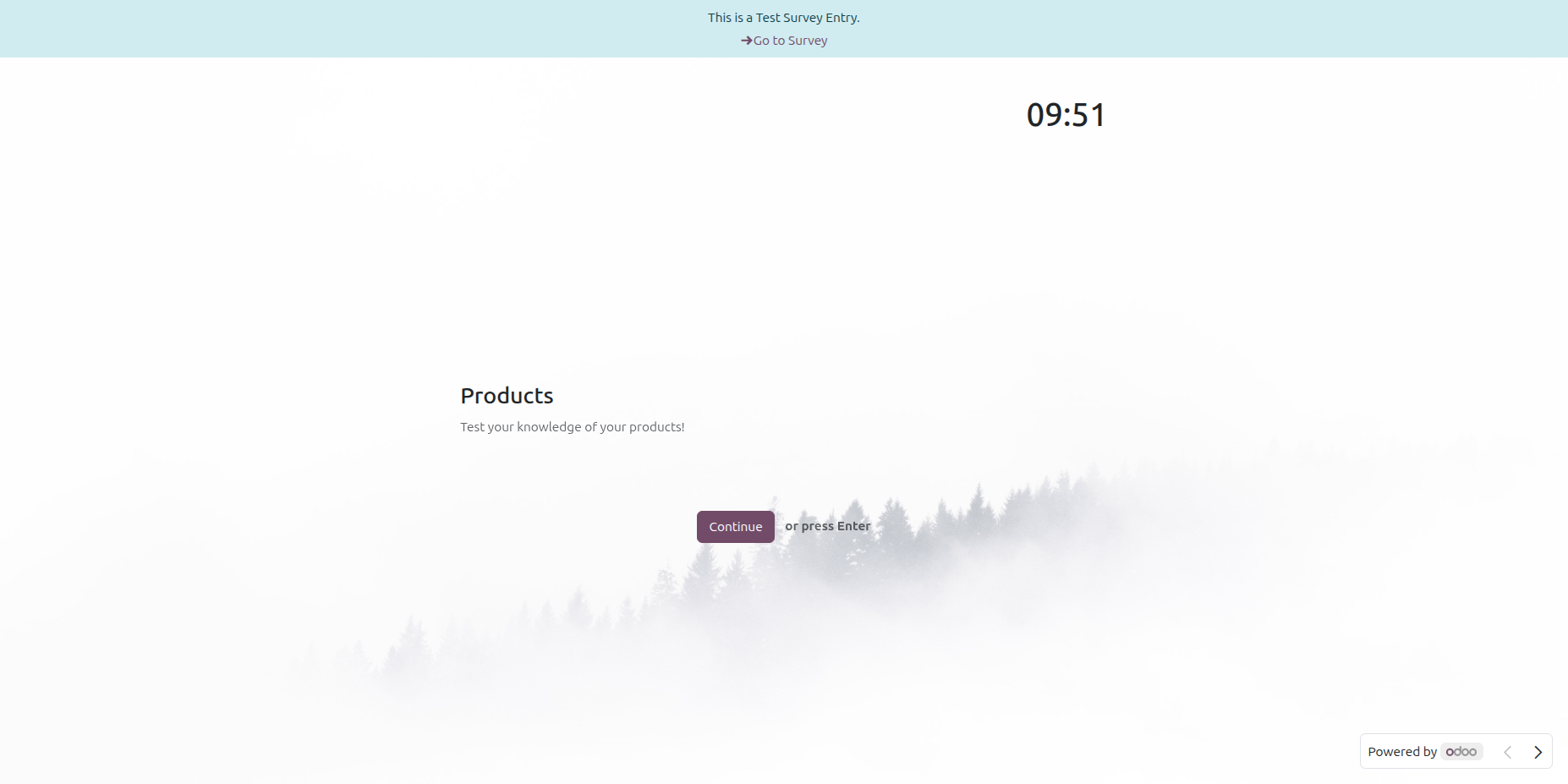
3) Survey Started
After clicking Start survey button, Survey form will open.
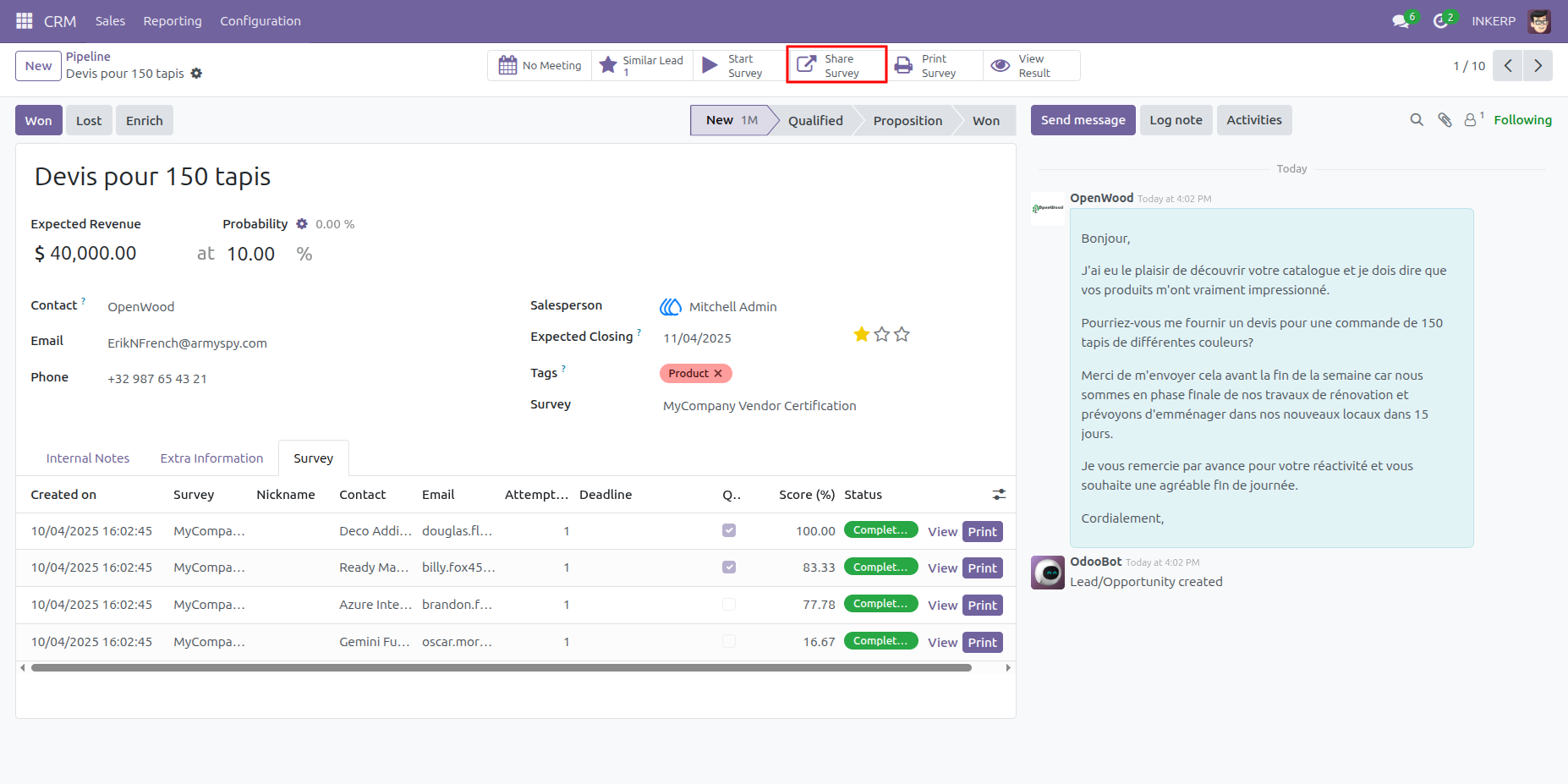
4) Share Survey Button
User can share survey form vai mail directly from CRM lead.
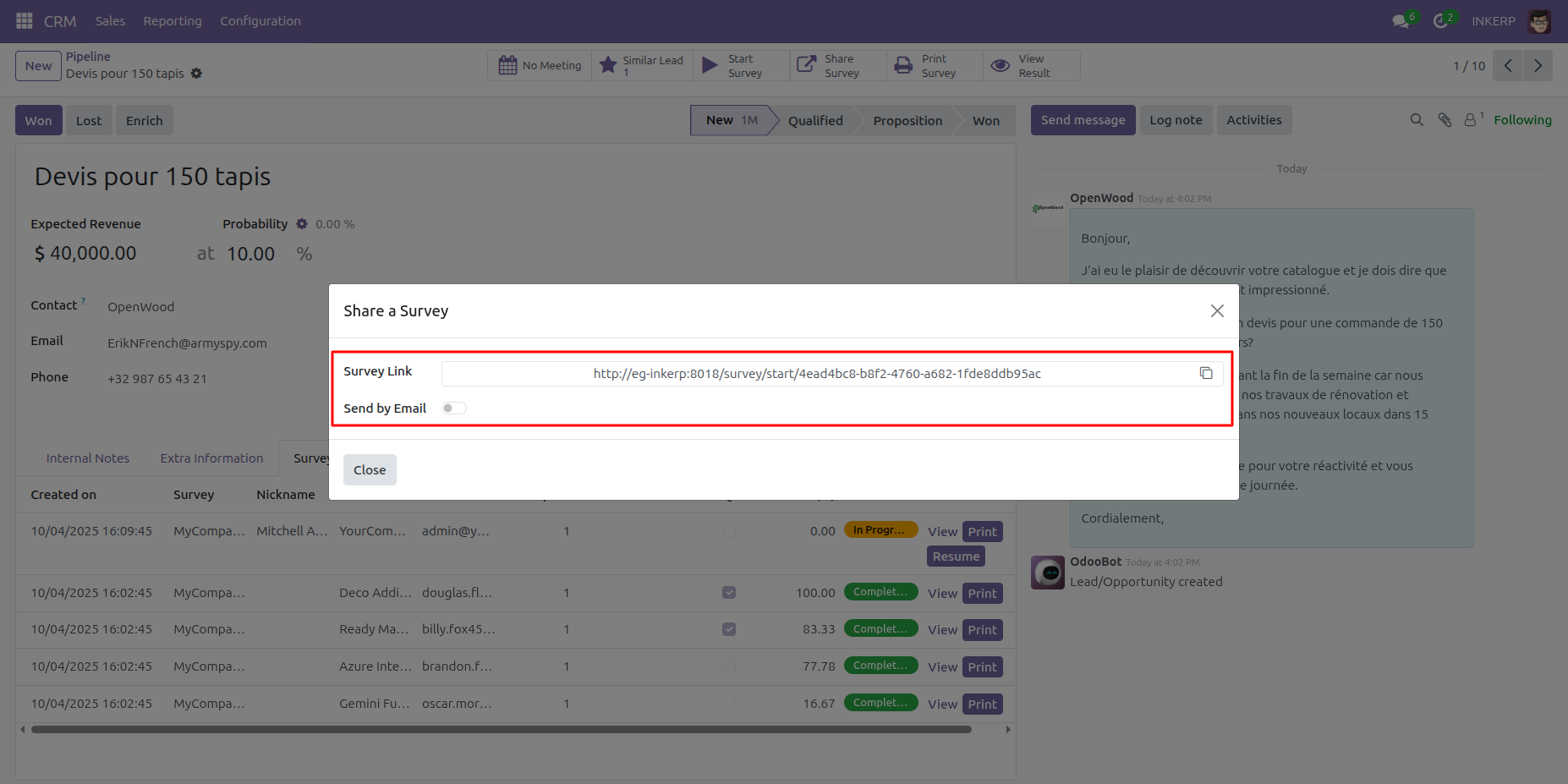
5) Survey URL Send by Mail
After clicking share survey button a popup form will open and user can share survey directly from there.
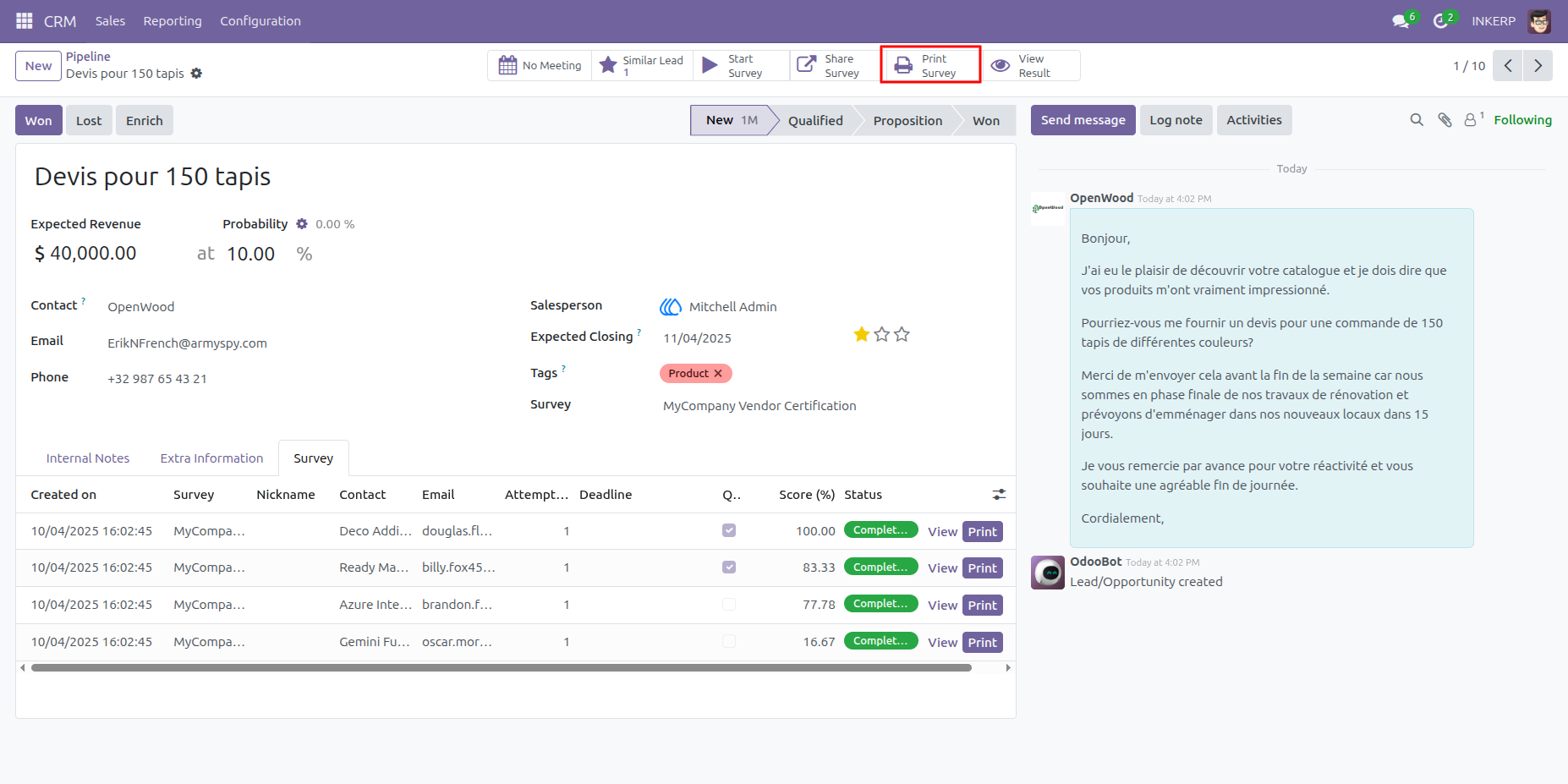
6) Print Survey Option
Print survey option in crm lead form. user can print survey direclty from Lead by clicking Print survey button.
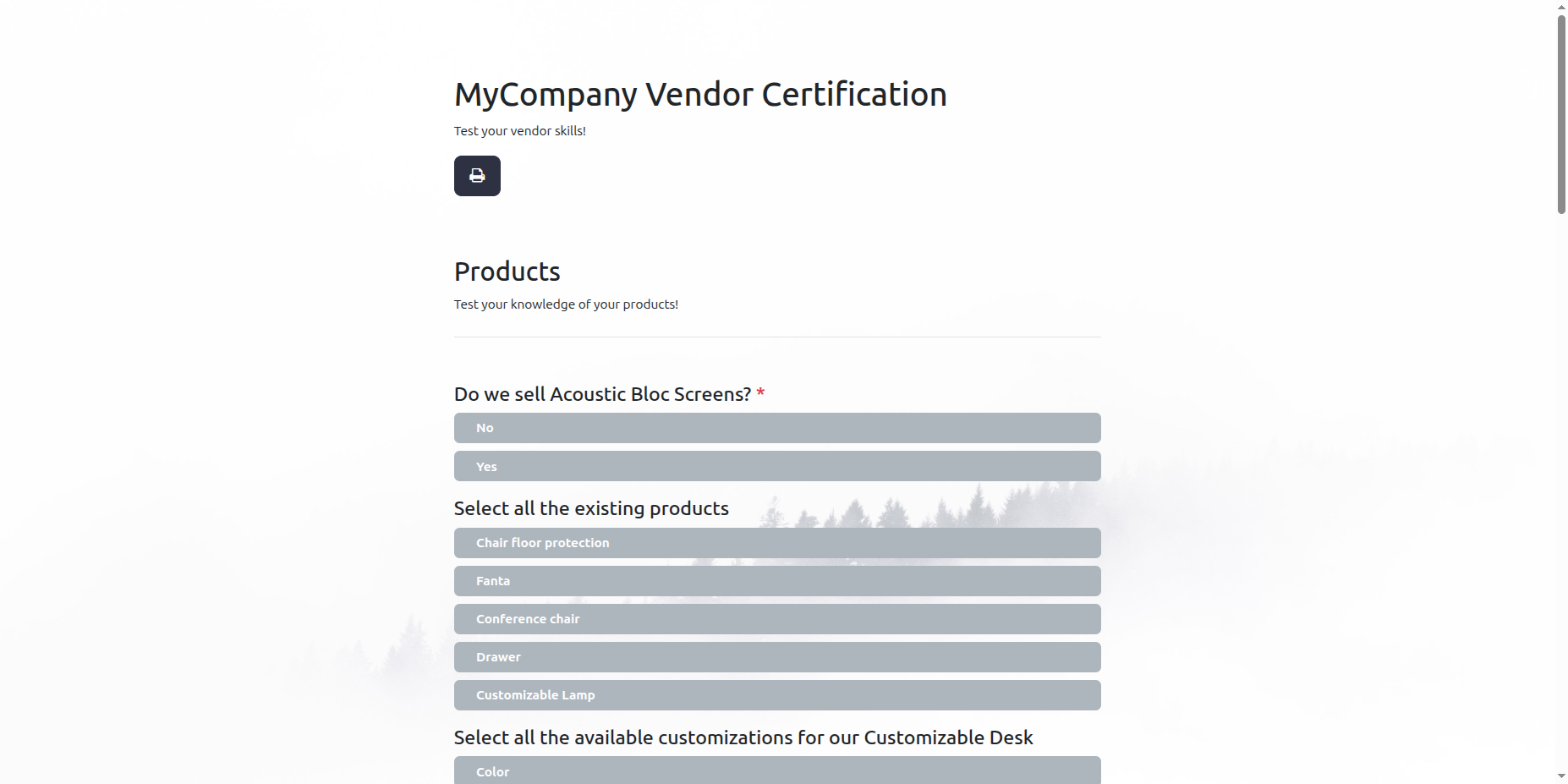
7) Print Survey Form
After clicking Print Survey a form view will be open and user can print survey directly from there.
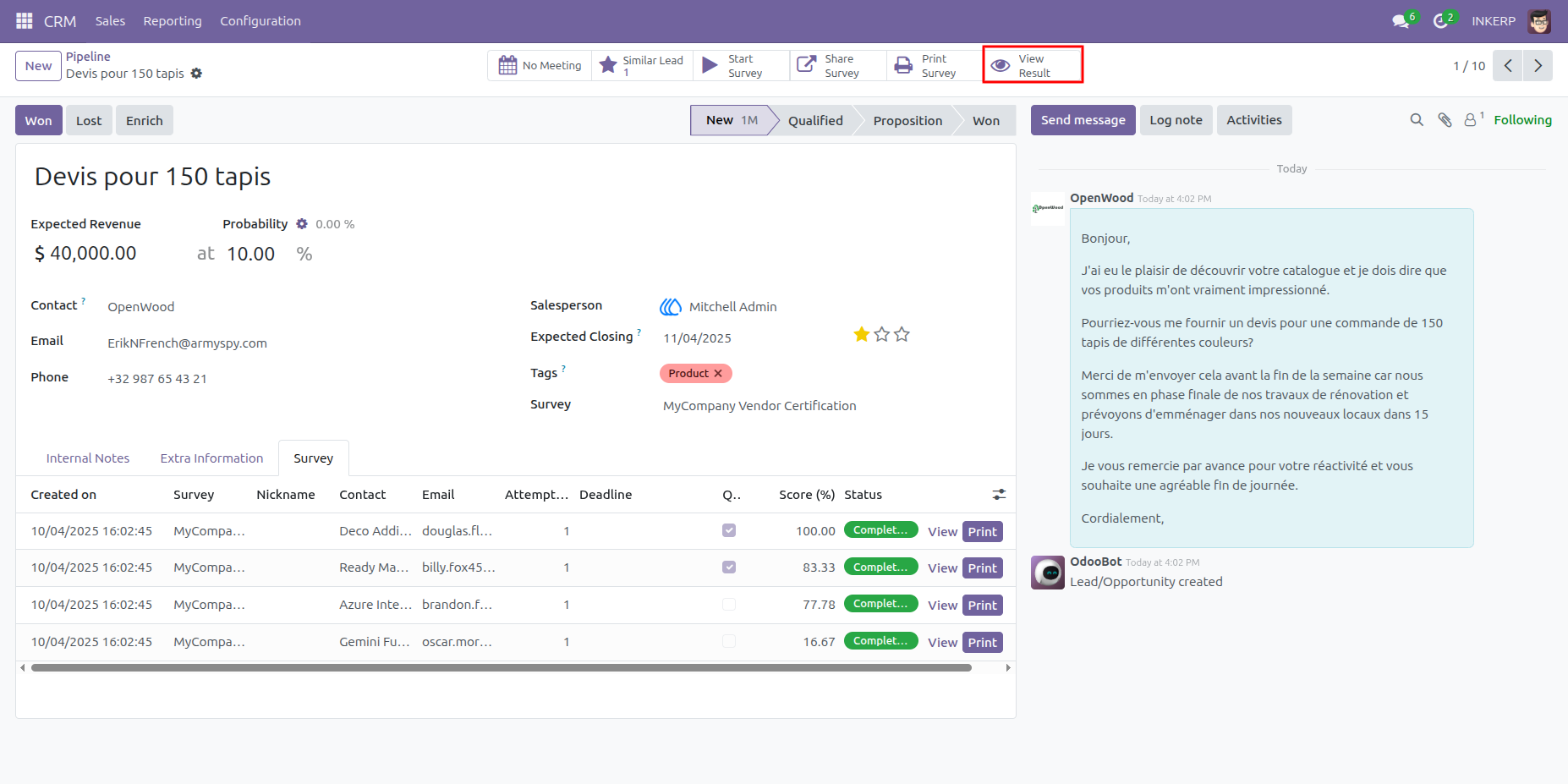
8) View Result Button
User can check result by clicking View Result button.
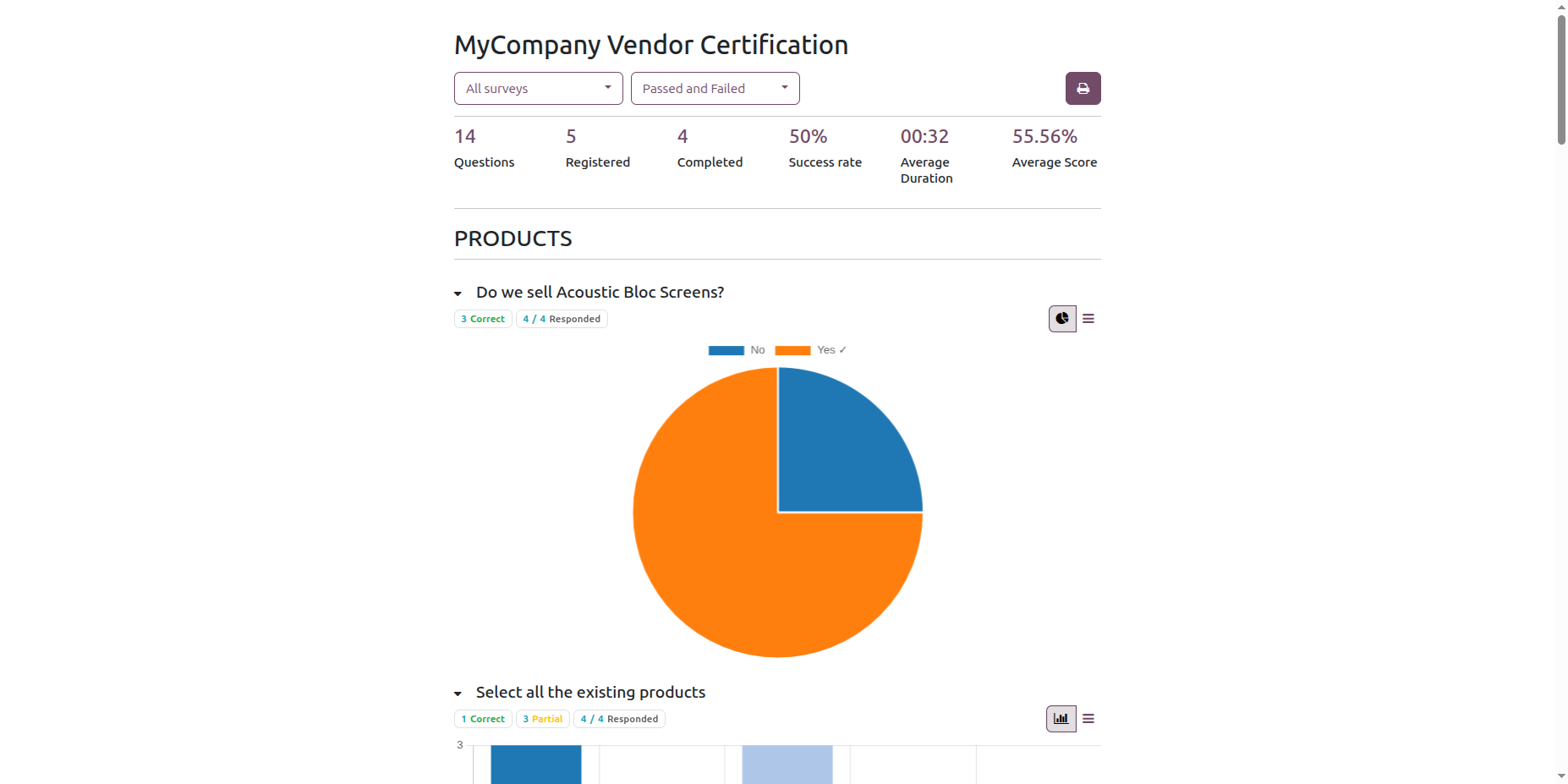
9) Result View
Here is the Result View of Survey.
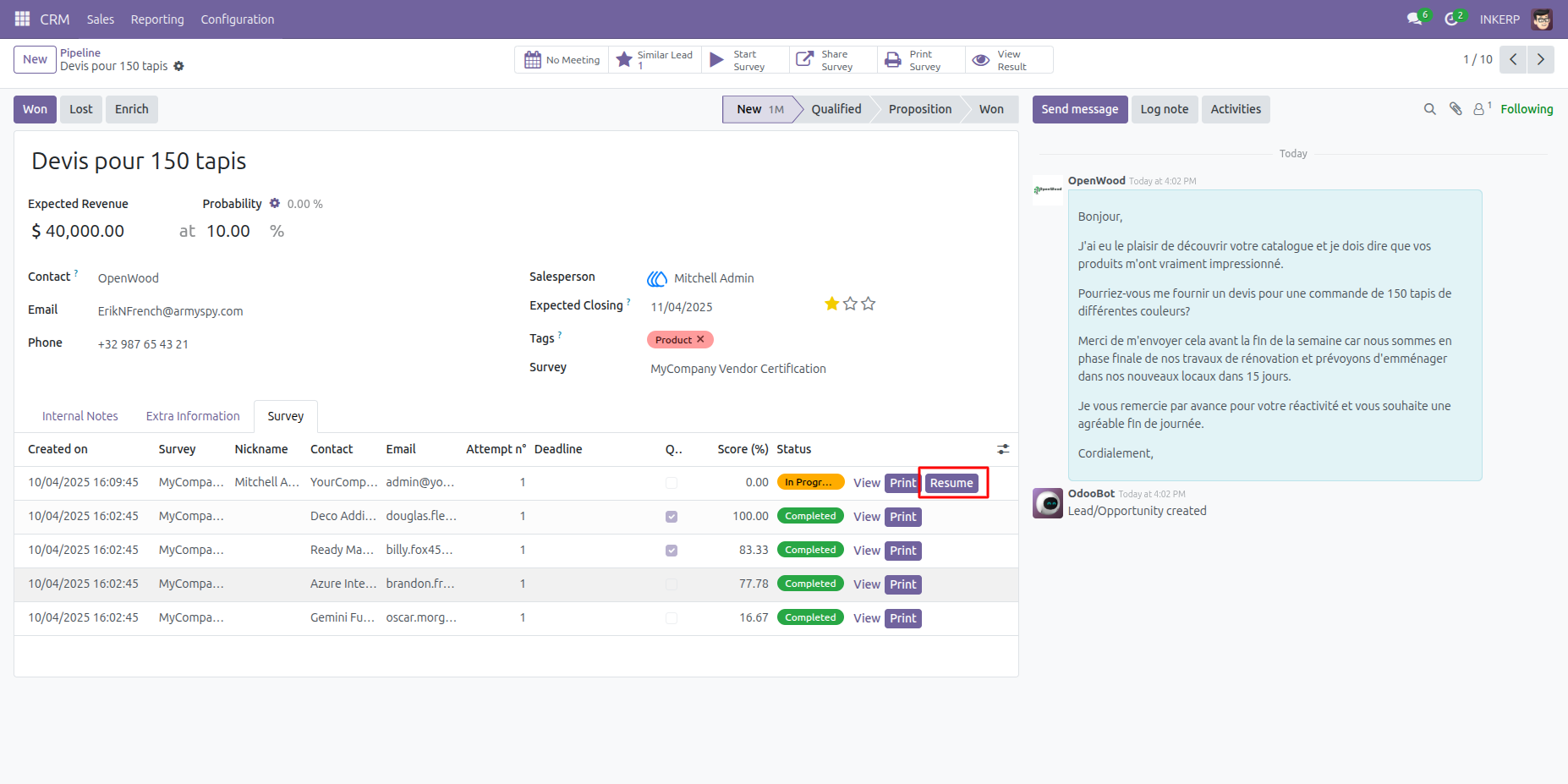
10) Resume Button
User can continue Partially filled survey by clicking on Resume button.
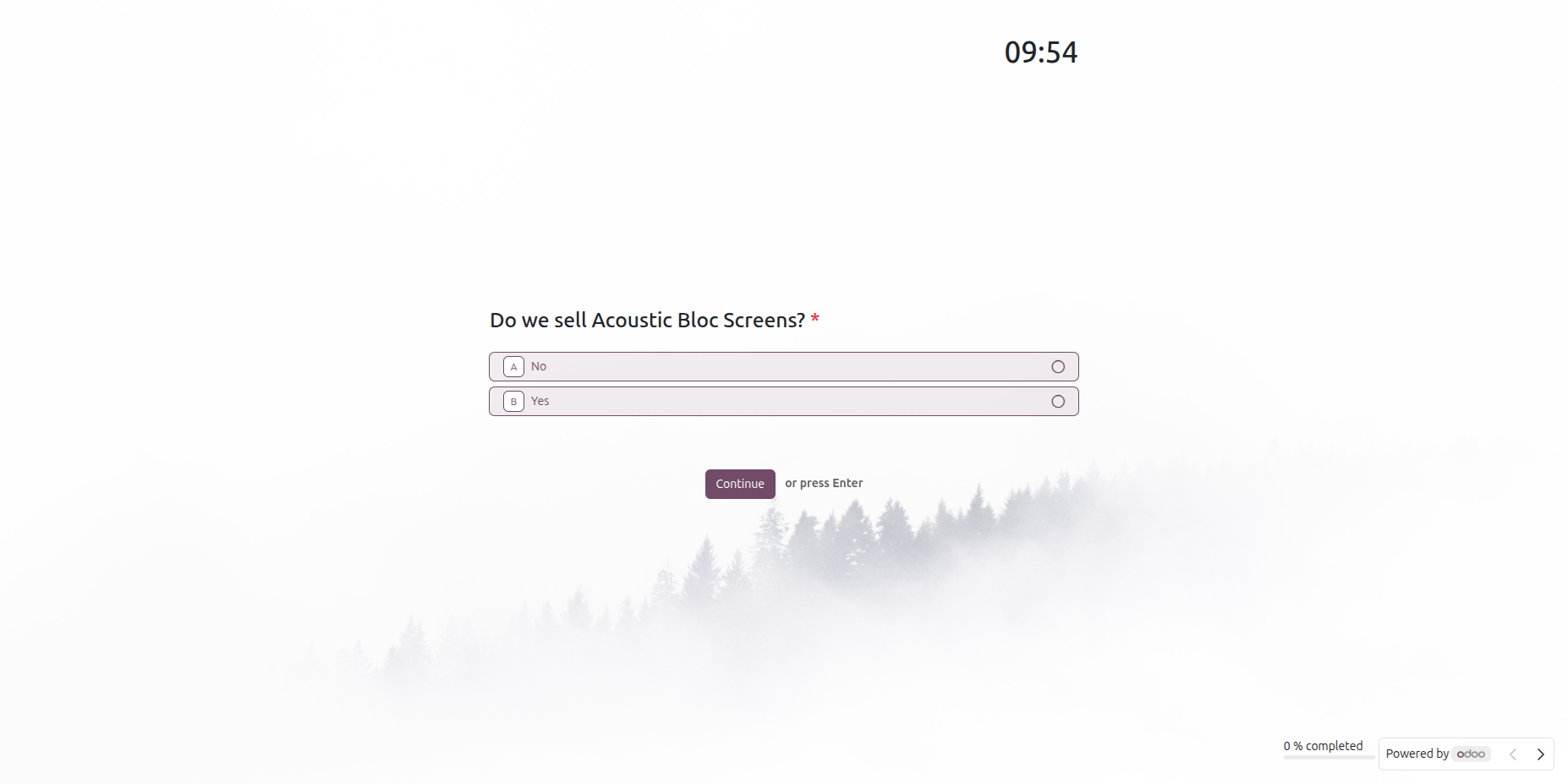
11) Continued Survey Form
Here is the continued form opens when user click on Resume button.
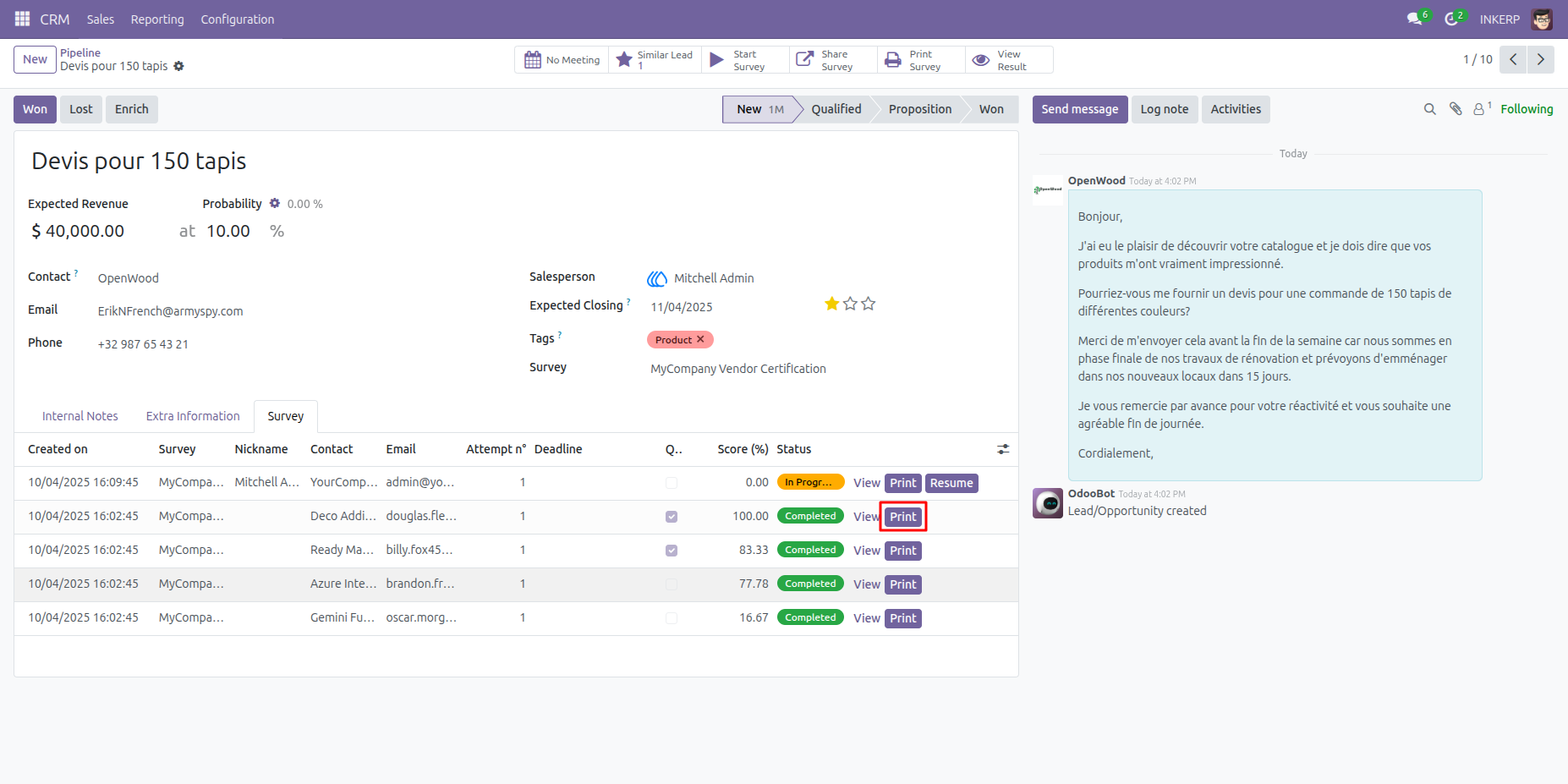
12) Print Survey of Particular Customer
User can print Survey form of specific customer from Survey Lines
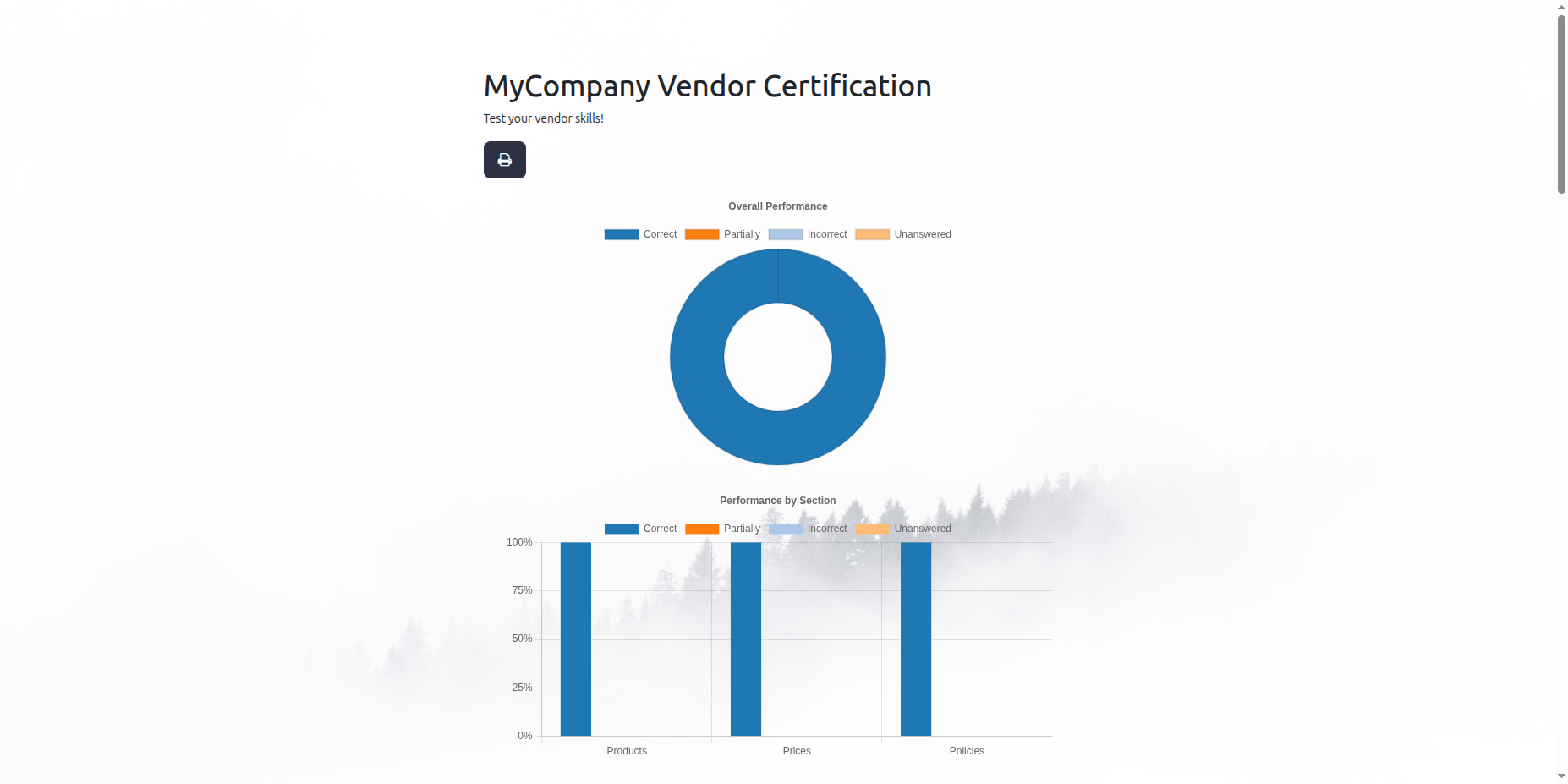
13) Survey Form of Single Customer
Particular customers survey form.
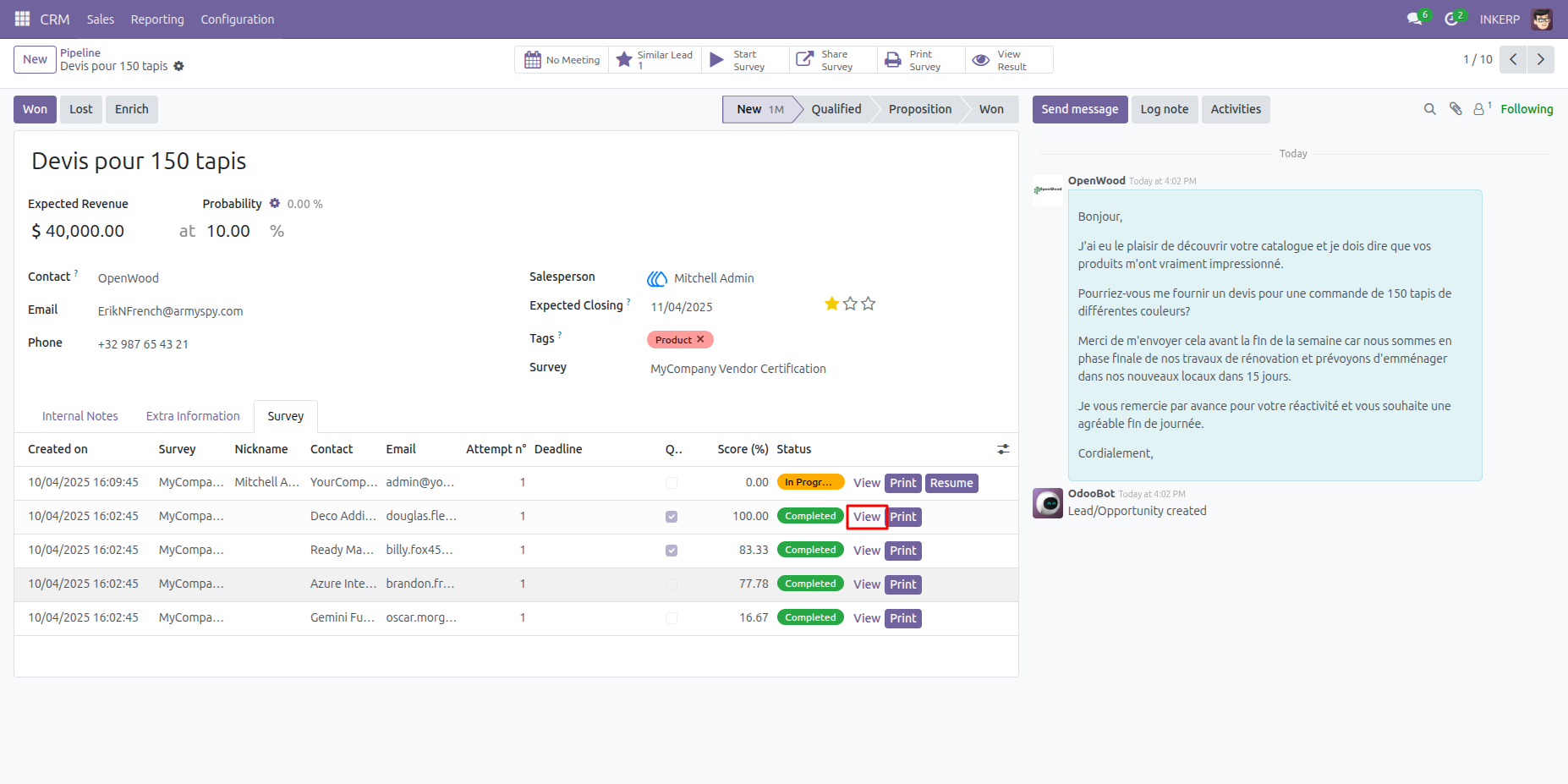
14) View Survey Button
User can view attended survey form by clicking View button.
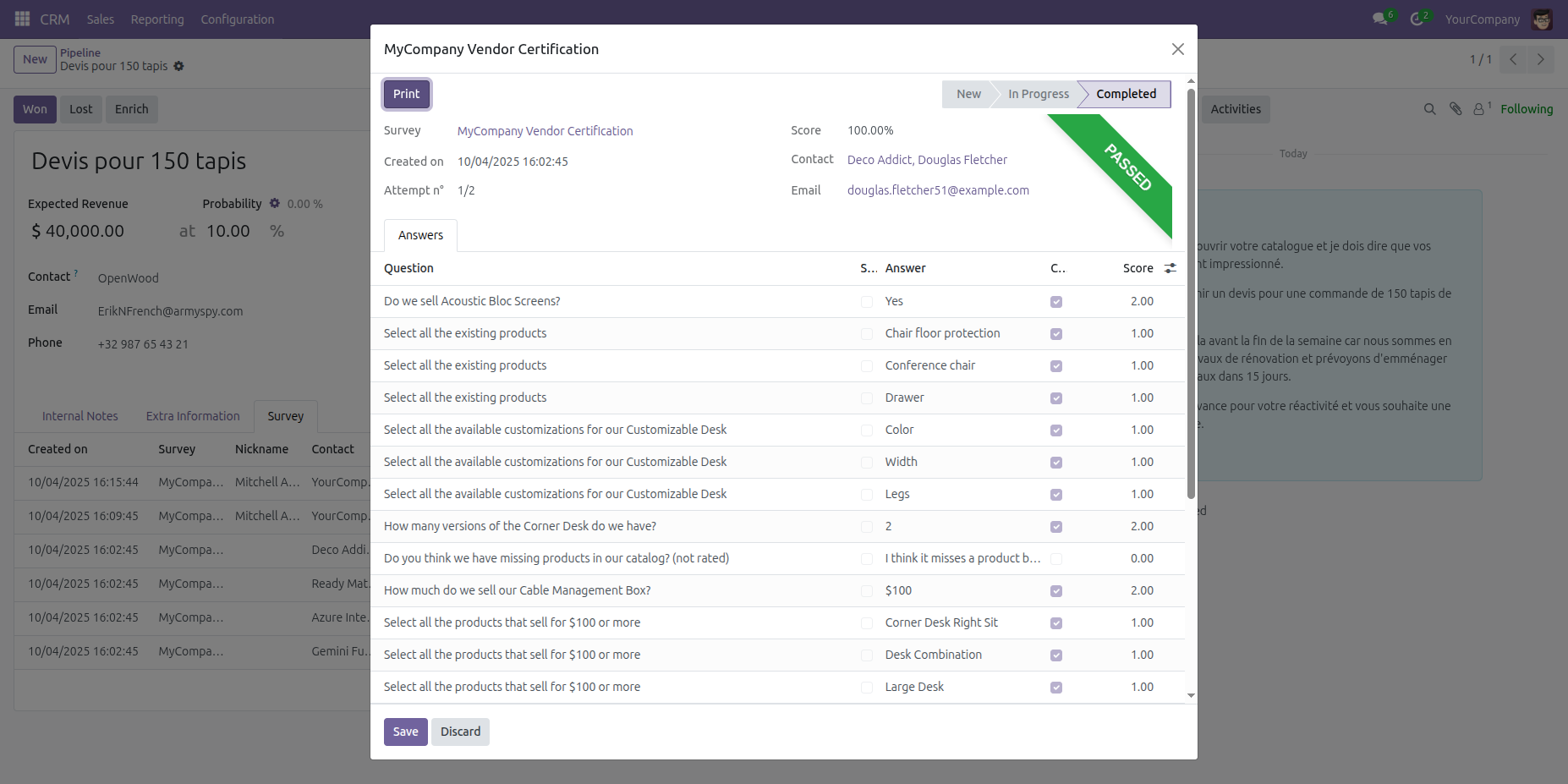
15) Customers Survey Popup View
When user can click view button the popup view
16) Default Survey In Lead
Admin can set default survey form in lead. so when user creates lead this survey form will be automatically assigned in lead.
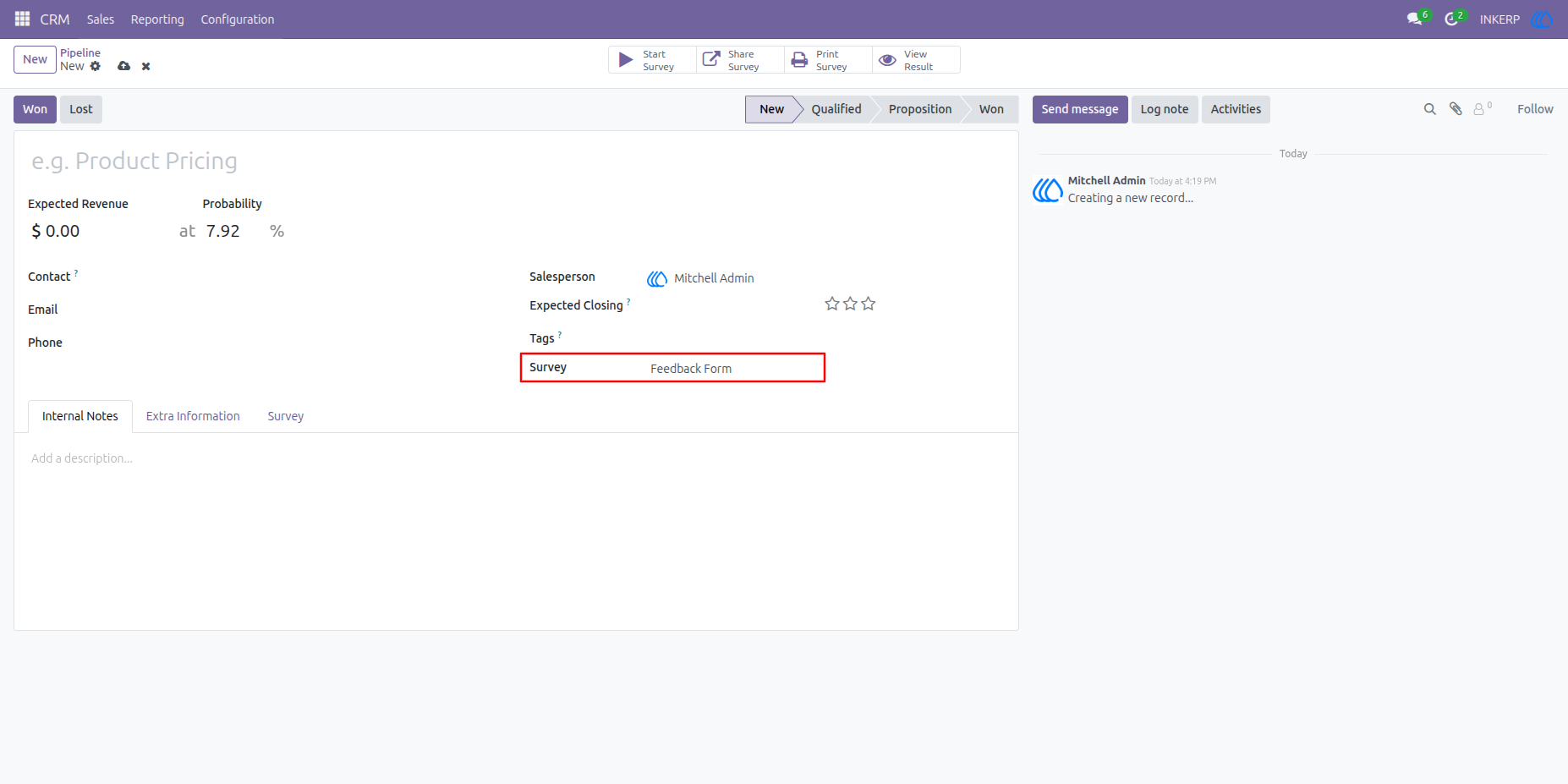
17) Default Survey Assigned
Here is the default survey form assigned while createing new lead.
User Guide