

Our Most Suggested Products


MOQ in Product Name
MOQ in Product Name is designed to simplify product management by allowing Minimum Order Quantity to be set directly within product variants and templates. Once assigned, the display name automatically updates to reflect the defined MOQ, ensuring clarity and accuracy across listings. This feature enhances transparency for buyers and streamlines catalog organization. By integrating MOQ into product names, it creates a more efficient and informative shopping experience while reducing manual adjustments.
Video Tutorial

 Features
 Screenshots
 Support
 Service
Features
Automatic MOQ Display in Product Names :
Minimum Order Quantity appears directly within product names as soon as it is defined in variants or templates. This creates instant clarity for buyers viewing product options. Catalogs become easier to navigate and understand with consistent quantity details always visible.
Enhanced Transparency for Buyers :
Displayed MOQ informs buyers of the minimum quantity required before adding items to the cart. This prevents confusion at checkout and supports informed purchasing decisions. Higher trust and clarity contribute to an overall better shopping experience.
Efficient Product Management :
Centralized control of MOQ settings ensures simple and quick adjustments. Every change immediately reflects in product names without extra effort. This saves time for teams managing large collections of items while preserving accuracy across the catalog.
Screenshot
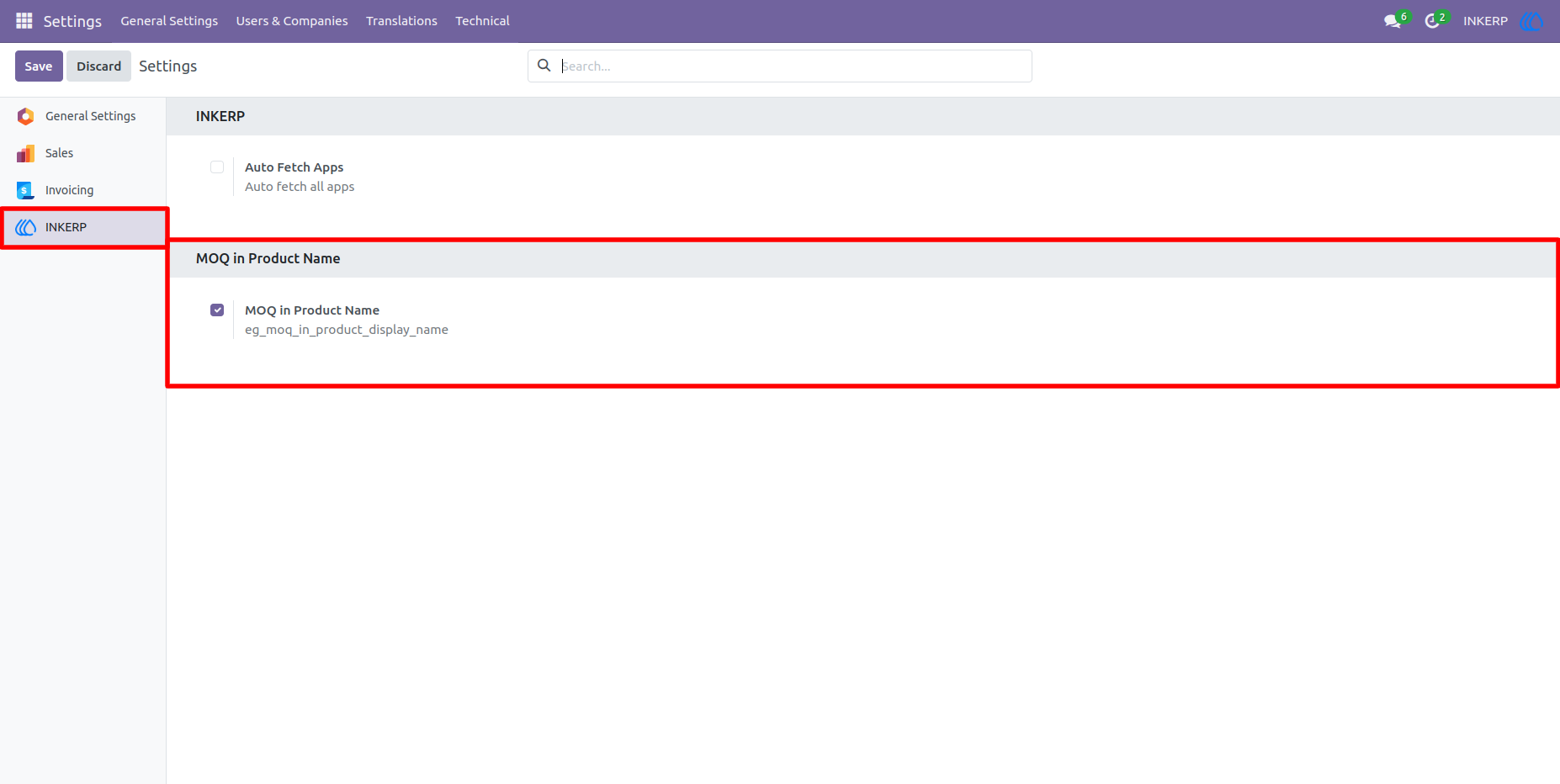
1.) Enable MOQ in Product Name :
By default MOQ in Product Name is enabled.
Navigation : Settings › INKERP
2.) MOQ In Product Template :
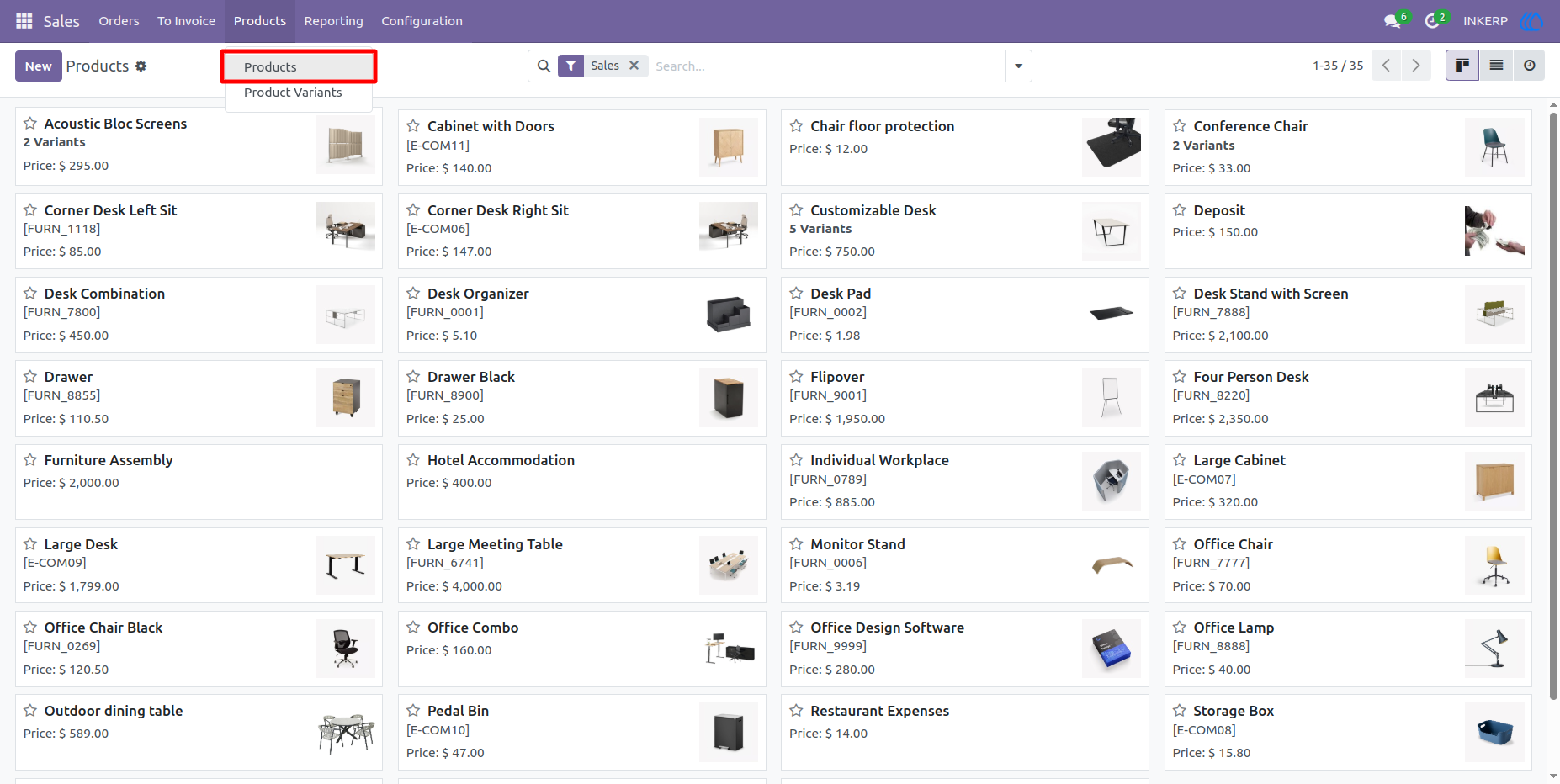
Navigation : Sales › Products › Products
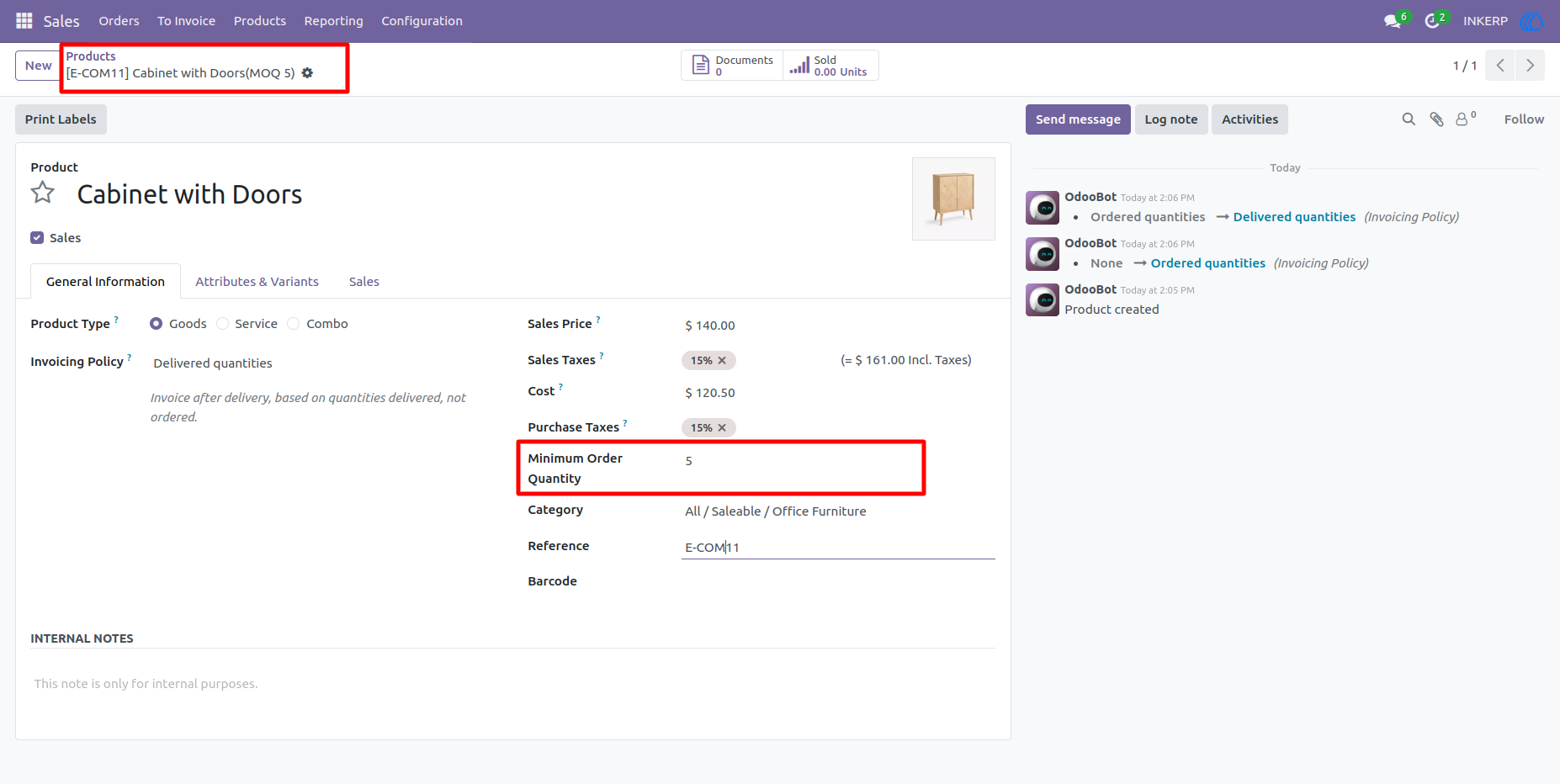
3.) Configure MOQ :
MOQ automatically add to display name of the product template.
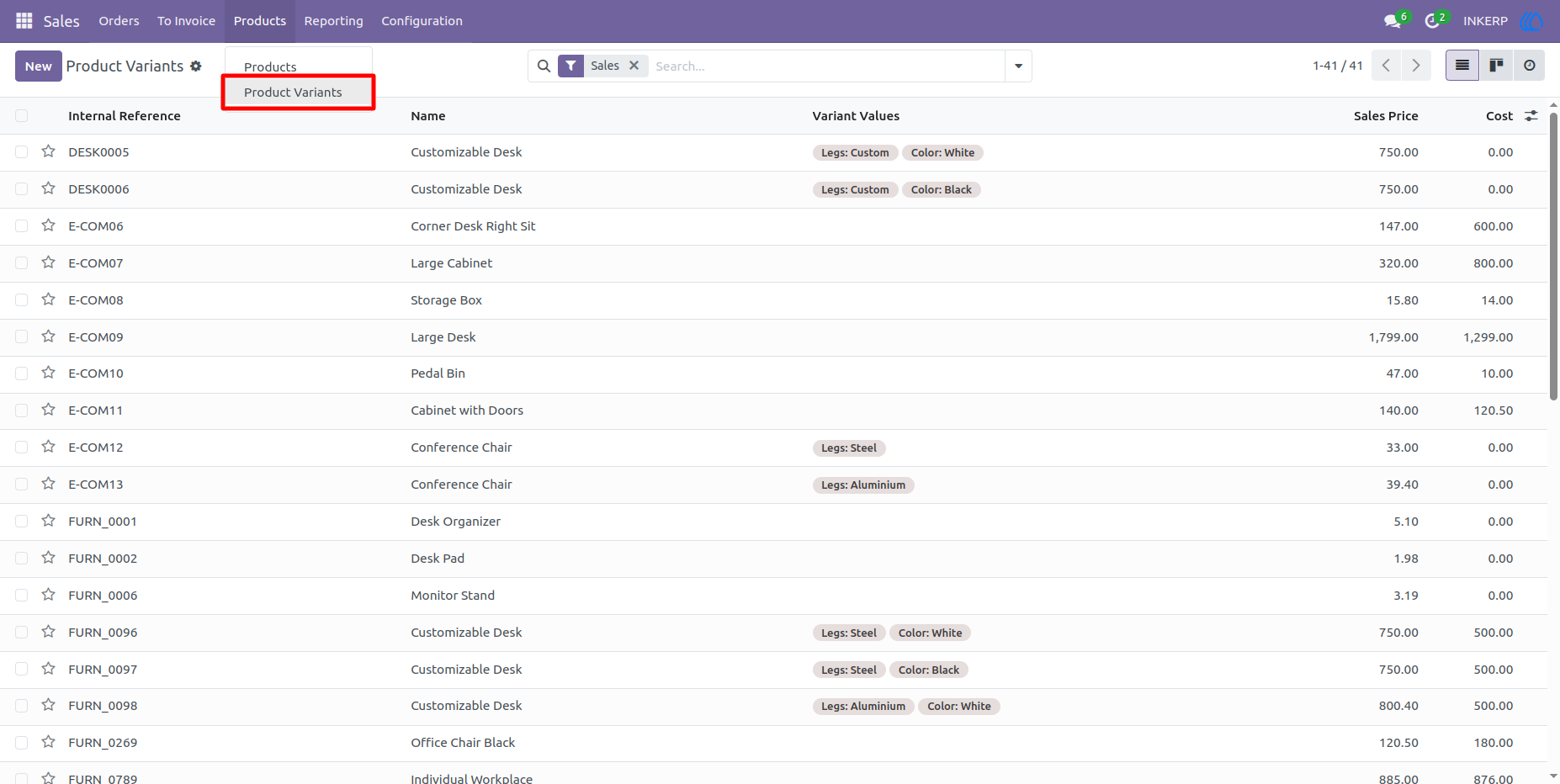
4.) MOQ In Product Variants :
Navigation : Sales › Products › Products Variants
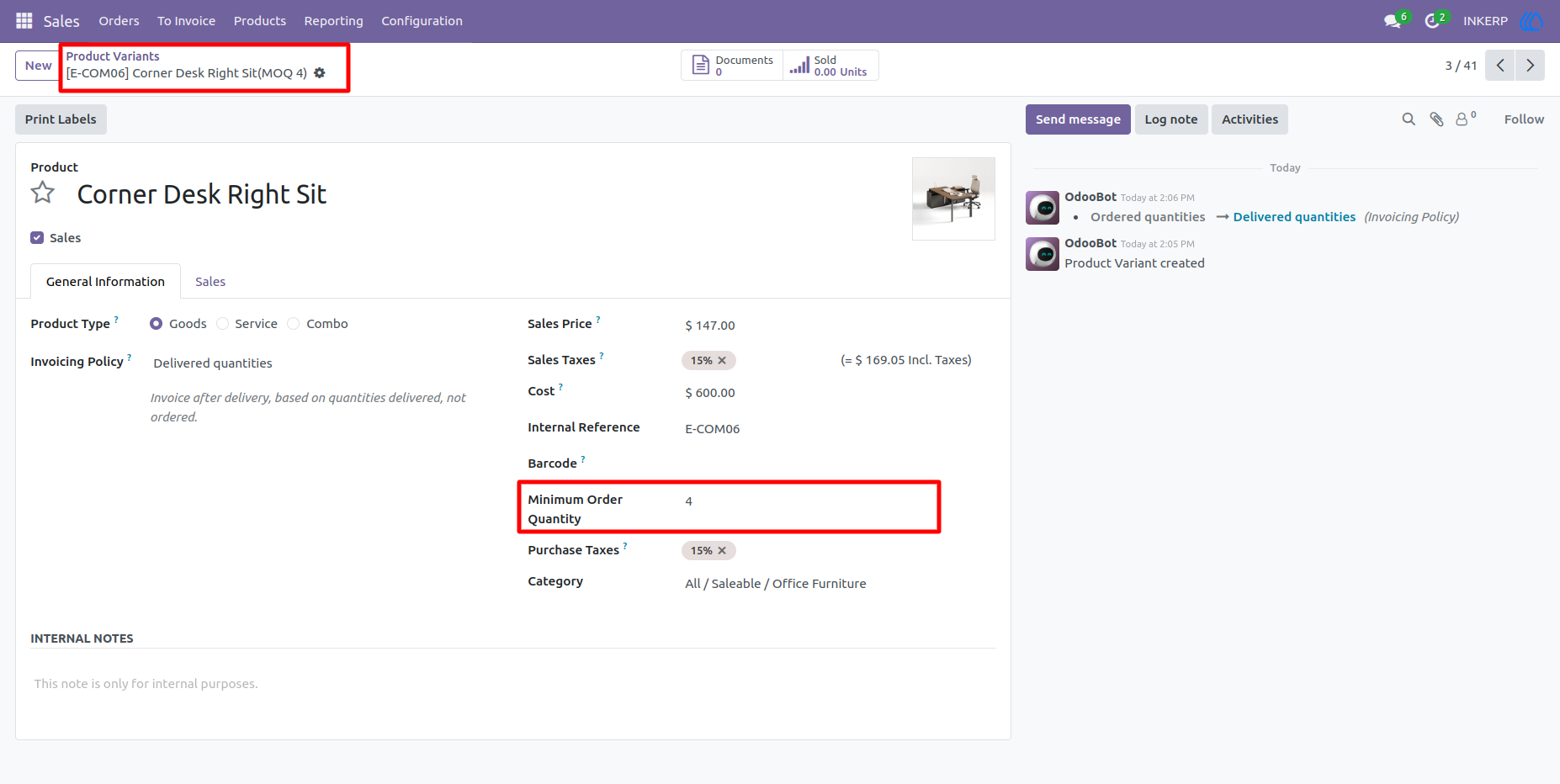
5.) Configure MOQ :
MOQ automatically add to display name of the product variant.
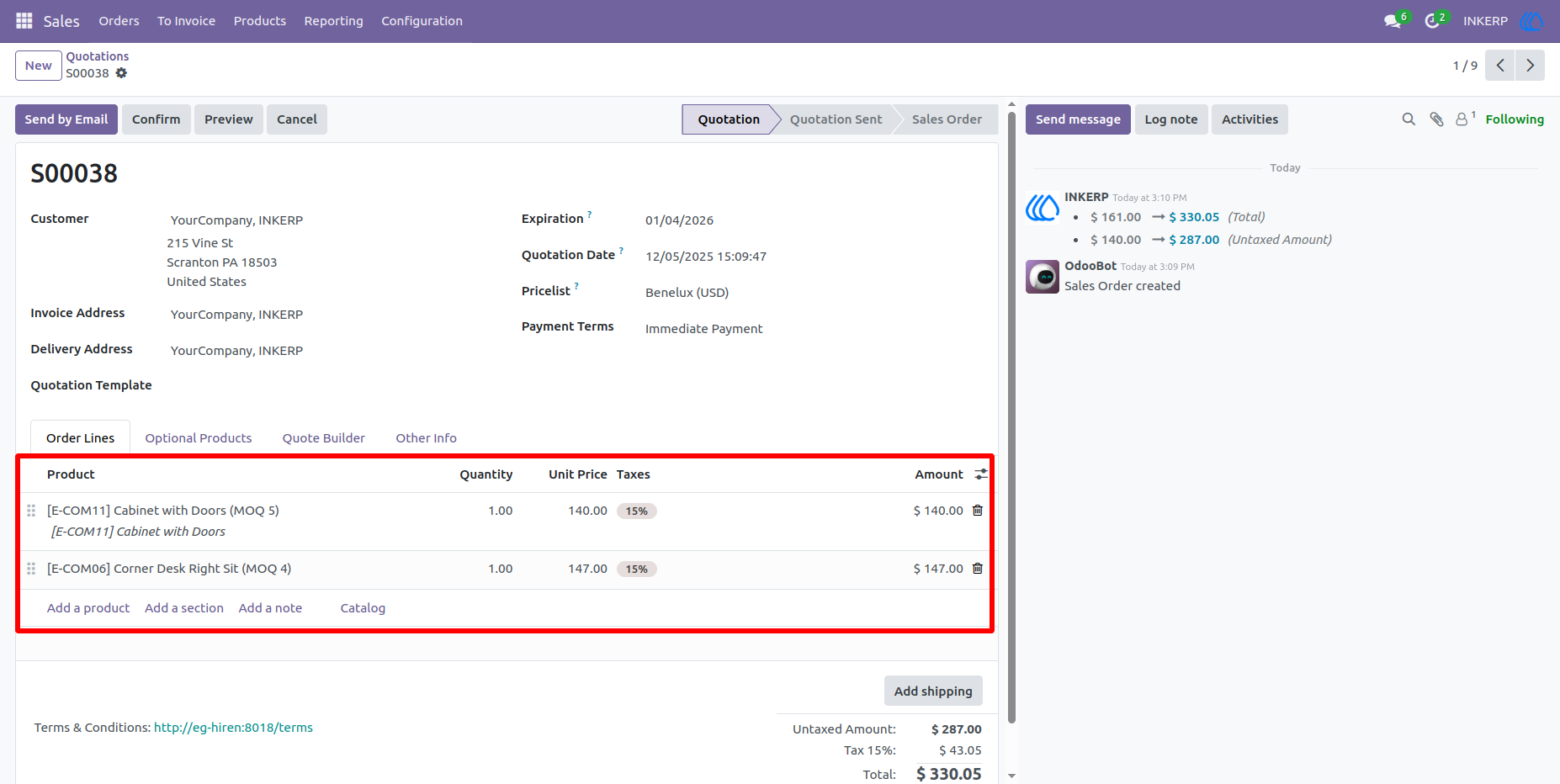
6.) MOQ Configuired Product in Sale Order :
User Guide