

Our Most Suggested Products


POS Shop User Restriction
POS Shop User Restriction allows administrators to control which POS Shops each user can access in Odoo. Users can only view and manage orders, payments, and sessions related to their assigned shops, while POS Managers retain full access. This module enhances security, prevents unauthorized data access, and ensures smooth operation in multi-shop environments.
 Features
 Screenshots
 Support
 Service
Features
Shop-Level Access Control
This module allows administrators to assign specific POS Shops to individual users, ensuring that each user can only access their designated shop. Once configured, restricted users will only see their assigned POS Shops on the dashboard, while other shops remain completely hidden.
Order, Payment & Session Restriction
Users can only view and manage orders, payments, and POS sessions that belong to their assigned POS Shops. Records from other shops are automatically restricted and cannot be accessed, even through direct links. This ensures secure data separation between branches and prevents unauthorized access to sensitive sales information.
Screenshot
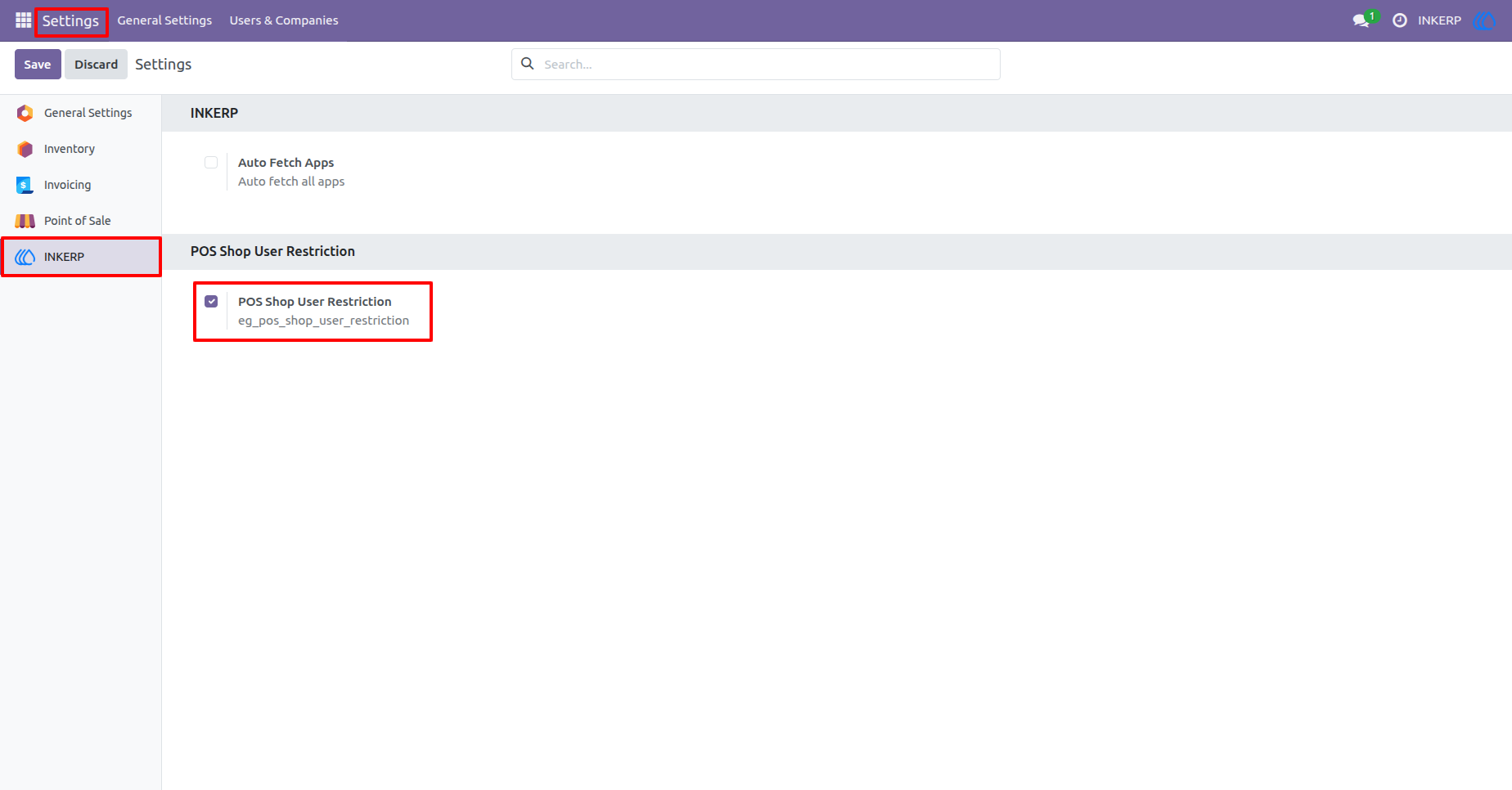
1.) Enable POS Shop User Restriction
Activate the POS Shop User Restriction option from General Settings. Once enabled, shop-based access control becomes active and user permissions are applied according to assigned POS Shops.
Navigation : Settings › INKERP › POS Shop User Restriction
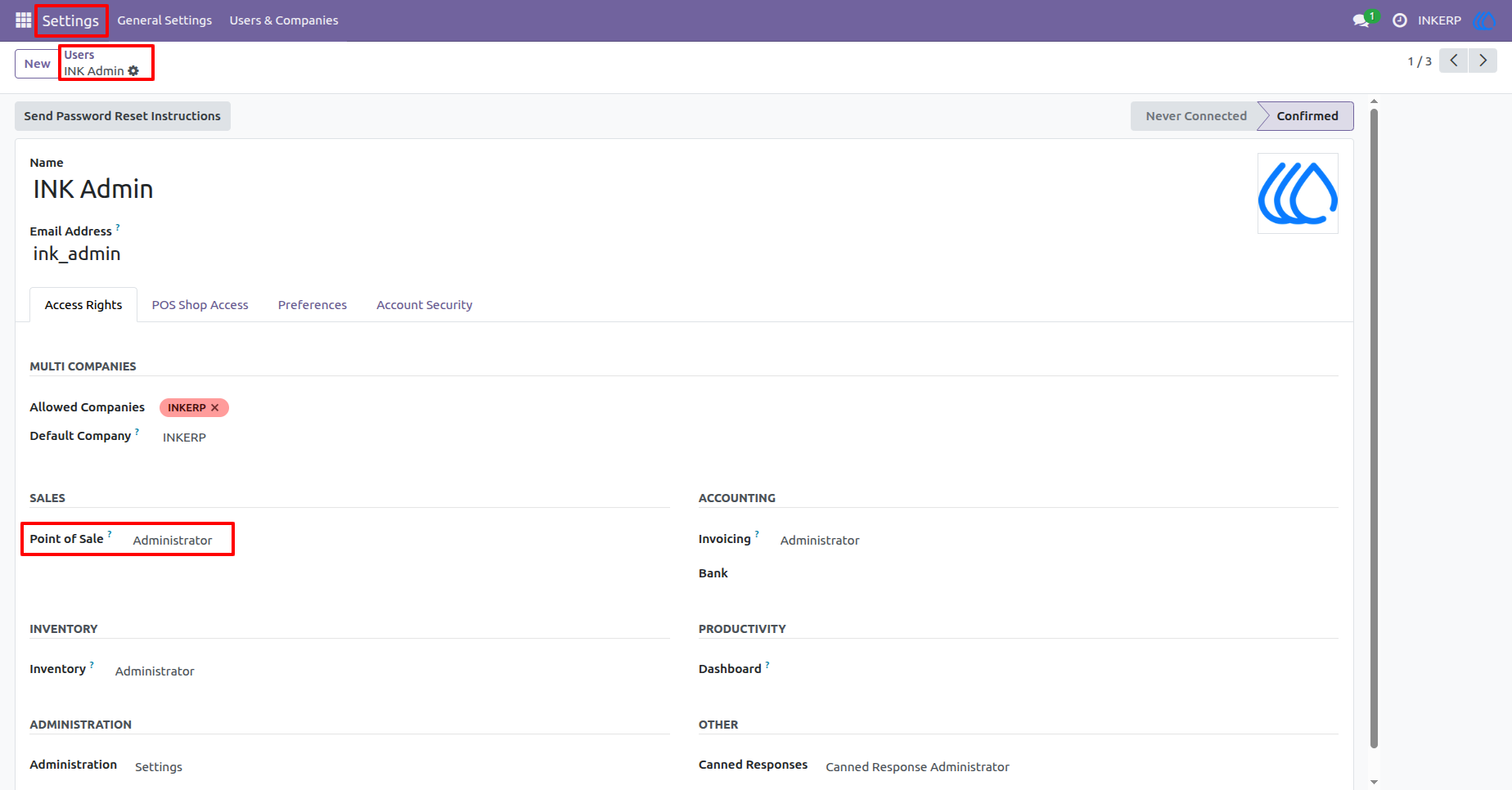
2.) POS Manager Access Rights
Point of Sale access set as Administrator provides full control over all POS Shops, orders, payments, and sessions without any restriction.
Navigation : Settings › User › Access Right
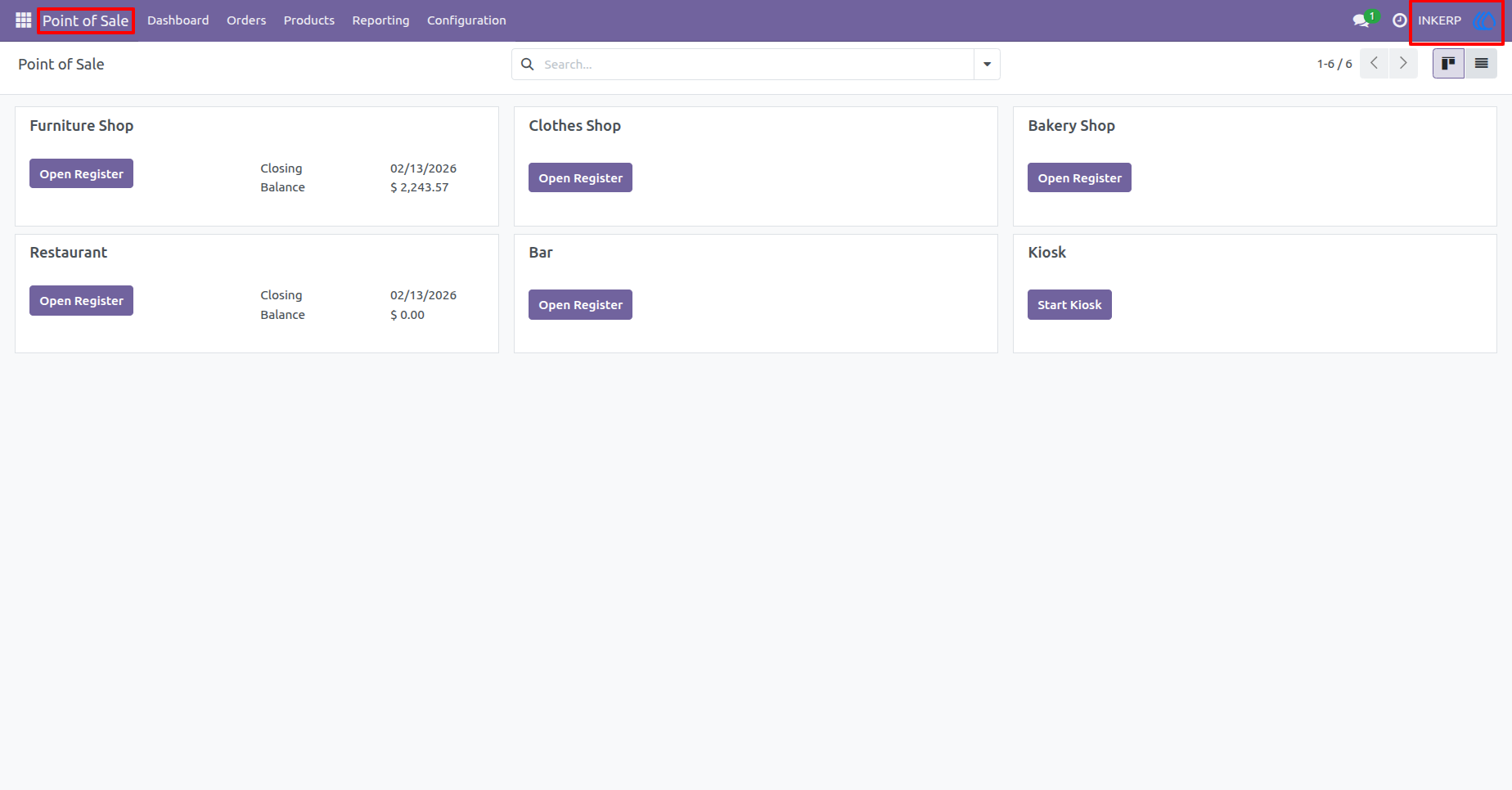
3.) POS Dashboard - Manager View
All configured POS Shops are accessible. Managers can open any register and manage operations across multiple shops without limitations.
Navigation : Point of Sale › Dashboard
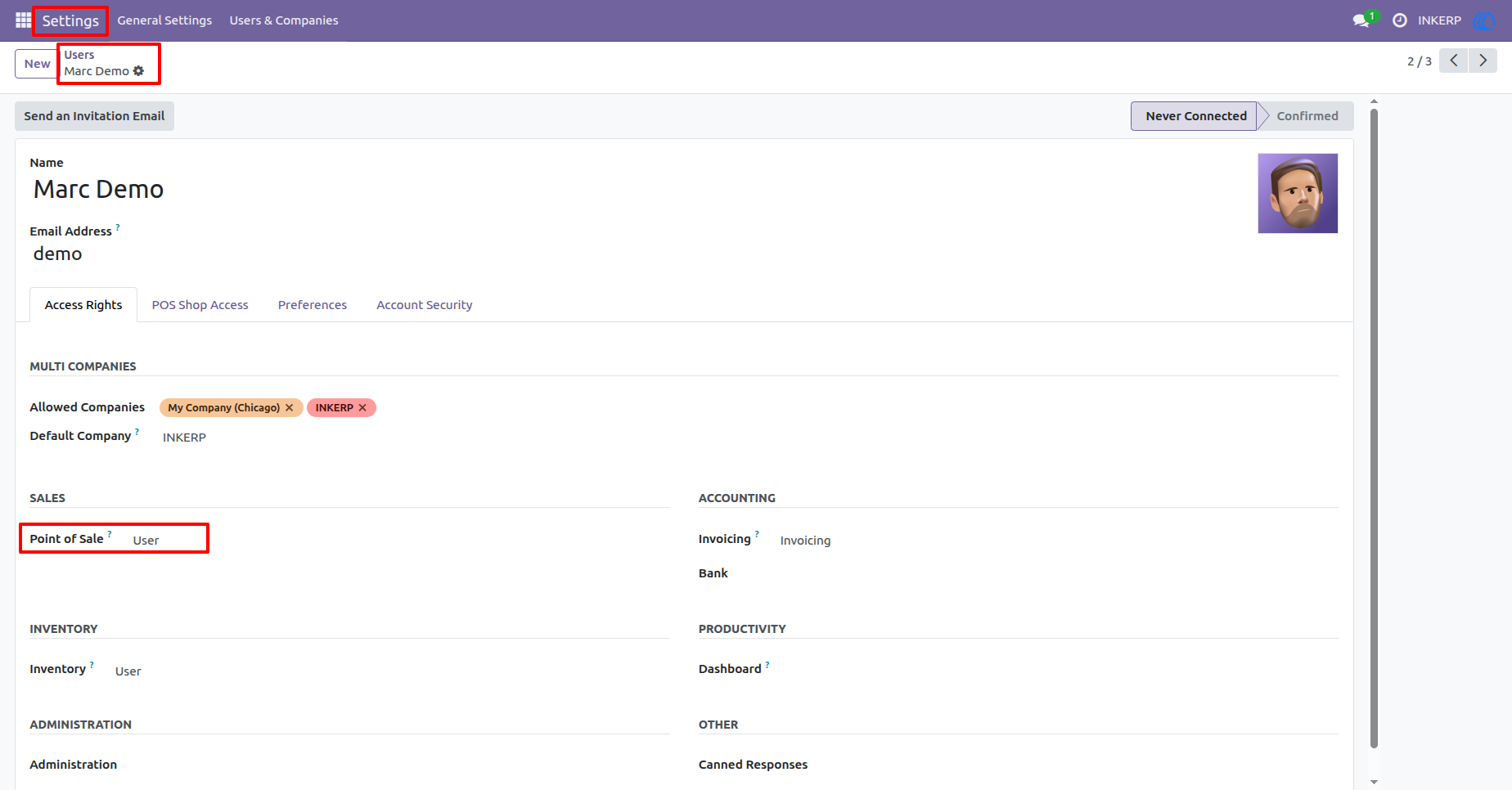
4.) POS User Access Rights
Point of Sale access set as User limits operational permissions. Shop visibility and related records depend on assigned POS Shop access.
Navigation : Settings › User › Access Right
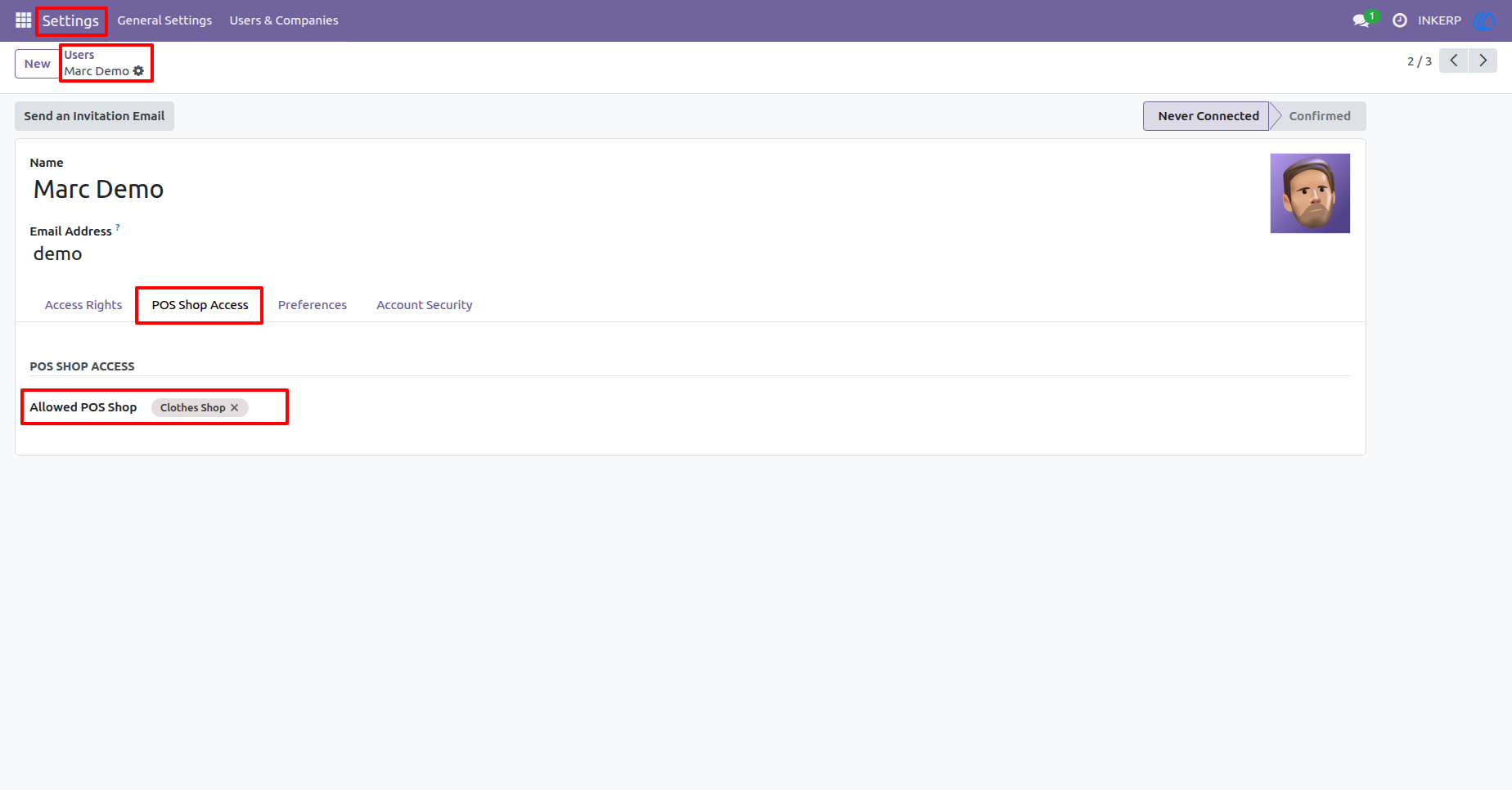
5.) Assign Allowed POS Shop to User
Under the POS Shop Access tab, specific POS Shops can be assigned to the user. Only selected shops are permitted for operational access.
Navigation : Settings › User › POS Shop Access
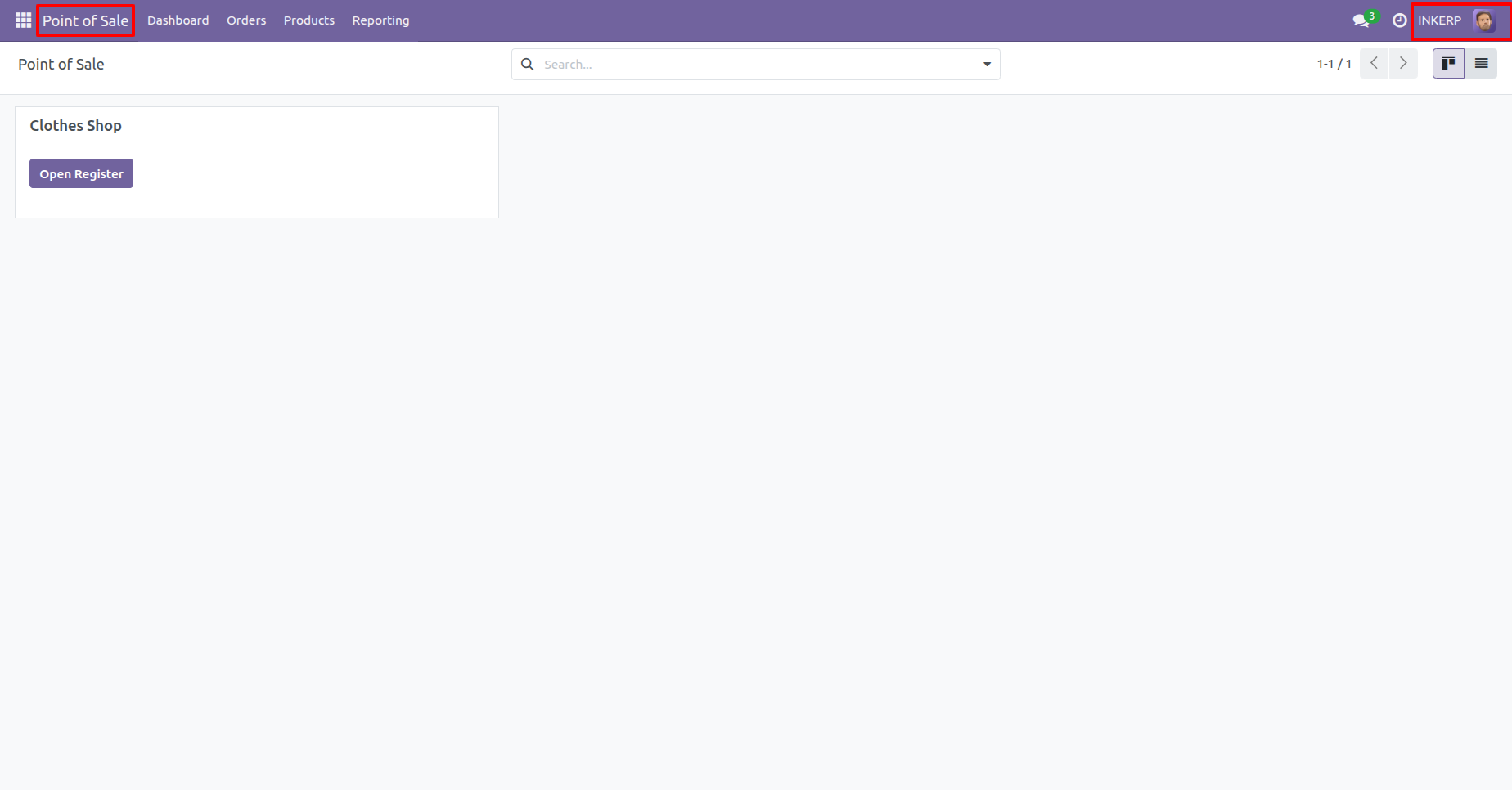
6.) POS Dashboard - Restricted User View
`Access limited to assigned POS Shop only. Other POS Shops remain unavailable, ensuring controlled shop-level operations.
Navigation : Point of Sale › Dashboard
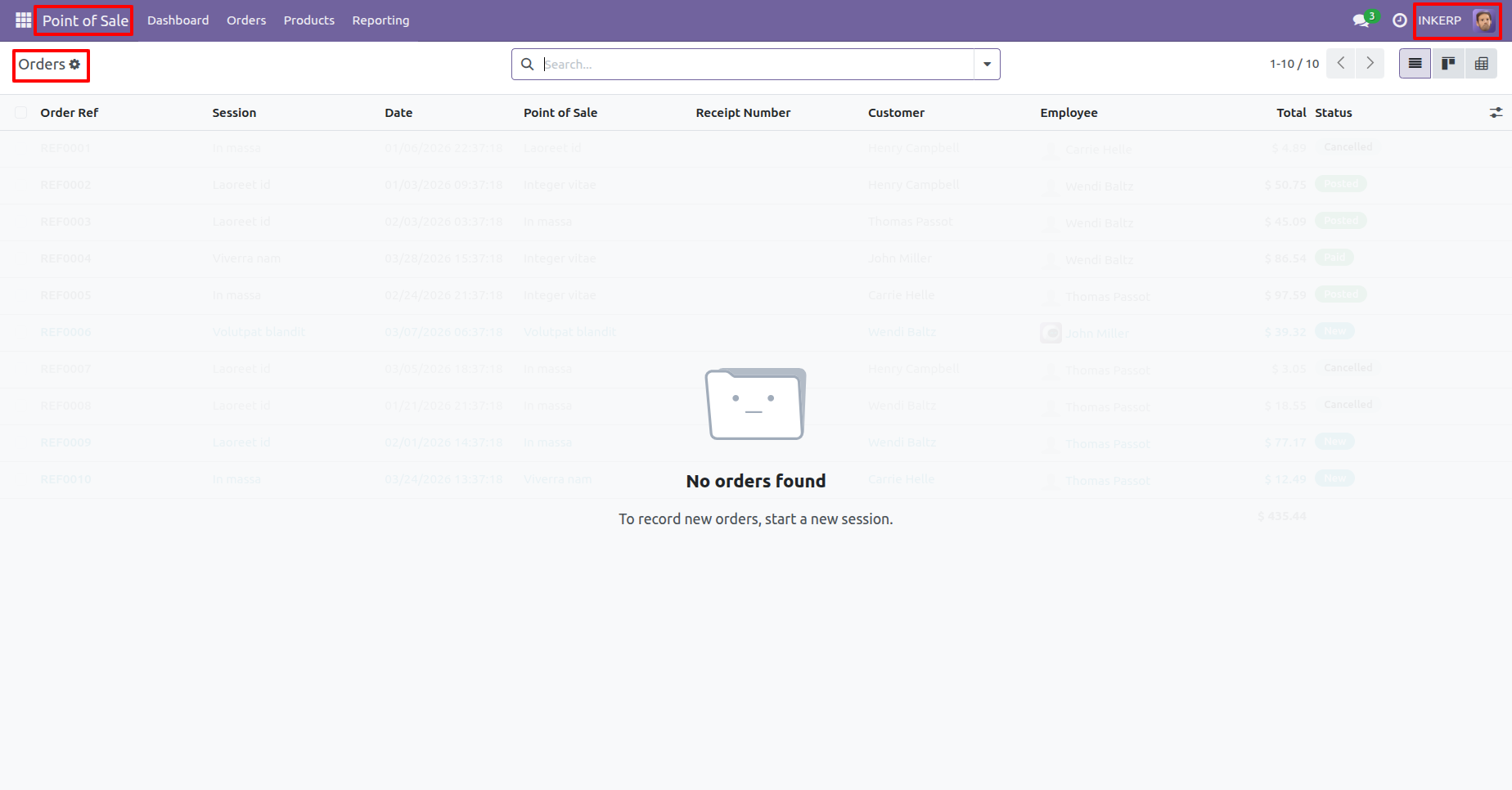
7.) Orders Restriction by POS Shop
Orders linked only to the permitted POS Shop are accessible. Records from other shops remain restricted according to user configuration.
Navigation : Point of Sale › orders › POS Ordes
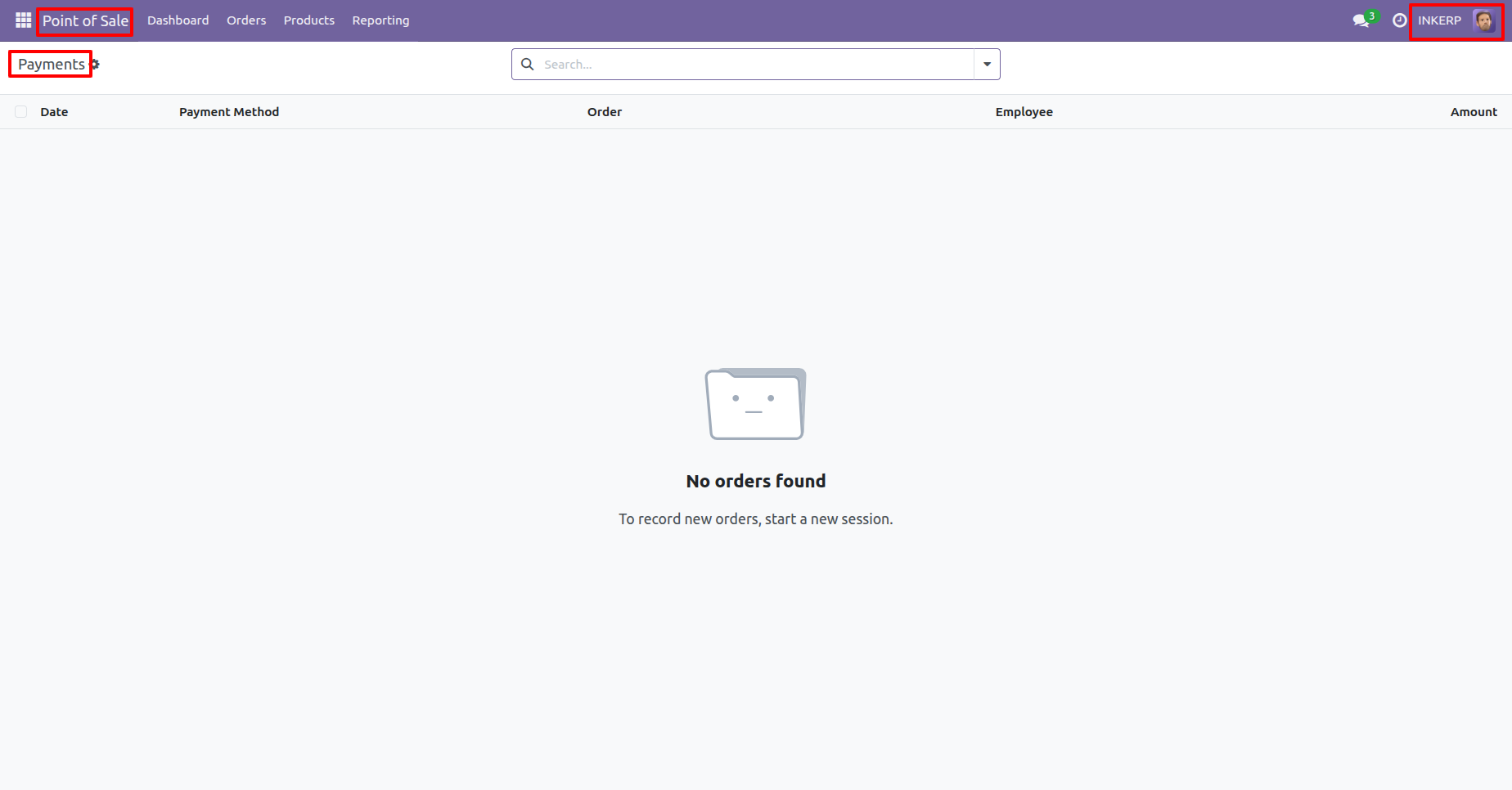
8.) Payments Restriction by POS Shop
Payment records filtered according to the assigned POS Shop. Unauthorized shop payments are restricted from user access.
Navigation : Point of Sale › orders › Payment
User Guide