

Our Most Suggested Products


Customer Mass Custom Tags
The Mass Customer Tags Update module simplifies customer and contact classification by allowing users to update tags for multiple records in a single operation. Instead of opening each customer individually, users can select multiple customers from the Contacts list and apply the required tag changes through an easy-to-use wizard.
 Features
 Screenshots
 Support
 Service
Features
1). Bulk Customer Tag Management
Select multiple customers or contacts and update their tags in a single operation. This helps users manage large contact databases quickly without opening and editing each record individually.
2). Add, Remove, Replace, or Clear Tags
Perform different tag operations based on business requirements. Users can add new tags without removing existing ones, remove selected tags, replace all current tags, or clear all assigned tags.
3). Update Child Contacts Automatically
Apply the selected tag operation to child contacts linked with the selected companies. This keeps customer and contact categorization consistent across the complete organization structure.
4). Secure and User-Friendly Tag Update Wizard
Use a simple wizard to select tags, choose the required operation, review the affected record count, and update customers safely. Dedicated access rights ensure that only authorized users can perform mass tag updates.
Screenshot
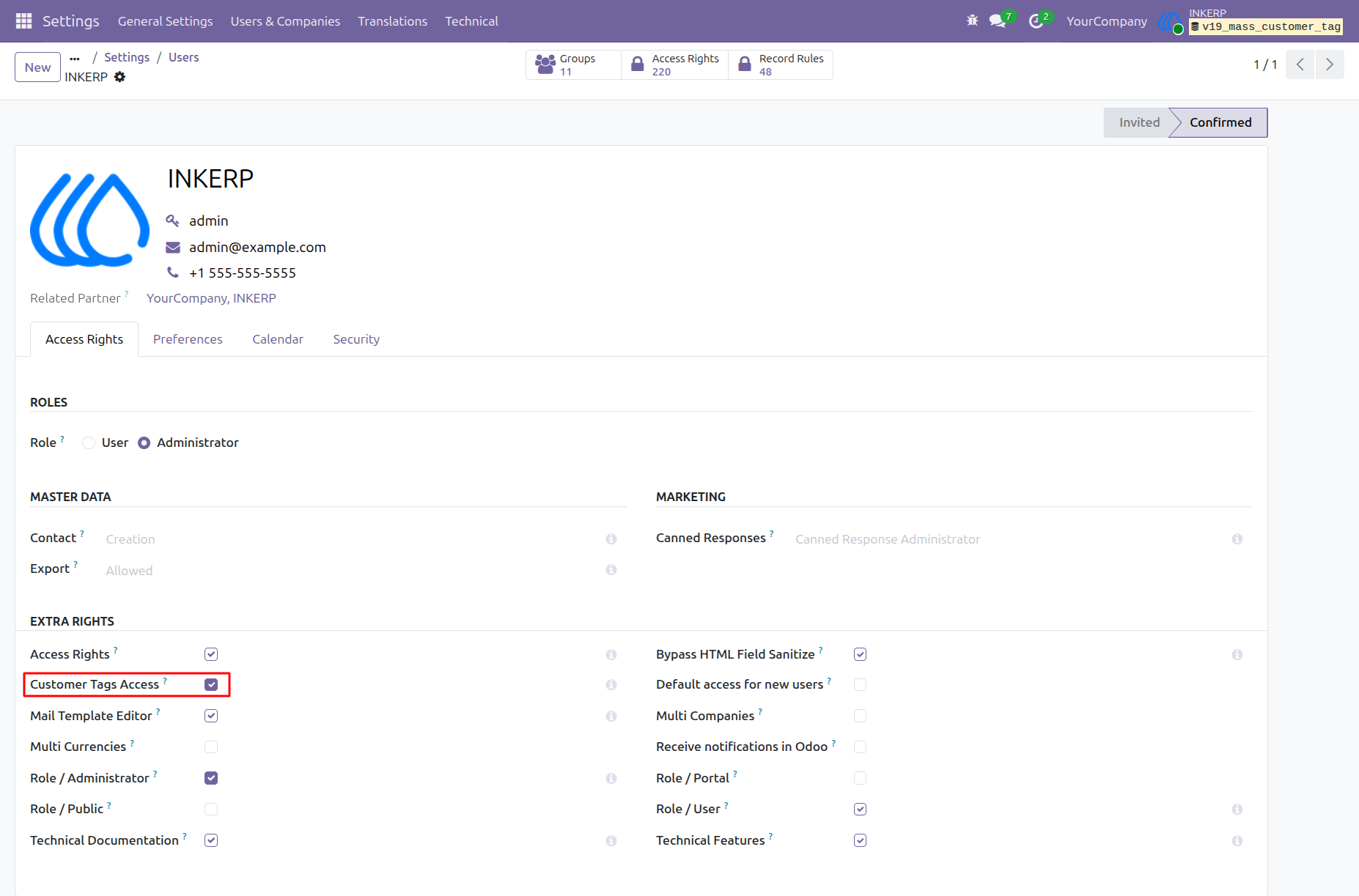
1). Assign Customer Tags Access Rights
Enable the Customer Tags Access permission from the user’s access-right settings. Only authorized users with this permission can access and use the mass customer tag update feature.
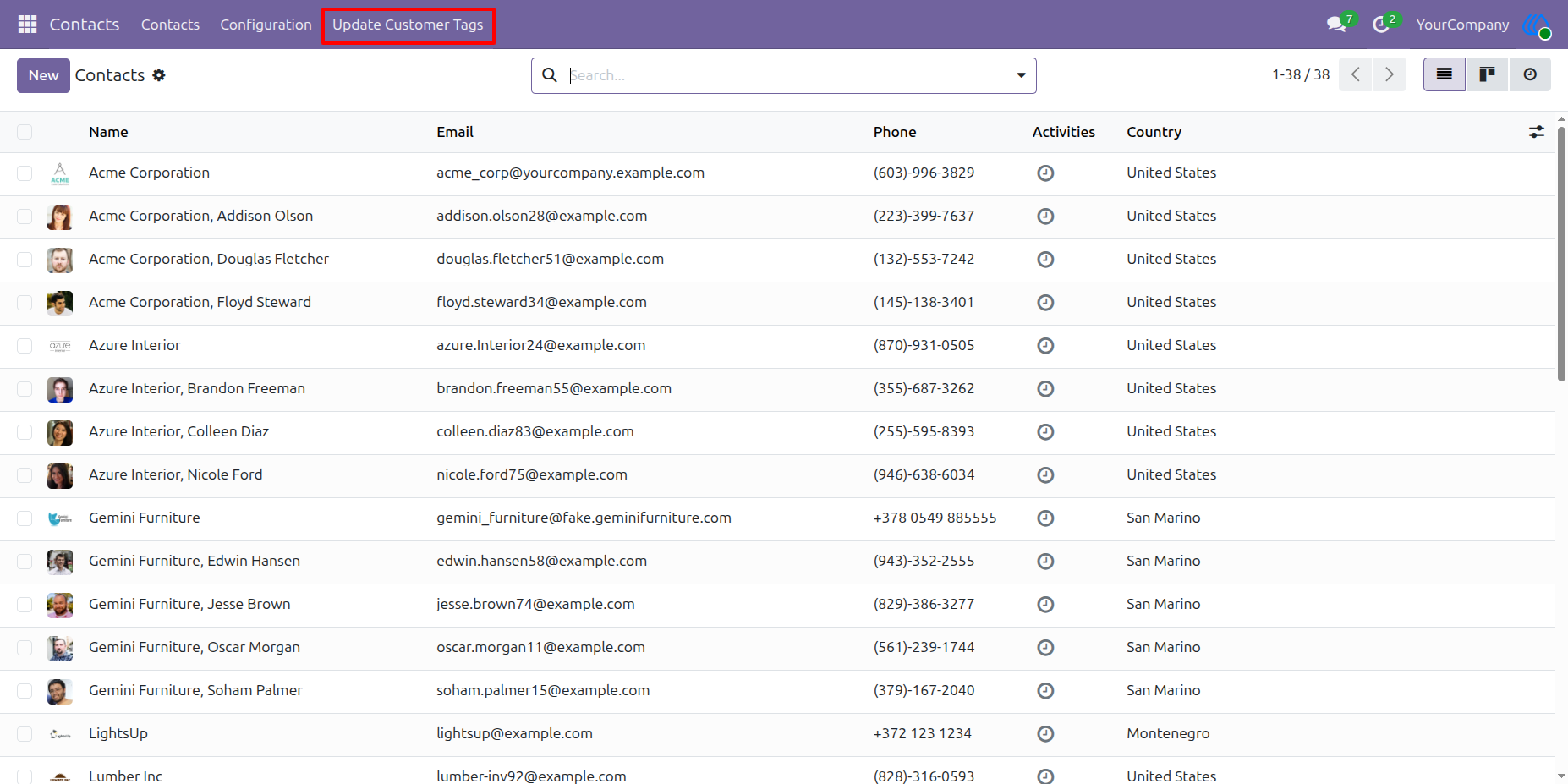
2). Open the Mass Customer Tags Update Wizard
Navigate to the Contacts module and select Update Customer Tags from the top menu. This option opens the mass update wizard for managing tags across multiple customer and contact records.
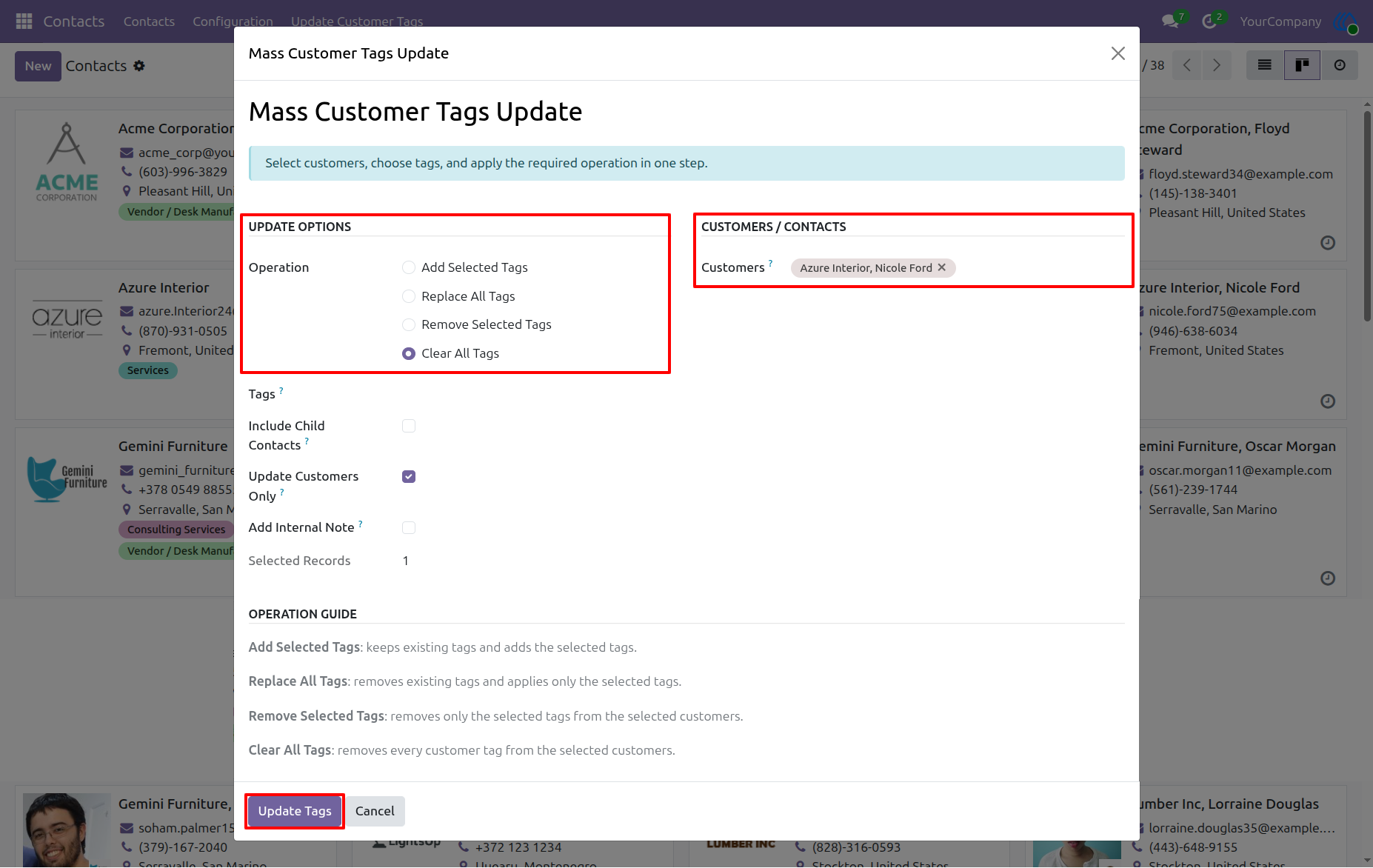
3). Clear All Tags from Selected Customers
Choose the Clear All Tags operation and select the required customers or contacts. Click Update Tags to remove every existing tag from the selected records in one step.
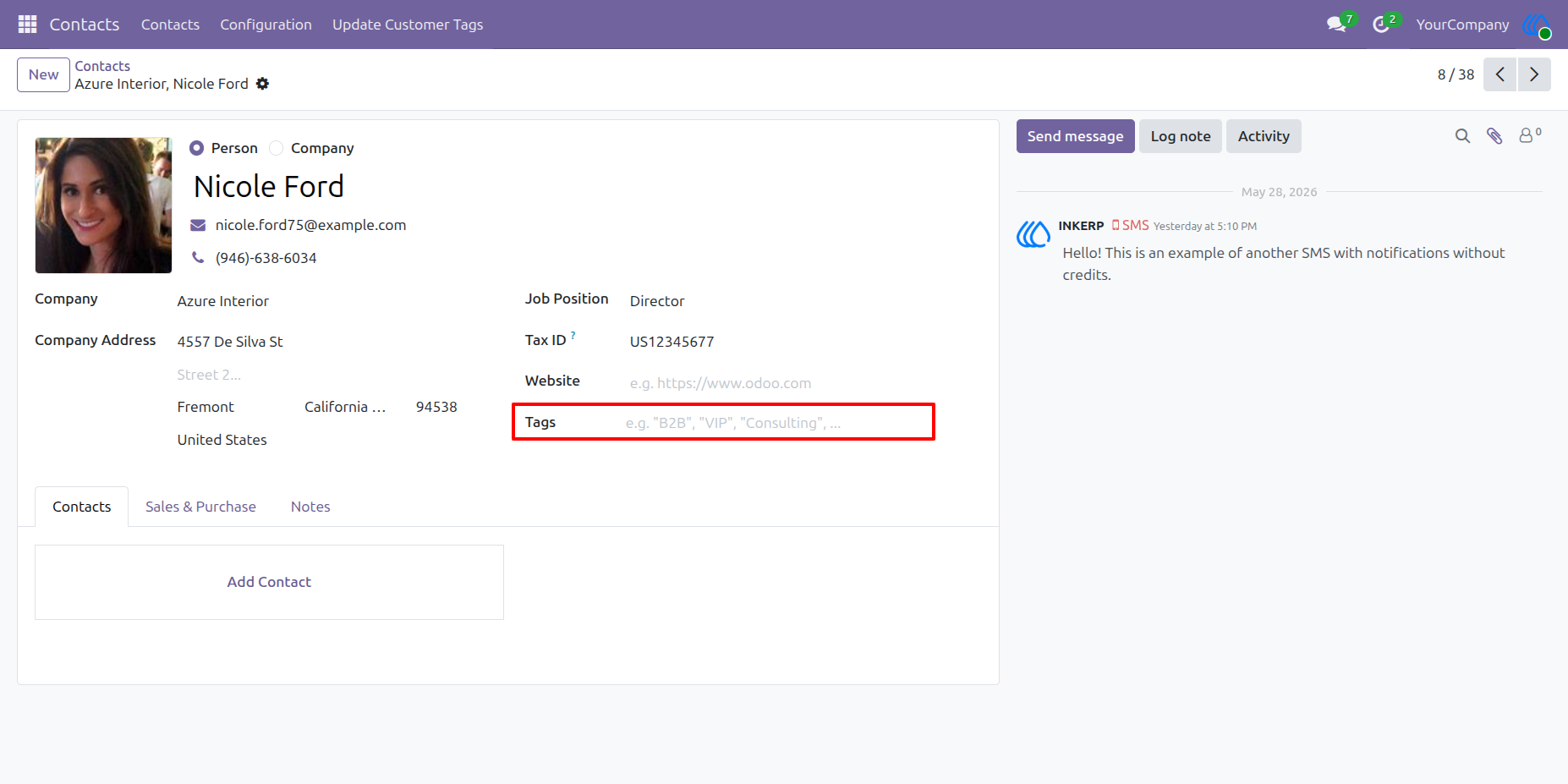
4). Verify Cleared Customer Tags
After completing the clear operation, open the customer record to confirm that all previously assigned tags have been removed successfully.
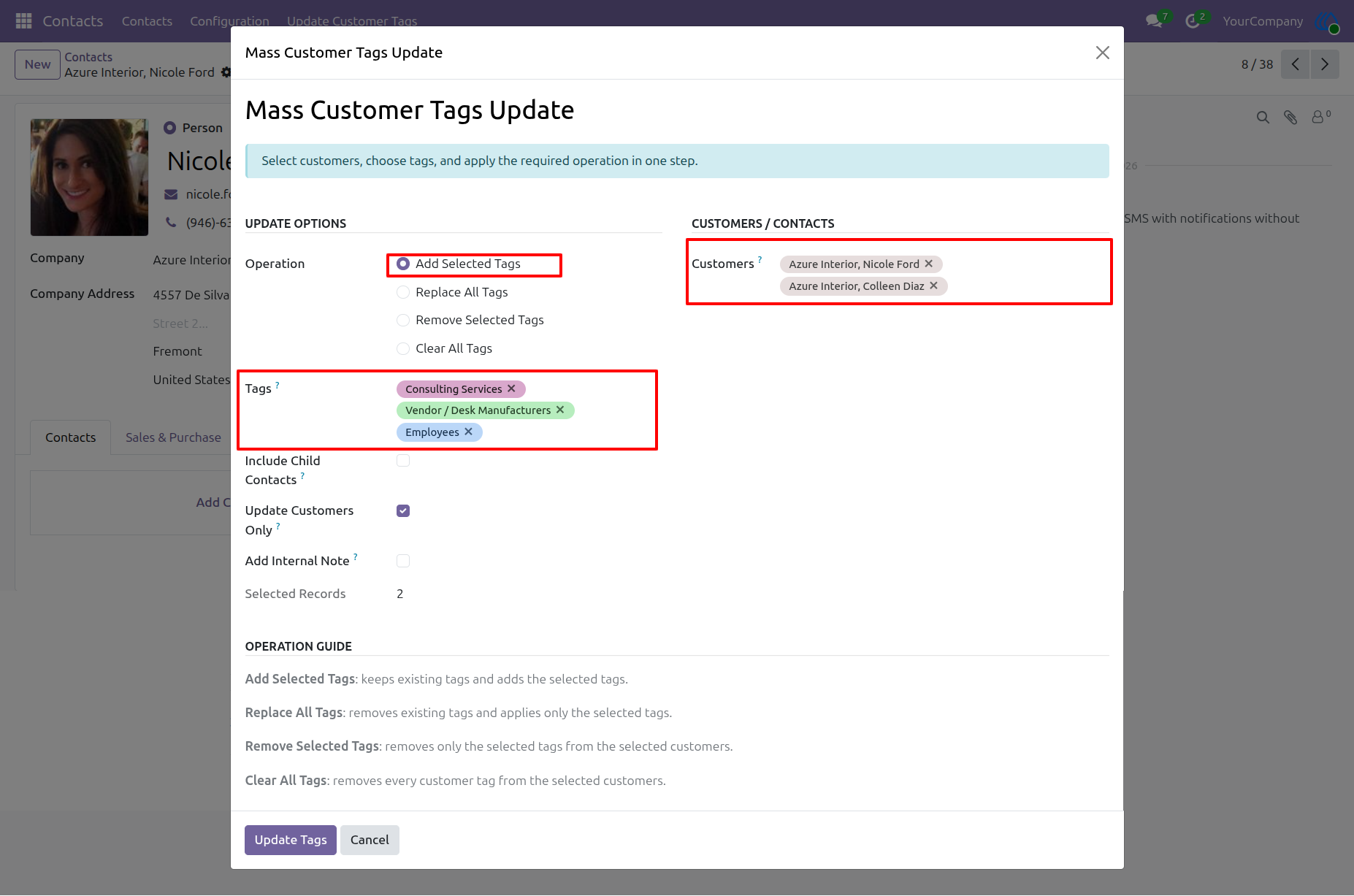
5). Add Multiple Tags to Selected Customers
Select the Add Selected Tags operation, choose one or more tags, and select the required customers or contacts. The selected tags are added to all chosen records without removing their existing tags.
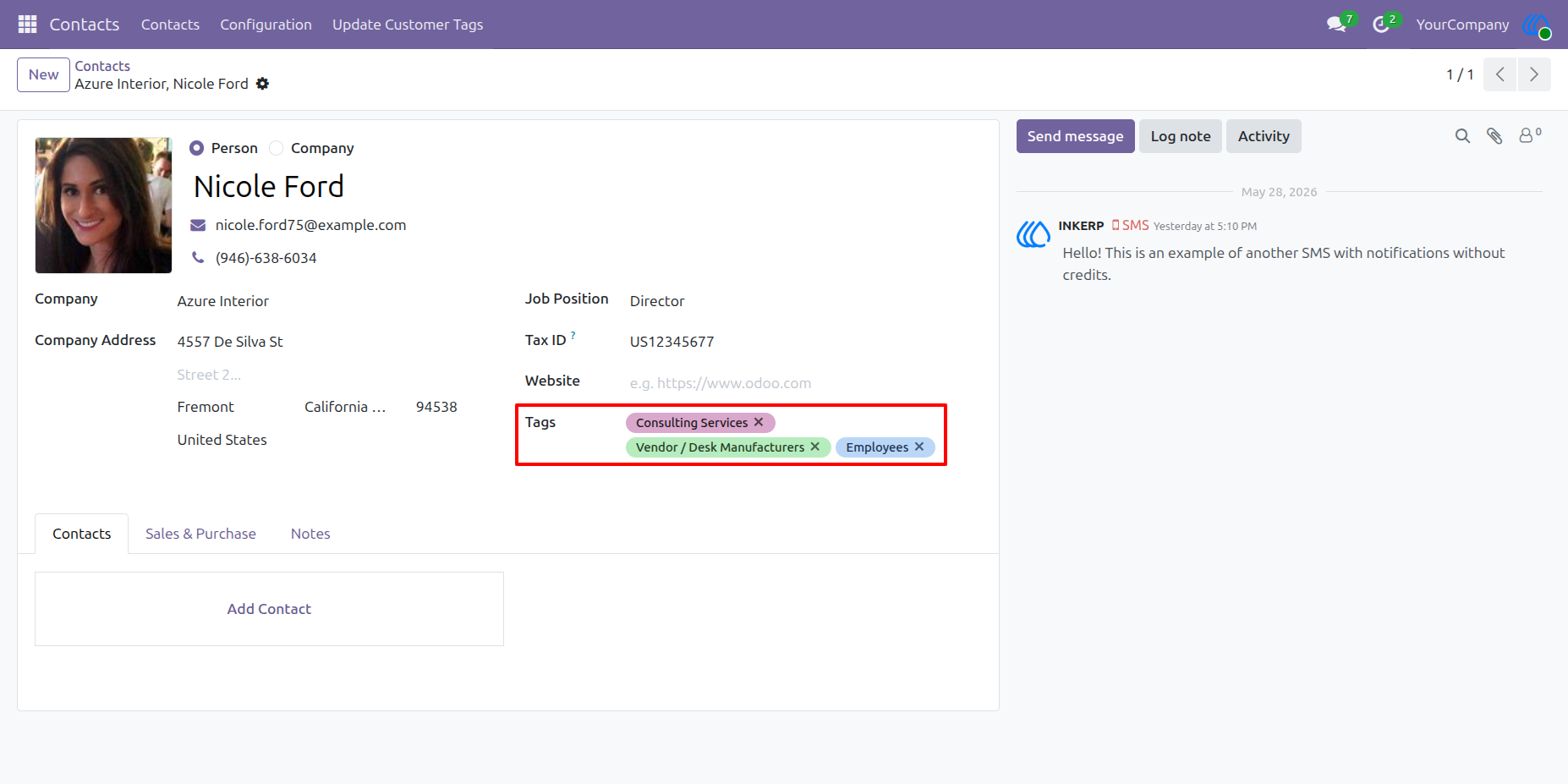
6). Verify Updated Tags on the Customer Record
Open the customer form after the update to verify that the selected tags have been assigned successfully. The updated tags are displayed directly in the customer’s Tags field.
User Guide