

Our Most Suggested Products


Advanced AI MCP Server for Secure ERP Access and Business Intelligence
AI MCP Server connects supported AI assistants with your business data through the Model Context Protocol, making it possible to search information, read records, create or update data, and work with business processes using natural-language requests. It provides secure AI access with OAuth authentication, PKCE, configurable permissions, model and field-level controls, approval workflows, audit tracking, and usage limits. Users can also search business documents, work with live ERP information, and turn business data into interactive dashboards and visual reports without building complex queries manually.
 Features
 Screenshots
 Support
 Service
Features
Universal AI MCP Connectivity (Claude, ChatGPT, Cursor, Gemini CLI & More)
Connect your business data seamlessly with leading AI assistants and development tools through the standard Model Context Protocol (MCP) over secure Streamable HTTP. Your team can use familiar AI clients to interact with authorized business information and perform supported operations without switching between different tools or managing separate proprietary integrations.
Dynamic OAuth 2.0 & Managed API Key Security
Establish secure AI connections using OAuth 2.0, Dynamic Client Registration (DCR), PKCE, and managed Bearer token authentication. Centralized connection management helps ensure that only authenticated and authorized AI clients can connect to the MCP server and access the capabilities assigned to them.
Conversational Data Management (CRUD)
Interact with business records using natural-language requests to read, create, update, and delete data according to configured permissions. This makes everyday tasks such as finding customer information, checking sales records, or updating business data easier without requiring users to manually navigate through multiple menus and screens.
AI-Powered Interactive Dashboards
Ask the connected AI assistant to analyze business metrics and generate interactive dashboards with KPIs, charts, and data tables. This provides managers and business users with a convenient way to explore live business information, monitor performance, and understand important trends through visual reports.
Granular Model & Field Security
Maintain detailed control over AI access by defining permissions for individual models, operations, fields, domains, and records for each connection. This security layer limits AI clients to the information and actions they are authorized to use while working within the configured business access rules.
Human-in-the-Loop Execution Approvals
Protect important business data by sending selected AI write or execution requests through an approval workflow before they are completed. Authorized users can review the requested operation and its data before approving the change, providing an additional safeguard against unintended or high-impact actions.
Screenshot
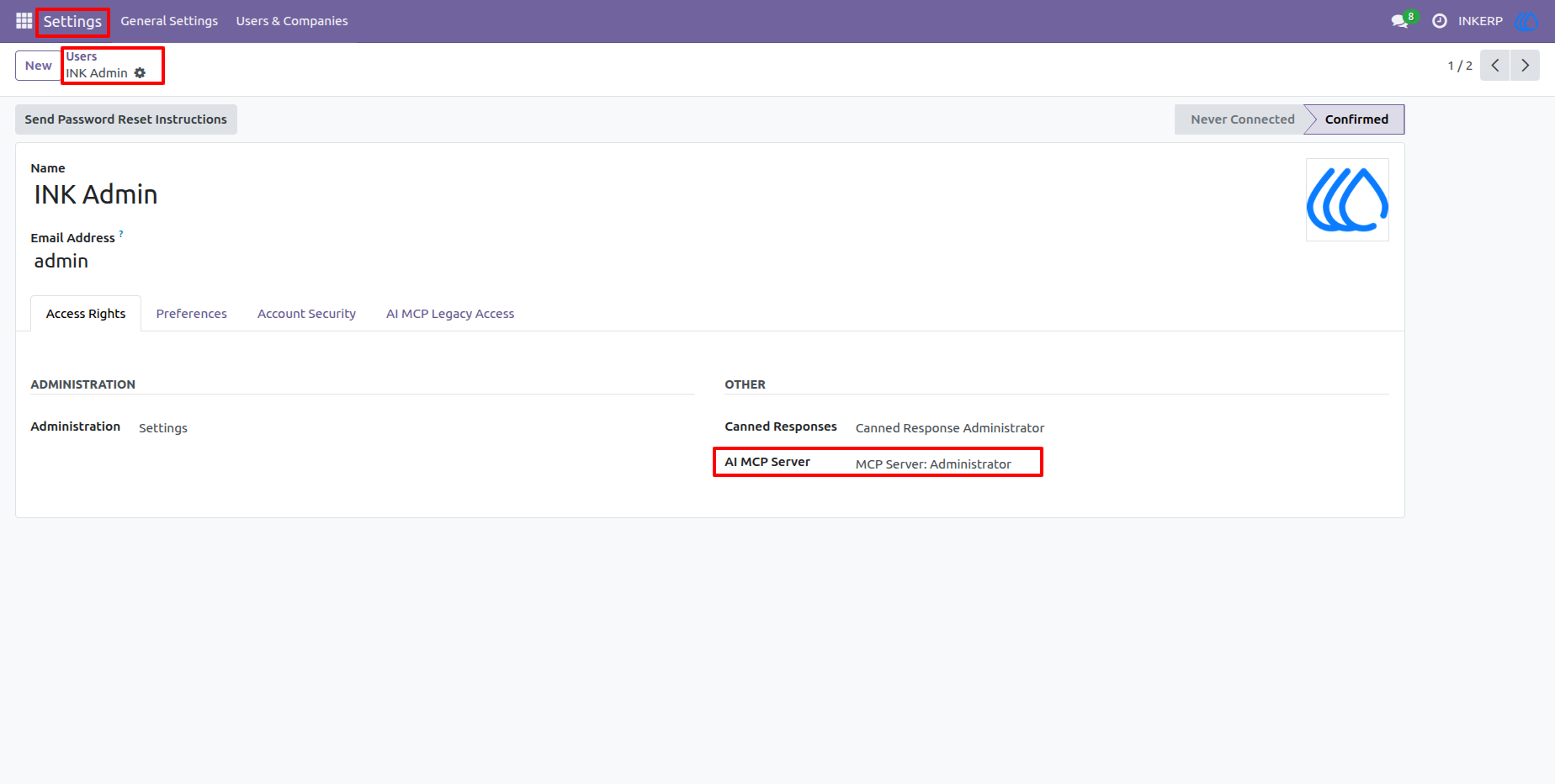
1.) Administrator Access Rights Assignment
Grant specific users the necessary administrative privileges to manage AI connections and server settings. This ensures only authorized personnel can configure the studio environment and oversee database security rules.
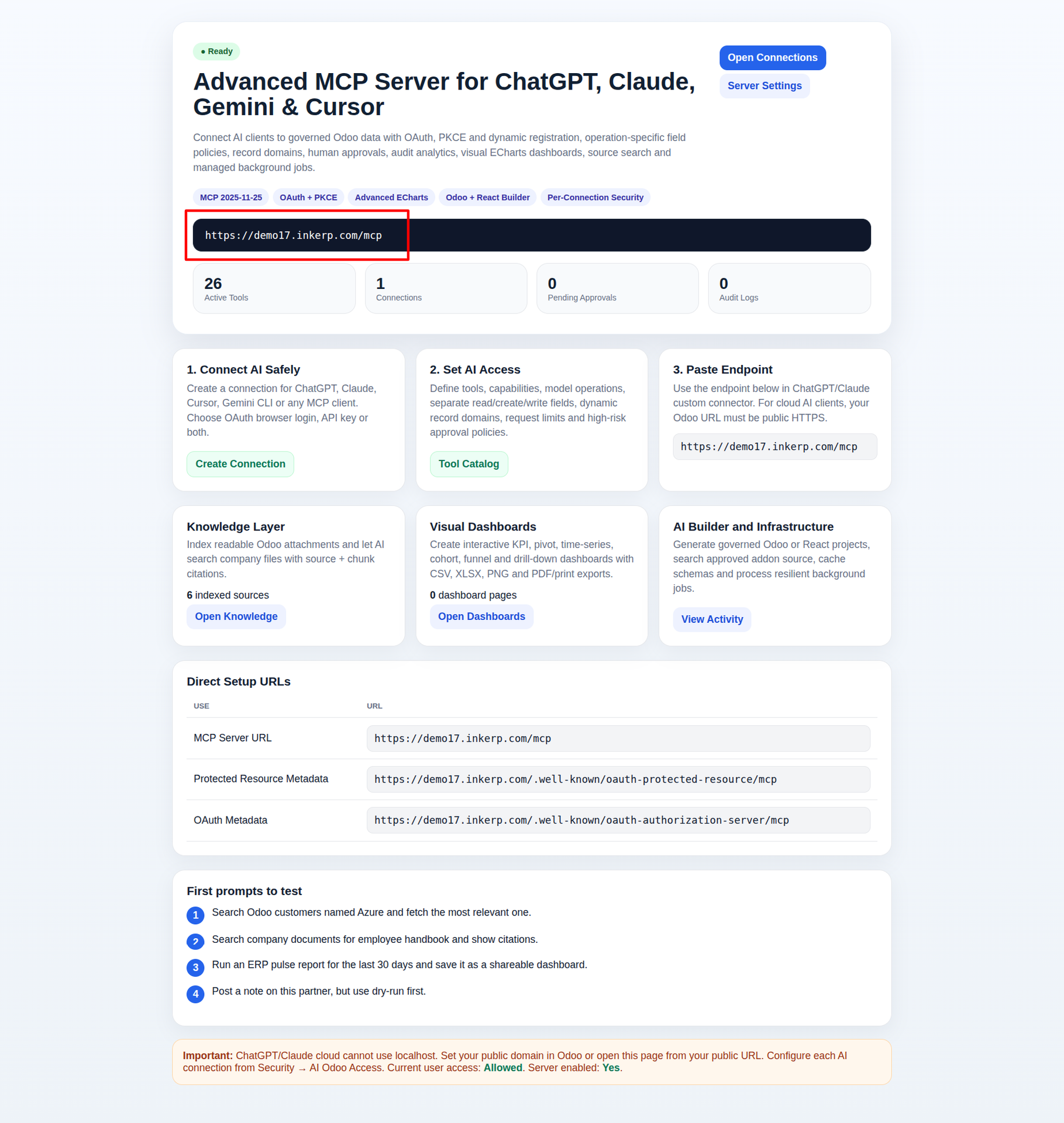
2.) Secure MCP Endpoint Retrieval
Copy the secure, automatically generated HTTPS endpoint link required to establish the bridge. This page also provides a helpful overview of your active tools, connections, and available prompts to get started.
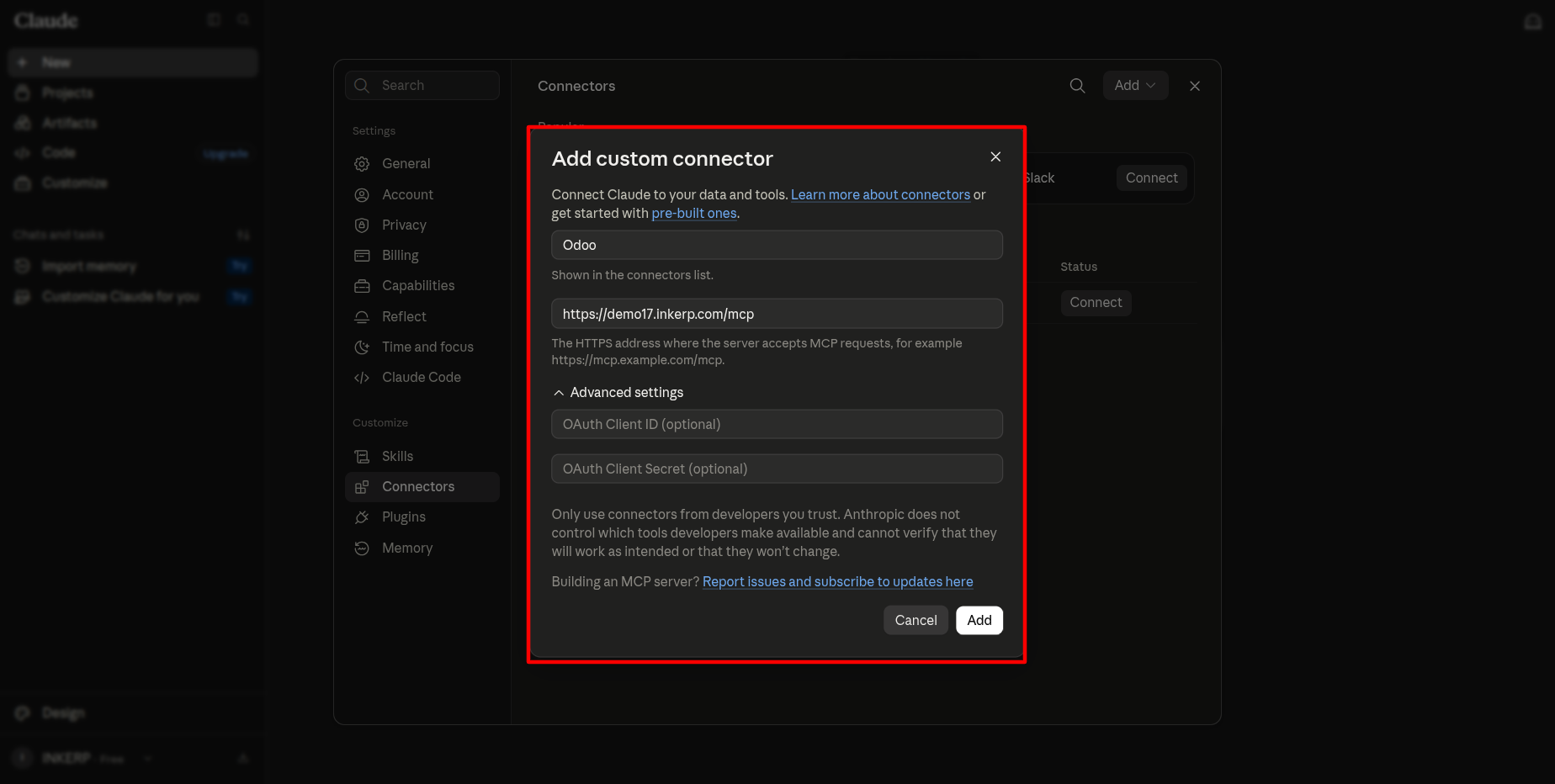
3.) Adding a Custom AI Connector
Input your copied endpoint URL into your AI client's connector settings to initiate the handshake. This simple integration step links your conversational assistant directly to your secure business environment.
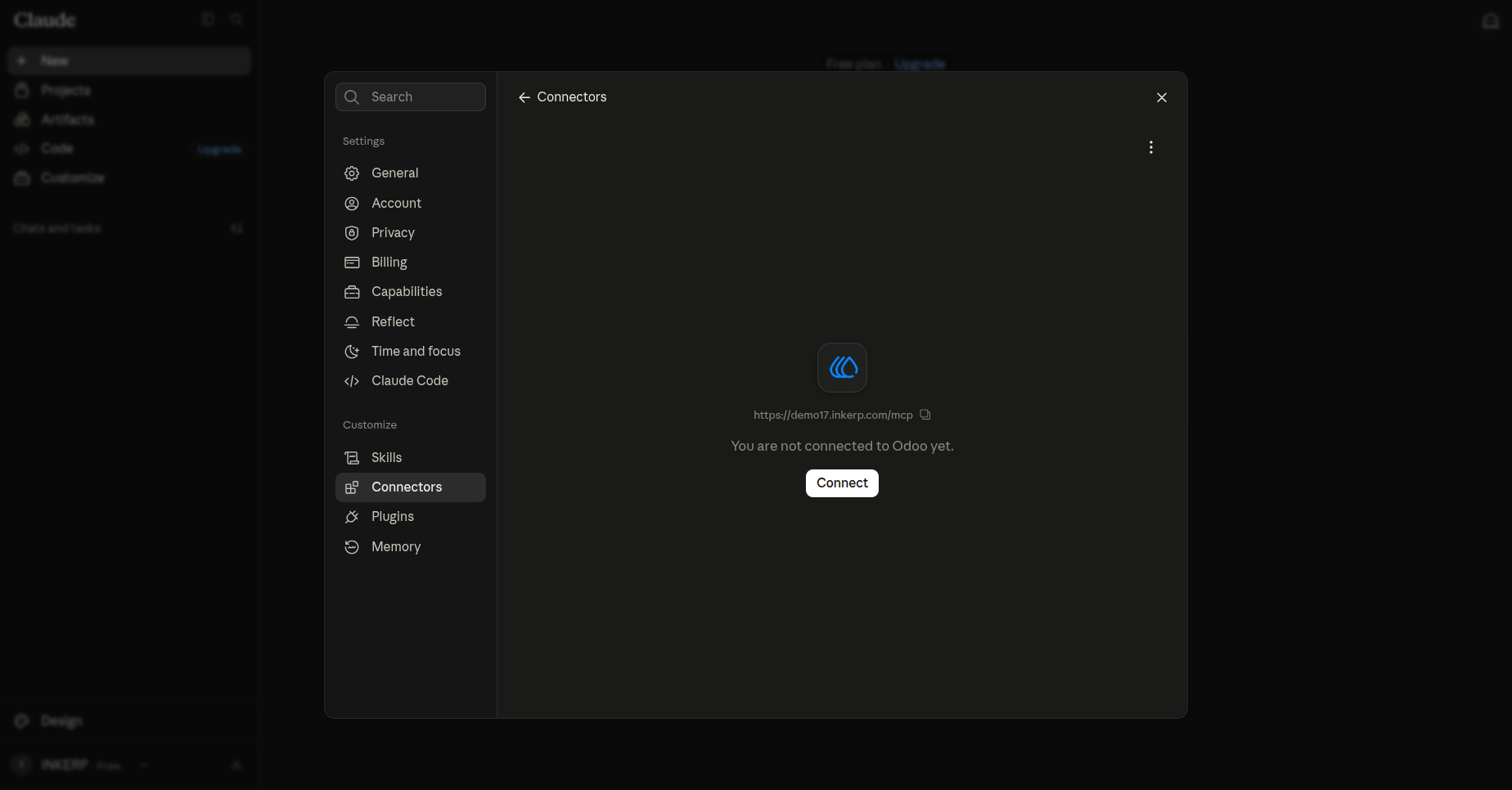
4.) Initializing the AI Connection
Finalize the setup within your AI interface by clicking the connect button to establish a verified session. This triggers the secure OAuth authorization process to safely bind the two platforms.
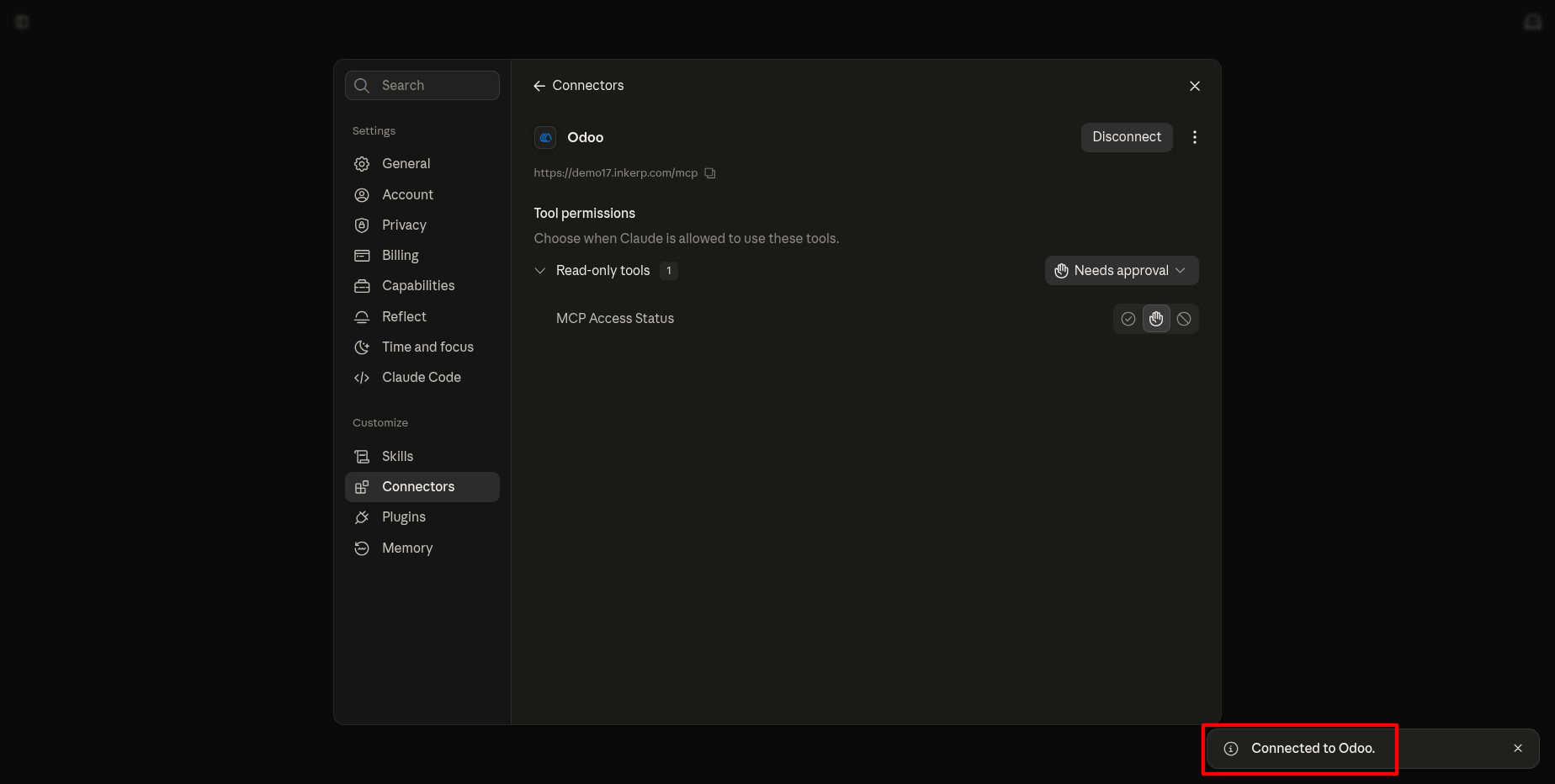
5.) Successful AI Integration
Verify that your AI client is successfully authenticated and ready to interact with your data. The interface immediately displays the foundational tools it has been granted permission to use.
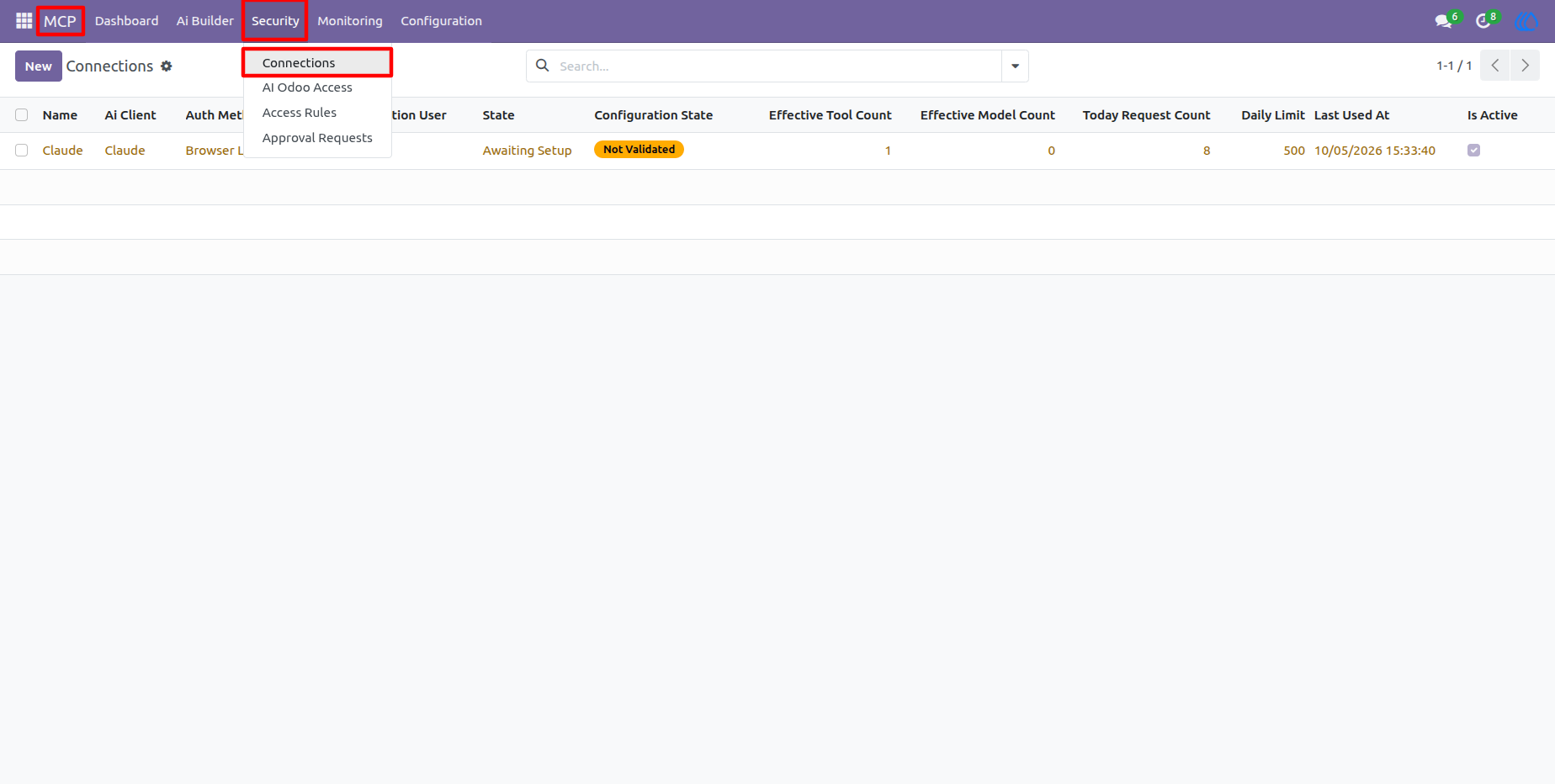
6.) Accessing Active Connections
Monitor all linked AI assistants from a dedicated security overview list in your backend. This allows administrators to quickly check the configuration state, daily limits, and recent activity of every connected client.
7.) Managing Connection Details
Review the top-level configuration of an individual AI connection, including its authentication method and usage metrics. From here, you can easily validate access, revoke tokens, or adjust connection-level permissions.
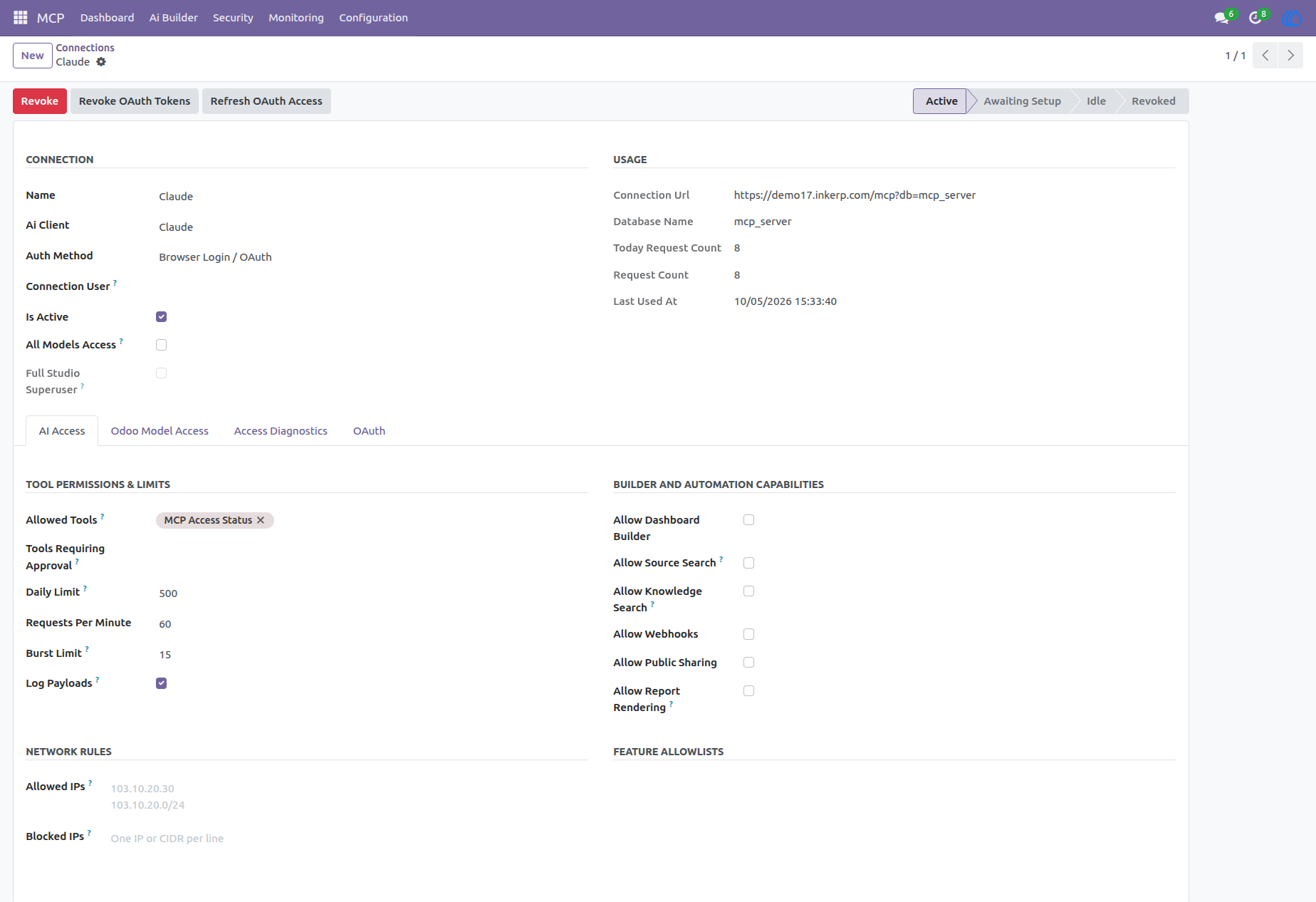
8.) Configuring Allowed Tools
Select exactly which actions the AI is permitted to perform by adding specific tools to its profile. This allows you to restrict certain assistants to simple data retrieval while empowering others to generate reports or execute workflows.
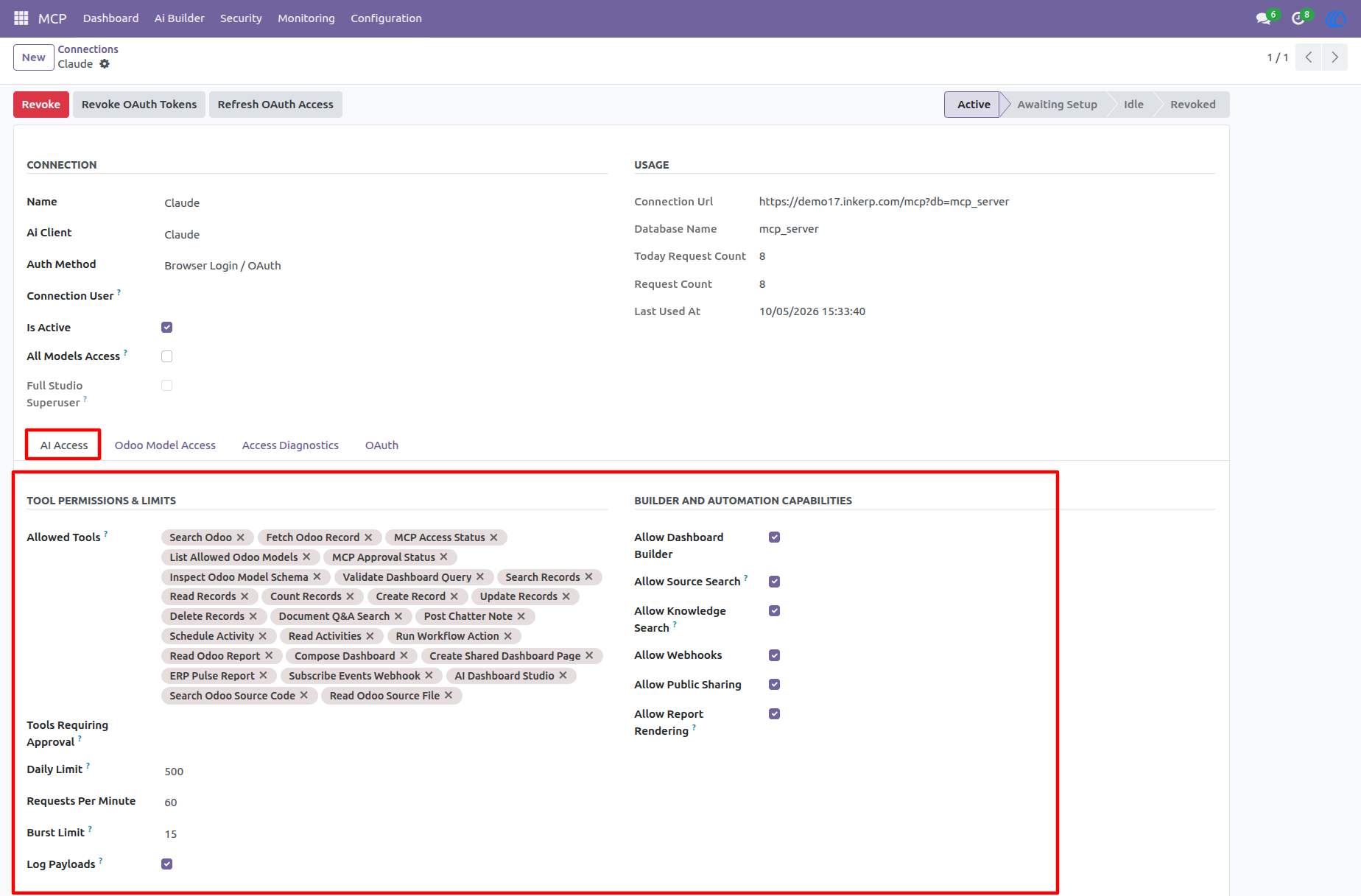
9.) Defining Model Access and CRUD Limits
Assign granular read, create, write, and delete permissions for individual database models like sales orders or contacts. You can also enforce maximum record limits per query to ensure optimal database performance and security.
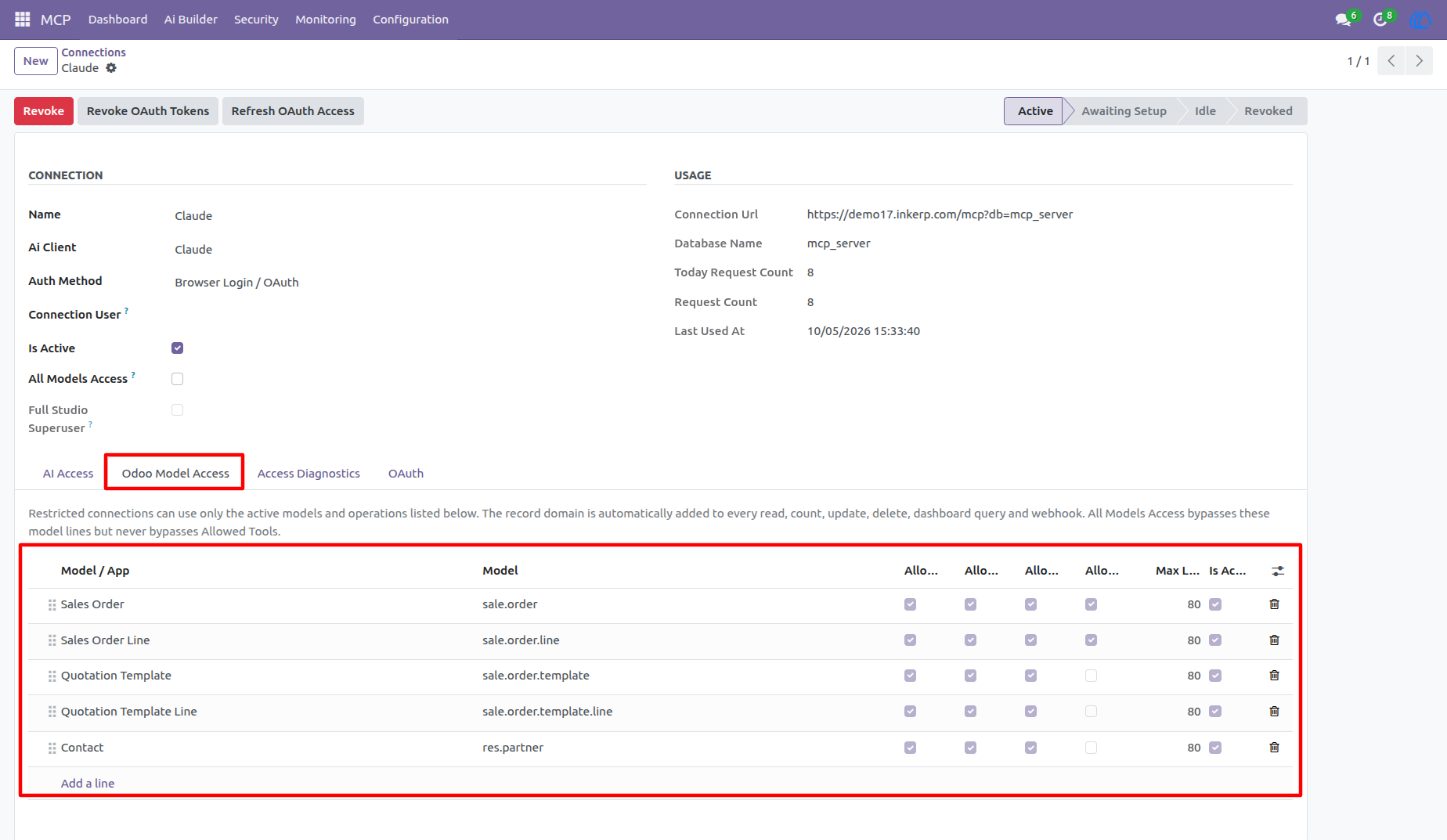
10.) Reviewing OAuth Registration
Audit the dynamic OAuth client registration details, including the active security scopes and token counts. This ensures full transparency over how the AI is authenticated and maintains the integrity of the connection.
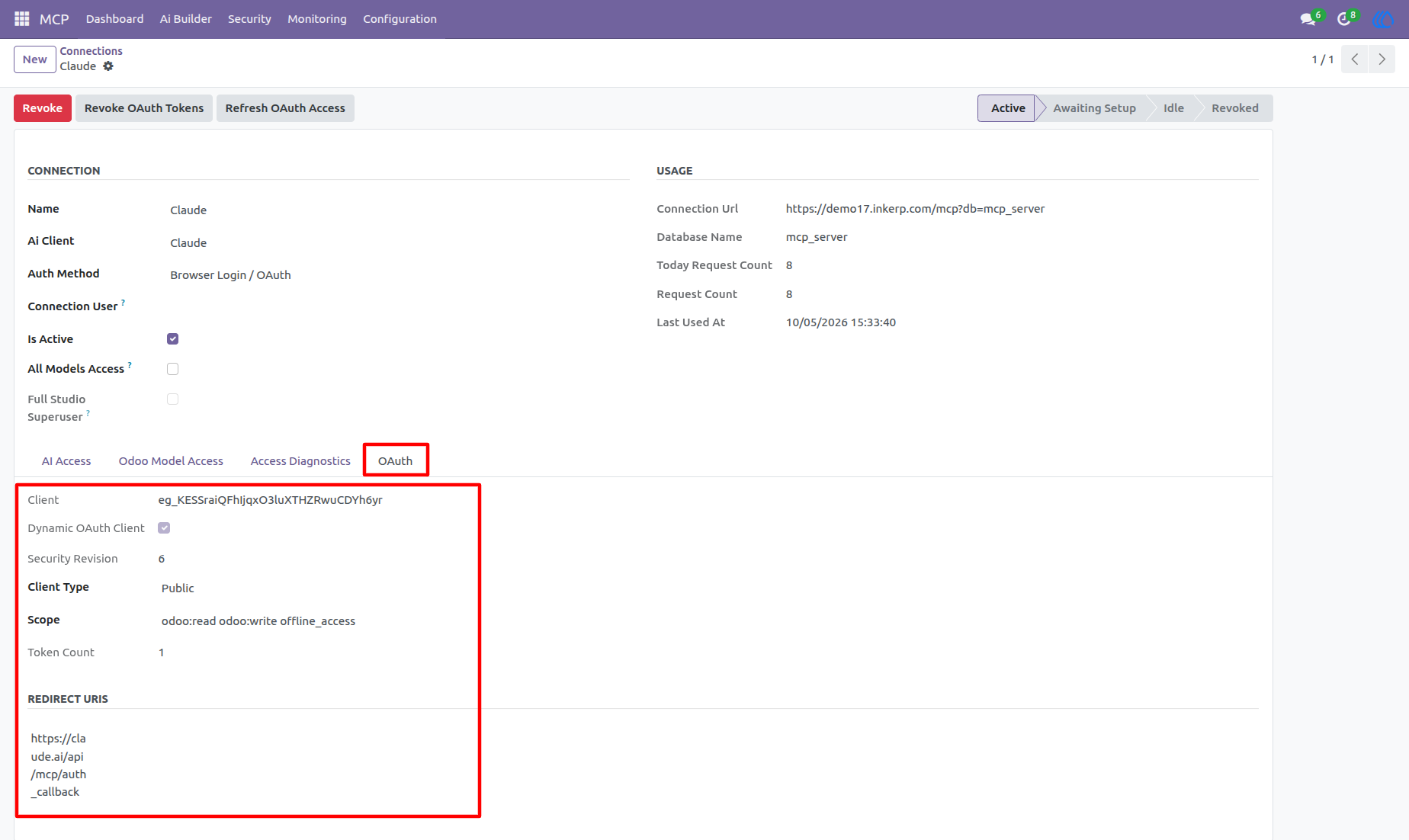
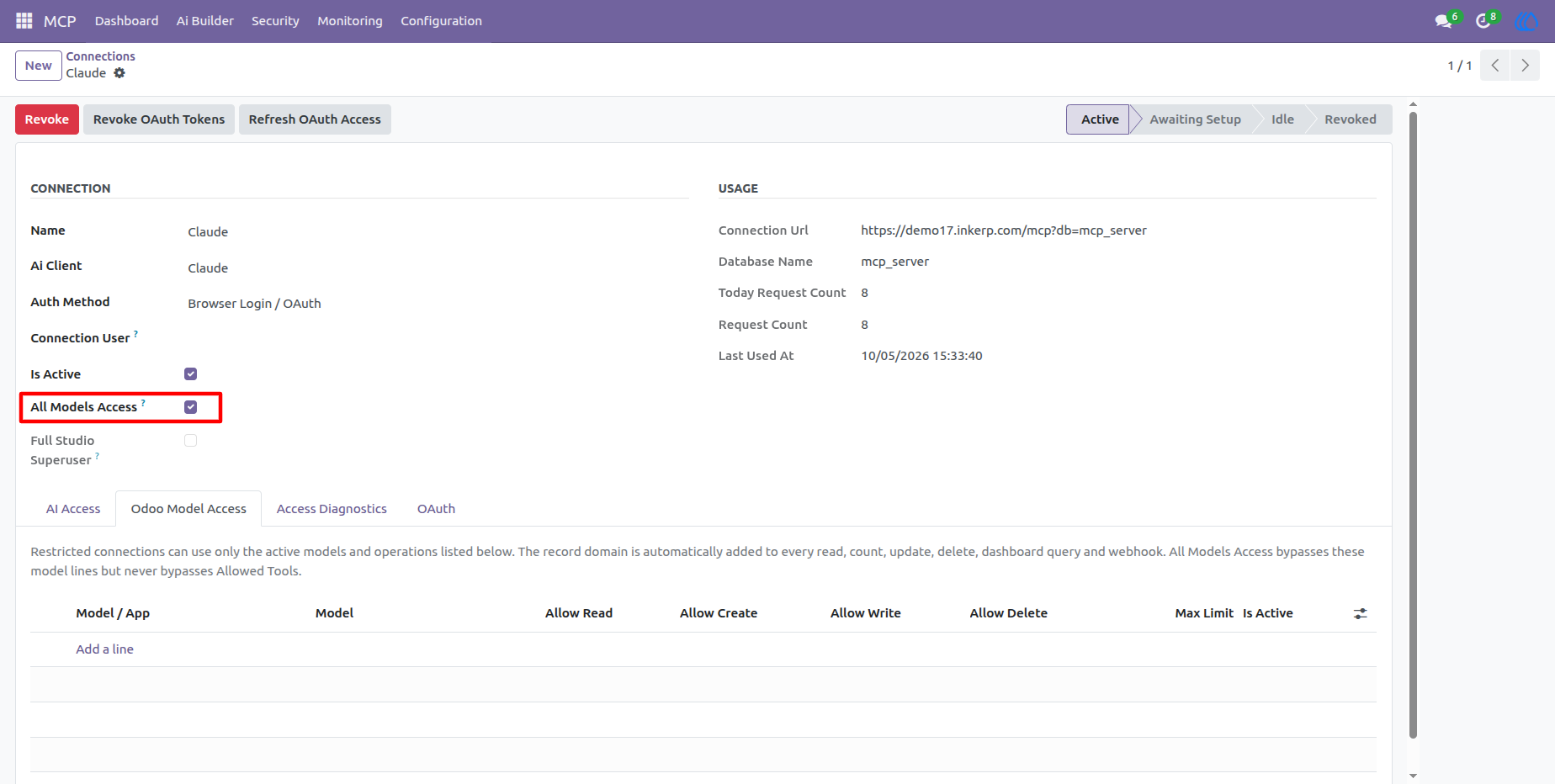
11.) Enabling Global Model Access
Bypass individual model restrictions for highly trusted AI connections by enabling comprehensive access. This streamlines setup for advanced assistants while still strictly enforcing native user access rights and record rules.
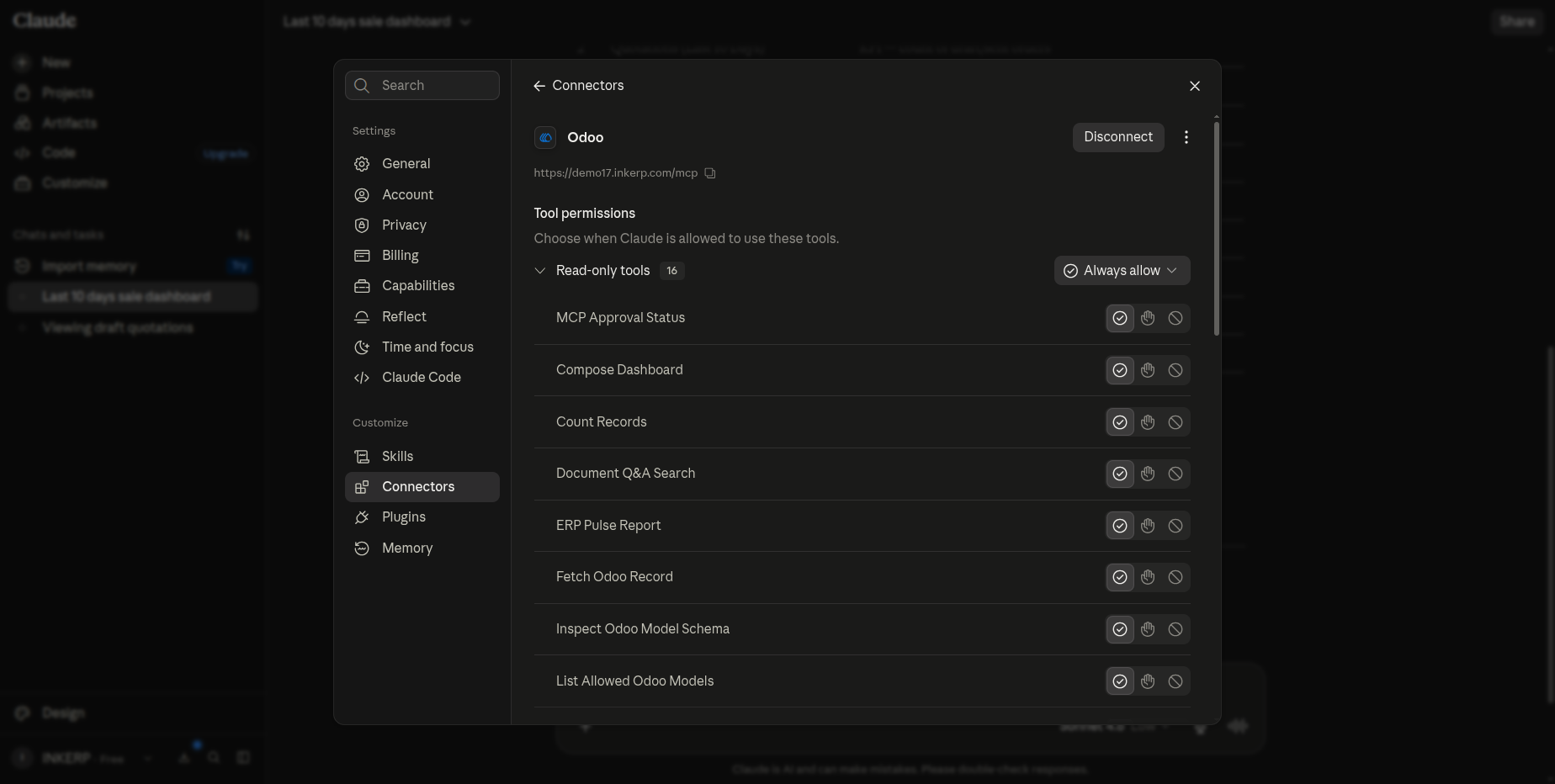
12.) Exploring Available AI Capabilities
View the complete, categorized list of available read, write, and delete tools directly within the AI client's interface. This helps users understand exactly what commands and data operations the assistant can currently execute.
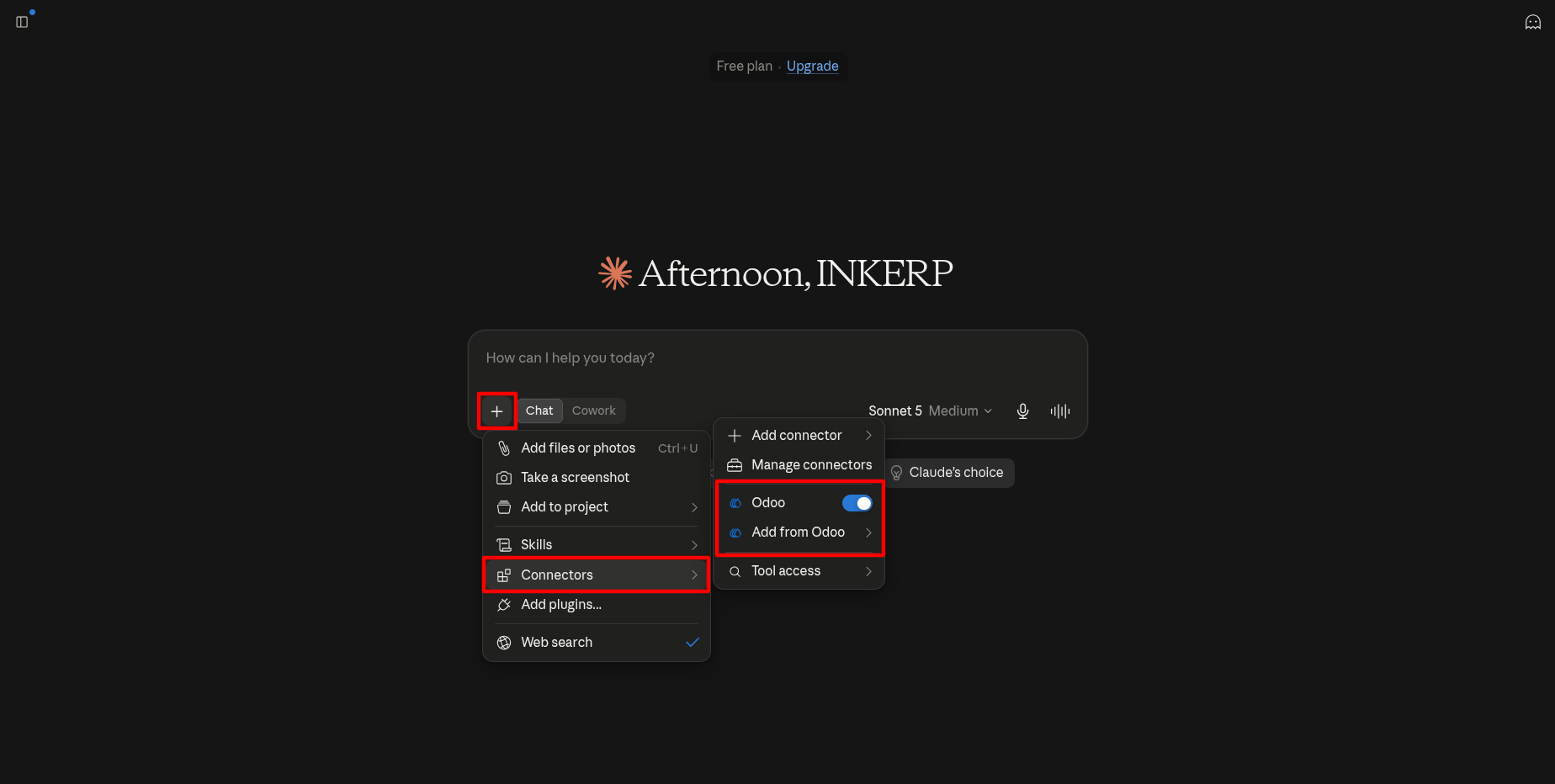
13.) Activating the AI Data Link
Toggle the specific database connection on within your chat session to begin querying your system. This gives users the flexibility to pull in business data only when necessary for the current conversation.
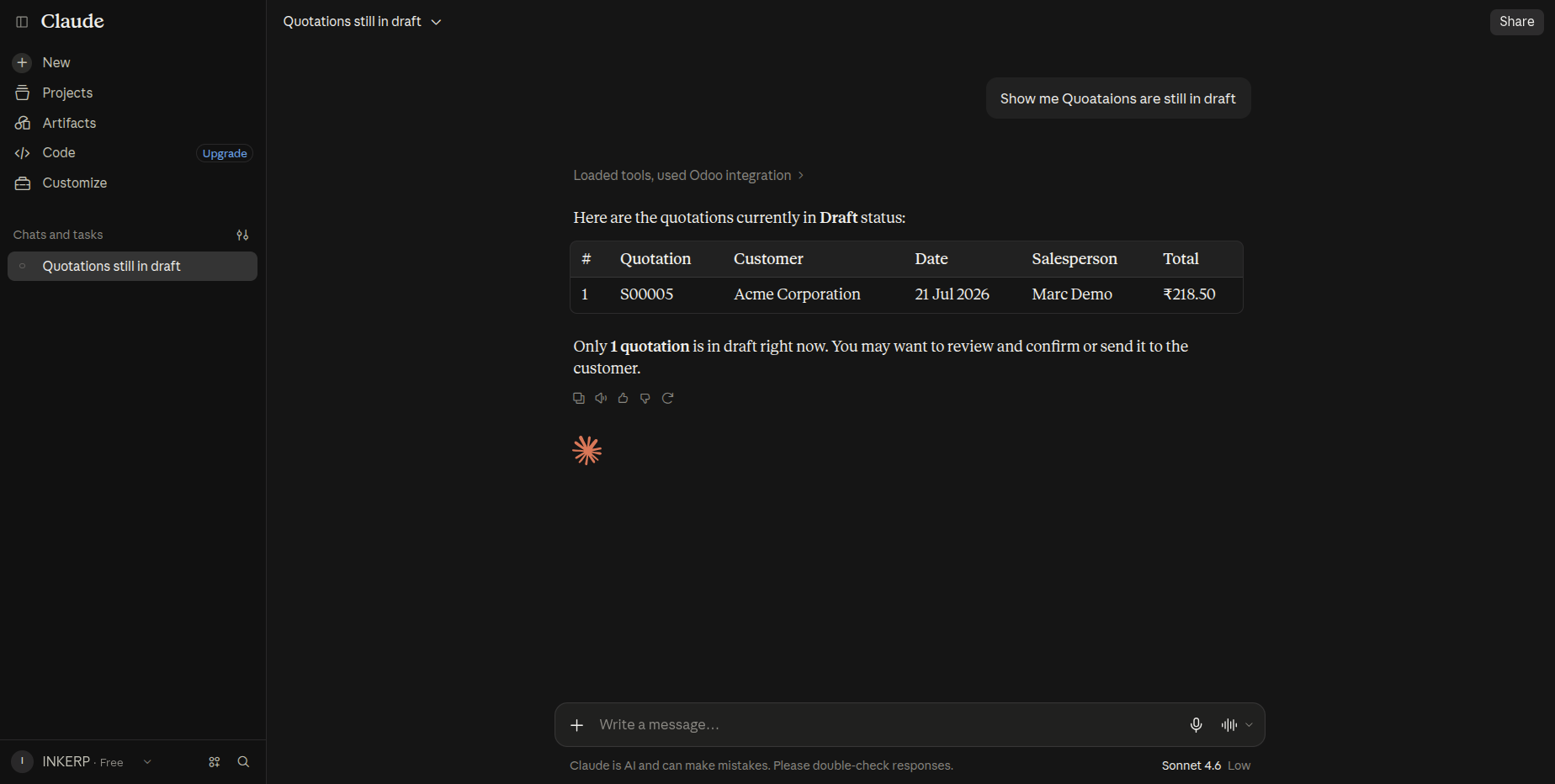
14.) View Draft Quotations from AI
Retrieve quotations in draft status directly through the AI assistant and review key details such as customer, date, salesperson, and total amount.
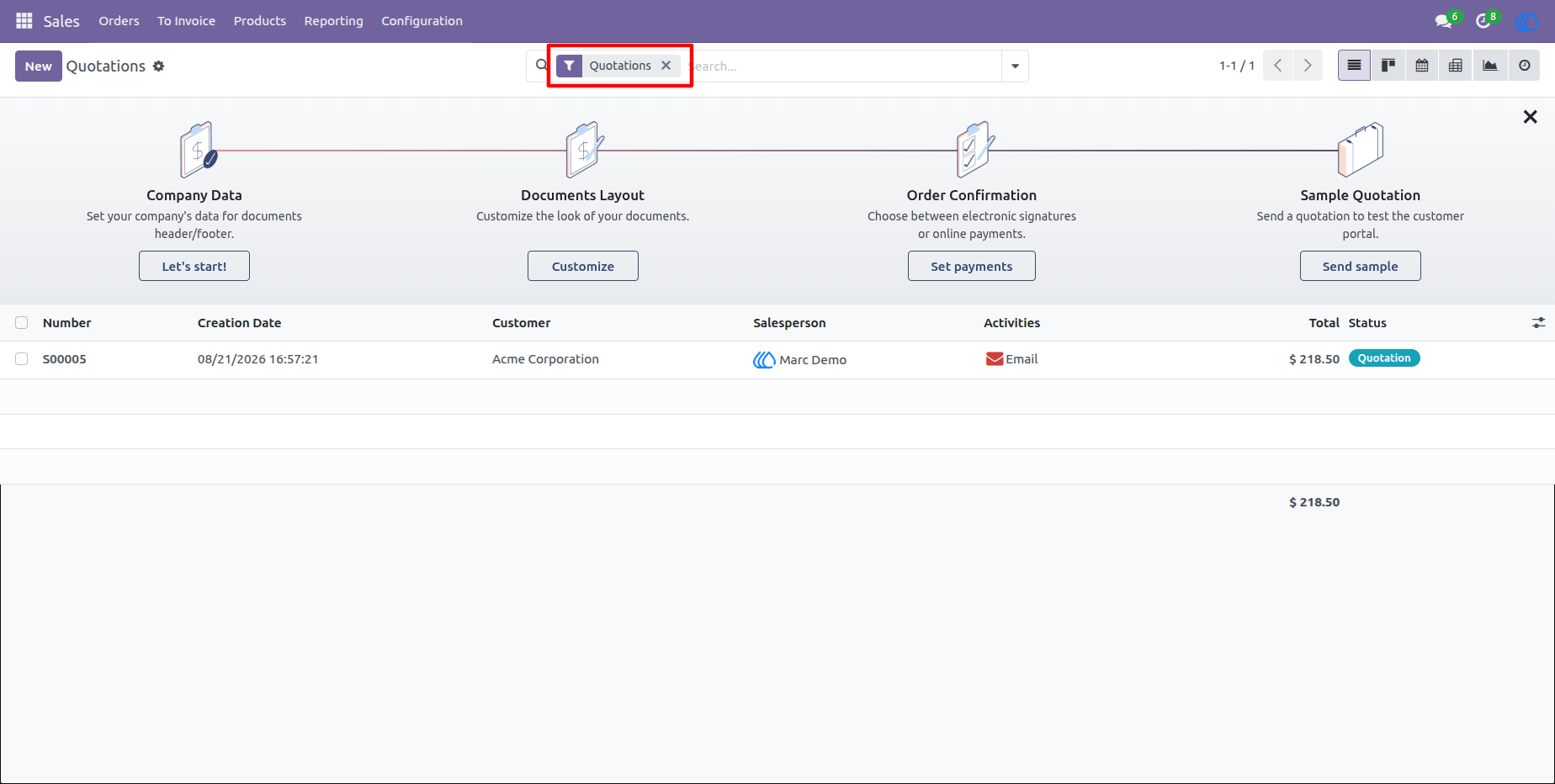
15.) Review Quotation List
The Sales quotation list provides a clear view of available quotations, including customer, salesperson, total, and current status.
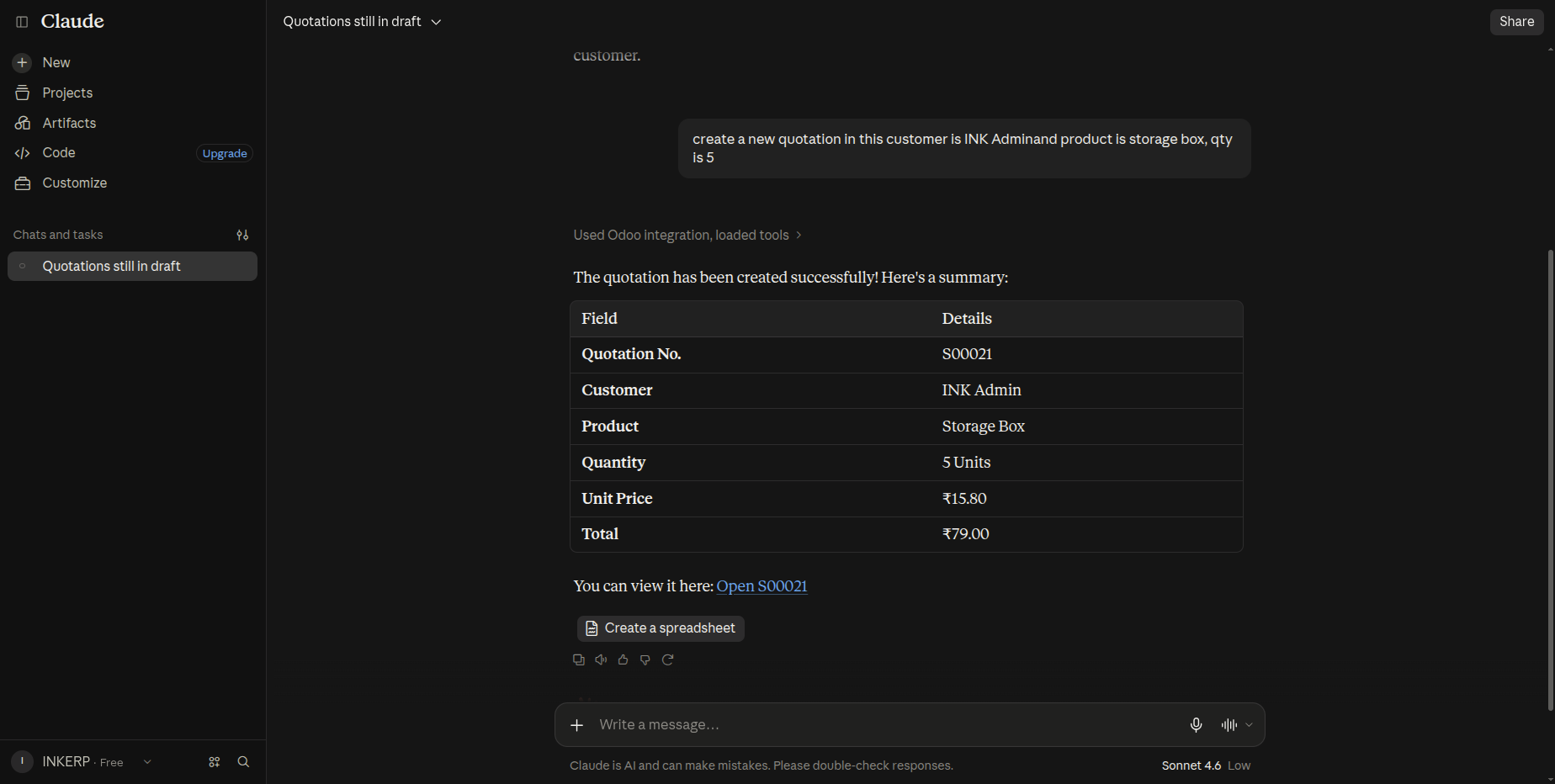
16.) Create a Quotation Using AI
Give the AI a natural-language instruction to create a quotation with the required customer, product, and quantity details.
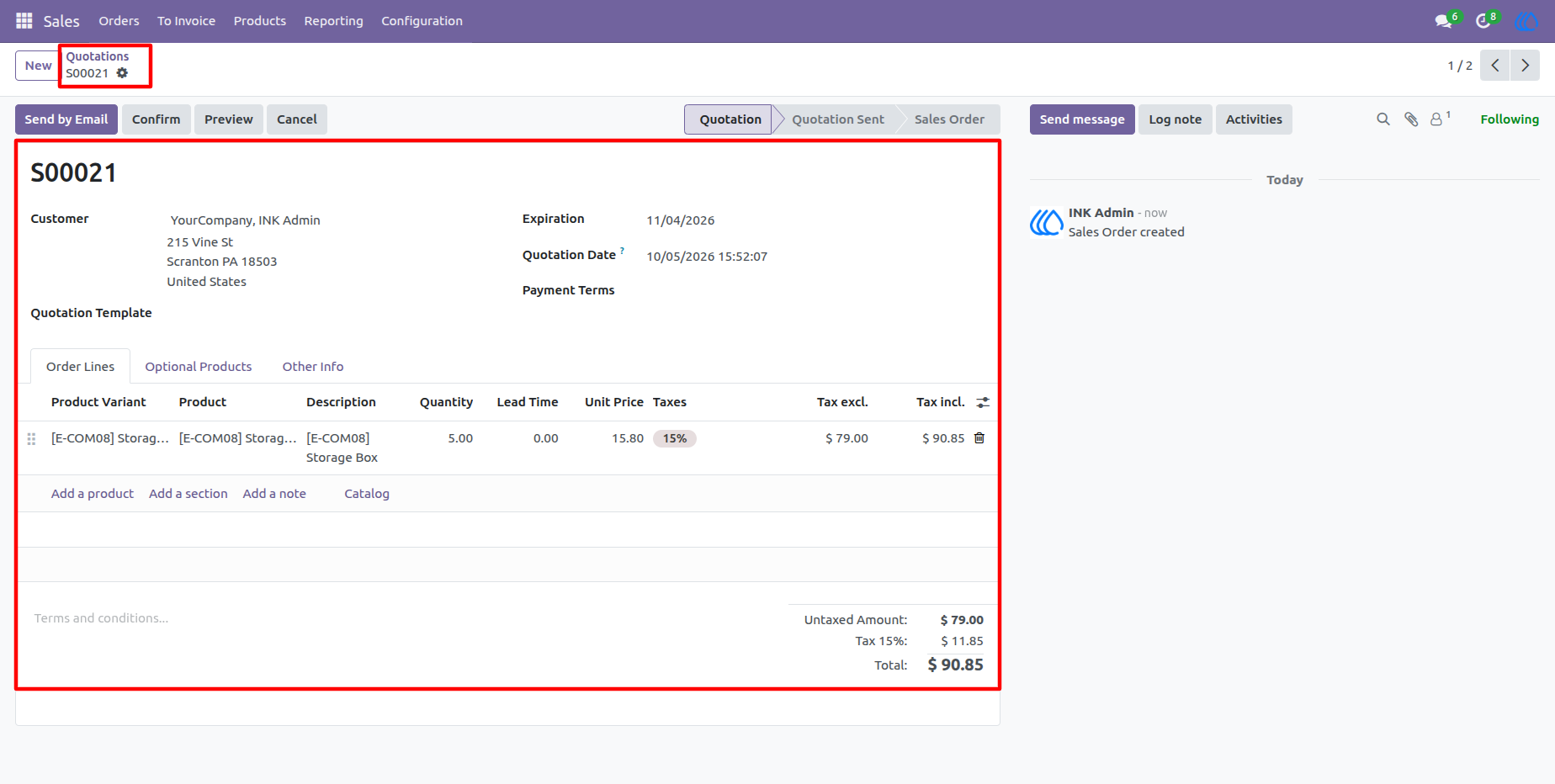
17.) View Created Quotation
Review the newly created quotation with customer information, order lines, pricing, taxes, and total amount.
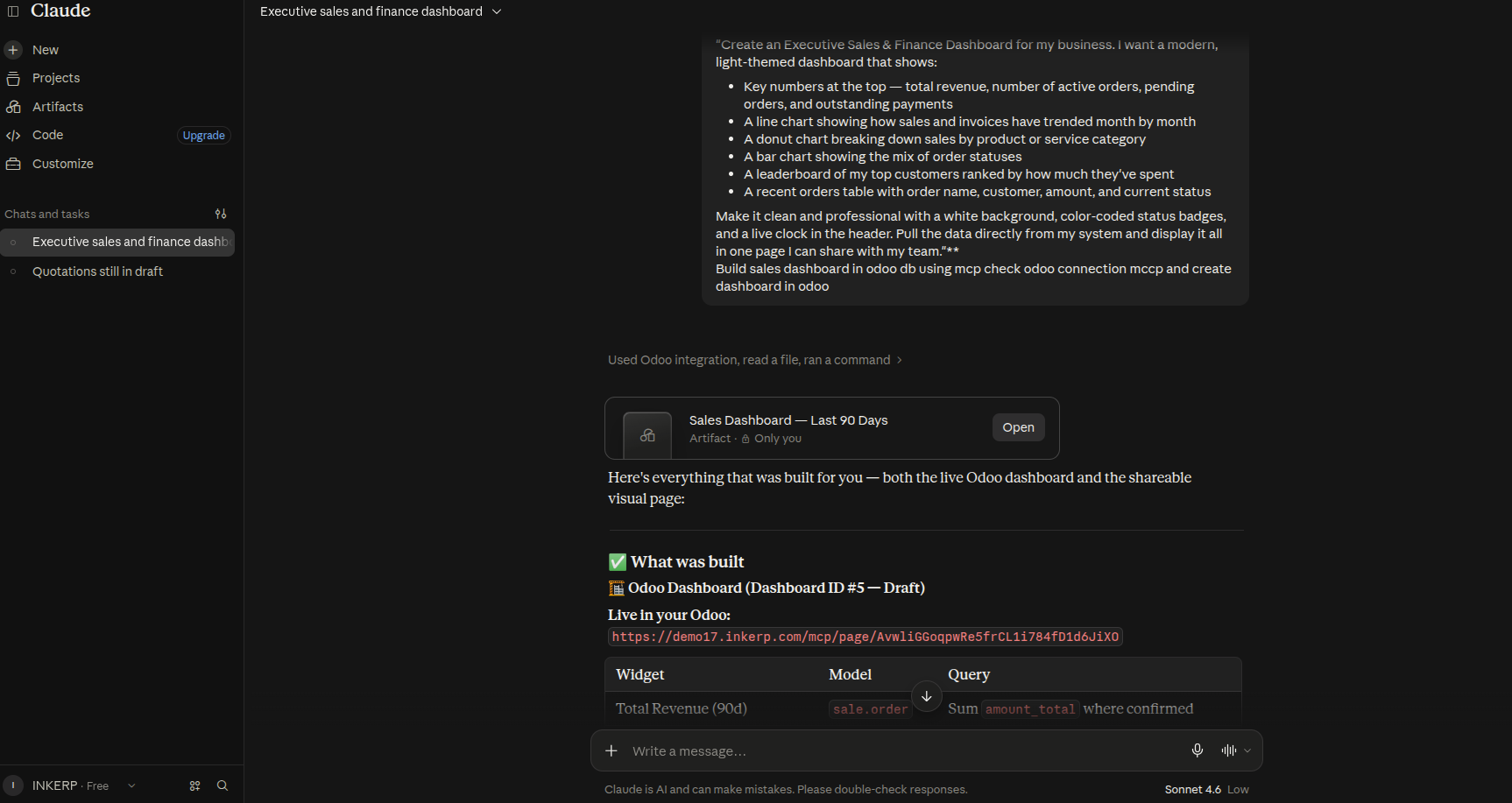
18.) AI-Powered Dashboard Creation with AI
Describe how the AI assistant receives a natural-language request to create an executive Sales & Finance Dashboard and uses the Odoo MCP connection to build the dashboard from live business data. The response includes the generated Sales Dashboard artifact, Odoo dashboard link, and configured widget information, demonstrating the complete AI-to-Odoo dashboard creation workflow.
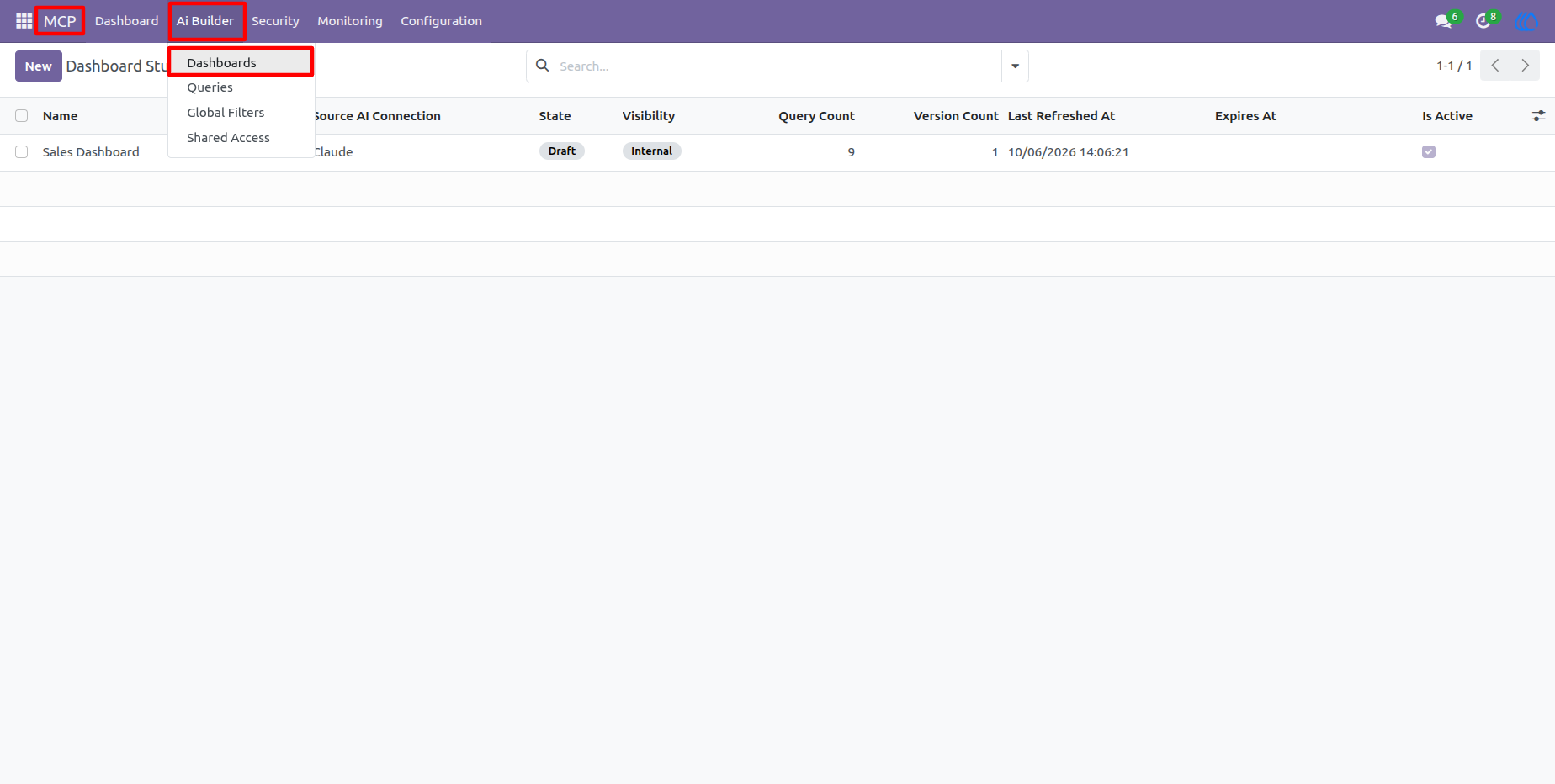
19.) AI Builder Dashboard Management
Manage AI-generated dashboards from the AI Builder workspace, with dedicated access to Dashboards, Queries, Global Filters, and Shared Access. The dashboard list provides visibility into the connected AI source, publication state, visibility, query count, versions, refresh information, and active status.
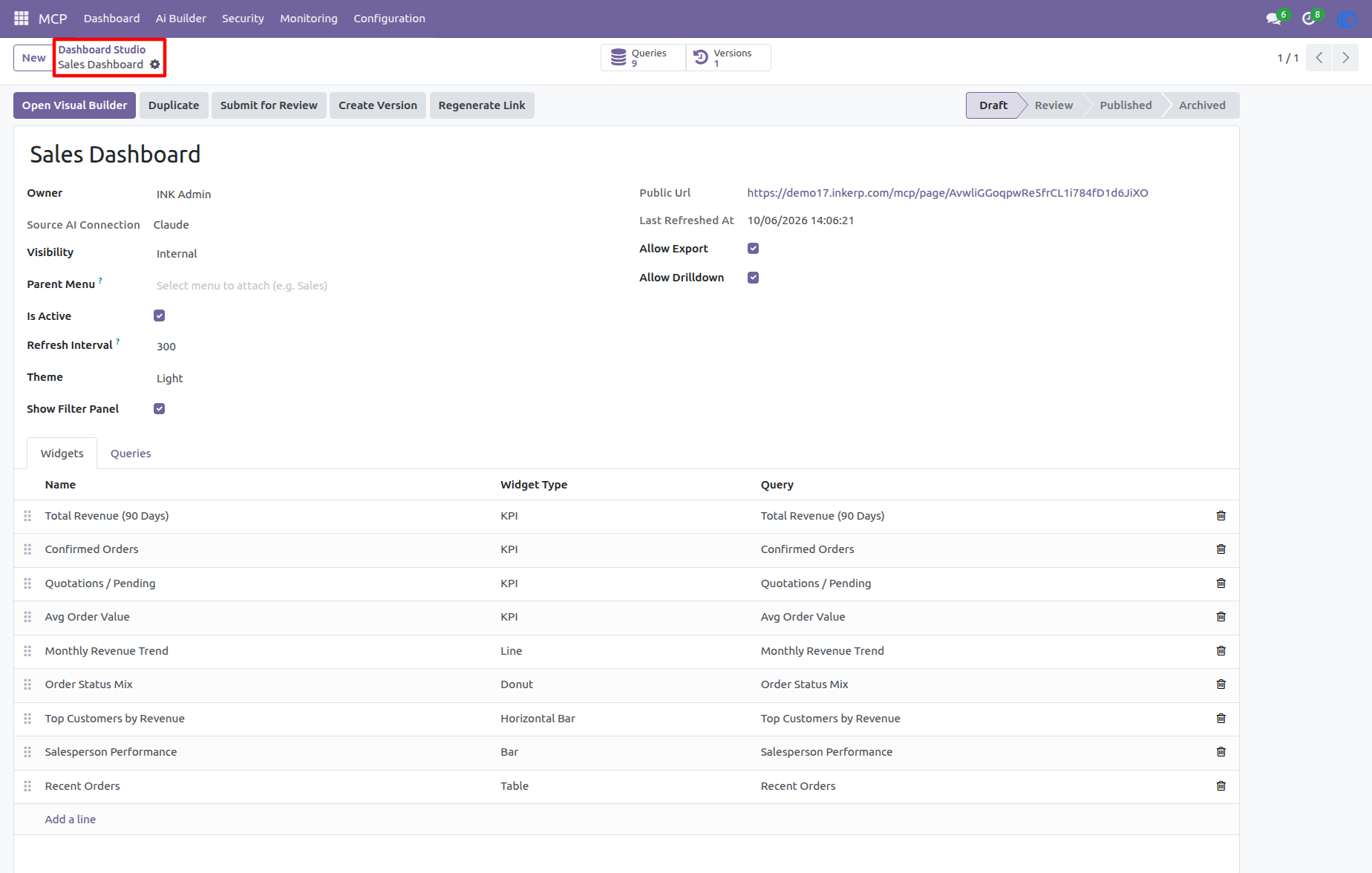
20.) Dashboard Studio Configuration
Configure the Sales Dashboard from Dashboard Studio with dashboard ownership, AI connection, visibility, parent menu, refresh interval, theme, filter settings, and sharing options. The Widgets and Queries sections provide direct control over the dashboard structure, including KPI, chart, and table components.
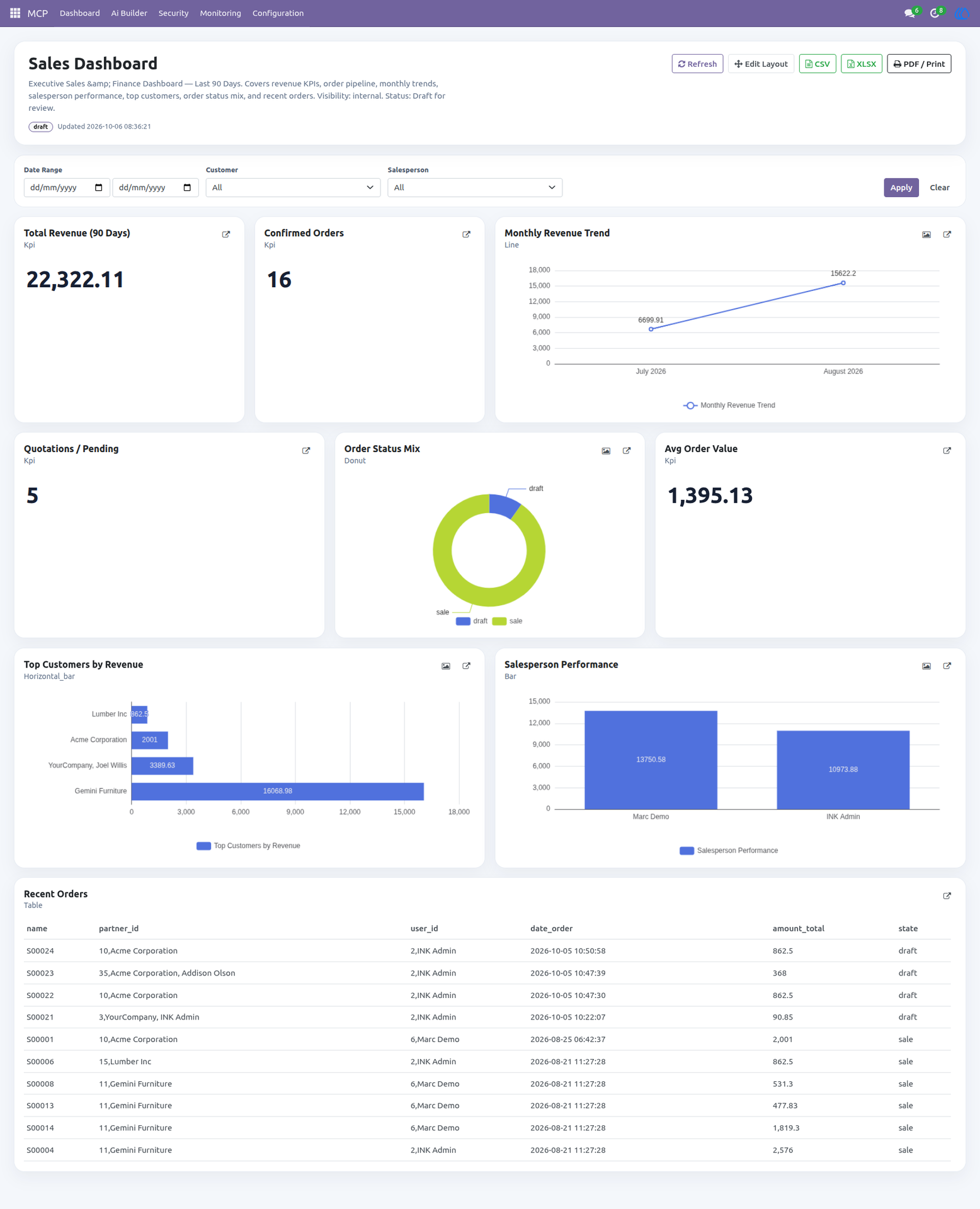
21.) Interactive Sales Dashboard
Review live business information through an interactive Sales Dashboard containing revenue KPIs, confirmed orders, pending quotations, average order value, monthly revenue trends, order status distribution, top customers, salesperson performance, and recent orders. Date, customer, and salesperson filters allow users to refine the displayed business information, while CSV, XLSX, PDF, and layout tools support reporting and analysis.
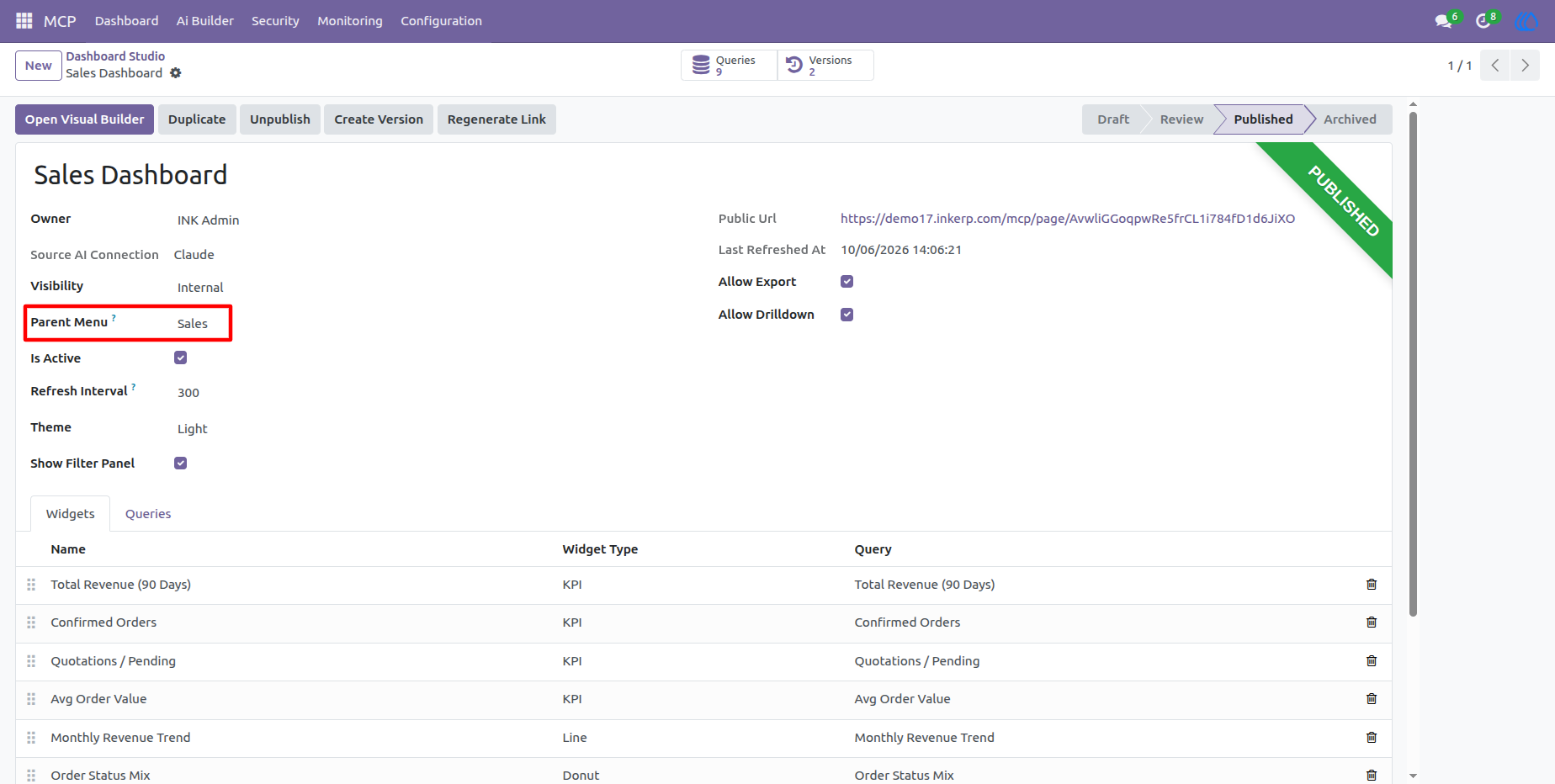
22.) Published Dashboard with Odoo Menu Integration
Publish the configured dashboard and connect it directly to an Odoo parent menu such as Sales. Dashboard Studio provides the publication workflow, public URL, refresh information, export and drill-down permissions, and the complete widget configuration, making the dashboard available through the selected Odoo business application.
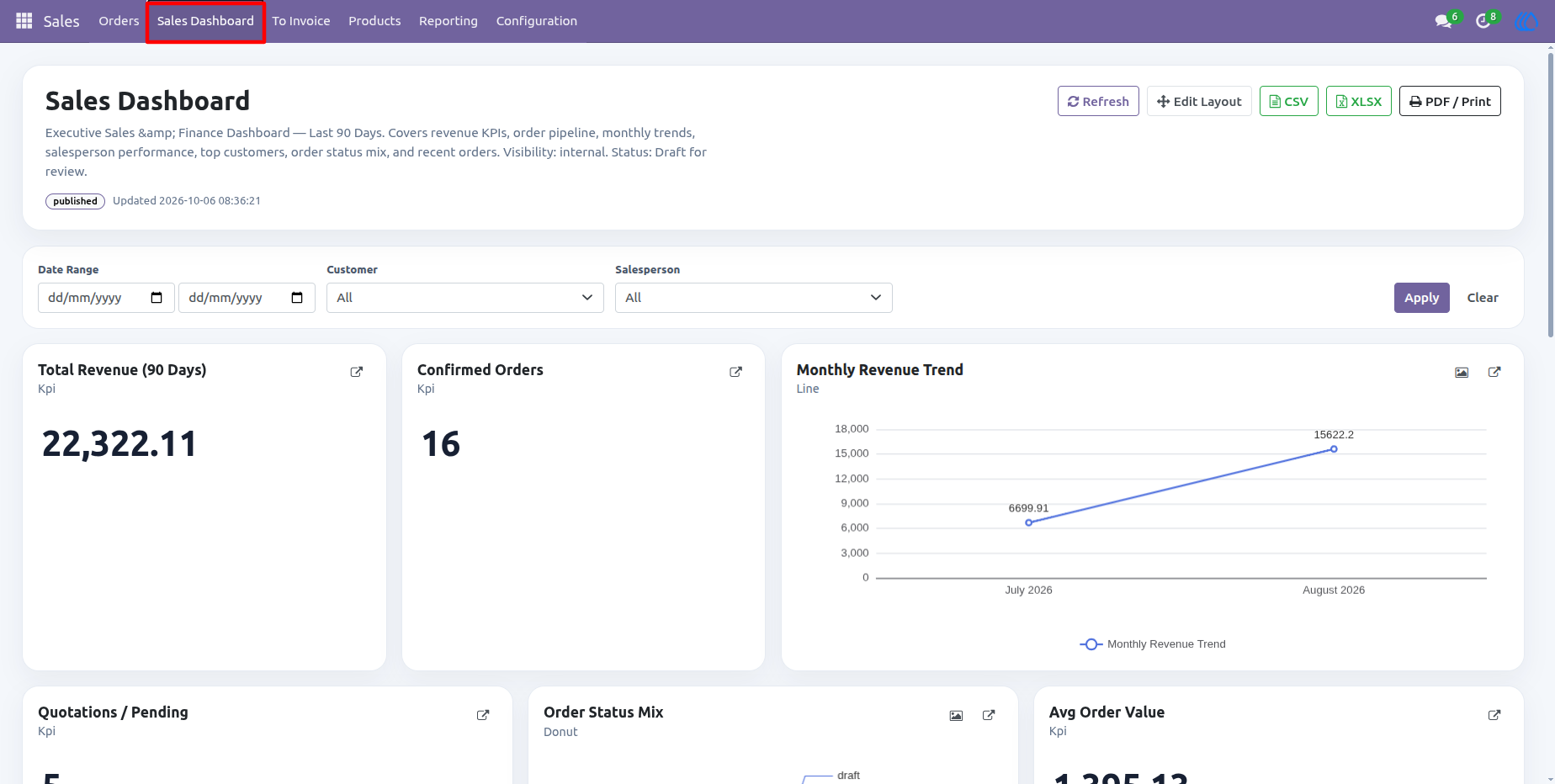
23.) Sales Dashboard Available from the Odoo Sales
Access the published Sales Dashboard directly from the Odoo Sales application menu. The dashboard presents key sales and finance metrics in a professional interactive layout with filters, KPI cards, charts, customer and salesperson analysis, recent orders, refresh controls, and export options for day-to-day business reporting.
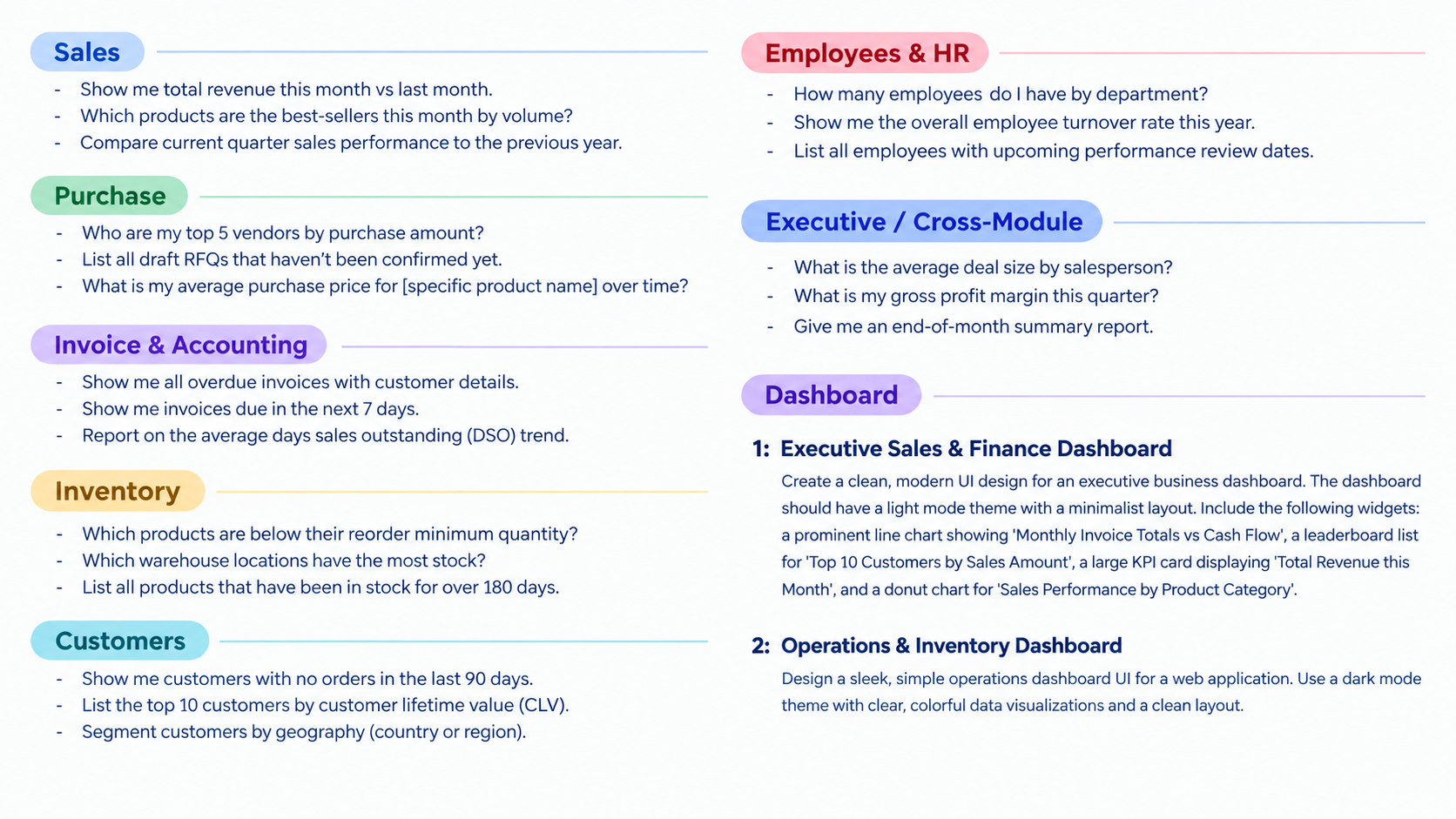
24.) Operations Queries
1. "Who are my top 10 customers by sales amount?"
2. "Show me all pending quotations older than 7 days"
3. "Which sales rep has the most confirmed orders this month?"
4. "Which products am I buying most frequently?"
5. "Compare purchase prices across vendors for the same product"
6. "What is the average lead time per vendor?"
7. "List all credit notes issued this month"
8. "What is the average payment delay per customer?"
9. "Show me monthly invoice totals as a trend chart"
10. "What is the total inventory value by product category?"
11. "Show me all products with zero stock on hand"
12. "List all pending incoming shipments"
13. "List all customers added this month"
14. "Show me employees whose contracts are expiring this month"
15. "Give me a full business health report across sales, purchases, and invoices"
16. "Show me cash flow: total invoiced vs total bills paid this month"
17. "Create a dashboard with KPIs for sales, inventory, and HR"
User Guide